

9 Signs Your Motherboard Is About To Fail
We may receive a commission on purchases made from links.
A computer's motherboard isn't the sort of component that gets all the attention. Most people care about the parts that contribute directly to performance. Parts like the CPU, GPU, and RAM. However, without a motherboard, all these other components are just a pile of paperweights. The motherboard is the connective tissue that manages them all and allows them to communicate.
The motherboard is such a central and sensitive part of a computer that it's one of the components we think you should avoid buying used at all costs. An expensive motherboard doesn't offer much, if any, difference in performance, but a high-quality model is likely more reliable and durable than the cheapest unit you can find.
Unfortunately, because the motherboard is involved in everything your computer does, motherboard problems can be mistaken for issues with other components. Telling the difference can be difficult, but once you've eliminated other possibilities, the motherboard may be the only culprit left. These are some signs that your motherboard is the source of your computer grief.
Your PC randomly freezes or blue screens for no obvious reason
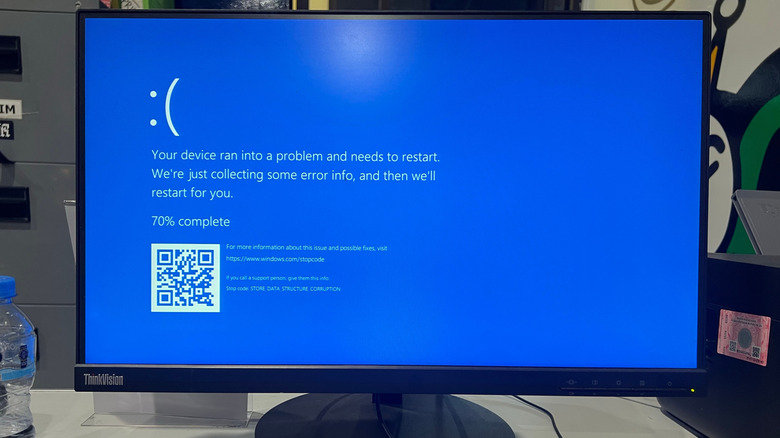
The infamous "Blue Screen of Death" (though it's now been turned black again) is a screen Windows users see when something has gone so wrong with the computer that the operating system can't continue, and has to stop. It has different names in different operating systems, but the principle is the same. A "BSOD" can be caused by a lot of things. It's a sign your GPU is about to fail and a sign your SSD is about to fail too.
That doesn't sound too useful, but two things help us figure out if a BSOD is related to a flaky motherboard or not. For one thing, the crashes are more likely to be random and have various error codes. If your computer always BSODs when you're playing a video game or copying a big file to your SSD, then those components are more likely to be the culprits. If your computer randomly freezes or crashes when it's idling or you're doing something light like browsing the web, then a motherboard issue is more likely.
It's not exactly a smoking gun, but you should try updating your BIOS and chipset drivers to see if this improves stability. There are also some other motherboard checks you can do if your system is suspiciously unstable without a clear cause, which are explained below.
USB ports keep disconnecting devices at random
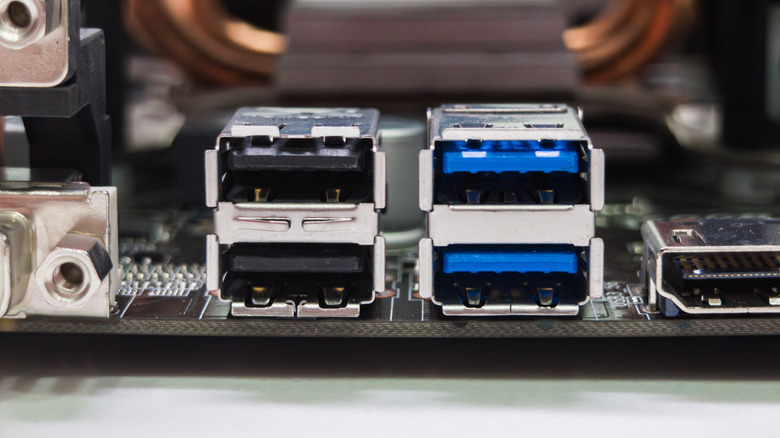
USB is perhaps the most important connection standard in modern computing. Most if not all of the peripherals you use are connected to the computer using USB. So, if your USB ports start acting up, it's going to be very disruptive. Your mouse and keyboard might freeze intermittently, or you may have to restart your PC to get everything working again only for it to disconnect again randomly.
Unreliable USB ports, especially the ones that connect directly to your motherboard rather than an expansion card, can be a sign that something's going wrong with the motherboard. However, a more likely reason is that your USB power settings need adjustment. It's one of our top USB port tips and tricks for a reason.
Even if it is your motherboard, it doesn't necessarily mean your USB hardware is failing. You can try various mitigations, such as checking for a BIOS update, updating your chipset drivers and OS, and disabling power saving settings in the BIOS. If you want to rule out your operating system as the cause of your USB problems, try booting from a Linux Live installation and see if the disconnections persist. If there's a problem regardless of the OS you're running, that suggests a hardware-level issue. By extension, if it's a motherboard-based USB port, that hardware issue is with the motherboard itself.
RAM suddenly stops being detected correctly
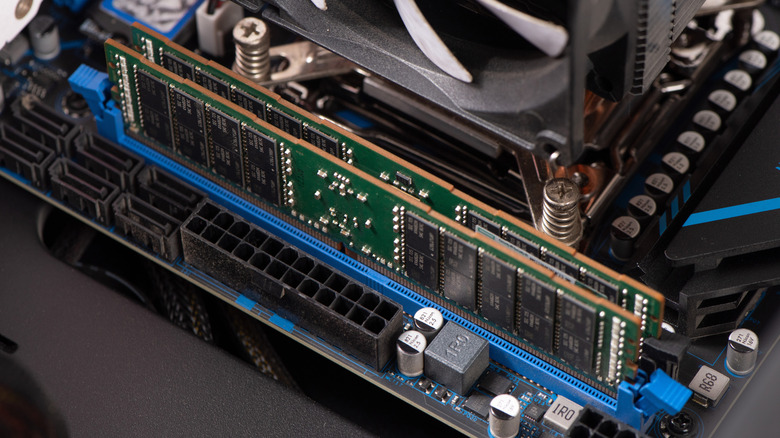
The signs that your RAM is about to fail are varied and often elusive. However, sometimes it's not your RAM at all, but the motherboard that hosts it. Random crashes, failed boots, corrupt files, and app instability are all common symptoms of RAM issues, but if your RAM sticks are not being detected at all then we have to look at the motherboard as a potential culprit.
The easiest way to suss out where the problem lies is to put your RAM in a different compatible computer. If the other computer's motherboard detects the RAM and a memory test shows nothing amiss, it's almost certainly an issue with your motherboard. There are lots of potential failure modes. Dead DIMM slots aren't uncommon. You can diagnose this by finding one known good slot on your board, taking out all your RAM, and then booting with one stick in that slot until you've tested them all.
If you know all your RAM sticks are detected in principle, then you can repeat this with a known good stick for each slot. There's not much you can do about a dead DIMM slot other than avoid it and its paired slot. The problem is that if one pair of slots has died, that may be a sign of bigger electrical issues. A technician might be able to save your board, but if it's not an expensive model, replacing it is likely preferable.
Capacitors on the board look swollen or are leaking
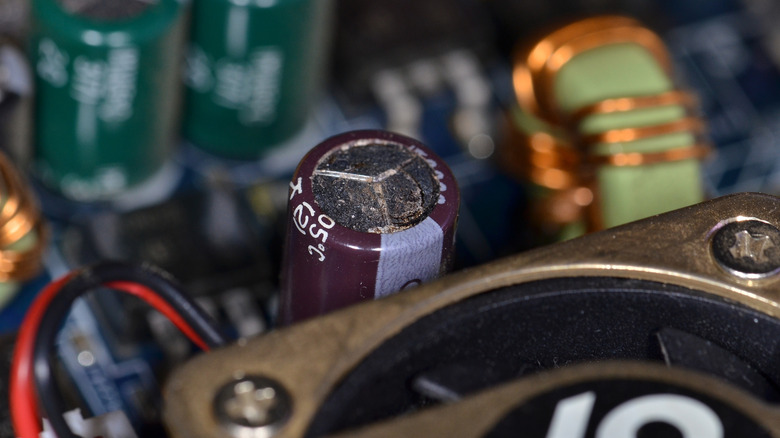
You may have heard of the "capacitor plague" of the early 2000s; capacitors would fail on motherboards and other components, rendering computers inoperable. This was all traced back to defective electrolytes in that generation of capacitors, but even today, a classic sign of a motherboard that might be on the way to a sudden end is swollen capacitors.
The thing is, unless your motherboard is really, really old or a very cheap model, it probably doesn't use these old-style capacitors with a liquid electrolyte inside. Instead, modern quality motherboards use solid-state capacitors. These don't pop or bulge, but can still show signs of failure. While it won't be a simple visual check, measuring the capacitance with a digital multimeter and checking if it matches the cap specifications will quickly tell you if the component has met its end.
Whether you've spotted a bulging wet-type capacitor or have found a faulty dry type, it's often possible to just replace it with a new one with the same specifications. Assuming that no other components on the board have been damaged as well.
Your PC only starts after multiple attempts
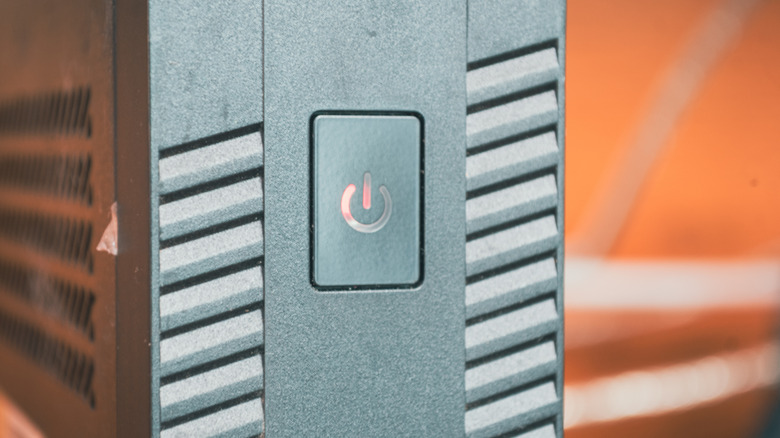
This is a symptom that could point to various issues, but if your computer needs a few tries at powering on, it could indicate a problem with the motherboard. it can present in a few different ways. For example, you might press the power button, the fans spins up, and then the computer turns itself off. Alternatively, the PC might spin up, turn off, and immediately retry again, perhaps a third time. Eventually it all comes online, but it never seems to get going on the first try.
This is usually an indication of either a power supply problem, or some component that isn't initializing, so your motherboard tries again until it does. It's a good idea to use a PC power supply tester to rule out this component as the issue. They are inexpensive, easy to use, and can save you hours of troubleshooting.
If it's not a PSU problem, then it's a good idea to remove all connected devices from the motherboard other than the CPU and one stick of RAM. If the computer still doesn't POST immediately after pressing the power button, try your other RAM sticks, if any. You may also want to reset your BIOS to default settings (and update it of course) just in case something in those settings is causing the startup issues. If after all this you still don't get proper power-on behavior, the motherboard needs to be assessed.
Expansion cards stop working in certain PCIe slots
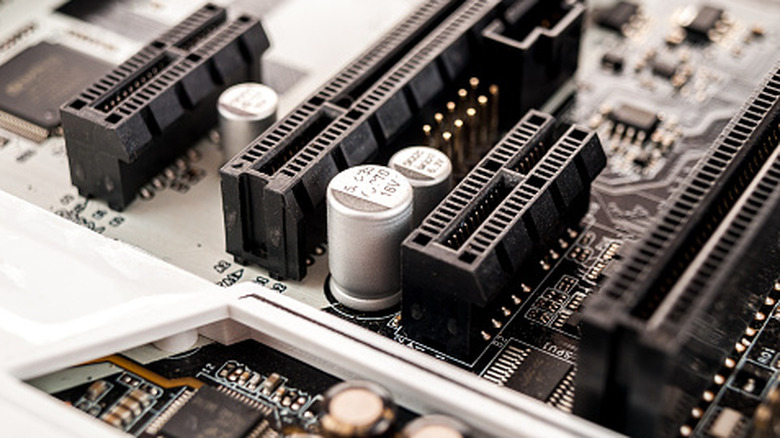
Similarly to issues with RAM detection, expansion cards in your PCIe slots suddenly disappearing is not a great sign for the motherboard's health. Diagnosing this as a motherboard problem can be tricky. Most people don't have expansion cards installed other than a GPU, and your motherboard likely only has one long slot (PCIe 16x) that can accommodate a graphics card. So if that slot fails, it's not like you have another slot you can put the card in to see where the problem is.
If you do have two PCIe 16x slots, then you can move that card over and test the GPU in a different computer to check if the card itself is good or not. If it's just your motherboard that it doesn't work in, and it worked before, that points either to a faulty slot or a problem with the PCIe controller. The same holds true for other types of cards.
However, there is an additional wrinkle to this. There are only a limited number of PCIe "lanes", dictated by the model of CPU you have. Many components have to share the total pool. The more devices you connect, the fewer lanes there are to go around. Some motherboards may disable some slots or storage ports when you don't have enough PCIe lanes to cover things. If your slot stopped working after a new component was added, remove it and see if that helps.
Storage drives randomly disappear from the system
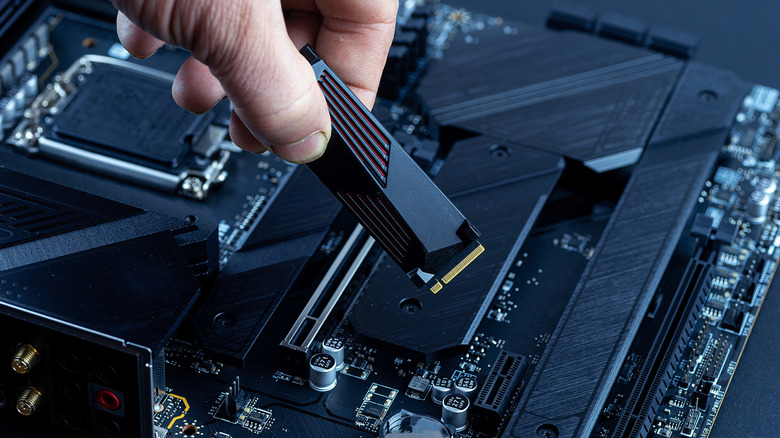
Nothing instills more panic than a "no boot disk or disk error" message when you turn your computer on. Your first thought is that the drive has probably failed, especially if it doesn't show up in the BIOS, much less your operating system, but don't be too quick to assume your data is all gone.
Though it's debatable if this is the better outcome, it might in fact be a problem with the slot or drive controller. Moving the drive to a different slot or testing it in a different computer (or USB enclosure) can quickly determine if the drive itself is still OK.
After you've rescued your data and tested the drive thoroughly, it is reasonable to suspect a motherboard fault. If you have SATA drives, do check that the cables are intact and working. If the problems started after you installed or removed drives, consider that you may have physically damaged your M.2 slots or SATA motherboard ports. Don't forget that some SATA ports can stop working if the motherboard allocates PCIe lanes to an additional M.2 SSD you may have just installed.
Your PC shuts off instantly under load
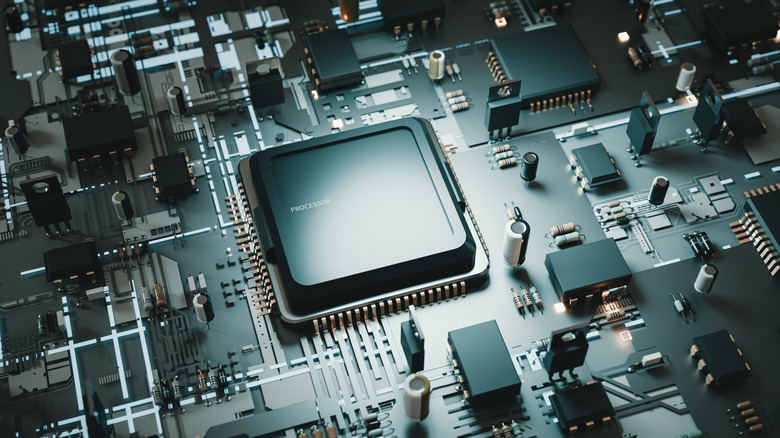
As noted above, a computer that suddenly shuts down while under load is usually caused by power supply issues or components like the CPU or GPU overheating. However, just because this is an uncommon motherboard failure symptom doesn't mean you can just rule it out without investigating first.
One part of this problem comes from a component known as a VRM or Voltage Regulator Module. This component steps higher voltages down to the voltages a component like your CPU needs. While doing their job, VRMs get hot. If they get too hot, the motherboard may have to shut down to protect itself. If your VRMs are getting too hot, there has to be a reason.
On high-performance motherboards, VRMs usually have decent heatsinks or even active cooling. If the thermal paste has failed or the fan has stopped, that could be your solution. If you're overclocking your PC, revert those settings and see if the problem goes away. You might even consider upgrading the cooling on your VRMs. If your VRMs are getting too hot because they are faulty, that requires a new motherboard or a skilled technician to replace them.
You notice visible corrosion from moisture or liquid damage
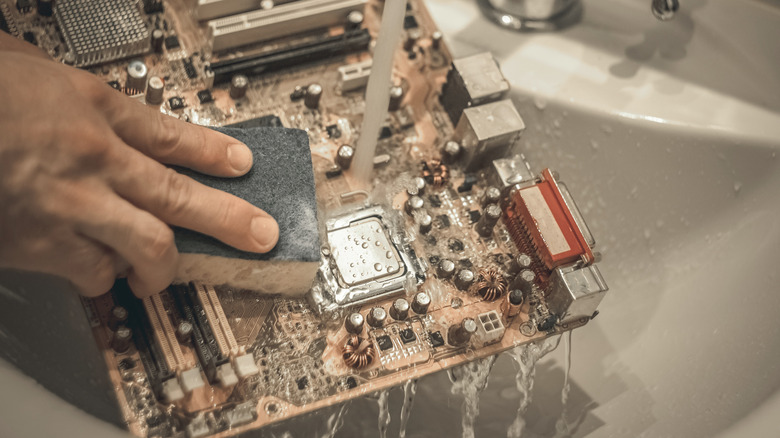
It's probably not news to you that water and computer electronics don't mix. If your computer is acting a little funny, you might want to visually inspect it for liquid damage. The liquid can corrode traces, which makes signals along those traces either fail or cause slowdowns and errors. You'd think that water on your motherboard would lead to instant and catastrophic failure, but not always.
Liquids have lots of different ways to make it onto your board. If you have a liquid cooling system, any leaks in the wrong place can put drops of liquid on your motherboard. If you live somewhere very cold or very hot and humid, water can form on the motherboard thanks to the climate.
While you can often spot where liquid has corroded your board, it can be easy to miss. As for repairing the problem, sometimes it can be as simple as using some isopropyl alcohol to remove the corrosion. In other cases, the motherboard itself can be a write-off. If you see liquid damage on your motherboard after experiencing intermittent or sudden issues with your PC, you almost certainly need a professional opinion.