

5 macOS Features Missing On Windows 11 (And How To Add Them)
When it comes to operating systems, Windows 11 commands a larger market share than macOS. But that doesn't mean that it's a superior operating system. There are several macOS features still missing on Windows 11, features that actually help users streamline their workflow.
One of the biggest benefits of the Apple ecosystem, and something that's missing from Windows, is AirDrop, or a similar functionality, to quickly share files between devices. Some users also ask for the inclusion of Spotlight, a feature that lets you quickly find anything on your Mac and the web. There's also Quick Look and Hot Corners, both designed to help users work faster. Speaking of missing features, we also can't ignore the ability to rename multiple files in one go with greater control on macOS. Windows 11 offers the functionality but it pales in comparison.
Windows has improved a lot over the years and now comes with many useful yet underrated features. But despite all of Microsoft's efforts, many handy features are still not natively available in Windows 11. The good news is that you don't have to switch to macOS to get these. There's PowerToys, a collection of system utilities for Windows, and third-party apps to do this easily for free. So, let's get straight to adding missing macOS features to Windows 11.
AirDrop for seamless file sharing

If you have multiple Apple devices, say an iPhone, MacBook, and iPad, you must have noticed how quick and easy it is to share files between them with AirDrop. It eliminates the need for cables, cloud storage, or even emails, and takes only a few seconds, even for relatively larger media files. Windows 11 does have "Bluetooth File Transfer" and "Nearby Sharing" built-in to share files with Android smartphones and other Windows PCs, respectively, but these are not nearly as fast or seamless as AirDrop. Having used Bluetooth for file transfers on a couple of occasions, I know how it can take a few seconds even for small-sized screenshots. But you can get AirDrop-like functionality on Windows 11 through a third-party app.
LocalSend, a free, open-source app, is available on the official website for Windows, Google Play Store for Android, and Apple App Store for iPhones, iPads, and MacBooks. If you are a power user, LocalSend is also available for Linux.
LocalSend's transfer speeds are comparable to AirDrop. I tried sending a couple of files with a total size of around 10MB and it took less than a second. It's easy to use too. Simply install the app on the required devices, go to the one you want to share files with, head into the "Send" tab, pick the file(s) you want to share, and hit "Send." The recipient device will need to approve the request, and once it does, the files will be shared wirelessly.
Spotlight for finding anything quickly
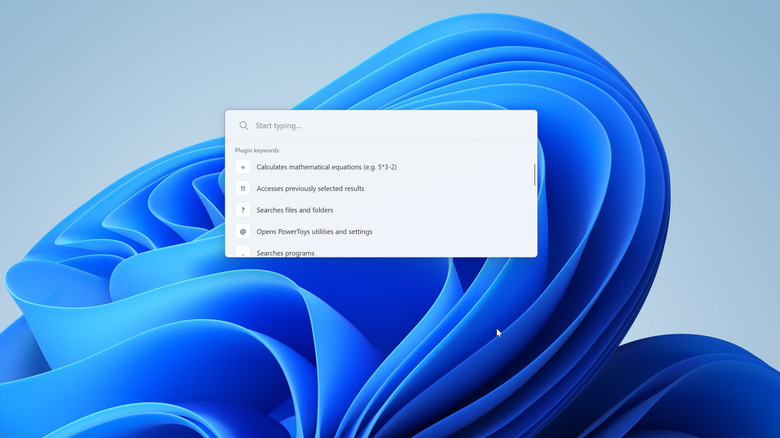
Another macOS feature missing from Windows is Spotlight. It allows you to quickly search for anything across your PC, including installed apps, and the web. The fact that it launches as an overlay on existing windows makes it all the more practical as it blends right into your workflow. On Windows 11, you have Windows Search, which tries to do something similar, but the experience is nowhere as close. You can get a similar, powerful functionality on Windows 11 using PowerToys. To do that,
- Open the Microsoft Store, and download PowerToys, if you don't already have it.
- Launch PowerToys, navigate to the PowerToys Run tab, and click on Open Settings.
- In here, enable the toggle for PowerToys Run.
- Now, hit the Alt + Space hotkey and the search bar opens up instantly.
PowerToys Run lets you quickly search for files, folders, apps, and active processes. Apart from that, you can solve basic calculations, like adding, subtracting, or multiplying two or more numbers, run system commands to troubleshoot the PC, and even convert units, say from cm to feet. And the best part is that PowerToys Run is highly customizable. From changing the default activation shortcut and setting the number of displayed search results to changing the theme and text size, you can do it all within the utility's settings.
Quick Look to instantly preview files
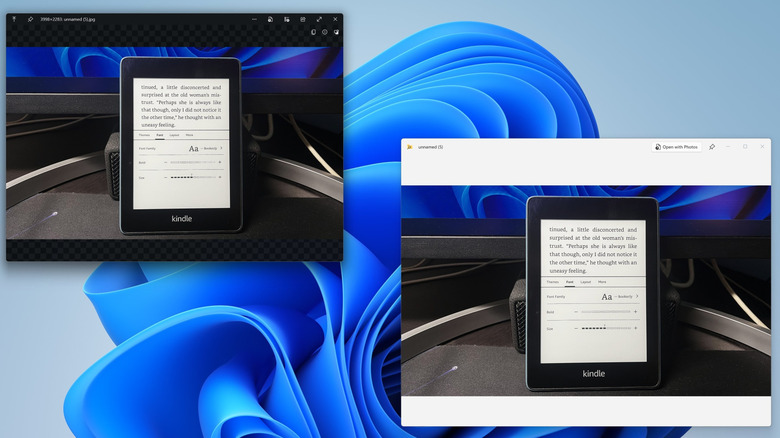
If you are someone who works with a large number of files every day on a MacBook, you would likely know how useful Quick Look is. On macOS, you can select any file, whether it's a PDF, document, or image, and hit "Spacebar" to preview it. The feature even works when handling multiple files simultaneously and also allows basic editing within the preview window. Although Windows 11 has a Preview Pane within File Explorer, it's not as good and you can't perform any file-related actions. But all this is possible with PowerToys or a third-party app.
In PowerToys, you have a utility called Peek, which resembles Quick Look in a lot of ways. Once enabled, select the file(s) you want to preview, and press the "Spacebar" key. It will instantly launch the preview window. If you have selected more than one file, use the cursor keys to navigate between them. And as was the case earlier, you can change the default activation hotkey.
Another Windows alternative for the feature is an app called QuickLook, available on the Microsoft Store. Once downloaded, select the file and press "Spacebar" to load the preview window. Keep in mind that PowerToys Peek and the QuickLook app for Windows offer a similar experience, and both should get the job done.
Hot Corners for improved productivity
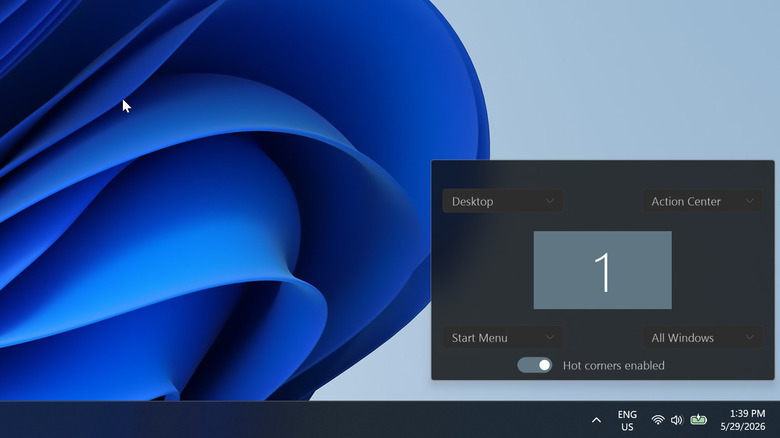
From a productivity standpoint, another macOS feature that Windows 11 can benefit from is Hot Corners. It's a macOS productivity feature that allows you to use the corners of the screen for quick actions like opening the Notification Center, launching Quick Note, or putting the MacBook to sleep. Once set up via "Desktop and Dock" settings, you can perform the configured action by moving the cursor to the corner of the desktop.
Windows 11 doesn't natively offer the functionality, but you can achieve this with a lightweight third-party app called WinXCorners. To do that,
- Go to WinXCorners' GitHub page and download its latest version.
- Right-click on the downloaded file, select Extract All, and click on Extract.
- Within the extracted folder, run the WinXCorners file.
- Open the system tray, click the WinXCorners icon, and configure the action you want to assign to each of the corners.
With WinXCorners, you can assign actions like switching to the desktop, loading the screensaver, launching the Action Center, and more. It's a simple app with a fairly straightforward interface, so you shouldn't have a hard time getting the functionality set up on Windows.
Batch renaming multiple files
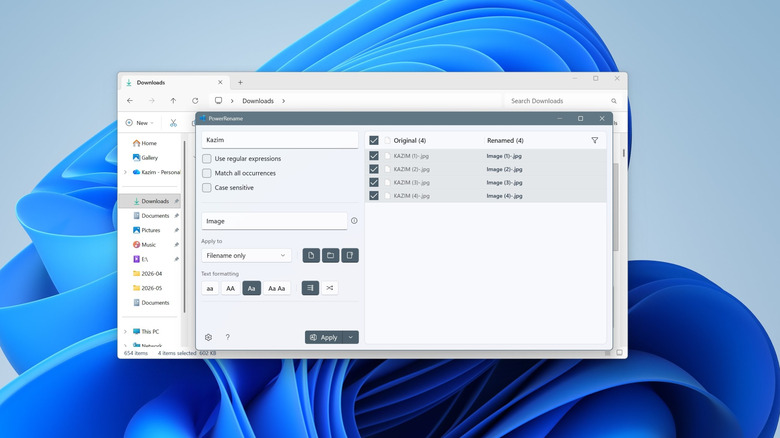
Another useful feature built into macOS that users who work with many files on a daily basis cherish is having greater control over renaming them. Often, I have to rename files in a particular sequence or add or replace text in file names before uploading them, and macOS does it perfectly while Windows still offers limited control. Remember, you can batch rename multiple files on Windows 11 by selecting them, pressing F2, and adding a name. Windows then automatically assigns the new name followed by a number to each. But you can't natively replace specific text while handling multiple files, something macOS can do.
The functionality can be added to Windows using the PowerRename tool in Microsoft PowerToys. To do that:
- Launch PowerToys, navigate to the PowerRename tab, click on Open Settings, and enable the toggle for PowerRename.
- Select the batch of files, right-click them, and pick Rename with PowerRename.
- In the window that opens, enter the word or phrase you want to replace in the field at the top.
- Enter the replacement text in the field underneath.
- Select the text formatting, preview the changes on the right, and if everything is in order, click Apply.
You can work with as many files as you want. I tried it with over 500 files and folders and it worked just as well. So, if you have been planning to switch from Windows to macOS simply for any of these features, you don't need to anymore. With PowerToys and third-party apps, you can customize Windows 11 to look and work more like macOS.