

How To Choose The Right HDMI Cable For Your Monitor
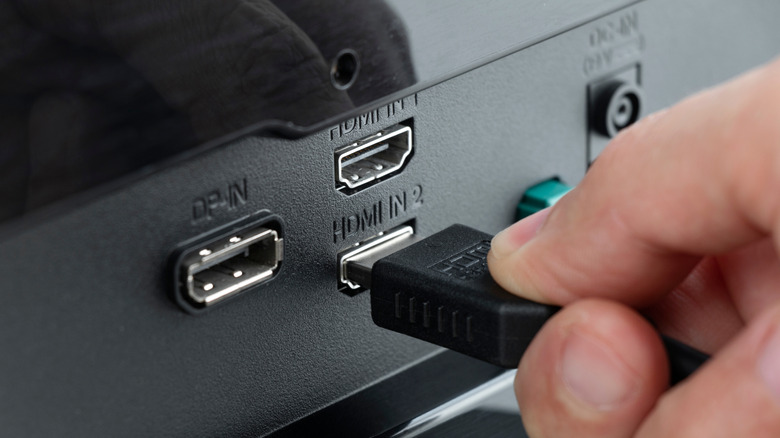
If you plan to use HDMI to link your desktop or laptop to a monitor, a good HDMI cable is essential. Digging an old, forgotten HDMI cable out of a drawer isn't a good idea, as you would risk subpar performance or no video output at all. Despite their almost identical physical appearance, all HDMI cables are not created equal. Their capabilities and performance depend entirely on the HDMI generation when they were manufactured.
Monitor brands often skip including an HDMI cable to reduce e-waste, or if the monitor and its features are better served by another output. For example, the Dell UltraSharp U2725QE, one of the best vertical monitors for PCs, only comes with DisplayPort and Thunderbolt 4 cables in the box, and no HDMI cables, despite having pretty capable HDMI 2.1 on board. Fortunately, once you understand a few basics, you can easily shop for the right cable without falling for any HDMI cable myths.
Consider your computer and monitor's capabilities
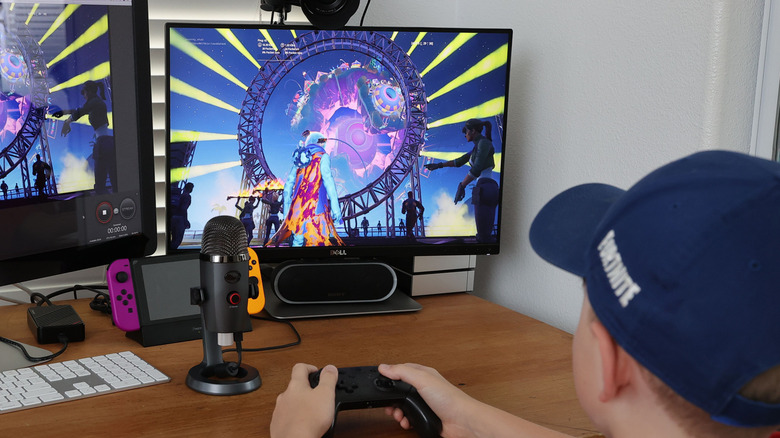
If your monitor didn't come with an HDMI cable or you're looking to replace your old HDMI cable, the first step is to check your hardware specifications to identify the exact capabilities of your computer's HDMI ports. You can find this information in your computer, motherboard, or GPU documentation or by asking the manufacturer. Next, look at your monitor's maximum resolution and refresh rate. For instance, you might be driving a 4K display at 120Hz, or a 1440p gaming display that pushes up to 240Hz.
The goal here is to find a cable that matches or exceeds the maximum shared capabilities of your setup. For example, if you have a 4K monitor with a 120Hz refresh rate and a GPU that can also push 4K video, a cable that can't support this because of its bandwidth restrictions will become a bottleneck.
While matching your current setup specifications prevents you from overspending on something that'll be too much for your setup, spending a few extra dollars to get a newer generation or higher-tier cable makes your setup futureproof. In case you change your monitor or the GPU down the line, a newer cable ensures you don't have to upgrade it.
What are your HDMI cable options?
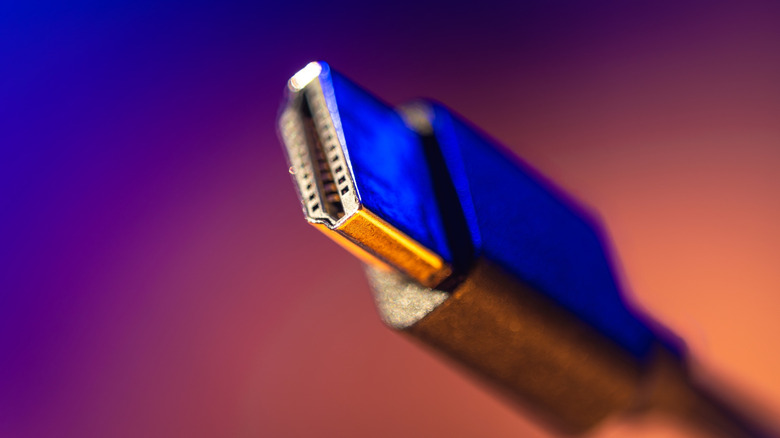
Once you've figured out what you want your new HDMI cable to accomplish based on your computer and monitor needs, the next step is relatively straightforward. You are primarily selecting between two HDMI cable types on the market — the Ultra High Speed HDMI (associated with HDMI 2.1) cables and the Premium High Speed HDMI (associated with HDMI 2.0) cables. Older cables like High Speed HDMI and Standard HDMI are too old for most modern hardware. There is no real financial incentive to buy them, as newer cables are backward compatible and cost roughly the same.
The Ultra High Speed (UHS) HDMI cable is the best option for most setups, as it has a 48Gbps bandwidth and can handle video signals up to 8K at 60Hz without any compression. However, if the monitor and GPU support Display Stream Compression (DSC), you can go even higher to 8K at 120Hz or 4K at 240Hz. It's most suitable if you are dealing with a 4K monitor with a refresh rate over 60Hz. It also makes sense if you want to push 1440p at higher refresh rates, like 144Hz or 240Hz, especially with an ultrawide aspect ratio.
The Premium High Speed (PHS) HDMI cables top out at 18Gbps bandwidth, but are most cost-effective for older setups featuring a 1080p resolution and up to 240Hz refresh rate. They can also handle 1440p at 144Hz or 4K at 60Hz. For anything more demanding, it's best to stick with a UHS HDMI cable. There is also a newer Ultra96 tier of HDMI cables in town, but there is hardly any hardware that needs or supports it right now. Finally, it's always a good idea to stick with officially certified HDMI cables or reputable brands.