

5 Common Problems With Apple TV
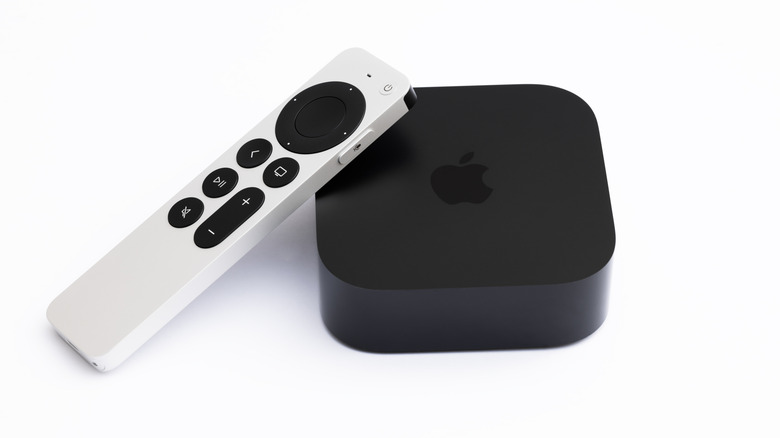
An Apple TV is undoubtedly one of the best streaming devices you can buy. It lets you watch movies and shows, listen to music, and even mirror your iPhone or Mac's display to the TV. For the most part, the experience is hassle-free. But just like any other piece of tech, Apple TVs are known to run into problems. Most of these issues are not really deal-breakers and can be fixed in no time.
Common Apple TV problems include the device not turning on, issues with the audio, video, or network connectivity, AirPlay not working, and installed apps crashing or stuck on loading. Sometimes, even the Apple TV remote fails to work. Keep in mind that these problems may sound complicated, but they are fairly simple to troubleshoot. In most cases, a simple reboot does the trick. For audio and video issues, it could be the HDMI cable to blame. And for internet-related issues, Wi-Fi interference from nearby devices could be the underlying cause.
So, if your Apple TV is not working right or you just get the sense that something is wrong, it's important to understand the most common Apple TV problems and the fixes for each. This way, you can get back to watching your favorite shows in no time, instead of spending hours troubleshooting.
Apple TV not turning on
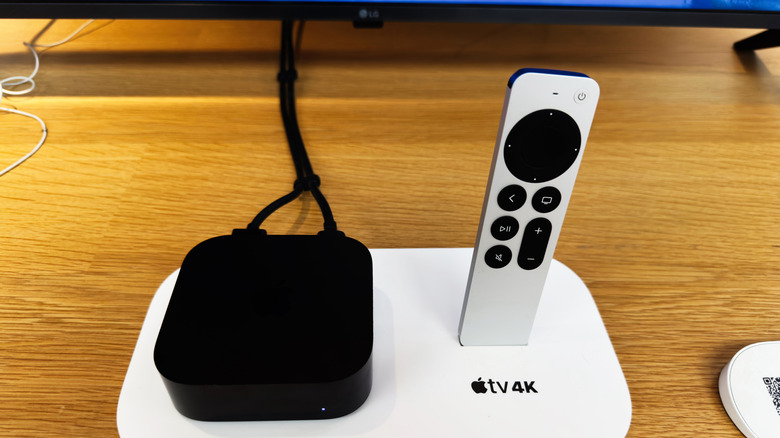
One of the most common problems with an Apple TV is when it won't turn on or shows a black screen. Many quickly assume that it's a major hardware issue to blame. But most of the time, the underlying cause is related to the power supply, cables, or connections.
The first thing you need to do is check the power source. For that, unplug the power cord from the streaming device, wait for 30 seconds, and then plug it back in. Also, make sure the cable is plugged in firmly. It shouldn't be loose. Apple TVs, like other devices, benefit from a reboot. If you still don't see the indicator light on your Apple TV, connect it to another power outlet. It's possible that the outlet your Apple TV is plugged into isn't receiving power.
When the indicator light is on but you get a black screen on the TV, inspect the connections. Make sure the HDMI cable is firmly plugged in at both ends. If your TV has multiple HDMI ports, test them out sequentially, starting with the one labeled HDMI 1. Apart from that, verify that the correct HDMI input is selected on the TV. In case that doesn't work, try a different cable.
Poor audio or video quality
Sometimes, your Apple TV's audio or video quality takes a hit, and it's almost immediately noticeable because the streaming device generally delivers high-quality video and audio. This includes the video appearing blurry, colors not seeming right, or audio not playing, cutting in and out, or lagging behind the video.
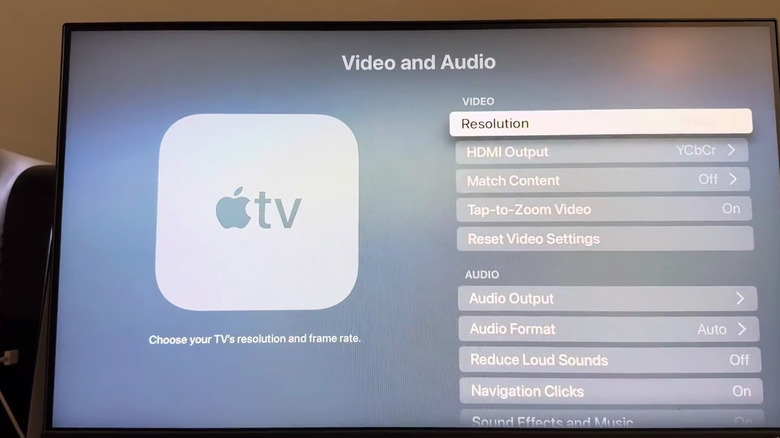
To fix issues related to the audio and video quality on your Apple TV, restart the device, check the HDMI connections, and reverse the ends. Next, check the audio and video settings on your Apple TV. To do that, go to your Apple TV's Settings, then into Audio and Video, and make sure the correct video format is selected. For screen flickering or black flashes, switching to 4K SDR can help. You can also enable Match Dynamic Range and Match Frame Rate under Match Content. If the problem appeared after you reconfigured something, reset the video settings.
Similarly, ensure that the audio format is configured properly and the correct audio output device is selected. If the audio and video are out of sync, use the built-in "Wireless Audio Sync" feature to fix the problem. Additionally, make sure you are using a supported HDMI cable. While expensive HDMI cables don't make much difference in most cases, it's often recommended to get an HDMI 2.0 or HDMI 2.1 cable for your Apple TV. If you go with an older standard, it may struggle with audio and video quality.
Apps stuck, not loading, or crashing
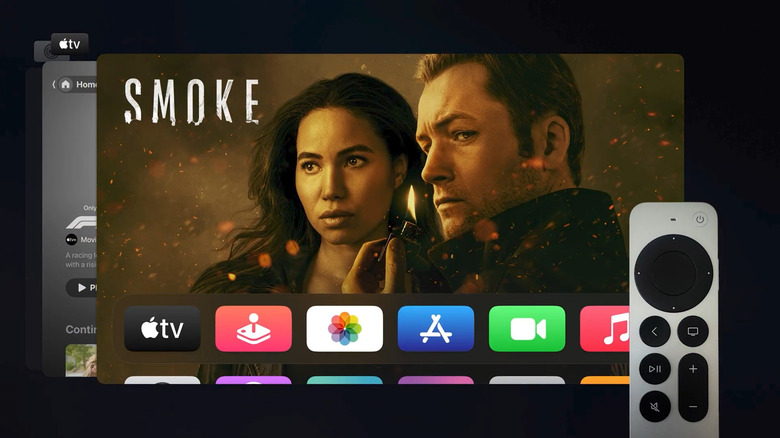
Essential Apple TV apps getting stuck or failing to load is another common problem you can run into. Just like smartphones, apps can act glitchy on streaming devices like the Apple TV. If it's just one app, force closing it usually does the trick. To do that, double-press the TV or Home button on your Apple TV remote to load the App Switcher, then navigate to the offending app, and swipe up to force close it. You can now relaunch the app.
If the app or your Apple TV hasn't been updated in a while, this, too, could be the reason behind the problem. Apps are, by default, configured to update automatically on your Apple TV, but if you have turned off auto-updates, check the App Store and install any pending updates for the offending app. To update your Apple TV, launch its Settings, go to System, then into Software Updates, and choose Update Software. If an update shows up, select Download and Install and wait for the process to complete. If the problem persists, reinstall the app.
Lastly, if your Apple TV is running low on storage, the performance will be affected, including slow load times when launching apps. To free up storage on your Apple TV, consider uninstalling apps you don't need anymore. You can also enable the "Offload Unused Apps" feature and the system will automatically remove apps you don't use anymore, clearing some storage space.
Issues with internet connectivity or speed
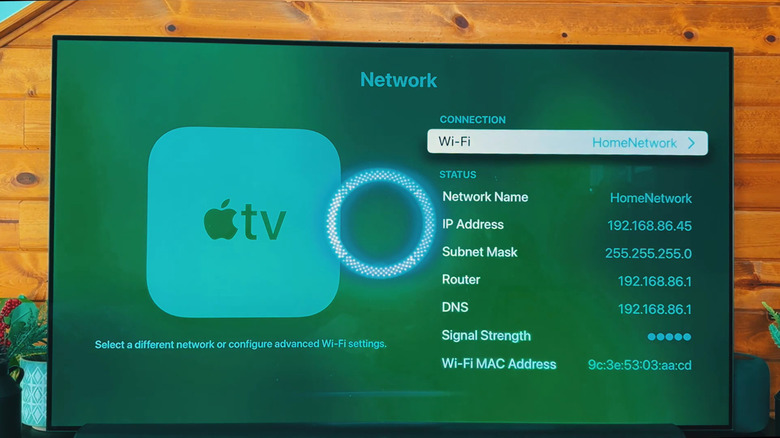
If the network settings are not set up properly on your Apple TV or the connected Wi-Fi network is too congested, with a lot of devices competing for bandwidth, you will run into issues. One of the first things you may notice is reduced video quality. Apple recommends an internet speed of 8 Mbps or higher to view movies and shows in 1080p HD.
To fix this, go to Settings on your Apple TV, then into Network, and check the signal strength. If it's good, make sure you are connected to the 5 GHz band if using a dual-band router. While the 2.4 GHz band can transmit signals over longer distances, the internet speed suffers. Rebooting the router and moving interference-causing gadgets away from the Apple TV can also help.
In case the signal strength is low, you can change router settings to fix dead zones, bring the Apple TV and router closer, or use a Wi-Fi extender. For those who have an Apple TV model that supports Ethernet connectivity, use a LAN cable for the connection. Ethernet is more reliable and stable than Wi-Fi.
AirPlay not working
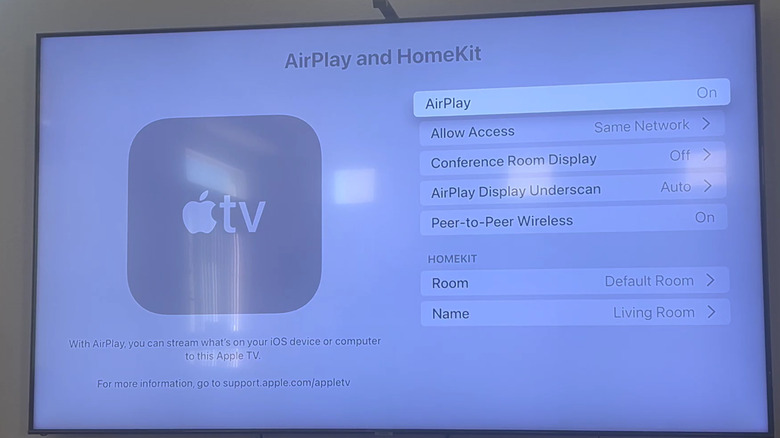
AirPlay is one of Apple TV's standout features, allowing you to wirelessly stream content from compatible devices to the TV. While AirPlay is generally reliable, issues can appear at times. The good news is that more often than not, the problem is as simple as the streaming device and Apple TV not being on the same network. If that's the case, connect the two to the same Wi-Fi network, bring the devices closer, and try again.
Apart from that, verify that AirPlay is not disabled and has been properly set up on your Apple TV. For that, open Settings, go to AirPlay and HomeKit, and set AirPlay to On. Under Allow Access, choose Anyone on the Same Network, and AirPlay should now work, provided the two devices are on the same network. If the device can't be on the same network, select Everyone and then set a password using the option underneath. Setting a password is not mandatory but it helps prevent unauthorized access. In case the issue persists, update the device you are streaming from as well as the Apple TV.