

5 Common Problems With Fire TV Stick Remotes
We may receive a commission on purchases made from links.
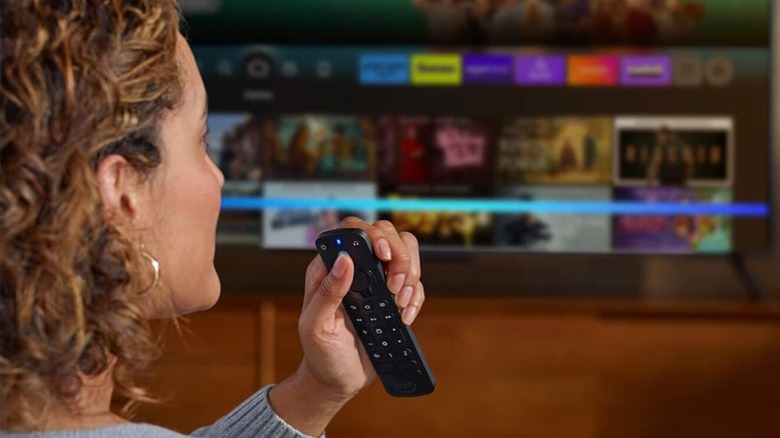
The advent of the Amazon Fire TV remote and other gadgets like it is one big reason why there's simply no need for universal remotes anymore. With just a single remote, you can control more than just your Fire TV streaming device. In fact, the latest Fire TV remote model lets you pair it to select Amazon Fire TV smart TVs, third-party smart TVs shipped with a built-in Fire TV, and even your Echo Show.
This convenience does come at a price, though. Just like many other TV remotes, the Fire TV remote generally works fine for the most part. But there are also times when it malfunctions out of nowhere. Whenever your Fire TV remote isn't working as expected, the first and simplest fix you can do is to remove the batteries and put them back in. This typically resolves any minor glitch that prevents you from using the remote as expected. If just re-inserting the same batteries doesn't sort out the issue, you might want to grab a fresh set of triple A and try those instead. If all else fails, though, we've outlined some problem-specific fixes to get your Fire TV remote up and running again.
Some buttons on the Fire TV remote become unresponsive
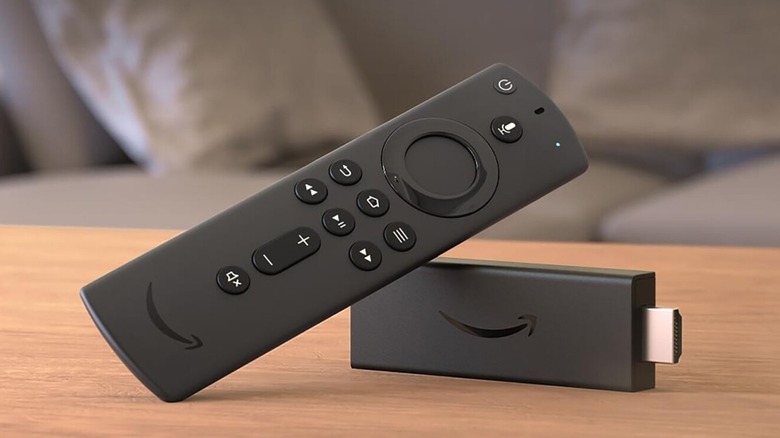
You might encounter instances when your Fire TV remote is connected to your TV, but some of its buttons aren't working. What can sometimes help with this common Fire TV remote issue is a simple TV restart. Turn the TV off and disconnect it from the wall outlet for at least ten seconds before plugging it back in. Sometimes, this is all it takes to get the remote and TV communicating correctly again. If, however, the malfunctioning buttons on your Fire TV remote are specific to the volume, mute, and power, there's a good chance it's because your TV and remote aren't properly configured. To fix this, follow these steps:
- Navigate to Settings in the Fire TV menu.
- Click on Equipment Control.
- Choose Manage Equipment.
- Go to TV.
- Verify that the TV your Fire TV device is connected to is the same as the TV mentioned in the Change TV section.
- If it's not set to your TV, press Change TV.
- Use the on-screen guide to finish the configuration.
If it's just the volume button that doesn't work, there might be a nonexistent receiver or soundbar in your equipment list. Go to Equipment Control in Settings and open Manage Equipment. Then select Change Soundbar (or Receiver) and remove the errant entry (if there is one). From there, head over to Change TV again and switch to the right TV. Another possible fix is changing the home button settings. You can also find this in the Advanced Settings menu under Manage Equipment. Here, you can set the Home Button to either HDMI-CEC Only or IR and HDMI-CEC. Updating the IR Interval (under Equipment Control) to 220 milliseconds did the trick for some Reddit users too.
The remote has trouble pairing with your TV
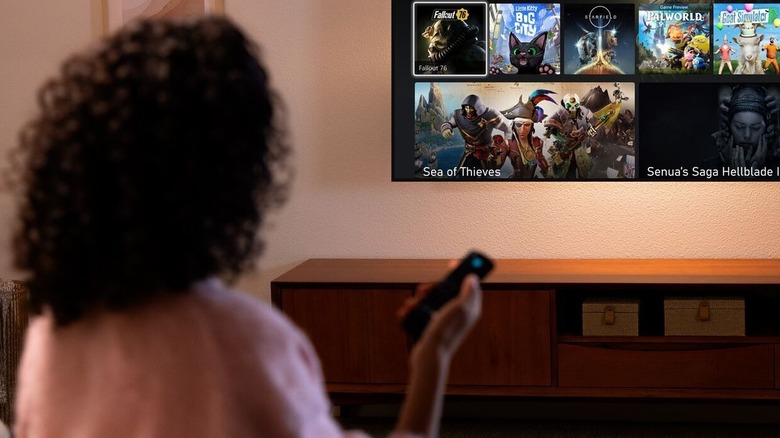
Fire TV remotes are designed to automatically connect to your TV during the initial setup. All you have to do is place the batteries in the compartment and make sure your TV is powered on. If the remote becomes unresponsive all of a sudden or you see a "Pairing failed" error on the screen, it might be due to the remote becoming unpaired from the TV. You can verify whether that's the case using the remote's troubleshooting mode. Here's how:
In compatible remotes (remotes whose LED lights up when you long-press the mic button), press the right and rewind buttons simultaneously. Then click the menu button on the remote to go into troubleshooting mode (the LED should turn green). Next, press any other button. If the LED glows orange, that means the remote isn't connected to your TV. In that case, you'll need to pair your Fire TV remote to your TV manually:
- Unplug your Fire TV device and leave it unplugged for at least a minute.
- While waiting, take out the batteries from your remote.
- Re-insert the batteries after 30 seconds.
- Plug in your Fire TV again and wait for it to finish booting.
- Hold the remote ten feet or less from the TV.
- Long-press the Home button on the Fire TV remote for ten seconds to pair it to your TV.
You can also do the pairing process using your smartphone via the Fire TV app. Just navigate to Controllers & Bluetooth Devices under the Settings menu, go to Amazon Fire TV Remotes, and tap on Add New Remote. During the pairing process, your phone needs to be on the same Wi-Fi as your Fire TV device.
Customizable buttons on your Fire TV remote don't work
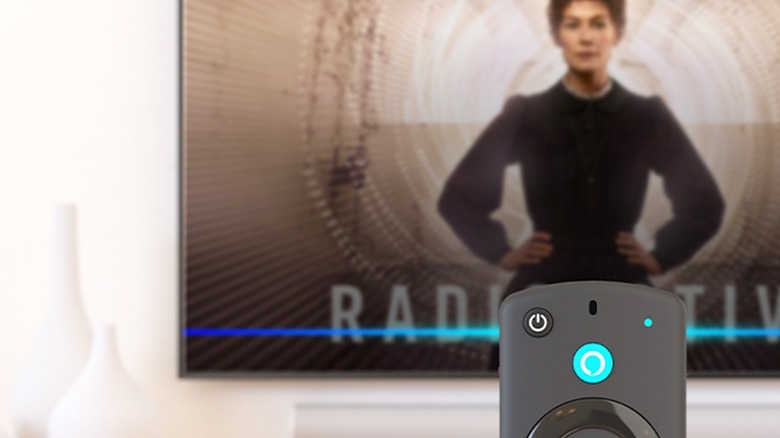
Some Fire TV remotes — specifically, the Alexa Voice Remote Pro — come with two reprogrammable buttons. While this is convenient for letting you customize your remote, you might encounter instances when the buttons aren't working as expected.
One of the common issues with this Fire TV remote is that the menu for assigning actions to the buttons doesn't pop up when you long-press either button. When that happens, you can't program the buttons. To fix this, reboot the TV first by removing it from the wall outlet and plugging it back in. Then, verify that your remote is actually paired to your TV. The volume buttons, Home button, and any other button should work. It's also important to check that you aren't logged into a Child profile, since those profiles can't use customizable buttons. Finally, try holding down either button for at least ten seconds to see whether the assignment panel appears on the screen. If it doesn't, you can go to the Controllers & Bluetooth Devices in the Fire TV Settings to assign the shortcut from there instead.
If you can see the assignment panel but you can't program it to a certain voice command, try saying the command again and confirming that it did work with your TV. You should be able to see this recent command in the list of options afterward. If you're having trouble programming an app launch, make sure the app is actually installed and functional. If you've successfully programmed the buttons but they suddenly stop working, a simple reassignment might solve the issue. Just press and hold the button until the assignment panel shows up. If it was a voice command, issue it again so you can select it from the panel.
The batteries on your Fire TV remote drain quickly
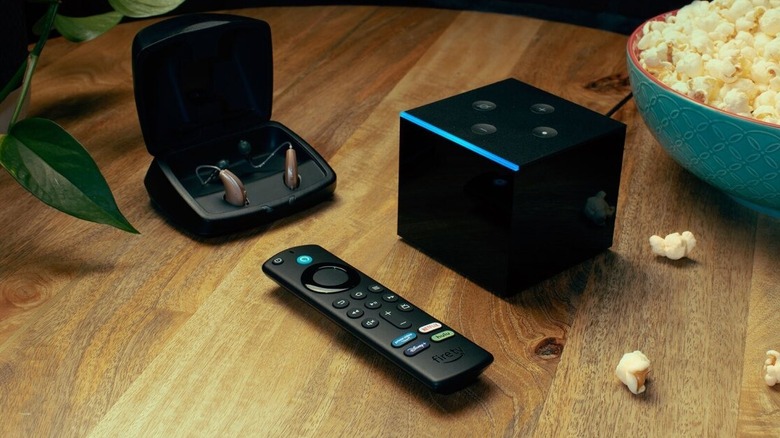
Fire TV remote batteries reportedly last at least a couple of months. Even so, many users have reported that these devices drain batteries fast. Some users have even noted that they have to replace batteries every few days. If you're having this problem, you can try fixing the issue by replacing the batteries with high-quality AAA models. The best choices are alkaline models, like the Amazon Basics Long-Lasting Alkaline Batteries. Once you have your new set of batteries, remove the old ones, wait for about 30 seconds, and insert the new batteries. Then, hold down the Home button on the Fire TV remote to register it to the TV.
If the fresh pair of batteries also drain quickly, you might have a problem with the remote. It's worth checking whether some buttons are stuck, which can keep the remote active all the time. While you're at it, you might also want to clean your TV remote, including the battery contacts. If the buttons are clean and working as expected, you can also try resetting the Fire TV remote to factory defaults. Here's how to do so:
- Unplug your Fire TV Stick and leave it unplugged for a minute or two.
- On your Fire TV remote, press the Left and Menu buttons together for 12 seconds.
- Release both buttons.
- Wait for five seconds.
- Take out the batteries.
- Connect the TV to the wall outlet.
- Wait for about a minute.
- Re-insert the batteries into your remote.
- Pair the remote to the TV by pressing the Home button for ten seconds.
If a reset doesn't do the trick, contact Amazon support for a replacement and use your Fire TV app as an alternative remote while waiting.
You can't use remote finder to locate your lost Fire TV remote
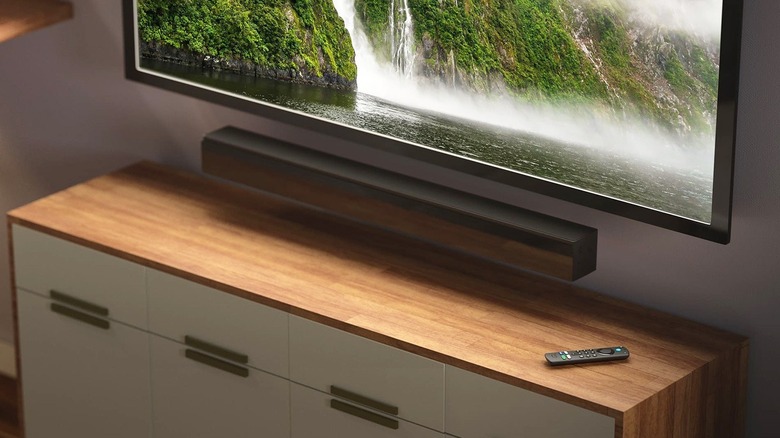
One of the convenient features built into the Alexa Voice Remote Pro is the remote finder. Whenever your Fire TV remote wanders off somewhere, you can simply ask Alexa to find your remote, and the remote will play a sound. This command, however, can sometimes misbehave. You might get an error saying you need a remote paired to the TV or that your TV has to be turned on, even if those things are already true. Sometimes, the command simply doesn't ring your Fire TV remote.
To solve this issue, you can first try restarting your TV, including unplugging it and plugging it back in. Then make sure your Fire TV Stick or Fire TV Smart TV is set to work with the remote-finder feature. The Fire TV Stick has to be powered by a USB adapter, and the smart TV needs to have "Voice Commands When TV Screen is Off" enabled in its settings (you can use your Fire TV app to navigate your TV in the meantime).
If you have multiple Fire TV remotes paired to your TV, the remote finder will look for the first remote connected. If it isn't an Alexa Voice Remote Pro, the command won't work. Try removing the other paired remotes except for the Alexa Voice Remote Pro. Then repeat the command to see if it plays the sound. You can add all the other remotes back after. You can also try finding your Fire TV remote with the Fire TV app paired to your Fire TV device. Just press the remote finder icon next to your specific remote to ring it. Sometimes, the remote won't ring right away, so you might need to wait several seconds.