

5 Hidden Features Of Your Apple TV Remote
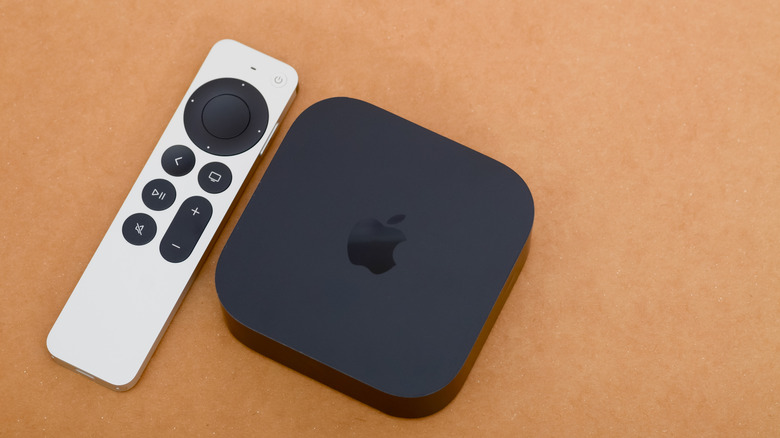
The Apple TV is frequently hailed as one of the best streaming devices on the market, and the Siri Remote is part of its package. From one device generation to the next, this controller, referred to as the Apple TV remote in regions without Siri support, has stockpiled a list of useful shortcuts.
While most shortcuts are useful for everyone, one of our recommendations is focused on tech enthusiasts, as it's about developer menus and deep-tech settings buried within the OS. They're hidden for a reason, and inputting the secret code on your Siri Remote to unlock this dashboard will only be beneficial if you know what you're dealing with. Still, it pays to know how to force-close apps if tvOS isn't running efficiently, which is another handy trick you'll be able to pull off with just a Siri Remote.
Our roundup of hidden features is capped at five, but Apple is always improving and enhancing software to implement new capabilities. These are the most relevant hidden actions you can perform straight from your Apple TV remote.
Activate VoiceOver
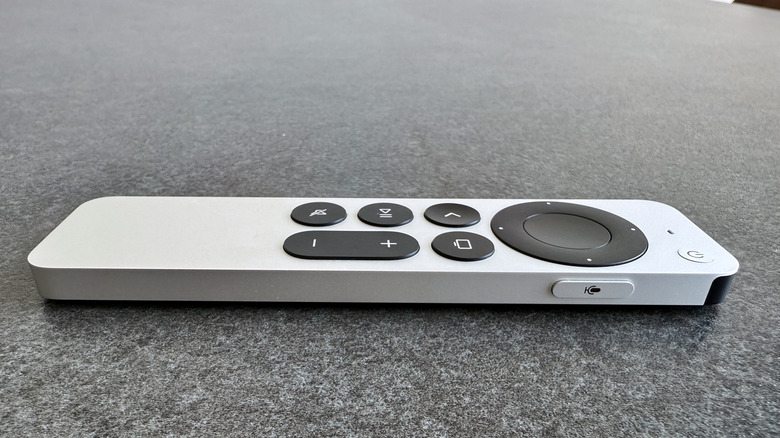
Most streaming devices and smart TVs come with accessibility settings. These are the types of customizations that can make a world of difference for users with hearing and vision impairments, and one of these functions can be programmed to your Siri Remote. It's a tool called VoiceOver, and it's Apple's take on audio descriptions. When enabled, VoiceOver will read out menus and text items you highlight in tvOS.
Go to Settings, select Accessibility, navigate to Accessibility Shortcut, and choose VoiceOver to map a toggle on/off shortcut to your Apple TV remote. Now, you'll be able to toggle VoiceOver by triple-pressing either the Menu or Back button. You'll also be able to switch between VoiceOver's two modesnavigation and exploration, by using two fingers to tap three times on the touch surface or the clickpad center of your remote. Navigation speaks the names of interface elements as you navigate them, while exploration selects the current item while letting you hear other surrounding elements.
You'll also be able to rotate two fingers left or right on the clickpad or touch surface to access additional VoiceOver controls. These extra customizations appear in a VoiceOver rotor that can be navigated by rotating two fingers left or right. To exit the rotor, simply swipe left or right, or wait about three seconds.
Access the app switcher
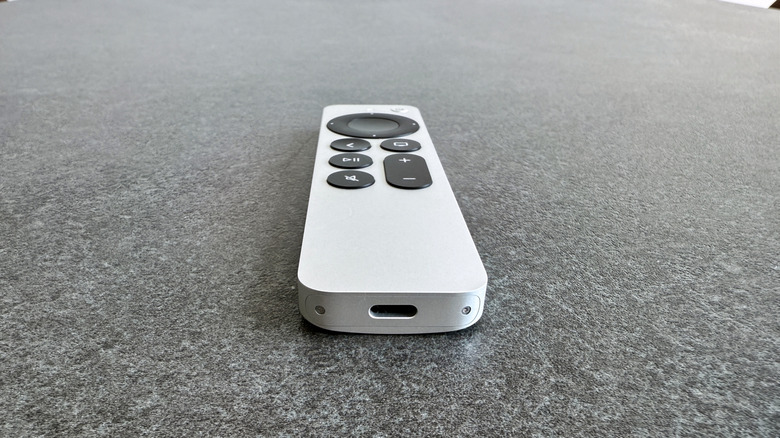
You can force-quit Apple TV apps you're not using just like you would on other Apple devices. Instead of using the swipe-up gesture to view the app switcher, as you would do on iOS and iPadOS, double-press the Home/TV button on your Siri Remote. This should pull up one or several windows, each representing an open app.
Use the clickpad buttons to navigate between apps. You can also force-close an app by selecting it and swiping upward. If you just wanted to see which apps were open without closing anything, simply press the Menu button to return to the tvOS home screen. When the occasional glitch or freeze occurs, force-quitting and re-launching an app is usually one of the fastest remedies. Apps running in the background might not use enough processing power to crash your Apple TV, but closing them won't hurt either.
And if your Apple TV is really giving you app issues, you may want to restart your streaming device. A complete reboot should wipe the RAM, giving you a clean slate for apps and the user interface. Just unplug your Apple TV from the power, wait about 30 seconds, and then plug it back in. If you can still navigate on your Apple TV's screens and menus, you can also go to Settings, select System, and click Restart to do a soft reset. You can also press and hold the Menu and Home buttons until your Apple TV's front-facing LED starts blinking.
Scrub through movies and shows

Considering each generation of the Siri Remote has shipped with a play/pause button, it probably doesn't come as a shock that the peripheral can control video playback. The essential remote shortcut that lets you quickly scrub through movies and TV shows is pressing the play/pause button, then placing your finger on the left or right side of the clickpad to rewind or fast-forward.
But you can also scrub through media by circling the clickpad with one finger in either a clockwise or counterclockwise direction. If you're using a Siri Remote without a clickpad, simply rest your finger on the touch surface, then use another finger to press the left or right side of the touch zone to scrub forward or backward. You can also quickly press the left or right sides of the surface to switch between scrub speeds or give playback commands to Siri, like "rewind 15 seconds" or "turn on subtitles."
Unfortunately, tvOS scrubbing shortcuts won't work in every streaming app. We found a few Reddit users saying they were locked out of Siri scrubbing in Amazon Prime Video. In order for the shortcut to function properly, the app you're using needs to support the tvOS player interface; otherwise, you'll be forced into using whatever dashboard the developers dreamed up.
Unlock developer settings
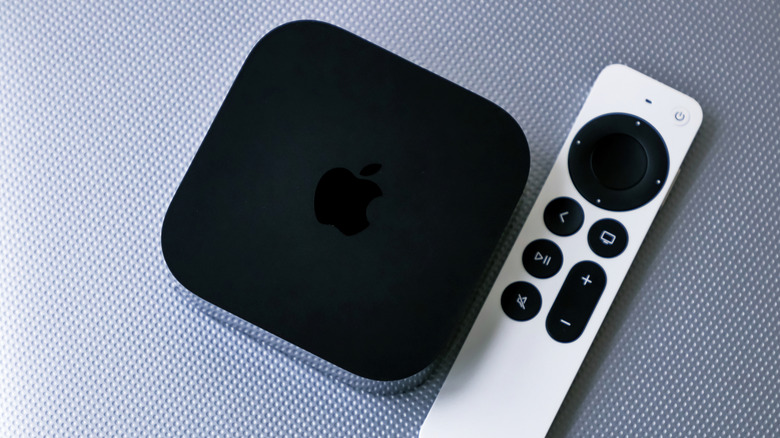
Developer menus are often tucked away to prevent casual users from accessing certain tools and functions, and the Apple TV is no exception. To unlock these hidden capabilities baked into tvOS, go to Settings, choose System, and select Software Update. With the Update Software field highlighted, press the play/pause button on your Siri Remote four times in a row. If done correctly, an Internal Settings tab should appear.
There aren't many additional settings to mess with in tvOS, and the AppleConnect option is only applicable to Apple employees. You will have the option to set up VPN profiles, as well as the ability to use the Configuration function to manually mess with the software. To hide Internal Settings again, just follow the same steps we laid out above. Generally speaking, this isn't a tvOS menu most folks will ever need, but it's still nice to know it's there.
Interestingly, a similar remote shortcut will put your Apple TV into Demo Mode: Select Settings, navigate to General, highlight About, then press play/pause four times. While there isn't much practical use for the average user, Demo Mode does allow you to adjust certain playback parameters, including video duration. To disable Demo Mode, just repeat the previous steps.
Other noteworthy Siri Remote shortcuts
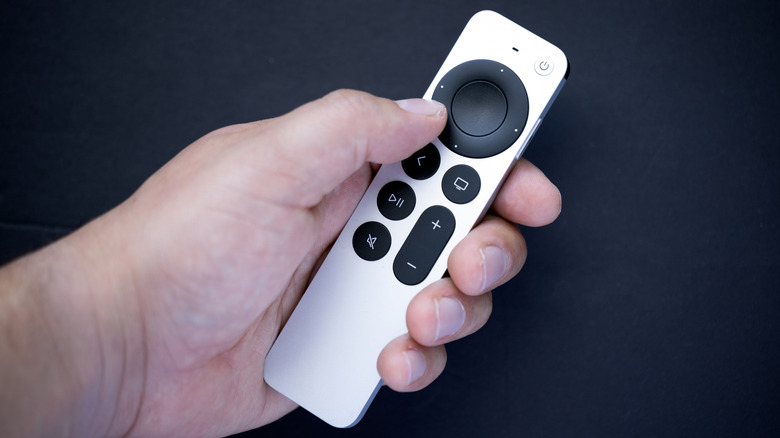
This last batch of shortcuts will come in handy for Apple TV power users. Let's say you're using the Siri Remote with the tvOS keyboard: you can press the play/pause button to toggle the caps lock. And if you entered a bunch of text you want to delete, just press the Siri button to erase it all. If you have a HomePod or other AirPlay-enabled speaker paired to your Apple TV, you can change how the streaming device outputs audio by long-pressing the play/pause button on your Siri Remote. This shortcut instantly brings up the same audio dashboard, so you can quickly switch between TV speakers, a set of HomePod minis, etc.
One of the visual signatures of tvOS is the striking screen saver images Apple uses. Normally, screen savers take from two minutes to half an hour to appear, depending on your settings, but you can instantly summon them by double-pressing the Menu button.
Last but not least, there's even a quick command for putting your Apple TV to sleep. All you have to do is long-press the Home button for a second or two, and a screen should pop up with the option to put your streaming device to sleep.