

Windows 11 Is Hiding A 'God Mode' Folder That Most Enthusiasts Would Love
If there's one thing that Windows 11 does better than Windows 10, it's the Settings interface. It looks much cleaner, more organized, and more intuitive than the previous layout, making it easier to manage important preferences like your Windows 11 privacy settings. But no matter how clutter-free the Settings look, it still doesn't have everything you need to make Windows work exactly the way you want it to. Sometimes, you'd have to hop on the Control Panel and go through its maze of options before you can enable the setting you need.
Wouldn't it be much more convenient if you could access the core Windows settings right from a single place without clicking endlessly through the menus? Well, you actually can with the help of a hidden built-in Windows feature that enthusiasts call the "God Mode" folder. Yes, it looks like a normal folder that opens in the File Explorer, but it also works like a centralized hub for your Windows settings. We'll walk you through a detailed breakdown of what exactly the God Mode folder is and how you can use it.
What is the God Mode folder?
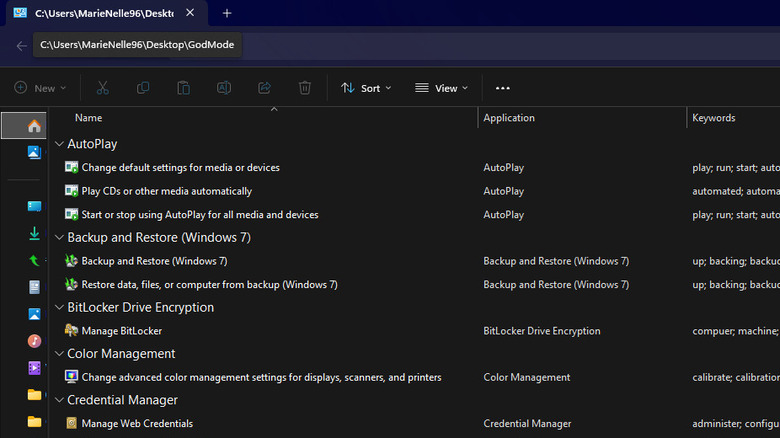
The God Mode folder is essentially a master folder of many different Windows settings and utility tools, most of which are normally spread throughout the Control Panel. Instead of needing to dig around in the menus, God Mode lays everything out in a single searchable list. This is actually how it gained its title among Windows power users. Yes, "God Mode" isn't the Microsoft-official term for this hidden Windows feature, but the nickname caught on because it gives users "all-powerful" access to everything in just one screen. Windows 11 wasn't the first version to support this feature, though. It has been around for quite a few updates, including Windows Vista and Windows 7, so it has become a pretty popular hack by now.
But what exactly can you do with the God Mode folder? Plenty of the settings in this list might already be familiar to you. For instance, you'll find options for changing Windows display settings, editing the date and time, and setting when your computer sleeps. All of these work exactly as they normally do when you access them elsewhere in Windows. The options in the God Mode folder list simply act as shortcuts.
How to access and use the God Mode folder
The God Mode folder in Windows 11 isn't something you can find or enable on your computer out of the box. You actually have to create it yourself. In your Desktop, create a new folder like you normally would. Then, rename it to this:
.{ED7BA470-8E54-465E-825C-99712043E01C}
Yes, it should include the period and curly brackets. You're free to add any name before the period, like GodMode or MasterPanel, but it also works without. Immediately after renaming the folder, its icon will change to the Control Panel icon. Double-click it to open the God Mode folder in File Explorer.
From here, you can start scrolling through the folder to find the setting you need. Everything is divided into different collapsible sections, so you can simply click the section title to remove its settings from view. To speed up your search, you can also use the search bar as if you're searching within a normal folder. Once you locate the setting of your choice, double-click it. It should automatically redirect you to that certain action. For instance, Add a Bluetooth device will open the Bluetooth window and search for devices, while View installed fonts will launch the Settings app in the Personalization > Fonts page.
Unfortunately, the God Mode folder can't be pinned to Start or the taskbar. So whenever you need it, you will always have to go to the Desktop to access it. You won't have to repeatedly browse the folder for your favorite settings, though. You're free to just drag and drop them from the God Mode folder into your Desktop.