

Ditch Your Fire TV Remote - Here's An Easier Way To Scroll Apps
We may receive a commission on purchases made from links.
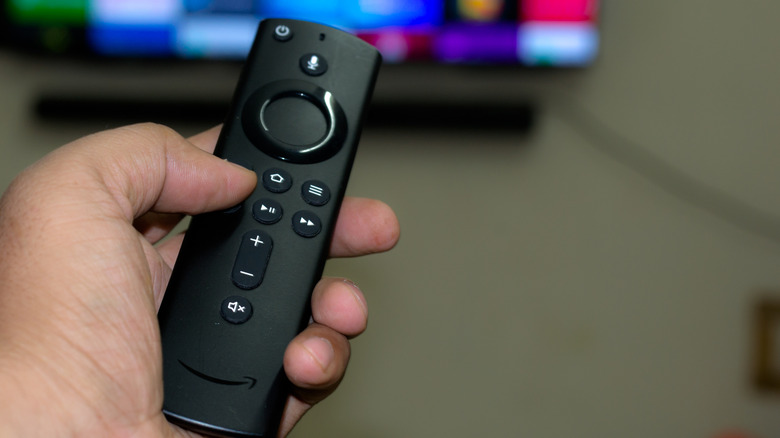
Like many other operating systems powering smart TVs and streaming devices, the Fire TV OS is designed to be clean and easy to navigate with the connected remote. That's true for the most part, but in practice, scrolling through apps on the Fire TV can actually feel quite clunky. You'd have to click a few times to get to your favorites list in the main menu. If the app you need isn't there, you have to go to the app drawer first, then repeatedly press on the navigation ring to browse through your installed apps.
That could mean spending a good few minutes clicking on your remote, especially if you have more than ten apps on your Fire TV. But you don't really need to stick to your remote to navigate the app drawer. There's a hidden Fire TV trick that lets you navigate way quicker — with the help of the Amazon Fire TV app. It comes with a nifty app drawer button similar to what you see on your Fire TV. But instead of clicking, you just swipe on the screen to find your app of choice, then tap to launch it. We'll walk you through how to connect the Fire TV app to your phone and make scrolling through your apps much more convenient.
How to connect and use the Fire TV app on your phone
The Fire TV app is the official companion app of Fire TV devices, so it's easy and straightforward to use. To connect it to your TV or streaming device, here's what you need to do:
- Power on your Fire TV.
- Connect your phone and Fire TV to the same Wi-Fi network.
- Install the Amazon Fire TV app on your iPhone or Android device.
- Launch the app.
- When prompted, press Allow to grant the necessary permissions.
- Go to the remote icon tab at the bottom.
- Wait for the app to detect your Fire TV.
- If you get an error saying "No Fire TV found", hit Look Again.
- Choose your Fire TV from the list of available devices.
- Look for the four-digit code on your TV screen.
- Type the code into the Fire TV app.
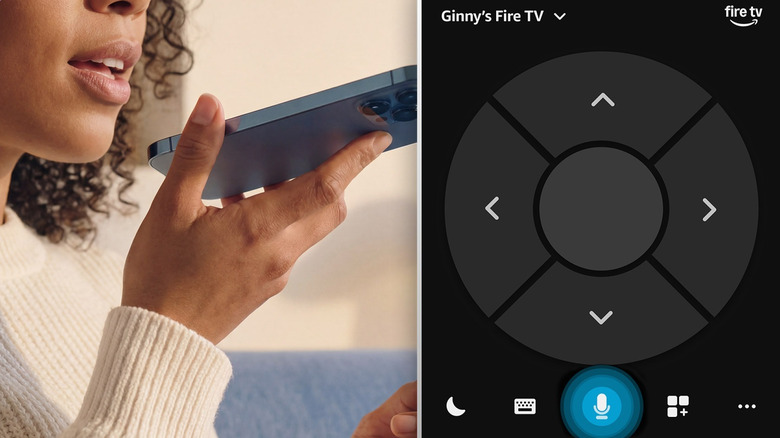
You should then get the remote interface. To launch your favorite app, swipe left through the carousel on the bottom half of the screen. To scroll through your app drawer, tap on the app drawer icon next to the blue mic icon. It will display your favorite apps in a box at the very top of the screen and the rest of your installed apps below it.
Other than quickly scrolling through your apps, the Fire TV app can also come in handy when your Fire TV remote is having a problem. It includes a navigation pad, mic, keyboard, and even a sleep button that can easily replace your remote in a pinch.