

These Built-In Android Features Show Every Privacy Permission You've Ever Granted

It's not uncommon to install an app on your Android phone, then go through the setup process without giving much thought to the details. You simply tap Allow, Enable, or Yes on every pop-up that appears just so you can quickly get into the app itself. But this habit actually puts your privacy at risk.
During setup, most mobile apps request access to certain features like your location, microphone, camera, or contacts. While some apps require these permissions to function properly, others might ask for access to features that they don't necessarily need or to power functionality you won't use at all. For instance, a shopping app might want to view and edit your calendar, or a PDF reader might like to manage your phone calls. In such cases, breezing through the app setup process means you essentially granted the app more access to your phone than what's truly required.
Don't worry, though. Android devices are designed to let you fully control your privacy settings anytime and anywhere. The main features that handle this are two built-in dashboards: the Permission Manager and Privacy Dashboard.
What is the Permission Manager on Android?
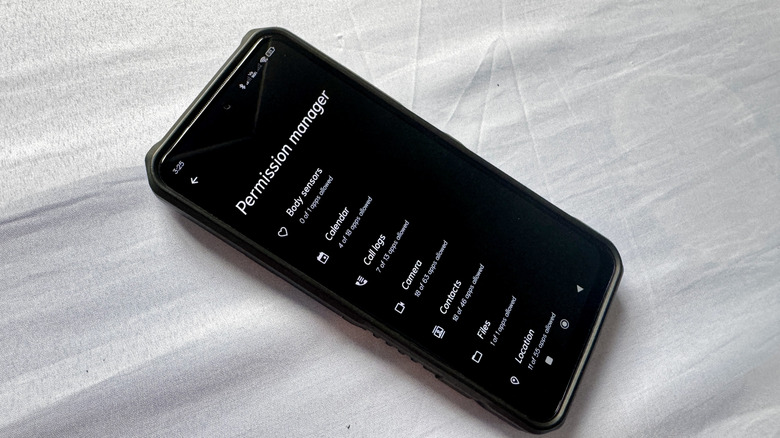
The Permission Manager is an Android privacy dashboard that you can find by going to Settings > Apps > More (three dots) > Permission manager or Settings > Security & privacy > Privacy controls > Permission manager, depending on your phone model. True to its name, the Permission Manager allows you to manage all the privacy permissions you've ever granted before or want to grant now. It includes 15 main permissions — such as Camera, Body sensors, Photos and videos, and SMS — plus an "Additional" category for other miscellaneous privacy features like car information and BLE settings. To make the dashboard easier to navigate, the permissions are displayed in a neat list, along with an overview of how many out of all your installed apps were granted each permission.
If you want to check what specific apps have access to a certain permission, simply tap on that permission and scroll through the list of "Allowed" apps. When you find an Android app permission that should've never been allowed, just select the app and change its access to Don't allow. You might have to spend a bit of time here, as you'll want to go through every single permission and app. If you're looking for a quicker way to assess which privacy permissions actually need your attention more, you can head over to the Privacy Dashboard instead.
What is the Privacy Dashboard on Android?
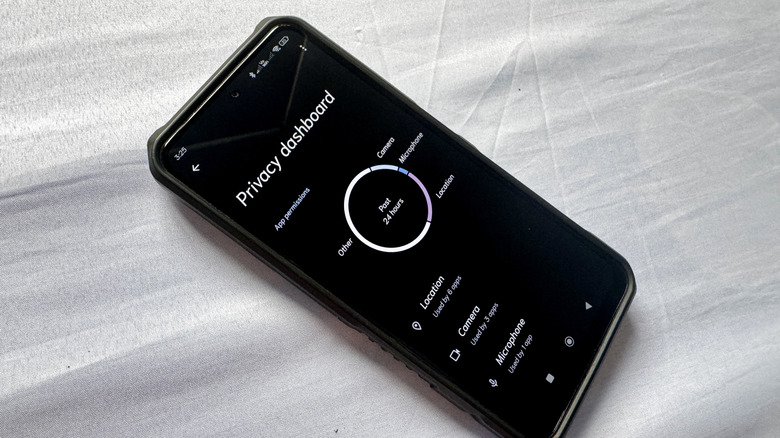
The Privacy Dashboard is one of the privacy features exclusive to Android phones. It is located under Settings > Privacy or Settings > Security & privacy and shows you the privacy permissions you've granted before. But unlike the Permission Manager, the Privacy Dashboard provides a more detailed breakdown of what permissions were active in the past 24 hours and which apps were using them. This helps you better understand whether the permissions you've previously allowed were actually needed for the app's core functionalities.
As soon as you open the Privacy Dashboard, you'll get a donut chart showing how many apps accessed each privacy permission (camera, microphone, location, and others) within the last 24 hours. For the camera, microphone, and location, the Privacy Dashboard even gives you a timeline of all the apps that used that specific permission. For instance, you might see something like Facebook accessing your location at 7 a.m., Maps at 11:35 a.m., and Camera at 8 p.m. If you noticed an app that accessed the permission but didn't really need to, go to Manage permission and set it to Don't allow.
The rest of the permissions listed in the Privacy Dashboard, including Calendar, Phone, and Contacts, don't show a detailed usage timeline. But the dashboard still lists the apps with permission access and adds a label "Accessed in the past [24 hours or 7 days]" if they recently used such permission. This way, you'll know which ones to disable.