

The Useful Feature That Isn't Enabled By Default On Your Windows 11 Laptop
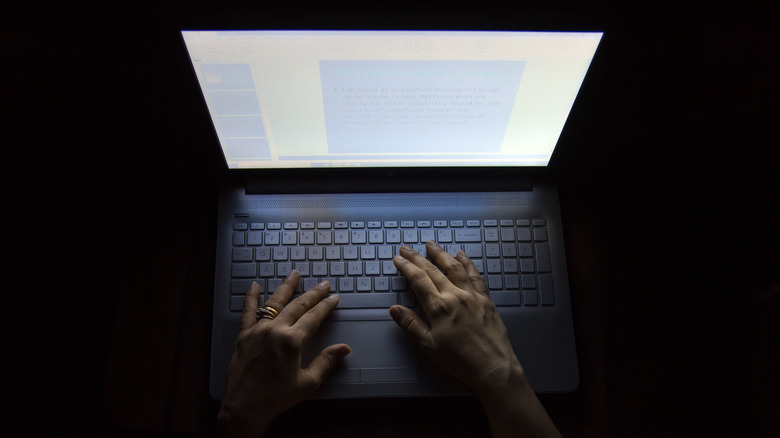
When people go out during the day, they're exposed to blue light thanks to the sun. It's a beneficial light that improves alertness, a key to maintaining mental performance to get through the day. However, there is something else that emits this energizing light that people use every day: computers. So when you use them at night, they can disrupt your sleep cycle and keep you up past your bedtime. Also, looking at a screen emitting blue light in low-light conditions can cause eye strain.
That's why operating systems like Windows come with a feature called Night Light, which should not be confused with dark mode. Even Macs, iPhones, and iPads have it (it's called Night Shift). It turns the colors of the screen warmer and less vibrant, making your PC's screen look like it has a yellowish tint. On top of minimizing the impact of blue light, it also makes the screen more comfortable to look at, which can reduce eye strain.
So if you're going to use your computer in the evening or you're feeling eye strain, you should turn on Night Light. For eye strain, though, this might not be enough. You should also use the 20-20-20 rule in addition to lowering the screen's brightness, turning on dark mode, and giving your eyes a rest. With Night Light, you don't need blue light-blocking glasses.
Enabling Night Light on Windows
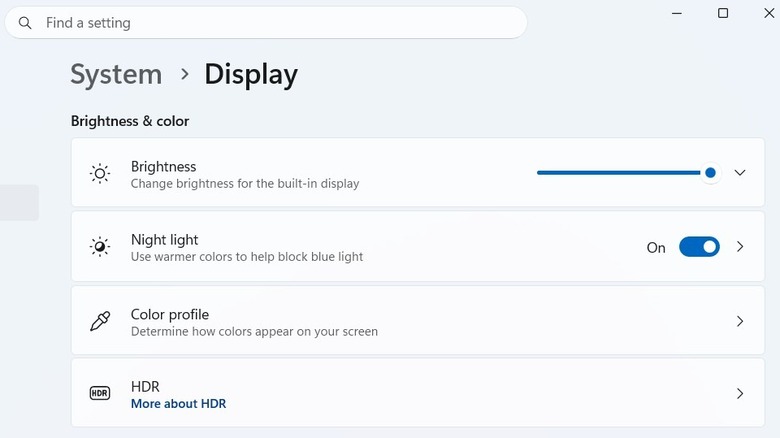
You can enable Night Light on your PC in two ways. The first and quickest way is by pressing Win + A to bring up Quick Settings and then click the "Night Light" tile. You can also do it in the Settings app by pressing Win + I and going to System > Display and clicking the toggle next to "Night Light." You can also use obscure Windows apps like f.lux to make the screen colors warmer if you find the default Night Light isn't working for you.
After you turn on Night Light, you should see the yellowish tint immediately applied. That's just the default temperature, but you can adjust its strength. The warmer it is, the more blue light it will block. To do that, go to System > Display > Night Light to reveal more settings. Now, adjust the "Strength" slider by moving it to the right to increase its warmth and to the left to reduce it.
You can also automate when Night Light should turn on. To do that, go to System > Display > Night Light and toggle on "Schedule." Afterward, click the "Sunset to sunrise" radio button so it turns on during that time in your time zone. Alternatively, you can click the "Set hours" radio button to manually enter when it turns on and off.