

How To Easily Free Up Space On Your PlayStation 5

So you tried downloading a game on your PlayStation 5, only to find that your console storage is already full. This is actually a common problem that owners face, considering the PS5 only comes in three storage capacities: 2TB for the PS5 Pro, 1TB and 825GB for the regular PS5 consoles. While these might sound generous on paper, modern games can take up quite some space. Before you realize it, they've already filled the internal storage with their associated data.
To get the most out of your PS5, it's a good idea to regularly free up space in the console storage. The most basic way to do so is to clear up games and data. Maybe you've already finished a game, or you're no longer interested in it. To delete games, you'd need to go to Settings. Then, choose Storage > Console Storage > Games and Apps. Select which games you want to remove and press Delete. To delete saved data on your PS5, open Settings again. Navigate to Saved Data and Game/App Settings and click on Saved Data (PS5). From here, go to Upload or Delete from Console Storage. You'll then see a list of the data saved on your built-in console storage. Mark them and click Delete.
But what if you want to keep your games and data instead of deleting them? Well, you still have three ways to free up space on your PS5 without letting go of your games.
Option 1: Move your game data to an M.2 SSD
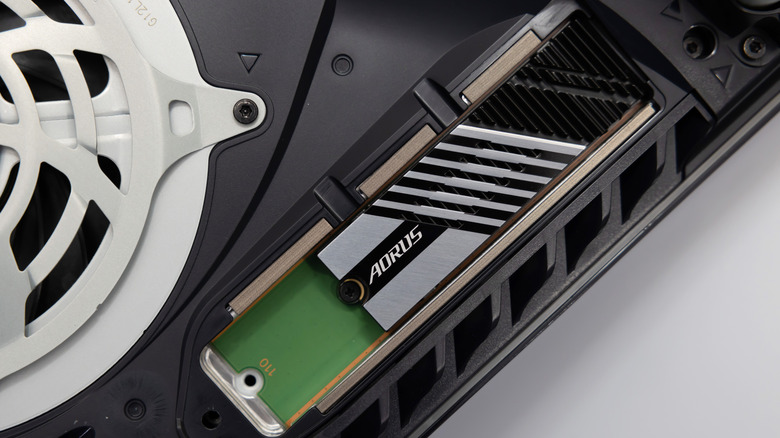
PlayStation 5 supports two external storage types: a USB drive and an M.2 SSD. You can transfer your game data to either location to free up space on your console. But it's important to note that they don't work the same. Between the two, the M.2 SSD is much more capable and also the more convenient way to upgrade your PS5. You can readily launch games you moved to the SSD, set it as the installation location for new games, and have the games be updated directly on it. Unfortunately, you can't do all this on the USB drive. Games need to be in either the built-in storage or an external SSD to be played, so you'd have to copy them over from the USB drive first.
That said, the M.2 SSD is easier to use if you want to quickly reclaim the space in your PS5's internal storage. To use an M.2 SSD with your console, make sure it's supported. It should be an NVMe PCIe Gen4 x4 with a minimum of 250GB of space (up to 8TB allowed), 2230/2242/2260/2280/22110 form factor, and at least 5,500MBps sequential read speed.
If your SSD is supported, proceed with installing it. PlayStation has some YouTube tutorials on how to do so on both the PS5 Fat and PS5 Slim models. After installation, power on the PS5 and format the SSD to get it ready for use. You're then free to move your games to the external storage. Simply go to your Storage > Console Storage > Games and Apps. Now, click on a game and choose Select Items to Move. If you want to move more games than you initially selected, check the boxes for those games. Press Move to proceed.
Option 2: Transfer your game data to a USB drive
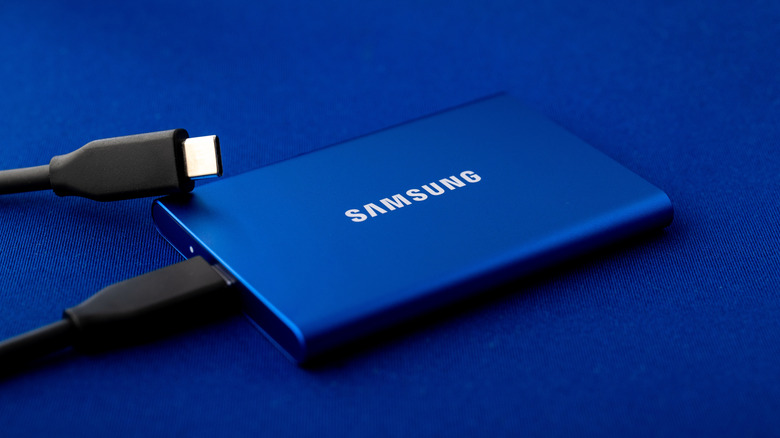
While the M.2 SSD is convenient, you might not be comfortable opening up the console to install it. In that case, you can free up space on your PS5 with a USB drive instead. This just connects to the external ports on the console — no tools or disassembly expertise is needed. It's also one of the best ways to use the PS5's USB port to level up your device. If you play a large number of PS4 titles, using a USB extended storage makes even more sense as you can play them directly from the drive. That said, you'll need to copy PS5 games to internal storage first.
For this, you'll need at least a SuperSpeed USB 5Gbps drive, with a capacity between 250GB and 8TB. Once you have your external drive, simply plug it into the front USB-C port near the base or one of the two USB-A ports at the back. Connect the drive directly to the PS5 — not to a USB hub — to ensure proper operation. Afterwards, it's time to format the drive. You won't get an automatic on-screen formatting guide like on the M.2 SSD, so you'd have to manually go into the Settings to do so:
- Click Settings at the top.
- Navigate to Storage.
- Select USB Extended Storage.
- Press the button for Format as USB Extended Storage.
- Hit Yes to confirm.
Your USB drive should now be ready for storing your PS5 game data. To move the games, follow these steps:
- Head over to the home screen.
- Press the options button on your controller.
- From the menu that appears, click on Move Games and Apps.
- Mark the games you'd like to transfer to the USB drive.
- Hit Move.
- Click OK.
Option 3: Upload your saved data to the cloud

Both the M.2 SSD and USB drive store only game data. If you prefer to move your saved data instead, your only option is to transfer them to the cloud. Cloud storage requires a PlayStation Plus subscription, though, which provides you with 100GB of storage for PS5 saved data. After subscribing, you can either set your PS5 to automatically sync data with the cloud or manually upload the data. To set automatic syncing, here's what you need to do:
- In the Settings, go to System.
- Select Power Saving.
- Click Features Available in Rest Mode.
- Press Stay Connected to the Internet.
- Back in the main Settings, head over to Saved Data and Game/App Settings.
- Choose Saved Data (PS5) from the side panel.
- Go to Sync Saved Data.
- Click Auto-Sync Saved Data.
- Toggle on Enable Auto-Sync.
- Turn on auto-sync for select or all games.
If you want to manually upload only certain games to the cloud, you can do so from the Settings:
- Click Saved Data and Game/App Settings.
- Choose Saved Data (PS5).
- Go to Upload or Delete from Console Storage.
- Press Upload to Cloud Storage.
- Mark only the saved data you'd like to upload. You'll see the size of the data next to the game title.
- Hit Upload to proceed.
When the upload finishes, you're free to delete that saved data from the console. But remember, you'd have to download it back to your PS5 when you want to play the game. Downloading saved data from the cloud is also done via the Saved Data and Game/App Settings in the Settings. Go to Saved Data (PS5) and click on Download or Delete from Cloud Storage. Make sure to select the Download to Console Storage tab. From here, choose your data and press Download.