

How To Get The Best Audio Out Of Your Nintendo Switch 2
We may receive a commission on purchases made from links.
Some might not think about fine-tuning their console settings once it's plugged in — that's something for PC gamers, right? While HDR and resolution settings are the most impactful console adjustments you can make, especially for new games, the Nintendo Switch 2 has interesting audio settings to get the most out of your setup in handheld and docked modes. No one wants to miss subtle audio cues, crisp character dialogue, and the sound of Donkey Kong smashing up sandbox levels.
Nintendo has built in a few robust options into Switch 2 for multiple kinds of audio setups, which are hidden in the settings menu behind basic options that might not be immediately obvious. Clicking a few toggles is the only thing stopping you from getting the best sound from any speaker or headset in your living room or on the go. Take the following advice as a quick fix to improve immersion and get the best audio performance out of Nintendo's console, alongside some audio equipment to keep in mind for the best results. We understand that most people won't be picking Nintendo Switch 2 for competitive gaming, so high-quality audio to hear nearby players' footsteps isn't a priority, but it's well worth getting the sound immersion you have paid for.
Which system settings should be adjusted?
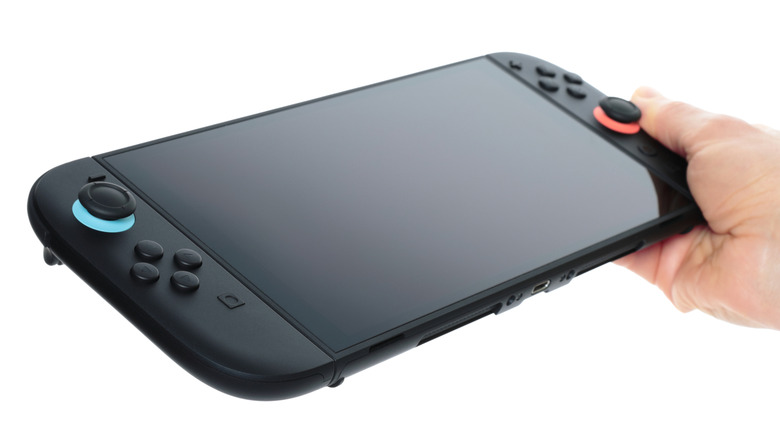
With the Switch 2 docked, start by heading to the System Settings from the main HOME Menu. Then, scroll down the left-hand column and choose the Audio tab, then head to the TV Sound subsection. For players who use an external audio solution such as a soundbar, surround sound system, or Hi-Fi system, it's a good idea to switch from Automatic and Stereo to Linear PCM 5.1 Surround. This feeds sound systems an uncompressed, lossless audio signal, which is the best way to make the most out of any audio system.
For handheld players, they can optimize their portable experience within the same menu. Make sure to switch on both Virtual Surround and Headphone Virtual Surround for the most epic morning commutes. Both of these Nintendo Switch 2 features use an advanced equalizer to simulate an atmospheric effect through stereo configurations. They also make sure game audio stays deep and dimensional, even when players aren't sitting in front of their soundbars. While the original Switch needs dongles like the Creative BT-W5 for high-quality audio, the Switch 2 only needs the right settings.
Picking the right audio equipment for PCM lossless audio
For gamers who don't have external audio with their gaming TV setup, the PCM lossless audio feature on Nintendo Switch 2 isn't going to be of any benefit. In fact, it could make the stereo audio coming through the TV sound worse by compressing audio due to the higher dynamic range. Compressed sounds artificially flatten the entire audio mix, which nullifies the softening of quieter ambient noises.
The key here is finding a soundbar or surround sound system that supports PCM lossless audio, which can be a challenge if you aren't sure what to look for. For example, the Creative Sound Blaster Katana V2 is a fantastic soundbar and subwoofer combination, but it only supports compressed audio formats. We've found some of the best soundbars around for replacing TV audio, but we need one that specifically supports PCM uncompressed audio.
Sonos Beam (Gen 2) is a solid choice for a soundbar that doesn't break the bank while supporting multichannel PCM. Sure, it's not the cheapest Switch 2 accessory, as new units are $489 on Amazon while used ones cost around $370. But it also supports Dolby Atmos while linking up with smart home ecosystems for the most overkill smart speaker. With this not being a surround sound system, just make sure to use the soundbar's standard mode over any gaming or adaptive modes to ensure there's no missing channels within the audio stream.