

This Smartwatch App Lets You Control Your Smart TV With Hand Gestures
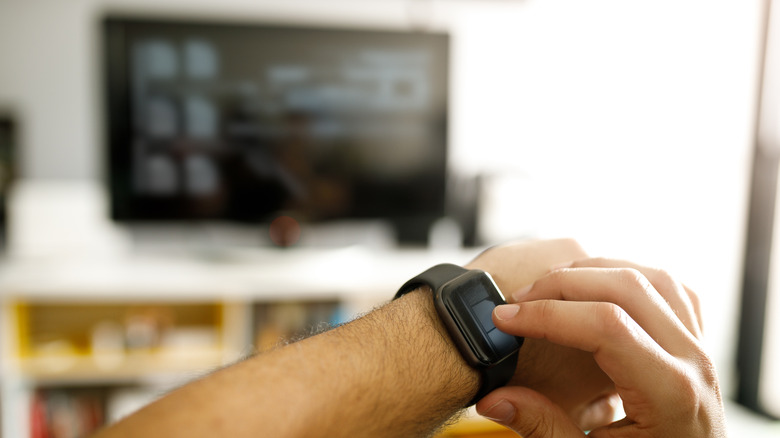
Controlling your TV with just a wave of your hand might sound like something straight out of a sci-fi movie, but it's actually a real feature already available on some mainstream smartwatches. In fact, it's one of the useful Samsung Galaxy Watch tricks you shouldn't overlook. With a Galaxy Watch 4 or later, you can control a Samsung Smart TV (2025 model or later) using the SmartThings app. The watch turns your hand into a cursor on the TV screen, which is controllable with hand gestures — waving your wrist moves the cursor, pinching your thumb and index finger selects an item, clenching your fist once goes back to the previous screen, and clenching your fist twice goes to the Home screen.
Google Pixel Watches also come with TV remote functionality for Google Home-compatible TVs. What you need is the Google Home app. Once it's set up, you can control media playback, volume, and navigation with the buttons on the screen. You can't, unfortunately, wave your hand to control the TV, but you can do a double pinch to play and pause the playback.
But what if your smartwatch doesn't have native remote control capabilities, or your TV doesn't support it? The good news is, you won't have to go shopping for a new watch or TV. There's a Wear OS app called WearMouse that allows you to control your smart TV via Bluetooth. Here's how it works.
What is WearMouse?
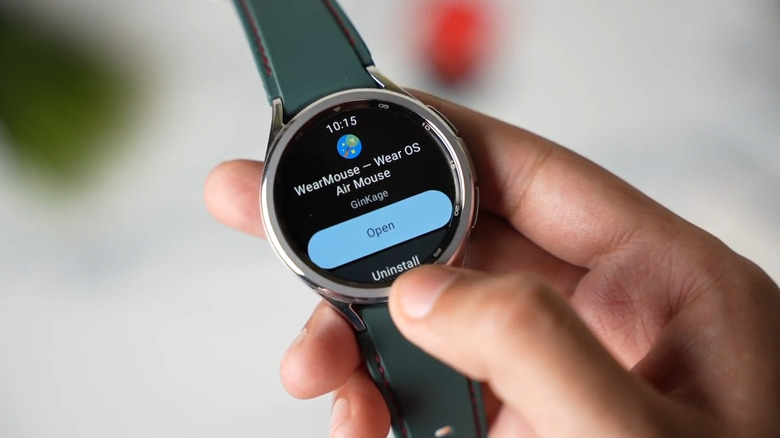
One of the essential Android smartwatch apps to install, WearMouse is an open-source Bluetooth mouse app for Wear OS smartwatches updated to at least Android P. It can pair with compatible Android smart TVs via Bluetooth and allows you to control an on-screen pointer on the TV by simply moving your hand. You can also perform basic mouse actions like long-pressing and left-, right-, or middle-clicking. Instead of a hand gesture, though, you'd need to tap on the associated button on the smartwatch screen. The air mouse adjusts based on whether you use the smartwatch on your right or left wrist, or don't wear it at all. You just have to select which configuration you're using.
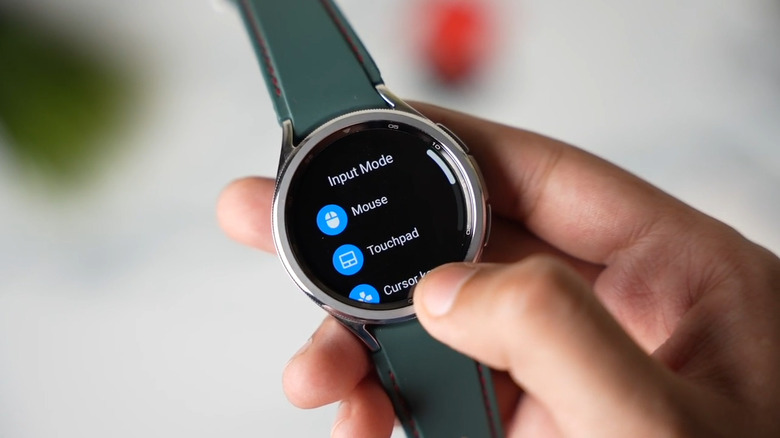
Besides the mouse mode, WearMouse offers three other input modes: touchpad, cursor keys, and keyboard. The touchpad mode converts the smartwatch screen into a basic laptop touchpad where you can do standard gestures. For instance, you can swipe on the touchpad to move the pointer, use two fingers to scroll up and down, and tap to select. The cursor keys, on the other hand, provide you with a typical D-pad with some extra hidden keys like Backspace, Space, Tab, and Escape. Finally, keyboard mode is just as its name suggests — it shows you a normal QWERTY keyboard for typing on your TV.
Other than Android TVs, WearMouse works with Android phones and tablets, and computers running major operating systems, including Windows, macOS, Linux, Raspbian, and Chrome OS. It's important to note that WearMouse doesn't use your smartwatch's built-in hand gesture capability, and the developer recommends disabling it when using the app to avoid conflicts in input control.
How to set up and use WearMouse
WearMouse is one of the cool ways to use Bluetooth on your smart TV, and thankfully, it's pretty straightforward to set up. Follow these steps to do so:
- Make sure Bluetooth is enabled on your smartwatch and TV.
- Open the Play Store on your smartwatch.
- Search for WearMouse.
- Install it.
- Launch the app.
- Tap the arrow to start.
- On the Paired devices screen, go to Available devices.
- Select your TV from the list to pair it.
- Once paired, tap on your TV again.
- Choose Connect.
- Press your preferred input mode.
- When presented with instructions, just tap the arrow to proceed.
You can now control your smart TV right from your wrist. To switch to a different input mode, swipe right or press a physical button on your smartwatch (not the crown). However, if you're in touchpad mode, you'll need to put your palm on the screen to exit instead. To customize how WearMouse behaves, go to the in-app Settings. Here, you'll find options to keep the smartwatch connected to the TV when you minimize the app, turn on diagonal movements in the cursor keys mode, stabilize the pointer, and reduce data rate.