

The 5 Best Browser Extensions For YouTube You Didn't Know You Needed
Like many other chronically online folks, you're probably on YouTube at least once every day. Maybe you're researching the best accessories for your iPad. Or perhaps you just want to pass the time by watching mukbang videos. Either way, YouTube is now a part of your everyday routine. However, that doesn't necessarily mean you enjoy every second of it.
Sure, YouTube does come with some powerful features, but it doesn't have every single customization setting you need to enhance your viewing experience. There are no options to speed up a video beyond four times the original, remove the annoying Home page elements, or turn the content into something more cinematic. Thankfully, there are developers out there who have had the same thoughts, and they've created some impressive browser extensions for YouTube.
These extensions add advanced functionality to YouTube to make it behave more how you want it to. To get you started, here are five of the best YouTube browser extensions to install today.
ImprovedTube
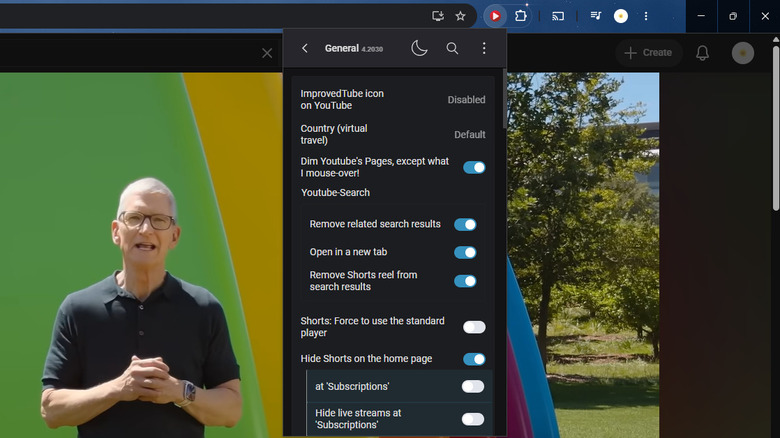
ImprovedTube is an open-source Chrome extension, meaning it's completely free to use with no subscriptions or even a one-time payment required. True to its name, it's designed to improve the way you use YouTube. For instance, it lets you control the YouTube player and playlist. You're free to set the player to auto-pause as soon as you leave the tab, stop short videos from automatically looping, and force the player to display a video at a specific resolution. For the playlist, you can opt to play it in reverse or shuffle.
ImprovedTube also adds a convenient toolbar below each video. This features four nifty one-click shortcuts: Copy for copying the video's transcript, Key Scene for jumping to a key scene in the video, Screenshot for taking a screenshot of the current frame, and Loop for looping the video. If you're a keyboard power user and prefer controlling YouTube with keyboard shortcuts instead, you can assign some to YouTube's basic functionalities. Another thing you might appreciate about ImprovedTube is that it can block channels and videos, a feature YouTube doesn't natively support.
Beyond enhancing YouTube's functionality, this browser extension allows you to tweak YouTube's appearance too. If the main video page doesn't work for you, you can rearrange its elements, like moving the sidebar to the left and making the header hover over the video. There's also a nifty switch for toggling between dark mode and light mode and a Themes section to change the background on both the YouTube website and the extension menu.
Unhook
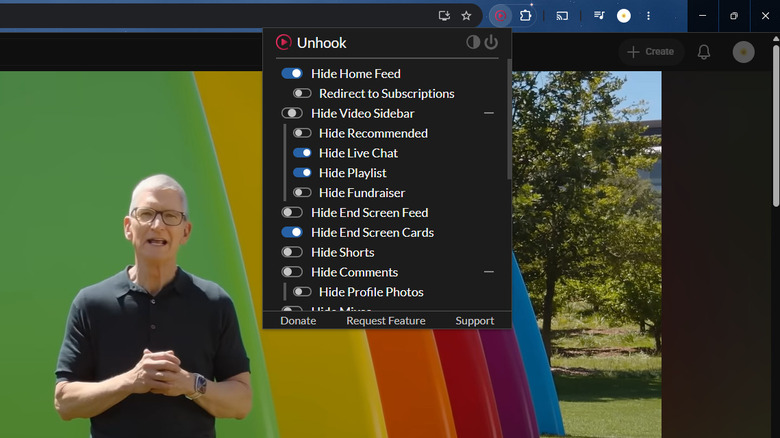
If you're not a fan of YouTube's default interface, one of the free browser extensions you should always install first is Unhook. Unhook supports the removal of plenty of YouTube elements to give it a clean and minimalist look. For instance, the extension can completely hide the videos on the Home feed. What you'll see instead is a blank screen, with the side panel on the left and the search bar at the top. That means videos will only show up when you start searching, making watching YouTube more intentional.
Unhook can also customize your video sidebar. You have the option to hide the recommended videos, playlist, live chat, and fundraiser that appear to the left of the current video. Or you can simply hide the entire video sidebar, so your video will occupy the full width of the screen. If you want to maximize the height of the video display, too, there's also a setting in Unhook for removing the top header where the search bar is. If the video information page is also distracting to you, Unhook can help you hide it. You can individually erase the buttons bar (like, dislike, share, save), the channel name, and the description, or just hide everything in the video info page. Other elements Unhook can remove include the comments, end screen cards, and mixes. When you want to switch back to the default YouTube interface, there's a toggle to turn Unhook off.
While Unhook isn't the only browser extension for customizing YouTube, it makes the process quicker and less complicated than many other options. You get a simple, single list of all the elements you can hide or show on the YouTube interface — no confusing menus or categories to dig into.
SponsorBlock
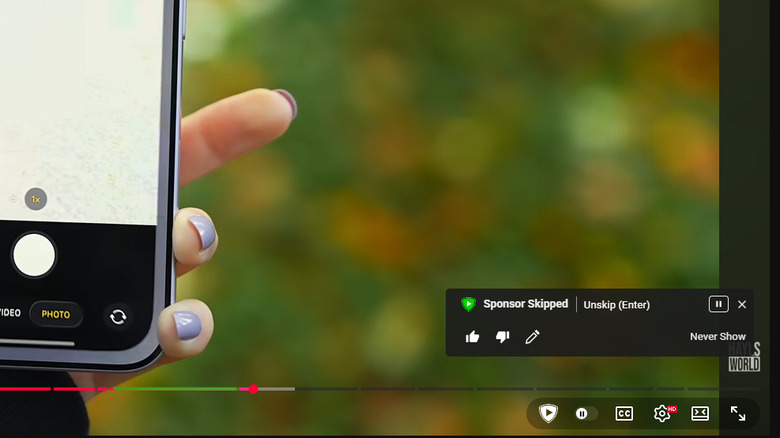
SponsorBlock solves one of the biggest problems users have with YouTube videos: sponsorship. Unlike regular ads, sponsorships are baked into the video itself, so you have no choice but to skip over them manually. That usually takes some trial and error, as you might scrub too far into the video and miss some important segments or stop short and have to sit through part of the sponsorship. Instead of going through all that hassle, SponsorBlock automatically does the skipping for you.
If the video you're watching contains a sponsorship, you'll see a segment in the seek bar highlighted in green. When you get to that part of the video, SponsorBlock will jump to the end of the sponsorship. Your watch session isn't interrupted in any way, and you get to see only the important parts of the video. Beyond sponsorships, SponsorBlock can skip over self-promotion, subscribe reminders, intro animation, endcards, preview, greetings, and tangential scenes or jokes. Each of these segments shows up in a different color on the seek bar to help you tell them apart. For instance, self-promotion is yellow, endcards are royal blue, subscribe reminder is hot pink, and intro animation is teal.
Outside of skipping sponsorships, SponsorBlock gives you control over how to watch the video using keyboard shortcuts. You can go to the next or previous chapter with Ctrl + arrow right/left, skip to highlights with Ctrl + Enter, and manually skip a segment with Enter. You can also customize the keyboard shortcuts to your liking.
Video Speed Controller
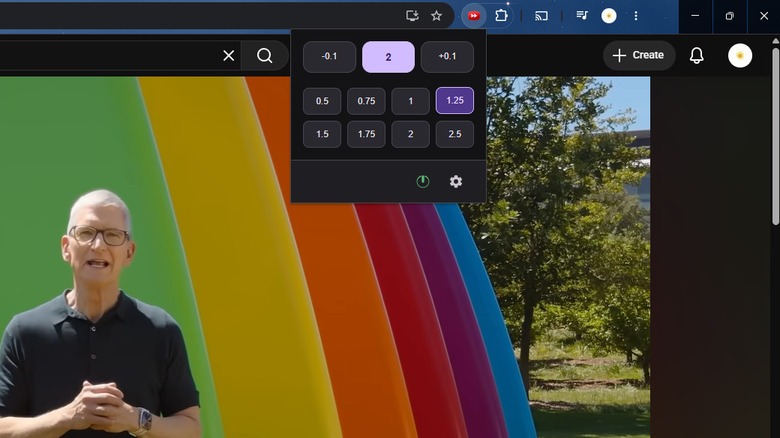
Arguably one of the best features on YouTube Premium you should take advantage of is the four-times speed option. You might not always need it, but when you do want to breeze through those slow-paced tutorials or turn an hour-long vlog into a 15-minute cram session, you'd be glad to have the option to speed up the content just as much. If four-times speed still isn't fast enough for you, though, check out Video Speed Controller.
This browser extension lets you control YouTube's video speed from 0.07 times to 16 times the original speed. And, unlike the original YouTube speed controller that's buried in the settings, Video Speed Controller conveniently embeds a mini controller in the top-left corner of the current video. This is where you can click the plus or minus button to increase or decrease the speed by 0.1 step. It also comes complete with fast forward and rewind buttons, so you can quickly jump right to what you want to watch.
If the single-step increase is too clunky for you, you can go to the Video Speed Controller panel from the extensions toolbar instead. This displays eight preset speed multipliers: 0.5, 0.75, 1, 1.25, 1.5, 1.75, 2, and 2.5. Just click on your speed of choice to automatically apply it. Other than clicking on either on-screen controller, Video Speed Controller lets you change the speed of the current YouTube video with single-letter keyboard shortcuts, too. For instance, pressing S will decrease the speed multiplier by 0.1, and pressing Z rewinds the video by ten seconds. You can even set a shortcut for your preferred speed.
Turn Off the Lights
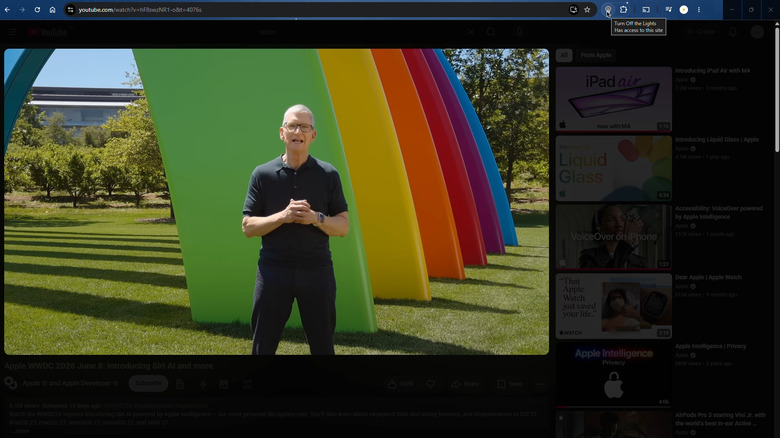
Watching YouTube videos isn't exactly the definition of cinematic, but if that's something you'd like to experience, there's always the option to install the browser extension called Turn Off the Lights. Yes, it does exactly as its name says. It darkens the rest of the YouTube interface to make the current video pop — the same way turning off the lights in a room makes the TV stand out. All it takes is a simple click on the Turn Off the Lights icon in the extension toolbar. Press it once to dim everything around the video and press it again to bring it back to normal.
While this browser extension sounds simple enough, it actually offers a bunch of customization options and settings to further improve your experience. For one, you can set the rest of the page to blur. This leaves the video looking even more prominent. There's also a setting for automatically enabling or disabling Turn Off the Lights when you play or pause a video, and for keeping some elements lit up like the channel name, info bar, and like bar.
Another nifty feature of Turn Off the Lights is its visual effects. It adds ambient lighting around the video to make it even more immersive. This glow effect can be just one color, four custom colors, or the colors of the video. When you watch the video, you'll see the color change dynamically around it, like how some screen-reactive LED lights for TV would work in real life.