

12 MacBook Accessories Under $50 That Are Actually Worth Buying
We may receive a commission on purchases made from links.
There are dozens of MacBook accessories you could have to simplify your life, but what you'll need depends on how you use your computer. Any accessory you buy should make working with your MacBook easier and more convenient lest you end up with clutter in your working space. Instead of wasting money on novelty gadgets, you'll want to opt for accessories that either fix specific problems or make your life more convenient — or, preferably, both — to boost your productivity. But you'll also want to do that without breaking the bank.
With that in mind, we've collected 12 useful MacBook accessories you can consider buying to upgrade your MacBook experience. To ensure you get the best bang for your buck, we chose products that cost less than $50 with average Amazon ratings of at least 4.2 stars, as well as favorable coverage on trusted outlets. These gadgets should cover you whether you own a MacBook Air, a MacBook Pro, or the unbeatably priced MacBook Neo.
Iniu 20,000mAh Laptop Power Bank
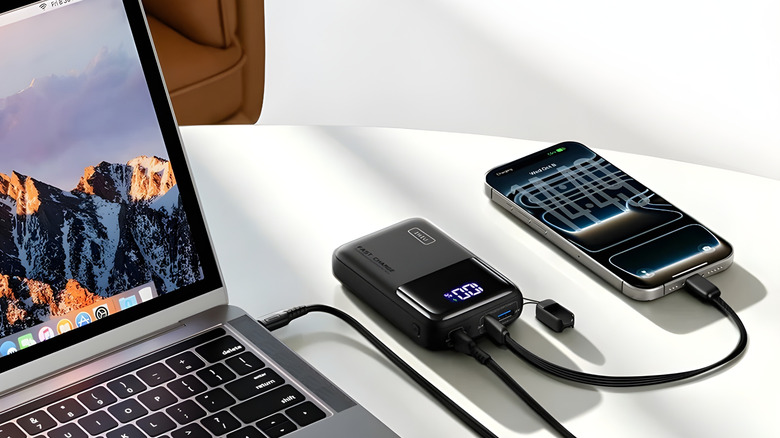
A 20,000mAh power bank would typically add some considerable weight to your bag, but the compact Iniu 20,000mAh Laptop Power Bank is a lightweight exception. Costing roughly $50, the pocket-sized charging unit can output up to 65W of power through its one USB-C PD port, which is more than enough to charge a 13-inch MacBook Air. According to MacWorld, it's among the smallest 20,000mAh units you can buy — smaller than an iPhone Pro Max. The power bank isn't as powerful as a standard MacBook Pro charger is, but it should provide enough juice to keep your M-series Air or 14-inch Pro alive when you don't have access to a wall outlet. The unit recharges at 45W and should fill up in about two hours.
Another reason we love this power bank is for its USB power delivery (USB-PD) feature. Think of it like a quick handshake where the power bank and your device agree on who's sending power, how fast to send it, and how much, so your MacBook gets exactly what it can handle eliminating the need for a charging adapter. A major plus for portability. Besides that, it has three distinct charging ports — one USB-A and two USB-C — for you to charge more devices than just your MacBook, a feature that several Amazon customers appreciate.
Statik MagStack Slim Pro Magnetic USB-C Cable
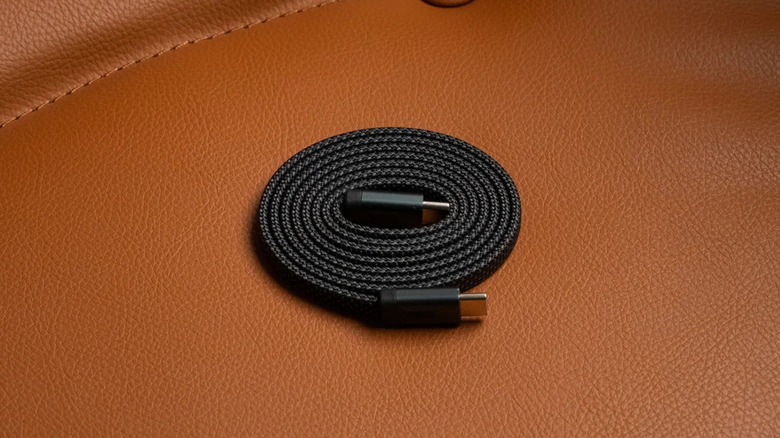
If you're bothered by your stock MacBook USB-C cable getting tangled up in your backpack, or if yours is simply getting old, consider grabbing a high-quality third-party cable. Statik's MagStack Slim Pro is a great option with integrated magnets all along the cord's length, meaning it can neatly coil itself to avoid adding to the cable spaghetti in your backpack. A 9to5toys review points out how it coils up so well vertically that it can stand on its own and maintain a compact shape. It's no surprise that Amazon buyers consistently praise it for how well it keeps things organized. You can get it in two sizes, 3.3 ft or 6.6 ft that cost $23 and $25, respectively.
Tidiness is just one of the three big benefits that come along with a MagStack Slim Pro purchase. It can also support up to 100W of power output, allowing for full-speed charging with most Apple-brand MacBook charging bases, whether you've got an M-series MacBook Air or a 14-inch MacBook Pro. Its braided nylon jacket should offer more tear resistance than flexible plastic cables do, making durability yet another one of this cable's strong suits.
Synerlogic macOS Reference Keyboard Shortcut Sticker
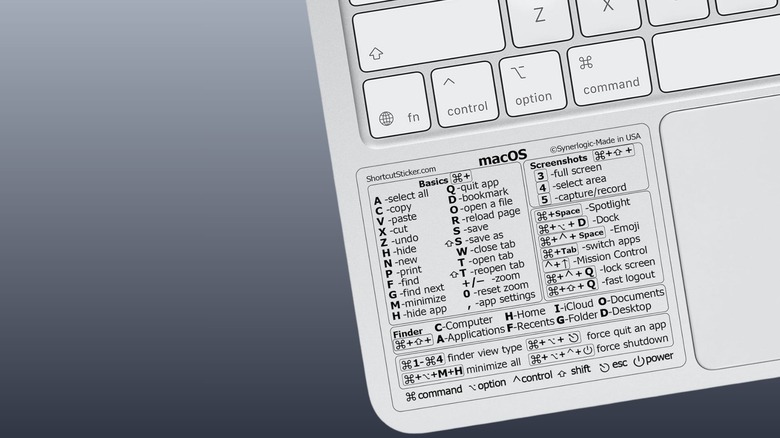
It's not always easy to recall all the macOS shortcuts you need. Here's where the $6 Synerlogic macOS Reference Keyboard Shortcut Sticker (Air and Pro) comes in handy. For MacBook Neo, go for the smaller universal version. This piece of printed vinyl, which lists dozens of essential macOS shortcuts, is designed to fit neatly on your MacBook's palm rest, just beside the trackpad. It includes everything from the basics (like copy, paste, and save) to lesser-known nifty keystroke combinations. MacWorld has described it as an accessory "you didn't know you needed."
Once the sticker is in place, you just look down to find the command you want, hit the associated shortcut combo, and keep working, instead of having to run a browser search. Built to withstand regular skin contact, it's well laminated, and it features a low-residue adhesive that's easy to clean off should you ever have to remove it. The shortcut sticker should stay put for quite a while as confirmed by several Amazon buyers, but we still suggest opting for the 10-pack option, since the bulk discount bumps each individual sticker cost down to $1 instead of $6.
Anker 7-in-1 USB-C Hub
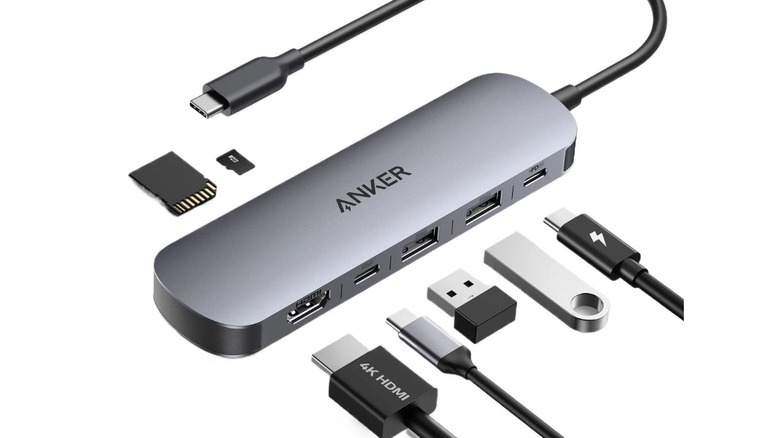
The M Series MacBook Air and the Neo come with just two USB-C ports and a single headphone jack, but the Anker 7-in-1 USB-C Hub solves this problem for a cool $26. As its name suggests, the hub converts just one available USB-C port on your machine to seven usable ports: an HDMI port, two USB-C ports (one for power delivery and one for data), two USB-A 3.0 ports, an SD card slot, and a microSD slot. Each of the hub's USB ports can also reach transfer speeds of up to 5Gbps, which should more than suffice for when you're using external SSDs or card readers.
The HDMI port on this hub supports video output of up to 4K at 60Hz, so it can extend your display to many higher-resolution monitors without problems. When used for pass-through charging, the USB-C PD-IN port can deliver up to 85W of power to your device, meaning you can charge your MacBook using this hub if you can run a separate power source through it. If you've got two accessories that connect via USB-A, like a mouse and a keyboard, the Anker Nano hub has two dedicated USB-A slots for you. Build quality is great with many buyers praising how well made the devices feels in hand.
Ugreen Nexode 65W Charger with Retractable USB-C Cable
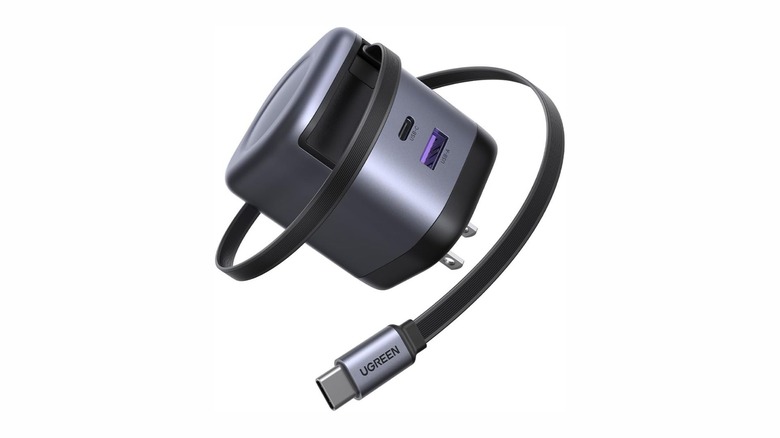
If you're looking for both a cable and a charging base, you can opt for the two-in-one Ugreen Nexode 65W Charger with Retractable USB-C Cable. For $49.99, this charging unit solves two problems you'd face with a standard charger: tangling and pinching. With this unit, you can pull out as much or as little cable length as you need (up to a maximum of 2.3ft), and you can easily retract it back into its casing when you're ready to pack it up.
As pointed out by Techradar, "the retractable cable is only capable of 60W in single-port mode." This should suffice in powering most new MacBook Air models, an old 13-inch MacBook Pro, or even a 14-inch Pro, albeit without fast charging. The extra USB-C port hits the maximum 65W when used alone but you'll need a separate compatible cable to use it. For a larger 16-inch MacBook Pro, you'll get a slower charge. One other thing to note according to some buyers is that the cable is a bit short side, but they still appreciate its functionality.
As a big plus, this charger is gallium nitride (GaN) based instead of silicon based, the latter being the case with more affordable chargers. GaN is a semiconductor just like silicon is, but its superior heat resistance and efficiency allow it to conduct electricity faster than silicon can. This efficiency also drives more compact, lightweight charger design, since GaN components can be made smaller than silicon ones.
Tomtoc 360° Protective Laptop Sleeve
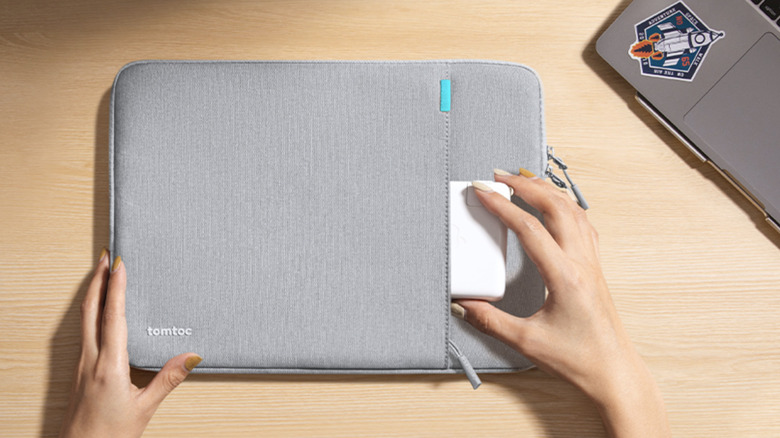
Carrying your laptop around without any form of protection — even if it's in your backpack — can make it age faster, at least aesthetically speaking. To avoid exposing your machine to scratches, and to protect it from both spills and accidental drops, the water-resistant Tomtoc 360° Protective Laptop Sleeve ($32.99) is one accessory that fits the bill at an affordable price. What helps make it so effective is its reinforced corners, which could make the difference between your MacBook staying intact or needing an expensive screen replacement.
Wirecutter listed the Tomtoc 360° as one of the best laptop sleeves you can buy, claiming it keeps laptops "locked firmly in place" and that it offers protection from "most drops, spills, and scratches." It has one compartment designed for your laptop, of course, but it also comes with an extra pocket where you can squeeze in your laptop charging base, charging cable, and other small accessories. Hundreds of reviews on Amazon praise the sleeve's build quality, too. Despite being made with recycled materials, it looks and feels like a premium product, which is in part due to it being made with high-quality YKK zippers.
Mosiso Keyboard Cover Skin
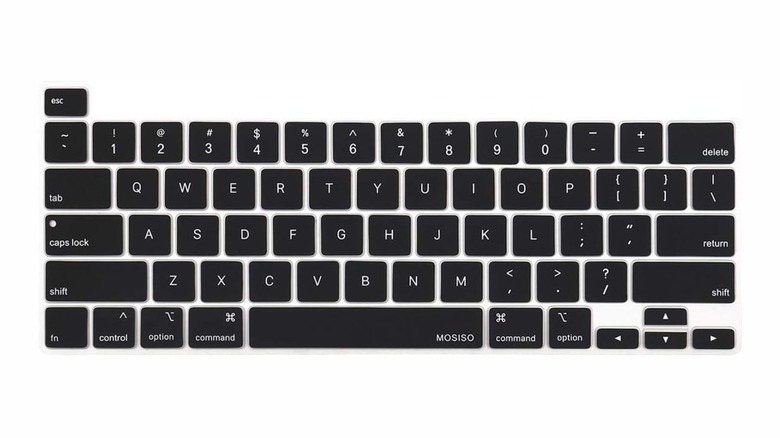
Another easy and affordable method to protect your MacBook is keyboard skin. Dust, spilled beverages, and other contaminants can not only bug up the keyboard, but they can also damage a laptop's entire motherboard. To avoid these problems, and therefore to forego expensive repairs, there's a simple solution: buying a keyboard cover for your Apple laptop.
The ultra-thin Mosiso Keyboard Cover Skin — about 0.3mm thin, to be exact — is one of many MacBook keyboard skins available out there, but this one's particularly appealing for all its color options. There are more than 20 of them to choose from, and no matter which one you get, you'll only be set back less than $10. It's made of flexible silicone, washable, and designed specifically for M-series MacBooks. Makeuseof points out that it may not be "the most stylish" among the keyboard covers it recommends but rates it highly given how useful it can be.
The Mosiso keyboard offers protection without hiding your keyboard's backlights or hampering your ability to close the lid. It stays firmly in place once you fit it onto your laptop, but it's easy to remove whenever you want to clean it. The fit is perfect, according to most Amazon customers, provided you select the right product variant that's sized for your specific MacBook model. This accessory will help keep your keyboard in pristine condition, giving you peace of mind and helping your laptop retain its value!
Logitech K585 Multi-Device Slim Wireless Keyboard

Adding an external keyboard to your MacBook setup is a great way to prevent neck and back pain arising from poor posture while typing. For $49.99, the Logitech K585 Multi-Device Slim Wireless Keyboard is a great option for that. Rated as "the best compact full-size keyboard" by Wirecutter, the device features both a number pad and a built-in cradle for your phone that lets you stand it up for easy access while you're working on your MacBook.
One great thing about the K585 is that it features scissor switches just like post-2019 MacBooks do. This means — if you have a newer MacBook — you'll get the same sort of typing response as you do from your laptop's built-in keyboard, which should help make it feel more familiar to you. You can even connect this keyboard to two separate devices at a time, one via Bluetooth and the other using a 2.4GHz receiver. Once that's done, you can switch between your two devices with the press of a button.
The K585 should last you up to two years on a pair of AAA batteries — while a rechargeable battery would be ideal, you shouldn't have to replace the batteries too often. This keyboard ticks all the boxes with Amazon buyers praising its solid build quality that looks to last but there's a small catch. You'll also have to make do without backlighting on this keyboard.
Logitech M720 Triathlon Wireless Mouse
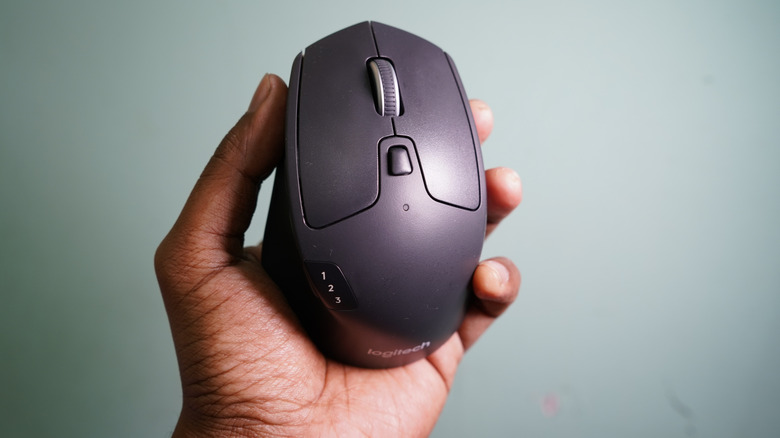
With or without an external keyboard, a quality external mouse is a no-brainer for better productivity. One such mouse you can buy without spending a fortune is the Logitech M720 Triathlon Wireless Mouse. It's one of those tried-and-true product staples that will probably last you for years. Regularly priced at $44.99, it features two wireless connectivity options — Bluetooth or 2.4Ghz receiver — as well as four programmable side buttons and a scroll wheel. You'll need to power this device with a single AA battery, but a quality battery should last you between one and two years, depending on your usage patterns.
Much like the K585 keyboard we just covered, one big advantage you get with the M720 mouse is the ease at which you can use it with different devices at the same time. You can, for instance, pair the mouse to your MacBook, desktop computer, and iPad via Bluetooth, then quickly flick between those devices with the button labelled from one to three. Additionally, if you don't love the mouse's factory settings, Logitech's Logi Options+ software allows you to remap mouse buttons for specific commands, navigation settings, and even gestures. If you value comfort, Rtings.com points out that the M720 Triathlon is "very comfortable for most hand sizes during long periods of use." On Amazon, hundreds of buyers have also commended this mouse's overall build quality.
Apple EarPods
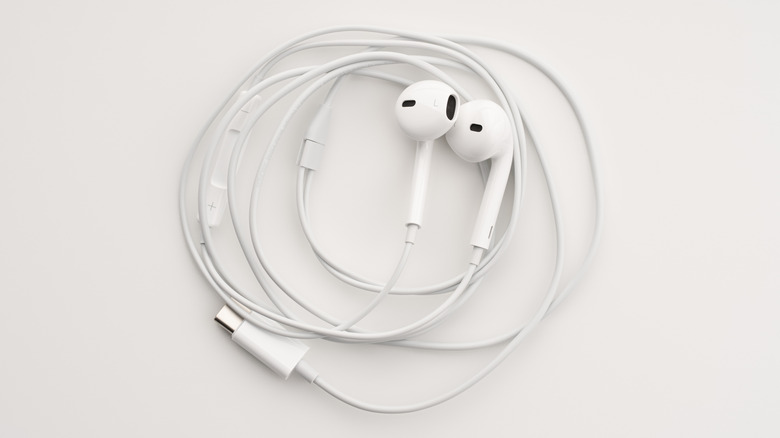
It's official: wired headphones are cool once again, so there's a decent chance you might want to grab a pair to use with your MacBook. Since the rise of wireless earbuds, wired options tend to be inexpensive, and that applies to the Apple EarPods. At just $19, they let you experience low-latency audio for any use case, whether for meetings, calls, or music. Better yet, this old-school-looking accessory even comes with an inline microphone, as well as physical controls, which come in exceptionally handy during phone calls. Lab tests even show that the EarPods' sound quality is on par with Apple's solid-sounding AirPods 3, just with less powerful bass due to their open-ear design. Soundguys points out that there may be better earbuds out there but still recommend getting these if "cheap and simple is your top priority."
You can get these earbuds in three variants: USB-C, Lightning (to use with older iPhones), and the classic 3.5mm jack option. Without even costing more than $20, these buds can reliably carry you through remote conference calls, your favorite albums, or — if you're a content creator — quick, on-the-go video editing sessions, all without having to worry about Bluetooth latency. If you're in doubt, Amazon reviews consistently laud the sound quality wired Earpods.
Ugreen Vertical Laptop Stand
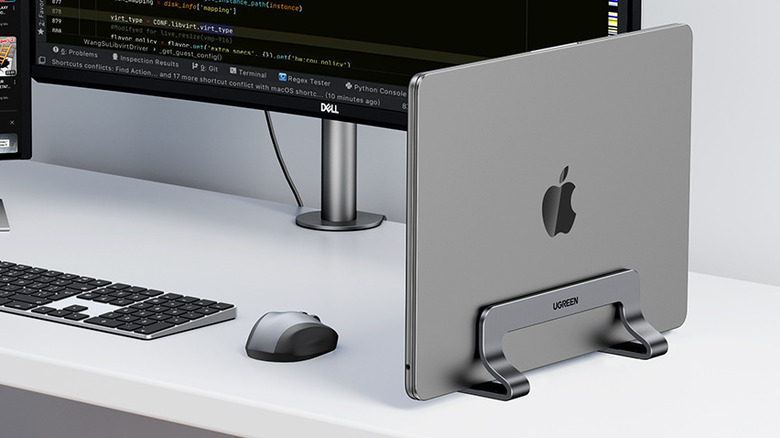
If you typically hook up your MacBook to an external monitor, there's no reason it needs to lie flat on your desk and take up more space than necessary. An option like Ugreen's Vertical Laptop Stand ($22.99) lets you dock your MacBook upright for optimal space savings. One Amazon buyer specifically highlights how useful this product is for small desks, stating they now have "space for [a] keyboard and documents" because of this one tool. So, if you're working with limited surface real estate or simply crave a tidier workspace, this is a great buy. In addition to saving space, this vertical setup allows the underside of your machine to get air flow when it normally would not, which is particularly important while it's in use.
You can also adjust the vertical stand's slot width using a simple screw mechanism. 9to5toys notes that you can widen it to a maximum of 1 inch and supports most laptop sizes, so even the thickest and biggest of MacBooks would fit in this gadget without any issues. It includes silicone padding in the slot where the laptop sits, which both prevents scratches and holds your machine firmly in place, so you won't have to worry much about accidental cable tugs knocking your MacBook over. For the build quality, buyers describe it as solid and in some cases feels more premium than what the stand costs.
Moft Invisible Laptop Stand
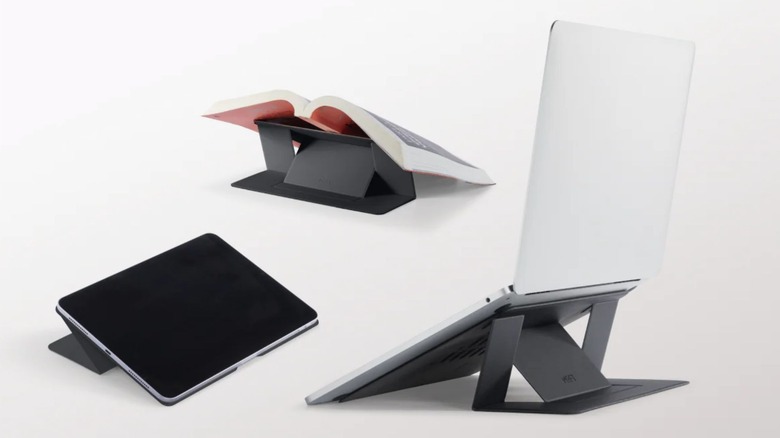
A horizontal laptop stand is another nifty accessory you can use to reposition your MacBook for comfort reasons. One great option that's both durable and portable is the Moft Invisible Laptop Stand; depending on the size and color variant you choose, as well as whether you select the adhesive or non-adhesive stand, the gadget costs between $25 and $40. Unlike vertical stands, this "invisible" stand lets you prop up your laptop for more ergonomic typing. Some reviewers on Amazon specifically mention how this device helped their posture, and it even improved neck pain for some users.
iMore points out that you can choose between two height modes (2 inches and 3 inches), so there's some wiggle room for adjustment if necessary. The adhesive stand is designed to stick to your MacBook long-term, so if you only want to use the item when you need extra elevation, consider opting for the non-adhesive version. The adhesive stand is thin, lightweight, and folds flush, so it's easy to carry around even once it's attached to your MacBook. Both the adhesive and non-adhesive versions of the gadget have just enough friction to hold your laptop in place, but the non-adhesive model can also easily be used with other gadgets, including tablets, phones, and even books. Just be sure to pick the correct size variant prior to checkout so you don't end up with an incompatible stand.
How we selected these accessories
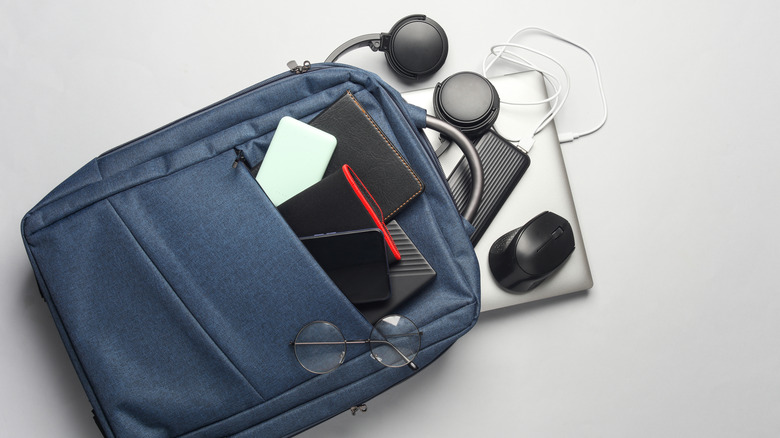
Budget was the primary criterion for our accessory choices, so we set $50 as the price ceiling for our selected products. To ensure quality, we opted to include items with ratings of 4.2 stars or greater from at least 150 reviews on Amazon. Each product also had to have at least one favorable mention from credible outlets, such as MacWorld, Rtings.com, Wirecutter, or similar. Moreover, each item had to be compact and portable enough to pack in a bag alongside a MacBook.