

This Samsung Galaxy Feature Can Move Files In Seconds
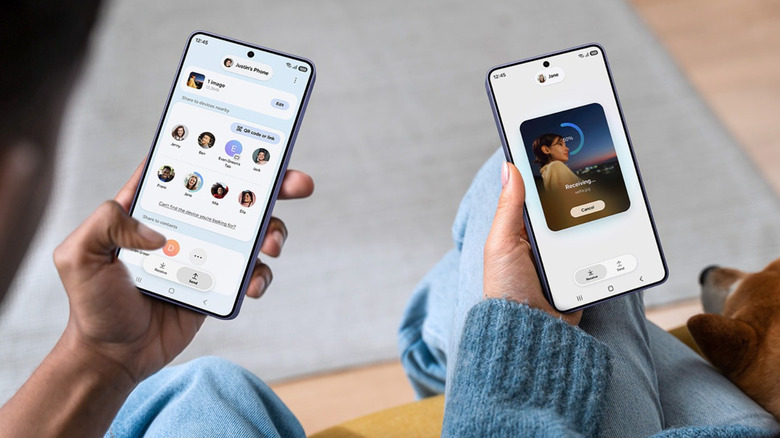
These days, you won't go long without needing to transfer a photo, video, or document to someone else. Normally, your first instinct is to upload the file to a shared platform like Google Drive or Telegram, access that platform on the other device, then download the file from there. You might also think of using your Android phone's USB OTG functionality to transfer the files to a flash drive for sharing. These methods aren't only clunky, but also take more time than necessary.
If you're on a Samsung Galaxy phone, there's a built-in way to move files that you should absolutely be aware of: Quick Share. True to its name, Quick Share can share files to other devices within seconds. And since it's completely wireless and non-reliant on the internet (at least when sharing to nearby devices), it's more convenient to use, too. You can actually find Quick Share on other phones — it's essentially AirDrop for Android — but it comes with a couple of extra features on Samsung Galaxy devices. With a Galaxy phone, you can use Quick Share for sharing to distant receivers or adding protection to your shared files. Here's a breakdown of how these cool Samsung Galaxy features for Quick Share work.
How to send files via Quick Share links on Samsung devices
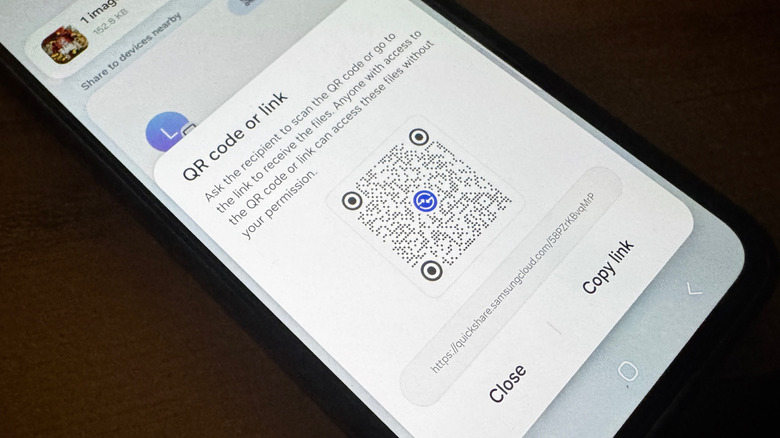
Normally, whenever you use Quick Share to quickly move files, the other device always has to be nearby. Otherwise, your phone can't see or share with it. With a Samsung Galaxy phone, though, Quick Share isn't limited to nearby devices; you can share with anyone, even if they're halfway across the world, thanks to one of Samsung's exclusive features: Quick Share links. What it does is upload the file to Samsung Cloud and generate a shareable link, ready for anyone with access to view and download. To use Quick Share links, follow these steps:
- Go to the file you want to share.
- Tap the share icon.
- Select Quick Share from the menu. Depending on the app, you might need to select More to see this option.
- If who you want to share the file with isn't saved in your contacts:
- Under Share to devices nearby, press QR code or link.
- Choose Copy link.
- Send the link to whoever you want to forward the file to. Make sure to send it right away, as the link is only valid for two days.
- If the person is already in your contacts:
- Press Share to contacts.
- Select the contact from the list.
- When prompted to send a text message, hit Send to proceed.
On the receiver's end, all they have to do is open the link. They'll be redirected to the Samsung Cloud page, where they can tap to view the file or press Download to download it to their device. Samsung's Quick Share links support up to 1,000 files in one transfer, but you can only send 10 GB a day. It's also important to note that you need to be connected to the internet to use Quick Share links.
How to send files via Quick Share Private Sharing on Samsung devices
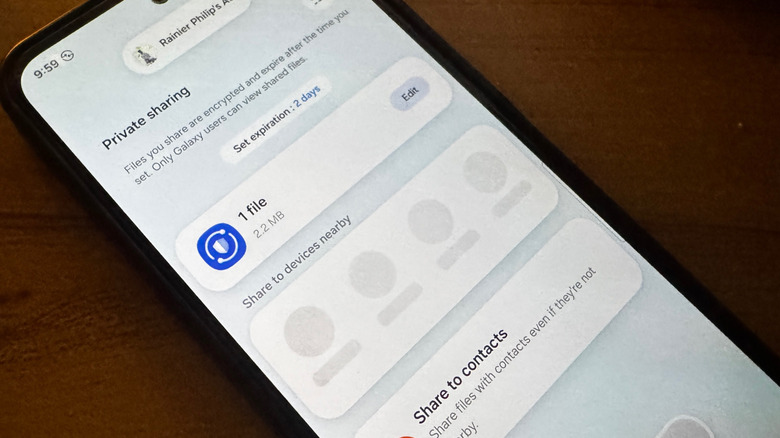
Quick Share's Private Sharing feature on Samsung devices is a way to keep your shared files secure. Files you send via this method can't be saved, shared, or screenshotted since they're encrypted, so only the intended receiver has access to them. Shared files can also have an expiration date, after which the receiver loses access. While this sounds impressive, the Private Sharing option in Quick Share is only available if you're sharing with another Galaxy device. It won't work when moving files from your Galaxy phone to an iPhone or any other Android model. Here's how to use Private Sharing:
- Open Quick Share from your Quick Settings panel.
- Go to the Send tab.
- Tap Select files.
- Pick the files you want to share.
- Press Done.
- In the Quick Share screen, tap the three dots in the upper-right corner.
- Go to Turn on Private sharing.
- To set an expiration date for your file, choose Set expiration and adjust the days and time to your liking. Hit Done to save it.
- If the other Galaxy device is nearby, tap on it under Share to devices nearby.
- If the receiver isn't with you, go to Share to contacts and choose the contact to send the files to. They have to be on a Galaxy device to receive your files.
Your receiver will then see a Quick Share notification on their phone. They can simply tap Open to view the file (which has been edited with a watermark).
With Private Sharing, you can share images, videos, audio, and documents (only TXT and PDF). But unlike Quick Share links, Private Sharing on Samsung devices only lets you send a maximum of 20 files, with a limit of 200 MB per transfer.