

How To Get The Best Audio Out Of Your Amazon Echo Dot
We may receive a commission on purchases made from links.
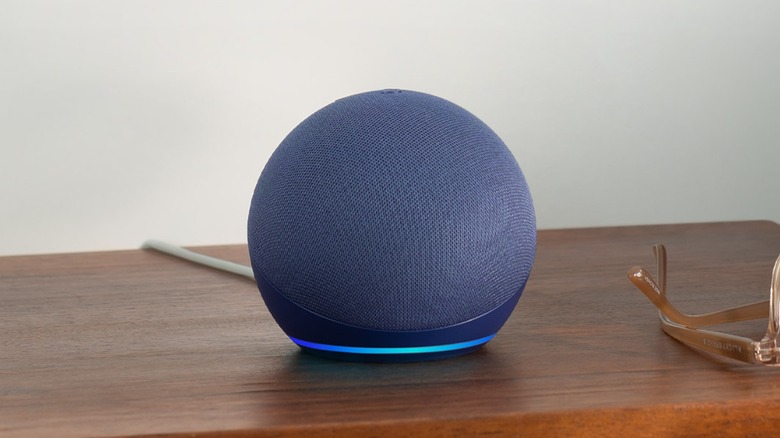
Amazon's Echo Dot is a solid way to access the Alexa voice assistant while still having a small speaker for playing various kinds of audio — but users may not get the best sound straight out of the box. Since Echo Dots have been able to pair together for stereo sound since the third generation of devices (check your device for compatibility), users should be aware that Amazon has included a couple of options to help users get the best audio.
With an Echo Dot, users can control their audio settings, adjust how they hear notifications and alarms, and even tweak how Alexa notifies them that it's listening. Even for those who don't consider themselves audiophiles, these options can really change how you interact with a Dot, and some may even find that there are still older Echo devices worth buying in 2026.
We can show you the exact steps users need to make these changes, and most of these processes can be done either through the Alexa app or by asking the voice assistant directly. It's also worth remembering that there can be some terrible places to put an Amazon speaker, especially if audio is a primary concern. Nonetheless, check out these tips if you're looking for bigger sound from a small package.
How to adjust the EQ on your Amazon Echo Dot
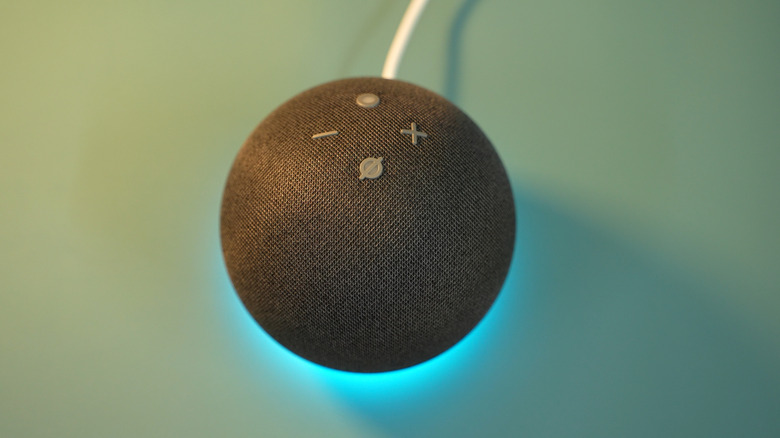
Since Echo Dots include a speaker, there are several settings users can adjust to change how a Dot sounds. While some may know that users can adjust the volume of an Echo Dot with its physical buttons or by asking Alexa to do it, there is also an option to adjust the device's equalizer (EQ). With an EQ, you can adjust the bass, mid, or treble frequencies to suit your tastes.
To adjust the Dot's EQ settings from the Alexa app, follow these steps:
-
Open the Alexa app on your phone.
-
Select Devices from the bottom of the screen.
-
Select Echo and Alexa.
-
Select your Echo Dot.
-
Select the Device Settings (cogwheel icon) located in the top-right corner.
-
Choose Sound.
-
Tap Equalizer.
-
For each item, adjust the slider to suit your taste.
-
Save your settings by selecting the back arrow.
Users can repeat these steps for each Amazon Echo Dot they have. Asking Alexa to make adjustments is also an option. You can ask it to reset your EQ settings ("Alexa, reset the equalizer") or even have it adjust items such as the bass ("Alexa, turn up the bass"). You may also want to know about these lesser-known Alexa commands.
Additional options to exsplore
One thing that might benefit users is the fact that you can adjust the notification and alarm volumes separately from other sounds on your Echo Dot. It can be good if you're not a fan of casually listening to audio at high volume but still need a strong alarm to wake up in the morning.
Here are the steps:
-
Open the Alexa app on your phone.
-
Choose Devices.
-
Select Echo and Alexa.
-
Choose the device you want to adjust.
-
Select Device settings (cogwheel icon).
-
Choose Sounds.
-
Adjust the volume using the slider. You may also have the option to increase an alarm's volume gradually.
-
You can also change the alarm and notification sound by choosing Notification or Alarm under Custom Sounds.
Lastly, since we're talking about sound, it's worth mentioning that you can add a sound effect to let you know when Alexa starts and stops listening to you. This can be handy if you don't want to look at your device to see a pulsating light
Follow these steps:
-
Open the Alexa app.
-
Select Devices.
-
Choose Echo and Alexa.
-
Choose your Echo Dot.
-
Tap Device Settings (cogwheel)
-
Select Sounds.
-
Look for Start and End options under Request Sounds.
Of course, you can always ask Alexa to enable or disable these sounds as well. If you do enable them, you'll receive a sound notification and a pulsating light to indicate that Alexa is listening. Knowing the ins and outs of your Echo's sound options can be a great way to get some additional use out of an old Echo.