

10 Lesser Known Alexa Commands You Should Be Using
We may receive a commission on purchases made from links.
Using Alexa with your Echo devices or other smart home appliances is a good way to keep everything interconnected. You can use Alexa for a variety of tasks, such as dimming your lights or turning the volume down on an Alexa-controlled speaker. Many of these commands are famous, but there are a handful that you might not immediately know that are useful that Alexa can do. Another reason we shared essential tips and tricks for Amazon Alexa users. But there are other commands that tend to fly under the radar, which we would like to bring to your attention.
We've gone through to find out which unknown and lesser-known Alexa commands users have discovered on their devices. These can help you perform tasks you thought you had to do from your smartphone, or couldn't use with Alexa. These commands don't always make the headlines, but they're always there to help. Here's a list of 10 lesser-known Alexa commands you should be using every day.
Alexa, call for help
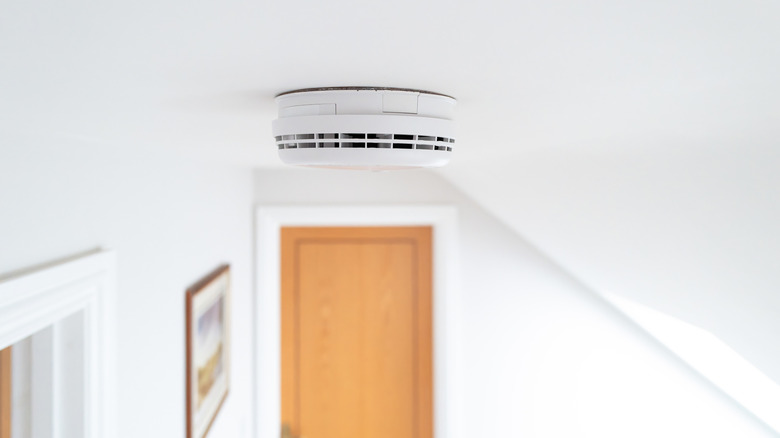
You only have seconds to react during an emergency situation, and it can be difficult to know what the correct decision is in these precious moments. A good way to immediately call for help if you can't reach your phone or need assistance right now is the command "Alexa, call for help." For those who are willing to pay for an additional subscription service, there's Alexa Emergency Assist, which gives anyone in your household access to a hands-free, 24/7 emergency assistance service to call for help whenever you need it. When you use the command to call for help, the Echo device connects you with an urgent response agent, who then requests emergency service dispatch in your area.
To help shorten the time it takes to report your emergency, you can add critical information to your Alexa profile so the urgent response agent can quickly look up these details during the call. You can include information about allergies, any medications you take, or health conditions you might have. The service also extends protection when you're not home, as the Echo can detect the sound of breaking glass or a smoke or carbon monoxide alarm going off and, if you're not there, reach out to the authorities on your behalf. Some devices have this emergency feature, while others don't, but it pays to check if you can use it.
Alexa, open Mindful Meditation

When you're looking for a quick break from work or need some time to focus on taking a step back from everything, Alexa can help you with that. You can use the command, "Alexa, open Mindful Meditation." Alexa begins to play from a series of meditation-based playlists, designed to help you relax for a set amount of time or walk you through a guided breathing exercise if you want help calming down or centering yourself after dealing with a stressful situation. These can range from a full session of 15 to 20 minutes to significantly shorter, between 1 and 5 minutes. The range is up to the user and what they need in that moment. It's a worthy addition to the list of devices you might also be using to reduce stress.
There are additional commands you can use for this sequence, such as "Alexa, open one-minute meditation" for a short session or "Alexa, open Headspace" for help with wind-down or sleep exercises. The more you use this application, the more commands you can discover based on what you need when you're dealing with stress. These can provide a good break for anyone who needs to step back from work or calm down at the end of a long day.
Alexa, speak faster (or slower)
It might be difficult for you to catch everything that Alexa is saying, or the device might be speaking too slowly. The default speed might not be enough for you. For those who want to adjust Alexa's speaking speed, you can do so with the command, "Alexa, speak faster (or speak slower)." It's a good way to speed up or slow down the way Alexa talks to you and everyone in your household. You can continue to ask Alexa to adjust its speed, up or down, until it reaches a maximum speaking rate. When you reach the maximum amount, it says, "Sorry, I'm already speaking at my highest (lowest) speaking rate."
It's a good way to make sure you can interact with Alexa in a way that works for you. It's one of the smaller details that is often overlooked by users of the device. Since 2021, Alexa has included Adaptive Volume feature, allowing it to speak over loud noises in the environment. If you ever want to return to the default speed on your device, you can say, "Alexa, speak at your default rate," and it returns to where it was before you adjusted it.
Alexa, is (device) on?

Having a home full of smart devices or electrical devices that are connected, you might not remember which ones are still off or on. They don't all need to be on all the time, and you might leave a room thinking you turned it off. A quick way to double-check if an interconnected smart device is still on without physically going to check yourself, you can ask, "Alexa, is (device) still on?" Your Alexa unit quickly checks to see if it is or not, and notifies you about it. You can also learn if the device is still connected to a power outlet or not, and if it's supposed to be on. These work great if you have any devices that connect to Alexa, but are not Amazon products.
This command doesn't work on every device in your house. It works on devices that are Alexa-enabled or that communicate with Alexa. If they don't, Alexa won't be able to check if they're operating properly or if you don't have it plugged in. It's a small command to keep track of your smart devices, but it's a good way to make sure that you don't leave them on or that you turn them off when you leave a house, especially if you're using Amazon outlet plugs to turn your devices into added smart home features.
Alexa, move music (or sound) to (next room)
Moving to different rooms during a party or a household event is pretty common. What's annoying is bringing your music with you when you do this, as you have to reconnect your devices or physically move a speaker. For anyone who has Alexa-connected devices with screens scattered throughout your house, it's much easier, as you can use the command, "Alexa move music (or sound) to (next room)." This command allows you to start playing whatever you're listening to in your current room to the next room you visit, be it the living room, kitchen, or your bedroom. You can skip having to start your device over or reconnect it to something else. It's a quick, fast way to move the party elsewhere with you in your house, especially if you use an Amazon smart home hub to keep track of all your devices.
The command is a quick way to vocally change what device is playing music. You can also do this with your screen, but it takes longer and involves more steps. You can further optimize this setting by creating select speaker groups throughout your house, such as having them set up in your office, living room, or kitchen. Those speaker groups are connected together, and when you ask Alexa to play for that specific room, only those speaker-connected devices start playing, not all of the others you have set up.
Alexa, find my phone
It may not happen often, but if you do lose your smartphone, trying to find it or remember where you set it down can be a nightmare. You might have put it anywhere, and it might even be in a different room, hidden somewhere under a pile of clothes or knocked behind a night table. When you have Alexa in your house, using the command, "Alexa, find my phone," is a quick, effective way to immediately find out where it is.
At your command, Alexa connects to the phone you want to find and calls it to track where it is in your home. This does require a bit of setup beforehand, such as going through the Skills tab to create the feature, where you give Alexa your phone number, so it knows what to call when this happens. Alternatively, you can have it so Alexa plays music from your smartphone to find it. Between the two, playing music from your smartphone might be an effective way to find it, much faster than going with the Skills tab. A downside is if your smartphone is connected to any Bluetooth speakers, and your music plays through those. Because of that, the Skill phone setup is a good, sure-fire method that you can always find your device if it's lost that won't disrupt others.
Alexa, make an announcement
When you have multiple Alexa devices scattered throughout the house, you can send a prompt announcement to everyone close to those devices. It's a good way to let everyone know something, rather than sending a mass text to everyone or going from room to room to tell what you want to say. To do this, you can say, "Alexa, make an announcement," and then say what you need to say to the device. The follow-up for the announcement needs to be simple, though, such as, "Announce, dinner is ready," or "Announce, I'm headed home," if you're away from your house and are planning to be there within a short time.
When the announcement goes out, Alexa shares what you said to everyone who is next to the device. It stops whatever the devices were doing, so if one was playing music, it pauses the music to make the announcement you requested before returning to its previous task. It's a good way to make sure everyone in a house knows what's happening or what to expect soon. It's especially good if you're on your way home and you don't want to call someone, as you can let them know you're almost there without picking up your phone while operating a vehicle. You can also do this command from your smartphone if you can't vocally share it.
Alexa, tune my guitar

For musical enthusiasts who enjoy playing guitar as a hobby, it might be difficult to know if you're properly tuning your instrument. Alexa can assist you with that. You can speak to Alexa and say, "Alexa, tune my guitar," and the device walks you through the steps of properly tuning your guitar. This is a Skill that you have to enable through your device, and you do have to follow along with the application as you adjust the instrument yourself. It doesn't do everything for you, but it offers a good soundboard to reach that point much faster than if you were by yourself.
The Alexa application uses the standard EADGBE tuning, and it is not listening to your guitar as you adjust. Instead, it's trying to give you a good idea of what your instrument should sound like to optimally tune. It's an acquired skill for some and is a good way to practice. Additionally, you can have Alexa help you as you practice with your guitar, such as logging your sessions, acting as a database for chord diagrams, or providing hands-free metronome control.
Alexa, where are my packages?

For those who are endlessly curious about where their Amazon packages are and where they are on a delivery route, checking the website becomes a habit, especially if you're at home waiting to know when you have to run outside to get it. Thankfully, Alexa can help you keep track of these little details. With the right Skill downloaded, you can ask Alexa, "Alexa, where are my packages?" and the device checks to see where they are from your Amazon profile and provides you with a thorough update. You'll know where they are, how much longer you have to wait, and the expected arrival time based on the driver's information. The device can't help make your packages arrive at you quicker, but at least you'll be able to stay informed.
There's not too much else to this command, outside of the convenience of quickly checking on your packages without having to look on your smartphone or refreshing an Amazon page. It's a good one to use while you're cooking, in a living room, or when you don't have your phone within reach. It's important to note that this command only works on Amazon packages by default. There are Alexa Skills that you can get that claim to track other packages, but users appear to have multiple issues with them.
Add an and to your commands
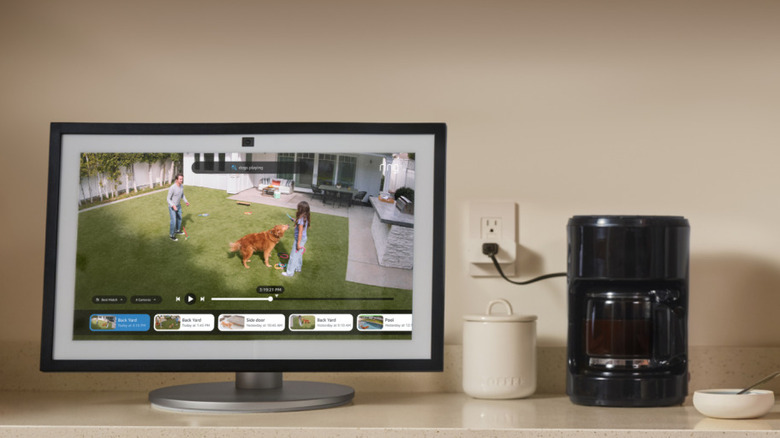
Alexa can be used to operate multiple devices in your house or perform several operations simultaneously. It might be a good idea to optimize what it's doing by having it perform several commands at once. You can do this by adding an "and" between the commands. For example, you can say, "Alexa, play rock music and turn the volume to 50%." The device will load up the rock-themed music playlist you have and adjust the speaker's volume to 50% at the same time, rather than you having to say those two things back-to-back in different commands.
You can do this for several commands with Alexa, such as adjusting your lights, music, or speaking at a different volume. Another way you can do this is by enabling Follow Up mode with Alexa, eliminating the need to repeat the wake word after you've already used it. You can do this to avoid having to say "Alexa" multiple times if you want it to do things immediately. When adding an "and" command, some users recommend making sure to say this part loudly to ensure the device hears it and performs both tasks.