

4 Samsung Galaxy Modes And Routines That Users Love

Samsung Galaxy devices have an automation feature called Modes and Routines that can automatically toggle settings or open apps based on where you are, what you're doing, or what you're using the device for. It's up there as one of the coolest things you didn't know your Samsung phone could do.
Modes are toggleable configurations that greatly change how your phone behaves. For example, you might have a Sleep Mode that sets your phone to Do Not Disturb and restricts certain app usage to keep you from staying up all night doomscrolling. Routines are simple "if, then" statements you can set up to execute whenever your specified conditions are met. All of this can be found in the Settings menu of your Galaxy phone or tablet by tapping Modes and Routines.
It would be nearly impossible to count all the configurations you could have using this feature. If you can imagine an automation, you can probably make it work on your Galaxy device. So, start simple and try out these four modes and routines that users love. They might even inspire you to come up with your own automations that make daily life just a little bit easier.
App-specific auto-rotate
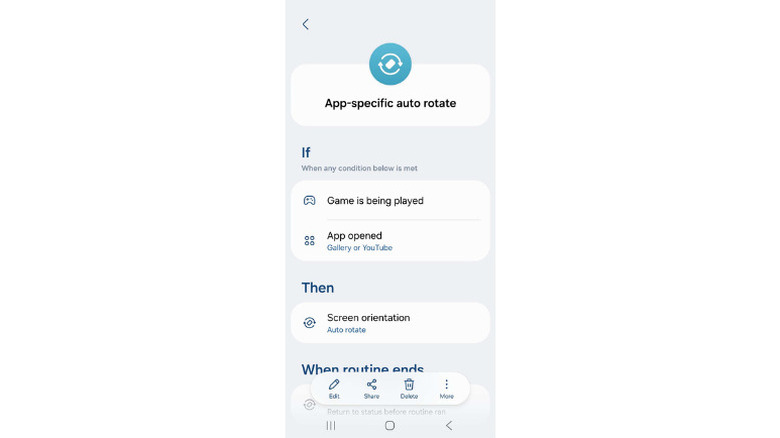
A highly upvoted Reddit comment suggests setting up a routine that activates your device's auto-rotate feature whenever a gallery or video app is open. This way, you can leave auto-rotate off at all other times. No more accidental shifts to landscape mode when you're just trying to show your screen to a friend or look at your phone while lying in bed. When you fire up YouTube, Netflix, or even a game, your auto-rotate routine can kick in so you can enjoy the content in its intended orientation.
To set up an app-specific auto-rotate routine, tap the Routines option at the bottom of the Modes and Routines screen. Tap the plus sign near the top of this screen to create a new routine. Tap to add an "if" condition, then scroll down to find App opened in the Event section. You can then choose any number of apps to include in this routine. For gaming, it's even easier: there's an "if" condition that applies to any detected games being opened.
Next, tap to add a "then" statement. Tap Display, then Screen orientation. Many users choose the Auto rotate option here, but you can also choose Landscape orientation if you want your chosen apps to always display in landscape. Name and save your Routine to complete the setup.
Reduce battery heat when using Android Auto
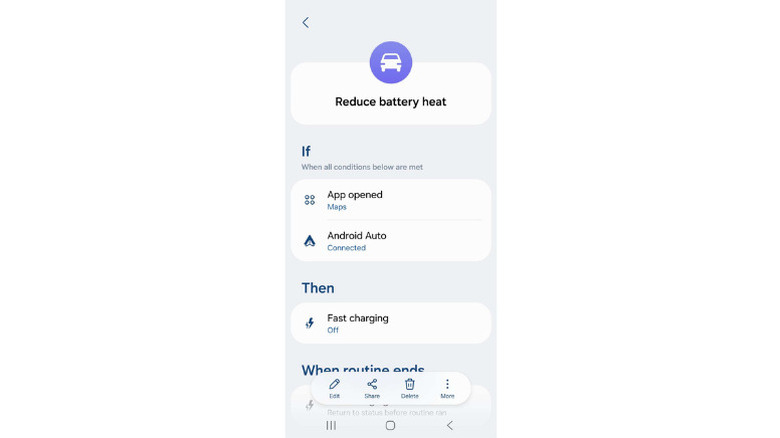
YouTuber Tech Guy Charlie uploaded a video in response to a commenter's particular interest in a routine to stop their phone from overheating when using Android Auto. In the video, Charlie demonstrates that a phone can easily reach up to 42 degrees Celsius (approximately 107 degrees Fahrenheit) when sitting in a hot car, plugged into the car's console via USB, and with Google Maps navigation and Android Auto features enabled. A simple way to address this temperature increase is to create a routine that disables fast charging while Android Auto is active.
To do this, create a new routine with two "if" conditions. For the first one, tap App opened in the Event section and select Maps (or your navigation app of choice). For the second "if" condition, select Android Auto in the Connected devices section. For the "then" statement, tap Battery, then Fast charging, and choose Off.
The reason this works is that charging your phone warms up the battery, and fast charging heats it up even more due to more wattage entering the battery at once. Leaving your phone on fast charging the entire time you're on a long road trip is a potentially harmful example of charging your phone wrong. As Charlie demonstrated in his video, disabling fast charging while Maps and Android Auto are active can bring your phone's temperature down by as much as 6 degrees Celsius (to approximately 96 degrees Fahrenheit).
Location-based silencing
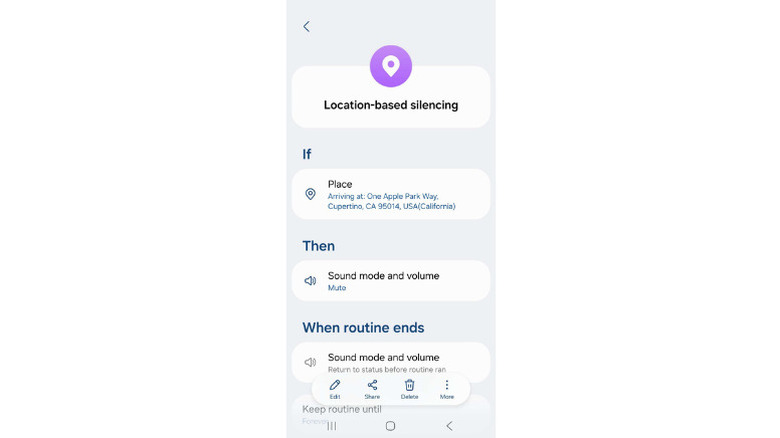
Comments across multiple Reddit threads suggest a work-related routine that uses location detection to silence your phone when you're at your job. Users love this location-based silencing because it prevents embarrassing mishaps without any effort on your part. It can also be a good idea to set up similar silencing routines for the gym or movie theater that you frequently visit.
When selecting the "if" trigger for this routine, simply select Place under the Place category. This brings up a Google Maps interface you can use to search for an address. You can then designate a radius; if you work in a small building, you might set this to a small radius. If you find yourself moving across a campus, a larger radius makes more sense. Your routine will be active within the area of the circle and will switch off once you leave it.
For the "then" statement, select Sounds and vibration, then Sound mode and volume, and choose either Vibrate or Mute for the mode based on your preference. For added productivity, you can also add a function to your work routine that changes your wallpaper to something more professional, or automatically activate a mode that restricts certain app usage to minimize distractions.
Overnight power saving
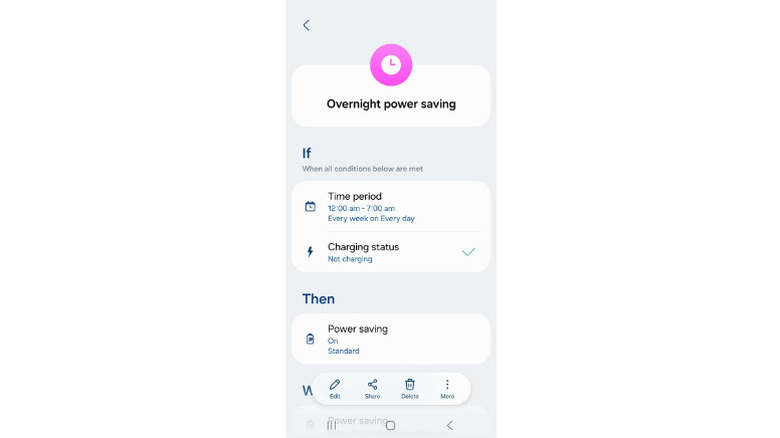
YouTuber TechnicallyAlex highlighted a set-it-and-forget-it routine that will help Samsung Galaxy users keep a good battery level overnight. The idea is to have your phone automatically switch to power-saving mode while you're sleeping — as long as you're not planning to plug it in to charge overnight. Power saving mode is one of the most effective Android settings that can extend your phone's battery life, but it's not something most people want to bother toggling every night or throughout the day.
You'll need to set two "if" triggers for this routine. For the first one, select Time period under the Time category. Choose a timeframe when you're usually asleep, such as between midnight and 7 a.m., and toggle each day of the week so your routine activates every night. For the second "if" trigger, tap Charging status in the Device category, then select Not charging.
For the "then" statement, simply tap Power saving in the Battery category and make sure it's toggled on. Commenters voiced positive results in response to Alex's video, and some even suggested a similar use of routines to limit overnight charging to 80%. The 20% to 80% rule is an important battery life tip that can make a real difference, and routines can help you capitalize on it.