

What Does The Flashing Folder With A Question Mark Mean On A Mac?

Whether you shut down or put your Mac to sleep, you'd normally have no issue getting right back to your work. But there are instances when your computer suddenly malfunctions. Instead of seeing the usual home screen when you boot up your Mac, you're greeted with a flashing folder with a question mark on a blank screen. In some cases, it disappears after a few seconds and your Mac boots normally. But other times, your Mac gets stuck on the flashing folder screen.
This error icon can mean one of two things. One, there's an issue with your internal storage, which is also a sign that your SSD is about to fail or has already failed. Two, your Mac can't find a valid, working operating system it needs to boot. In turn, it doesn't proceed to the home screen.
A flashing folder with a question mark doesn't automatically mean your Mac is done for, though. Depending on the cause, you might still be able to fix it. We'll walk you through what to do when you see this flashing folder on your Mac.
How to stop the flashing folder with a question mark from showing briefly on your Mac

If you only see a flashing folder with a question mark on your Mac temporarily, it's worth checking whether your startup disk is set correctly in the settings. Follow these steps:
- Click the Apple menu.
- Go to System Settings.
- In the General tab, select Startup Disk.
- Choose your startup disk.
- Hit Restart.
If you're using an Intel-based Mac, try resetting the NVRAM too (this also helps fix a MacBook stuck on a black screen). Simply power off your Mac. Then, press the power button once and quickly hold down the keys Option + Command + R + P. Keep pressing the keys for 20 seconds, even after the Apple logo appears on the screen. After 20 seconds, release the buttons and let your computer boot up.
If you have an Apple silicon Mac, there's no need to reset the NVRAM. If the flashing folder with a question mark screen still shows up briefly, you might want to contact customer service for assistance.
How to fix your Mac if it's stuck on the flashing folder with a question mark screen
When your Mac shows a flashing folder with a question mark, the first thing you need to do is boot into macOS Recovery. Here's how for Apple silicon Macs:
- Long-press the power button for ten seconds to shut down your Mac.
- Once the screen is off, hold down the power button again until the "Loading startup options" message or Options icon appears on the screen.
- Select Options.
- Press Continue to proceed.
- When prompted, choose your disk (e.g., Macintosh HD) and enter your user and password.
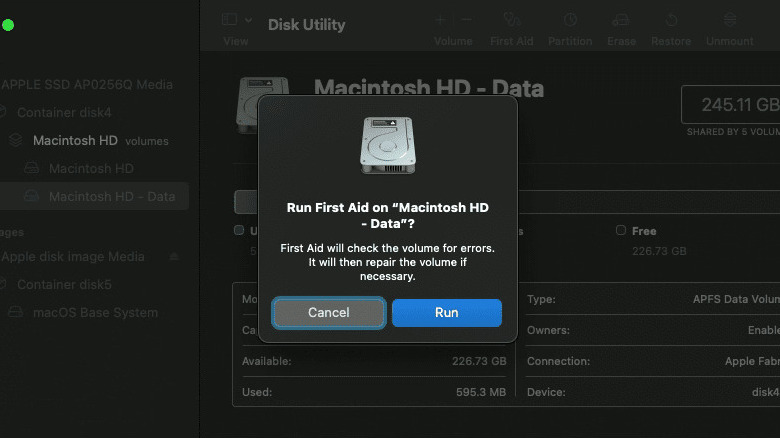
From the Recovery options, you can then fix your disk with the Disk Utility:
- In the Disk Utility panel, click the View icon in the upper left corner.
- Go to Show All Devices.
- Find your startup disk at the very top of the list in the left-hand panel. If it isn't listed, it might be faulty and in need of servicing.
- Select the very last entry under your startup disk.
- If available, press First Aid to repair it.
- Once done, choose the entry above the first one you selected.
- Repair it with First Aid again.
- Move up the list until you repair the startup disk.
If Disk Utility fixed the errors, you should be able to restart your Mac without issue. But if the flashing folder still pops up, you'll have to reinstall macOS from macOS Recovery. If, on the other hand, Disk Utility couldn't repair the errors, proceed to format the disk directly in Disk Utility before reinstalling macOS from the Recovery menu. If you get an error message saying the erase process failed, your startup disk might be defective. Bring your Mac to a service center.