

5 Amazon Alexa Features That Users Love
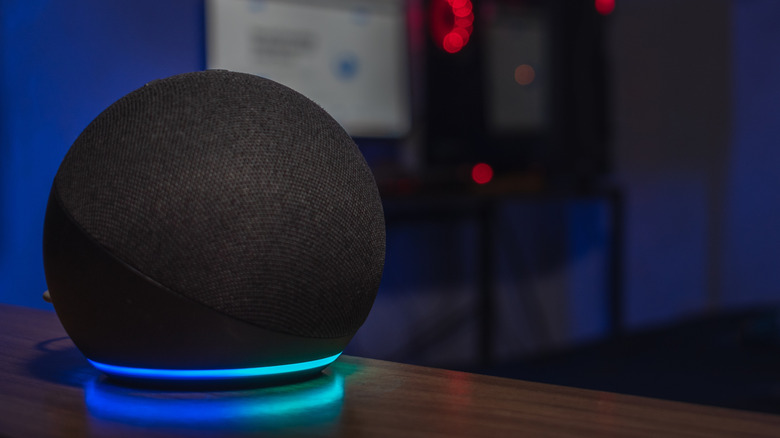
Amazon Alexa — and most other voice assistants, for that matter — used to be a novel science fiction-ish concept when it was first introduced back in the mid-2010s. More than a decade later, it has turned into one of the essential smart home tech devices for homeowners. Alexa particularly comes in handy when you have a quick question you can't be bothered to search with your phone, like, "When does Daylight Saving Time start or "How many tablespoons are in a cup?" Many people also use it for playing music during the day and white noise at night, all with nothing but a voice command.
Thanks to the hands-free convenience Alexa offers, it's no surprise that the service now has millions of users around the globe. But being an all-knowing assistant and voice-activated music player might not be enough to convince you to jump on the bandwagon. If you're on the fence about whether you actually need Alexa in your home and daily routine, here are five nifty Alexa features other users love that might just win you over.
Setting a timer
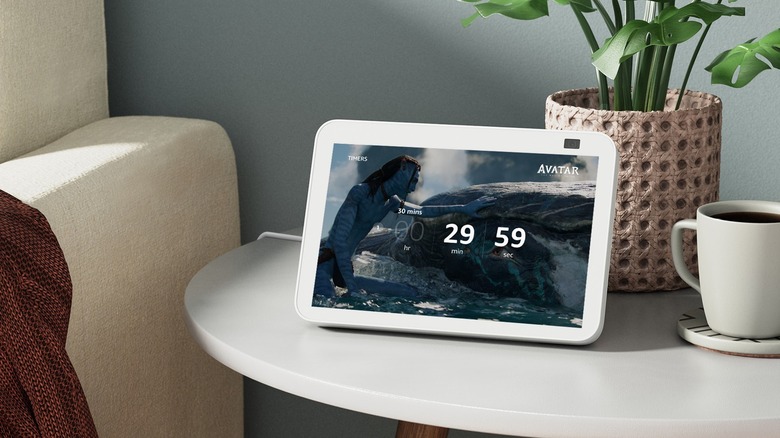
You might be surprised to learn that one of the Alexa features users love most is also one of its simplest capabilities: setting a timer. It comes in handy for all sorts of use cases, such as when cooking dinner or deciding when to automatically turn your fan on and off.
To start a timer on Alexa, all you have to do is say, "Alexa, set a timer for [some number of seconds/minutes/hours]." You're free to set multiple timers at the same time. But when doing so, it's best to name each timer to easily tell them apart. For instance, you can have an oven timer for two hours and a marinade timer for 30 minutes. Once a timer is finished, Alexa will alert you which one has ended. Other than standalone timers, Alexa lets you pair timers with connected devices, too. You can say, "Turn on the lamp for 10 minutes," or "Turn off the air conditioner in one hour."
While your timers are running, you can still interact with them through Alexa. You can ask how much time is left on your timer, pause or resume the timer, add or remove minutes or hours to it, or cancel it altogether. There's also an option to do all these from the Alexa app. Navigate to More and open Alarms & Timers. In the Timers tab, find the timer you want to pause, resume, or delete. But you can't change how long the timer is from the app.
Routines
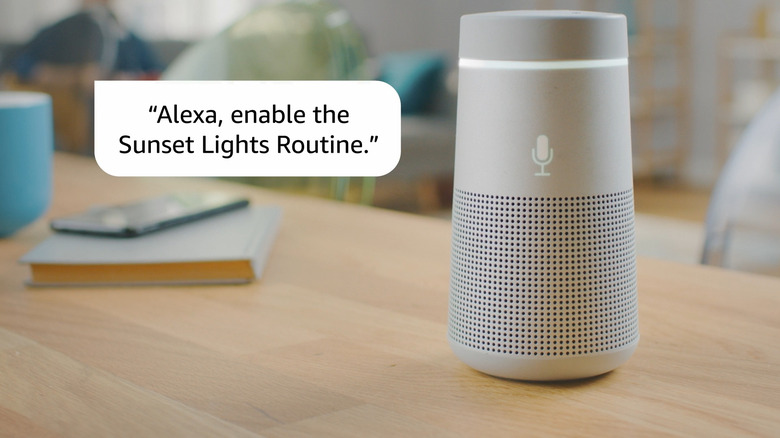
Maybe you want Alexa to turn off the lights, switch on your air conditioner, and start your sleep playlist all at the same time. But issuing three separate voice commands sounds like a lot of work. That's why one of the essential Alexa tips and tricks users love is using routines. Routines are a series of actions Alexa automatically does for you in response to just a single command. Yes, all it takes is one command to do more than just one action. Aside from your voice, routines can also be activated by other triggers — you can set them to start with the time of day, a signal from your smart home device, and arrival or departure from a location.
The Alexa app features several pre-made routines, so you won't have to start from scratch. In the app, tap on the More icon (next to the Ask Alexa text field) and choose Routines. Here, you can browse through multiple impressive options. For example, there's a routine that detects a baby's cry and automatically plays lullabies to soothe them. You'll also find a routine that switches on the lights, tells you the weather, and plays a song as soon as you dismiss your morning alarm. If you're into finance, Alexa has a routine that updates you on the stock market at the end of the day. Once you find the routine you like, tap on it and press Save to save it to your account.
If you prefer making your own Alexa routine, go to the Your Routines tab instead. Then, hit Create Routine and fill in the required fields. If your routine is voice-activated, make the command short, so it's easier to remember. Once you're done, try saying the command to see whether the routine works as expected.
Third-party skills
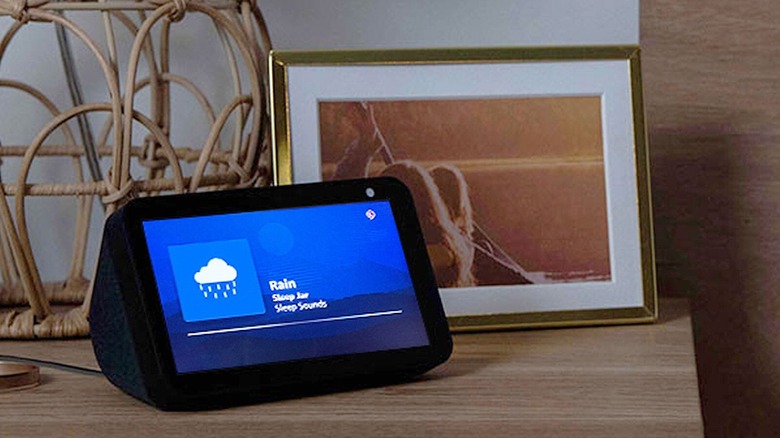
While Alexa can do all sorts of things, it isn't all-powerful on its own. It requires some third-party integration called Alexa Skills to perform certain actions. These actions can either be standalone (no other device needed except for your Alexa device) or require a connected device (like your smart light or smart plug).
Skills also come in different categories and use cases. For instance, under Food & Drink, there's the Recipe Keeper Alexa Skill that connects the Recipe Keeper app to your Alexa device, letting you use voice commands to find recipes, listen to the ingredients list, and get verbal directions. Under Shopping, you have the AnyList Alexa Skill for creating grocery lists, meal plans, and recipe lists. This also needs integration with the AnyList mobile app. Then, under Smart Home, you'll find the iRobot Home Alexa Skill, developed for controlling your Roomba and Braava robot vacuums and mops via Alexa voice commands.
Users particularly love Alexa Skills since they extend the functionality of Alexa way beyond its built-in features. However, Alexa doesn't automatically have skills out of the box. To install some Alexa Skills on your device, follow these steps:
- In the Alexa app, hit the More icon.
- Tap on Skills & Games.
- Find the skill you want to use. You can either type a keyword in the search bar or select one of the categories at the top.
- Open the skill you like.
- Press Enable to Use.
You can then try out the skill by saying one of the suggested voice commands. Make sure to use the command exactly as listed on the skill's details page, as each skill supports a specific set of phrases. Saying a different command might not work.
Easter egg commands
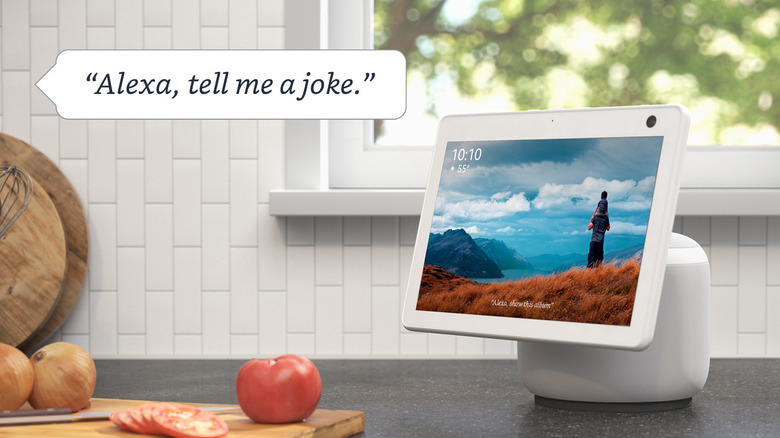
If you've been a long-time Alexa user, then you're already pretty familiar with its main features — connecting with smart home devices, installing skills, and playing music. But besides these popular capabilities, there are also some lesser-known Alexa commands users love to use when they get the chance. These Easter egg commands are not your usual practical requests. Instead, they're quirky phrases that Alexa responds to in an equally cheeky way. These commands aren't necessarily obvious to most people, but that doesn't mean they're any less fun to use. Here are a few of these Alexa Easter eggs you can try:
- "Surely, you can't be serious." Alexa replies that it is, in fact, serious, but asks you not to call it Shirley (get it?).
- "What is the Prime Directive? " Alexa responds with the Prime Directive from Star Trek.
- "Beat box burps." Alexa lets out a burp in the tune of a beat box and proceeds to show off all the other types of burps it can do.
- "Execute Order 66." Another pop culture reference, but this time from Star Wars.
- "Why do birds suddenly appear every time you are near?" This is a reference to the Carpenters song "Close To You," to which Alexa replies with the next line of the song.
- "What's cooler than being cool?" Alaxa simply replies with "Ice cold!"
There are a lot more Alexa Easter eggs available. Feel free to check forums like Reddit.
Hands-free smart home control
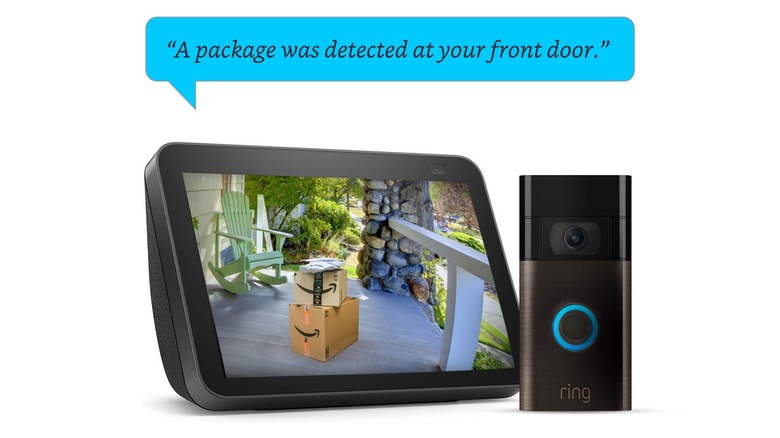
With all the cheap Alexa devices you can buy on Amazon, it's no surprise that hands-free smart home control is among the Alexa features users love and use frequently. Sure, most smart home devices pair with a companion app where you can control them. But once you start buying from different brands, it's not hard to get weighed down by all the apps you have to manage. To keep things simpler and more organized, you can integrate all of the devices into your Alexa ecosystem instead.
Doing so eliminates the hassle of handling multiple apps while also giving you a lot more flexibility in how to make your smart home devices work together the way you need them to. For instance, when you connect your devices to Alexa, you can then integrate them with your custom Alexa routine. For example, one Reddit user mentioned they use Alexa to activate the nighttime mode for their smart home devices, which automatically locks the door, adjusts the thermostat, turns off the light, and starts the security camera recording. Another user set up an Alexa routine that prepares their living room smart home devices for watching movies and sports. Most users simply have Alexa control their smart home devices, like turning smart plugs on or off and opening garage doors.
Alexa supports a wide variety of smart home brands, including its own Amazon Echo, Ring, Blink, Kasa, and Philips Hue. You can add their devices to Alexa by just going through the Alexa app. Simply tap the lightbulb icon at the bottom and hit the plus icon. Then follow the on-screen instructions to connect the two platforms.