

You Can Easily Make Custom Modes On Your Samsung Phone - Here's How
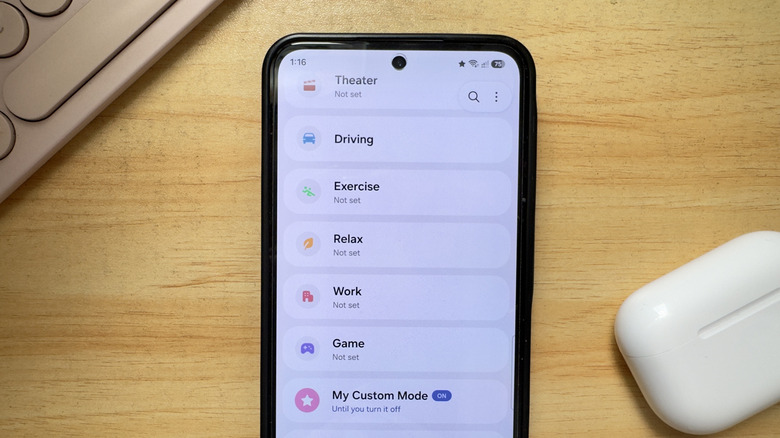
If the iPhone has Shortcuts, Samsung Galaxy has Modes and Routines. It's one of your Galaxy phone's hidden gems, and among the best features you should be using to automate your day-to-day life. Modes, in particular, come in handy when you're always enabling or disabling the same settings for your device during a particular activity.
Maybe you usually switch your phone to silent and turn on Maximum Power Saving while at work, or perhaps you lower your screen brightness, activate extra dim, and automatically decline calls while you're relaxing in bed at night. Instead of going through all those settings yourself, you can have one of Galaxy's modes set them up with just a single tap.
For your convenience, Samsung already comes with seven pre-made modes out of the box. This includes Sleep, Theater, Driving, Exercise, Relax, Work, and Game. If you can't find your specific activity from the pre-made modes, don't worry — it's very quick and easy to make your own for your Samsung Galaxy. Here's a quick guide on how to do so.
How to create a custom mode with a custom icon on your Galaxy phone
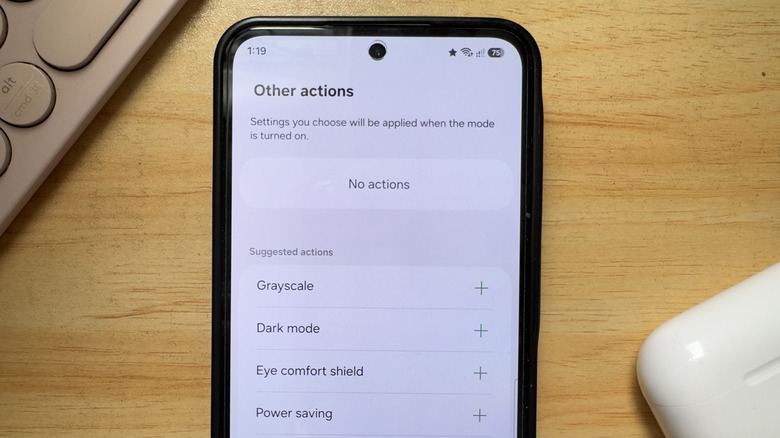
Custom modes are one of the Samsung Galaxy features you have to enable yourself. Here's how to create them:
- Go to the Settings app.
- Open Modes and Routines.
- Select the Mode tab.
- Scroll down to Add mode at the very bottom.
- Type a name for your custom mode.
- Pick a color for the icon.
- Choose one of the available icons. By default, it's set to a star, but you have 27 other options, including a heart, paw print, smiley face, robot head, and lightbulb.
- Hit Done.
- Open Other actions.
- Select the settings you want your custom mode to turn on/off.
- Press Done.
- (Optional) To enable the mode automatically, tap on Turn on automatically and add your preferred condition.
- (Optional) To make the custom mode turn on DND or block apps, go to Stay focused and select the actions.
- (Optional) To change the lock screen and home screen wallpaper for this specific mode, tap on Change appearance.
If you set a condition, your custom mode will automatically run as soon as your conditions are met. If you didn't select a condition, you need to turn on your custom mode manually. There's a few ways to do so. For one, tap the Modes tile in the Quick Settings panel and select your custom mode. You can also go to Modes and Routines in the Settings to find the On button or use your voice assistant of choice to enable it. While the custom mode is active, you'll see a star icon on the status bar of your Galaxy phone. If you chose a different icon, that will appear instead. When you're ready to turn off the custom mode, just press on the Modes tile from Quick Settings again.