

Google Pixel May Finally Be Adding A Feature Every Other Android Phone Has
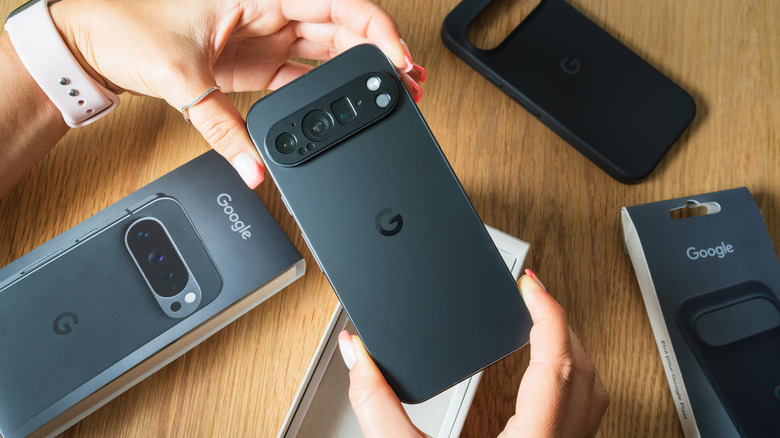
A personal smartphone is an extension of your person, which means there are plenty of things you don't want anyone to see when they borrow your phone. You might not want a stranger to open your gallery or fiddle around with your messaging apps, and you certainly won't want anyone having access to your digital bank account or e-wallet. Fortunately, most phones offer ways to combat this and protect the privacy of your most confidential apps. Pixel phones, unfortunately, aren't among them — something that may be about to change.
Google has been teasing the feature for a while, and while the Canary 2603 developers' build for the latest OS update had a test version of this feature, it wasn't among the new features that came with Android 17. This already shows that the company is working on it, but we have further confirmation from Android Authority, which noticed new beta releases for Android 17 containing strings indicating how app lock will work on Google Pixel phones.
We still don't know when this feature will become available to consumers, but there are some interesting things to note. First, the feature works more like the native App Lock on OnePlus phones than Samsung's Secure Folder: each app is locked independently rather than being placed in an isolated space on your phone. It's also reported that users will be able to completely remove PINs and passwords, making biometric verification the only way to access locked apps.
Pixel phones already have Private Space
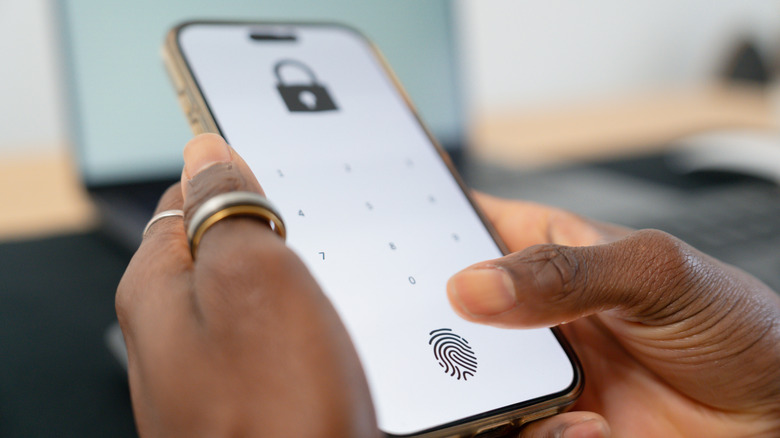
While it isn't a true dedicated app lock — and is certainly a lot less convenient than one — Google does offer a similar feature with Private Space, which you can access from your Pixel settings. Instead of locking specific apps behind a password, this hidden Google Pixel feature creates a second, locked interface inside your phone. You can set up a password for this, then download apps from within this interface, and you'll only be able to access them by entering the password.
To do this, open the Settings app on any Google Pixel smartphone released after the Pixel 5. Scroll down until you find Security & Privacy, tap it, then scroll down and tap Private space. You'll need to add a new Google account to manage this space, then reinstall any apps you want inside it. Additionally, if you don't want others to access an app normally, you'll need to delete it from your phone outside Private Space, as the version of an app you install in Private Space is separate from the one you install normally.
This feature does everything that an app lock does, but differs in some big ways. It's not as straightforward to set up, nor is it as quick to use. You can't just tap an app on your home screen and then access it after entering a password. Instead, you have to open Private Space first, put in the password, and then access the app. You also can't access data from apps inside Private Space while you're using your phone normally, and you can't receive notifications either.
Alternatives to use while waiting for the feature
Pixel users finally have hope of getting the feature, but we still don't know when it will be available. In the meantime, there are some handy alternatives to app lock that you can use while you wait for Google to finalize the feature and make it available.
First, many apps offer in-app encryption even if your phone doesn't natively support app lock. This applies to messaging apps like WhatsApp and Telegram; finance apps like PayPal, e-wallets, and official banking apps; and cloud storage apps that may contain sensitive information. The way to do this varies depending on what you're using, but a label along the lines of App Lock can be found in the Privacy or Security tabs in Settings. Alternatively, you can use a third-party app to add app lock capabilities to your phone. These are good enough for most uses, but ultimately won't offer the same system-level implementation as a native app lock. There are plenty you can download from the Play Store by searching for "app lock," and most antivirus apps, such as BitDefender or AVG, also come with it.
Certain apps also let you lock specific data with a password, including the Files by Google app that's on your Pixel phone by default. To activate and use this feature, scroll down to Collections and then tap Safe Folder. You can then set a password for this, move any confidential files here, and you won't be able to see them anywhere else on the phone or access them without the password you've set.