

How To Get The Best Gaming Performance Out Of Your TV
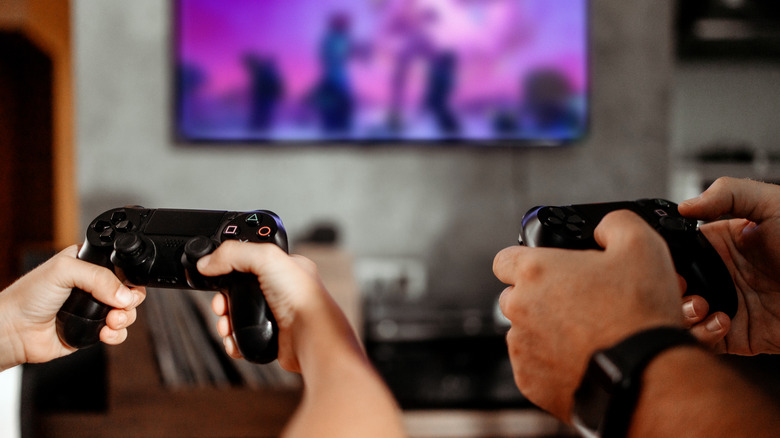
Modern TV picture tech does a solid job of reducing unwanted noise and other image artifacts in movies and TV shows. Some of this picture processing is also used to boost your TV's gaming performance, which is particularly important for action-heavy online titles like "Battlefield 6" and "Helldivers 2." But not all TVs are created equal, and some sets are much better for console and PC gaming than others.
If you're shopping for a new TV and you're not limited by budget, it pays to invest in a set that at the very least supports 4K resolution at up to 120Hz. Not all games will deliver on these specs, but locking down a UHD display with a refresh rate above 60Hz gives you the best shot at maximizing your current-gen gear while also future-proofing you against hardware requirements down the line. But what else can you do to fine-tune a new or existing TV for playing video games?
That's a fair question, and luckily, many TV manufacturers use similar features and settings to dial in gaming musts like top-shelf motion clarity and low input lag. Today, we'll discuss how to use some of these menus and dashboards to get the best gaming performance from your TV. Before we get started, though, you'll first want to make sure that both HDR and HDMI-CEC are enabled on the console or PC end; otherwise, your TV may be locked out of some key optimizations.
Make sure you're using HDMI 2.1 cables, and not whatever's been lying around for a decade
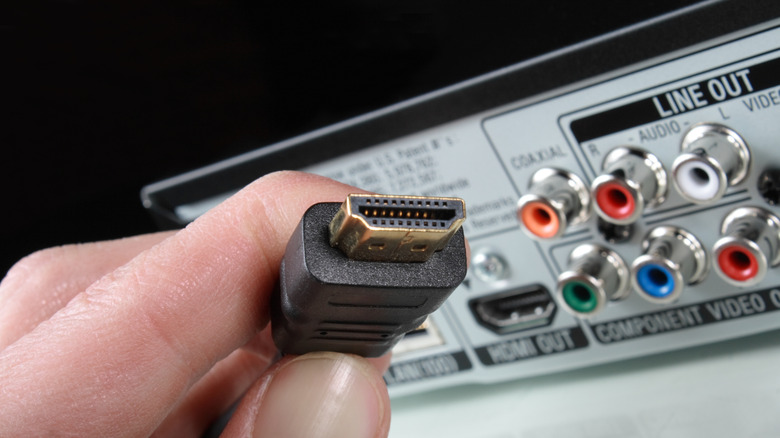
Modern TVs, game consoles, and gaming PCs are built around the HDMI 2.1 standard (also known as Ultra High Speed HDMI), which entered the mainstream around 2020. HDMI 2.1-certified ports and cables deliver up to 48 Gbps and guarantee support for gaming features such as Variable Refresh Rate (VRR) and Auto Low Latency Mode (ALLM). But if you're not using 2.1-certified cables, your console or PC will only deliver the specs your older HDMI cables support.
While this may not be such a big deal for games that are capped at 4K/60Hz, more and more titles are releasing with 120Hz support. HDMI 2.0 and earlier have a hard cap of 60Hz, and the back-and-forth bandwidth drops from 48 Gbps to 18 Gbps. You also won't have access to 8K/60Hz support and dynamic HDR capabilities, so certain games won't visually pop the way they should, even if you're gaming on a premium 4K TV.
Luckily, HDMI 2.1 cables aren't any more expensive than the 2.0 cables you bought back in the day; you should be able to find several 2.1-certified cables for $20 or less. Cable length, jacketing, and other design elements will ultimately determine the final price, but you get the idea.
Use the Game or PC picture preset, even if you're connecting older hardware
If the TV you'll be gaming on was purchased in the last decade, there's a good chance it has a Game or PC picture preset (it may also have both). These settings aren't just for boosting colors and enhancing peak brightness; they're engineered to optimize gameplay in real time. Competitive online gaming necessitates a display with as little screen tearing and input lag as possible, which is exactly what the Game and PC presets are there for.
We mentioned that you want to have both HDR and HDMI-CEC enabled on your console or gaming PC, and one of the main reasons is that most TVs will automatically switch to Game Mode when a compatible console or PC is detected. It's all thanks to ALLM, an HDMI feature introduced with the 2.1 standard that Microsoft started supporting with the release of the Xbox Series X/S, while Sony added the feature to PS5 consoles in March 2022.
With ALLM running the show, you never have to worry if you're getting the best frame rate and lowest input lag when actively gaming. You also won't need to worry about manually switching in and out of Game Mode when you want to use your PS5 or Xbox Series X to watch a 4K Blu-ray or DVD; the hardware and software do all the thinking for you.
Add motion interpolation that bypasses your TV's automatic settings
I got the idea to include this last section based on my recent playthrough of the "Crash Bandicoot N Sane Trilogy." My PlayStation 5 is connected to my LG TV via HDMI 2.1, and usually, the TV's built-in Game Optimizer is enabled. Because the game was originally released on PS4 and didn't receive any PS5 performance upgrades, "Crash" is locked at 30 FPS. And compared to the buttery smoothness of 60 FPS platformers like "Astro Bot," the "N Sane Trilogy" looked and felt awfully stiff.
Fortunately, there is a workaround: add digital motion interpolation to the source. Instead of leaning on my TV's Game Optimizer for automatic gaming adjustments, I turned on LG's TruMotion feature and tuned it to my liking. That said, toggling TruMotion on wasn't so simple; the LG C5 has a setting called "HDMI Deep Color" that wouldn't let me use TruMotion unless it was disabled, which also prevented LG's Game Optimizer from running. But with TruMotion applied to the PS5 input, playing "Crash" was easier and far more rewarding.
Do keep this in mind: adding motion interpolation (a fancy way of saying "fake motion") will affect input lag. Luckily, I was able to get used to the small bit of lag that interpolation introduced in "Crash," but it may be less tolerable for games that require rapid-fire button-spamming and other fast mechanics. Added interpolation also goes by many names in the greater world of TVs (e.g., "Auto Motion Plus" on Samsung TVs, "Motionflow" on Sony TVs), so you may need to do some research to find out what your TV manufacturer calls the feature.
Take some time to fine-tune your TV speakers (or go all-in on a soundbar)
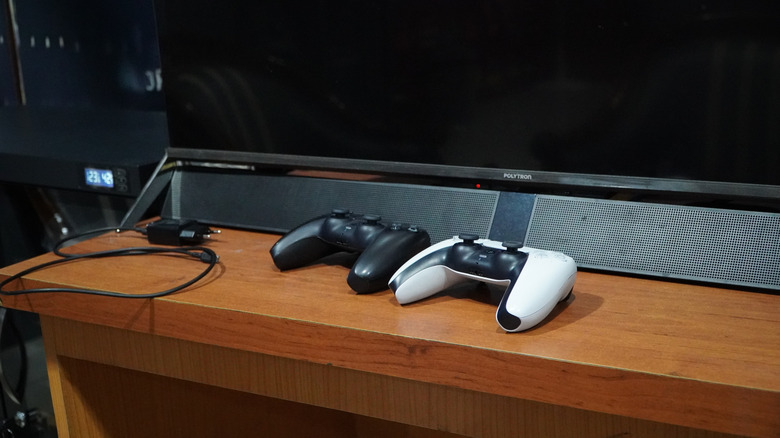
Video games demand a lot of visual power from your TV, and all these picture niceties can make it easy to forget about sound quality. And that's a dang shame, because many games are mixed and mastered using the same audio formats (e.g., Dolby Atmos, Dolby Digital, DTS) that movies and TV shows use. Right out of the box, most new TVs deliver a fairly balanced soundstage, but that might not be good enough for gaming. So, you should take a look at whatever TV audio settings your set has on tap.
Most TV brands will let you choose alternative audio presets, and options like "Game," "Cinema," and "Sports" may help to emphasize parts of the game audio and soundtrack that could use a boost. We also recommend choosing any "Dialogue" or "Vocal" presets if you're having a hard time hearing in-game dialogue. Some TVs will even let you choose if the set is wall-mounted or on a stand in the audio menu, and adjust the speaker output based on your selection.
Still, if you're finding you can't get anything other than lackluster sound from your TV speakers (you're not alone), you can always invest in a soundbar. Most systems can be set up in just a few minutes and shouldn't require much fine-tuning. There are even soundbars with built-in HDMI switching, allowing you to connect your console or gaming PC directly to the bar instead of your TV, which can come in handy if your TV is wall-mounted.