

5 Things To Stop Doing If You Have A Samsung Galaxy Watch
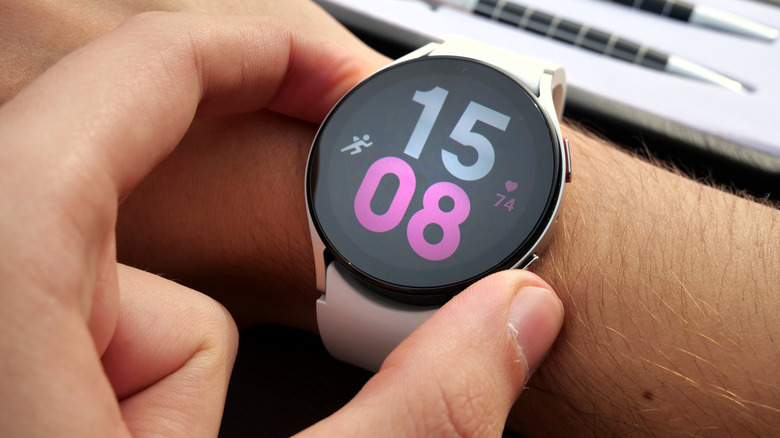
Owning a smartwatch is great for a number of reasons, but knowing the ins and outs of a device is when it can truly shine. The Samsung Galaxy Watch series can be great for those who like the Android or Samsung ecosystem, and we appreciate something like the Samsung Galaxy Watch 8 Classic for its solid fitness tracking and additional features available with wearOS. A Galaxy Watch is great for handling messages and more, but users should know there are some things they should stop doing with certain Galaxy wearables.
Focusing more on the software side of things, some may be overlooking certain features that can help protect their device from water damage or keep things quiet as they enjoy a movie. Like learning that you can control a Samsung Galaxy Watch hands-free, Samsung doesn't always present every little detail nestled away within the device's operating system. Don't worry, we'll take you through the specific steps for each feature.
Bear in mind that we're looking almost exclusively at the main lineup of Samsung Galaxy smartwatches (including the Ultra), and some features may depend on your device and your particular operating system. Additionally, remember that it's always good practice to keep your devices up to date, and you can update a Samsung Galaxy Watch with wearOS (Galaxy Watch 4 or newer) by navigating to Settings and scrolling down to tap Software Update. Just make sure the watch is connected to an Android smartphone. From here, just stop doing anything listed below.
Keeping your stock Quick panel
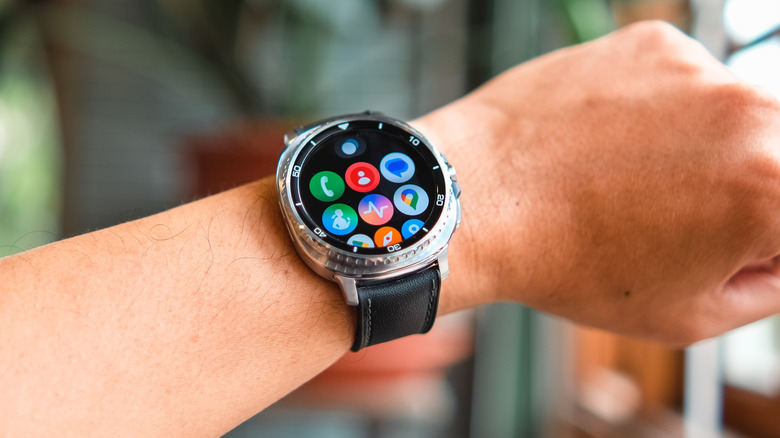
Something cool about a Samsung Galaxy Watch is its Quick panel. By swiping down from the top of the screen, you can quickly access the Settings menu or disable certain features without navigating a series of menus. Your Watch may already have some default options, such as adjusting brightness or enabling Wi-Fi, but you can also add or remove your own controls from this panel for easier access to items you actually use.
For those using wearOS, you can make these adjustments directly from the Quick panel. Just swipe down from the top of the screen, and then left until you see an Add icon (plus sign). Selecting it puts you in edit mode. From here, you can tap the Delete icon (red minus sign) to remove an icon or tap the Add icon (green plus sign) to add something to the Quick panel.
You can also edit these icons through the Galaxy Wearable app — and older devices have to use this method. Just open the Galaxy Wearable app from your smartphone and tap Quick panel from the Home page. For adding icons or rearranging them, touch and hold one and drag it to a new location. Use the Delete icon (red minus sign) to remove icons, and then tap Save when you're finished. As you play with how your Quick panel operates, don't forget there's some great face apps available for customizing the look of your device as well.
Refraining from using water lock
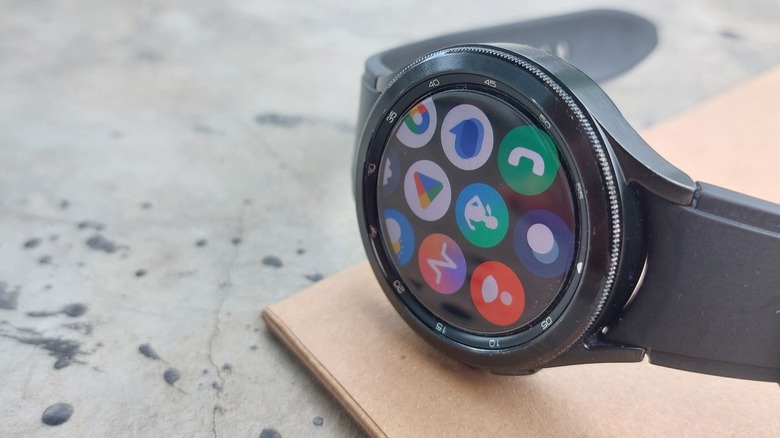
If you possess any smartwatch between the Galaxy Watch 4 series through the Galaxy Watch 8 series (or the Galaxy Watch Ultra), then Samsung states that it's okay for swimming. However, before you hop in the water, be aware that you need to activate the watch's Water lock mode, which helps prevent accidentally touching or activating the screen while also disabling your always on display. If you start a swimming exercise, the mode enables automatically, but knowing how to enable it for a casual dip can be important too.
Water lock can quickly be enabled by swiping down to open your Quick settings screen. Simply tap the Water lock icon that looks like two gray water drops. You can also find the feature by opening the Settings menu, selecting Advanced or Advanced features, and then tapping Water lock. Be sure to enable it from the Water lock page. No matter which way you enable it, Water lock can be turned off by pressing and holding the Home (Power) button and following the onscreen instructions.
Note that Samsung states that only the Galaxy Watch Ultra can be used in saltwater, whereas other devices should only be used in fresh water (but the Galaxy 8 is also okay). Just make sure to rinse the device with fresh water and allow it to thoroughly dry after being in salt water. Water lock can be an essential Galaxy Watch feature you have to enable yourself when not working out, so remember where it's located.
Avoiding this Double press feature
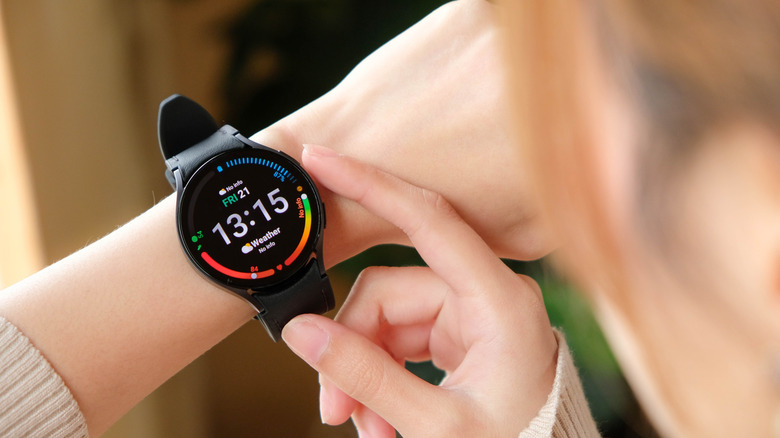
While using and navigating to this setting may depend on your wireless service provider, software, or devices, you may want to double-check to see if your Galaxy Watch has the Double press key feature. If you find that there's one app you always catch yourself checking or using, then you can set your watch so that you can easily access said app by double pressing the Home button. It's simply a nice little way to access certain content quickly, but you need to be sure to enable it how you want it. Here's the steps:
-
From your Watch, open Settings.
-
Select Advanced or Advanced features.
-
Tap Home key or Customize keys (some models may skip this step).
-
Choose either Double press Home key or Double press.
-
Select the app you want the Home button to open. You may have the option to select None to disable the feature entirely.
From here, your chosen app launches automatically whenever you double-press the Home button. Note that Galaxy Watch 8 users will go to Settings and then select Buttons and Gestures, where they may have additional options. Watch 8 Classic owners can even change the third Quick button to something other than Samsung Health exercises, including flashlight access, opening the voice recorder, and more. Though this button isn't exactly a hidden feature on Android smartwatches, users may not be aware how to make the most of its capabilities.
Ignoring Theatre mode
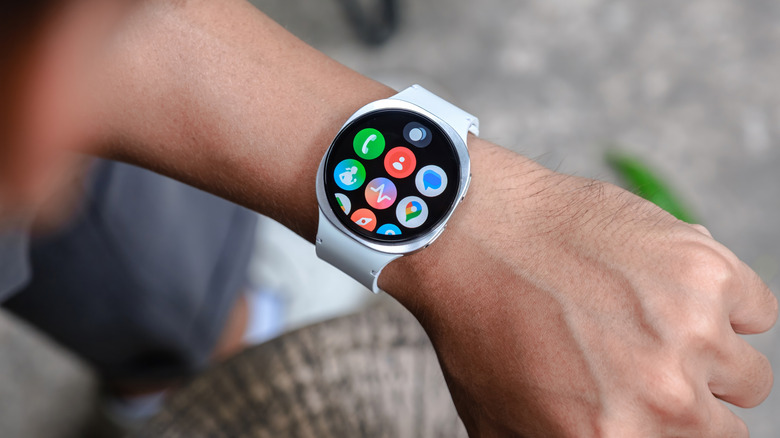
A big draw for virtually any smartwatch is accessing your phone's notifications, and the Galaxy Watch series is no exception. Receiving alerts is pretty convenient, but there may be times when you want a little quiet. In fact, disregarding constant connectivity can actually be a common smartwatch mistake when considering a device. If that's the case, Samsung's Theatre mode can be good for some brief reprieve from the noise. Before starting with Theatre mode, you may need to set some details from the Wearable app. Follow these steps:
-
Swipe up from your watch's home screen.
-
Choose Settings.
-
Select Modes and Routines.
-
Choose Theatre.
-
Your device will give you onscreen instructions to move to an app on your phone.
-
From your smartphone, choose Get started from the app.
-
Choose your Theatre mode duration.
-
Select whether or not you want to use Do not disturb.
-
Choose any other actions you want to run while in Theatre mode.
-
Review your work and then finish setup.
Users can also swipe up from their Galaxy Watch, select settings, then tap Modes and Routines. From here, choose Theatre and tap Turn on. You can then check that the feature is on, and may be given an option for duration. Lastly, you can also swipe down from the watch screen to open Quick panel, tap the Modes icon, choose Theatre mode, and then check that it's on. The Quick panel is also an easy way to turn the feature off. Try this out the next time you need quiet.
Keeping raise to wake enabled

While devices and software vary, your Galaxy Watch may have a raise to wake feature that's meant to activate the screen when you move your wrist in a 180-degree rainbow motion. It's meant to help preserve your battery, but users have found that it may activate more often than they would like. Instead, something users can try is disabling raise to wake and instead enabling the Always on Display feature.
To enable the Always on Display, just swipe up on the Home screen to access your apps, choose Settings, select Display, and then make sure Always on Display is enabled. From here, it's just a matter of disabling Raise wrist to wake, which is also under your Display settings. Just make sure to disable it with the toggle. While Samsung does inform users that using the Always on Display can "increase battery consumption significantly," there's a reason this feature is worth a shot.
Though an Always on Display is in fact always on, it may use less resources overall because it works with the watches low-power display core processor. On the flip side, Raise to Wake engages your primary CPU to prepare for an interaction. User's mileage may vary with this tip, but it's worth a shot if you're tired of your screen engaging randomly but still want it on. Of course, we also know ways to increase the battery life on your Galaxy Watch should that be a concern.