

Your Android's System Data Now Takes Up Cloud Storage Space - Here's How To Disable It
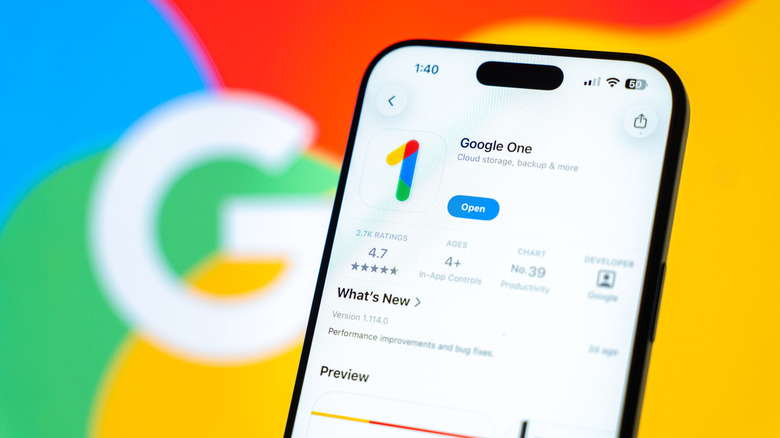
Google now limits the total cloud storage available to free users to just 5GB across all platforms for new accounts; it used to be 15GB. That means, your emails, photos, documents, everything stored in Google Drive, your app settings on Android, and backups, all count towards that total. Where before, certain datasets were exempt from this, everything is now included, including Android backups. In most cases, Android backups use minimal space, 40MB or so according to Google's estimates, however, that's an average. Yours could use more or less.
Included in those backups are SMS and MMS messages, your call logs and history, device settings and individual app data. You should know all Android data backups are toggled on by default, but it is nice to see Google has finally given Android users the granular backup settings they should have always had. Ideally, backups exist so if you swap phones or get a new device you can restore them easily. But if you don't want this or simply want control over what data is preserved, there's a way to adjust it. You can also disable cloud backups altogether.
On most devices, you can go to Settings > Google (or Google Services) > Other Device Data and disable the toggle next to Back Up Other Device Data. Scroll down and disable each source or app. For example, you can disable call history while leaving SMS backups enabled. If you want to delete previous cloud backups from Google's servers, use your Google account dashboard.
To disable or not, that is the question
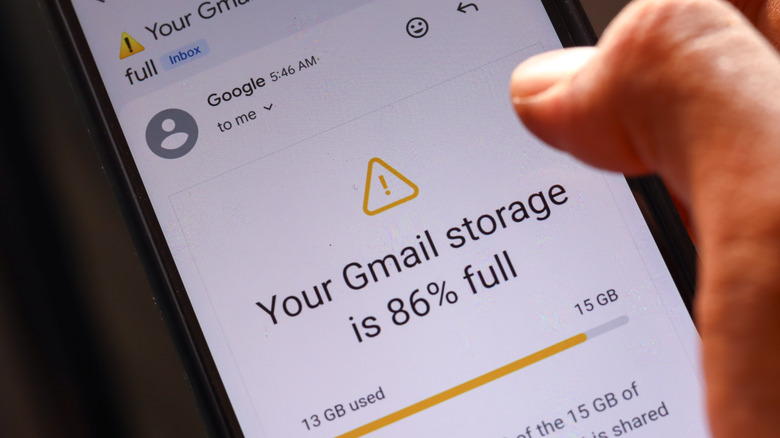
When you disable cloud backups on your Android device, quite simply, your phone stops backing up the intended datasets to your Google account. This means no app settings backups, no call history, no SMS, no photos and videos, unless you enable them individually.
Backed up data will remain on Google's servers unless you opt to delete it via your account dashboard — if you do that, it's gone completely. Moreover, if you're wondering what happens to your photos and data if you cancel Google One, reducing your cloud storage limits, it remains in the cloud until you delete it yourself. But if it any time your total storage consumption exceeds your storage limit, you will see restrictions. You won't be able to send or receive emails in Gmail, or backup photos and videos to Google Photos until you delete data to get back under the threshold or re-subscribe to Google One.
With those settings disabled, if you get a new device, like a new phone or tablet, you cannot automatically restore backups from Google's cloud services. This means your new device starts clean, and you'll have to install all your favorite apps again, reconfigure them, login to accounts, etc. You can use another cloud service other than Google's if you trust another provider more. Moreover, this doesn't exclude you from backing up or restoring any of your data manually.
How do you increase cloud storage for your Google account?
Seeing as Google has adjusted how cloud storage limits work, you may find yourself wanting an upgrade. The only way to expand total capacity is to sign up for a Google One subscription — Google's cloud service. Google One plans start at $1.99 per month for 100GB and go up from there. You also get some extra perks with the higher tiers, like exclusive access to Gemini AI through Gmail. Moreover, there are discounts on subscriptions from time to time. You can subscribe to a lower tier and upgrade later if and when you need more storage. I've done precisely this with my own account as my family has needed more and more space.
Some of those hidden Google One perks you earn through an active subscription are worth using, like the option to bring your family and friends into the mix, unlock Google Workspace features, and beyond. In other words, there's more value in Google One than the cloud storage, alone. Although, if you're adamant about avoiding Google's products there are plenty of cheaper alternatives to check out. You can use those to backup and restore your data without Google's services involved.