

How To Easily Update Your NVIDIA Drivers
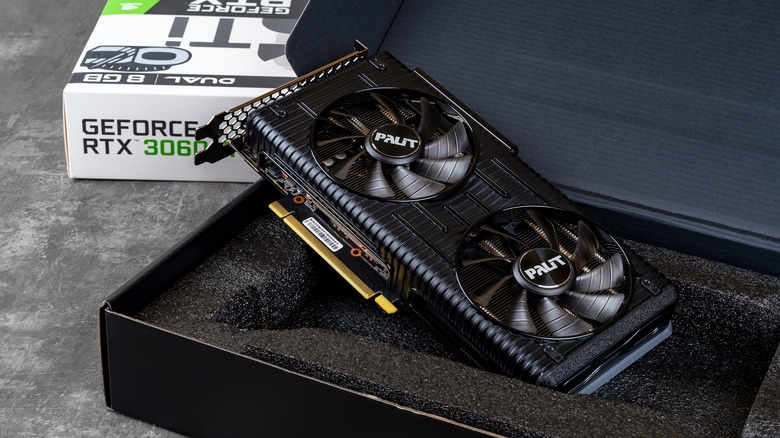
Whether you're a content creator or a gamer, going with an NVIDIA GPU can help ensure you're getting access to some of the company's best available features. Sporting something from the GeForce RTX 50 Series, for example, can give you access to fourth-generation Ray Tracing Cores and fifth-generation Tensor Cores with FP4 and DLSS 4.5 (Deep Learning Super Sampling). Powerful as they may be, keeping drivers up to date is important for boosting performance, and fortunately, NVIDIA makes the process pretty easy.
If you need to update the drivers for an NVIDIA GPU, the easiest way these days is to use the company's proprietary app, simply known as the NVIDIA app. From there, it's just a matter of navigating to the Drivers page and finding the right settings. Additionally, users can switch between different kinds of drivers or just check version numbers. You can even set updates to download automatically in the Settings section of this app, and there are options to roll back to previous drivers in the Driver menu.
While the app can show which drivers you currently have, you can also check by right-clicking your desktop and choosing the NVIDIA Control Panel. Choose Help, then select System Information. Driver Information will be at the top of the Details window. Along with the NVIDIA app, it's also worth remembering that NVIDIA GPU users have another free app that can improve performance.
How do I manually update drivers?
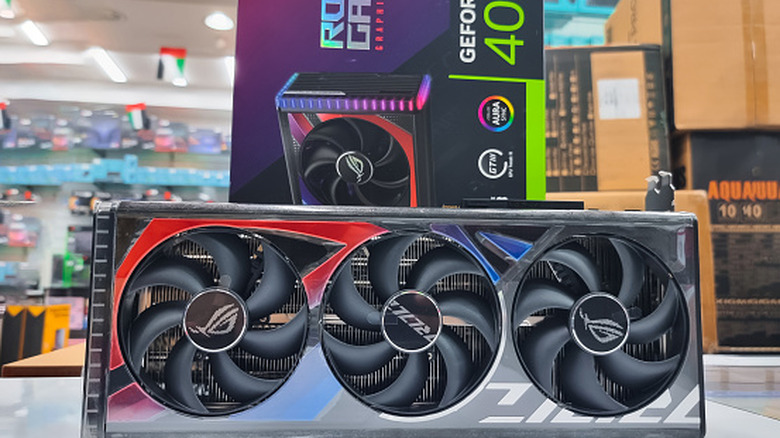
To quickly update your drivers (manually or automatically), the NVIDIA app is going to be quite useful. Along with managing drivers, the app is also good for optimizing your GPU or for using NVIDIA ShadowPlay to capture screenshots or video (up to 8K HDR at 30 fps) while you game. Be sure to download and install the app to get started.
Once the NVIDIA app is installed, it takes you through a setup process. Answer the questions, but be sure to select the correct option when prompted to set your drivers to GeForce Game Ready Drivers (for gaming) or NVIDIA Studio Drivers (for creating, such as streaming or video editing). This can also be changed later.
Then, just follow these steps:
-
Choose Drivers from the left-hand column of the NVIDIA app.
-
You'll see your driver information at the top of the page.
-
If an update is available, click Download.
-
Allow the download to finish, then click Install.
You'll receive a confirmation when the installation is complete. You can also roll back to previous drivers from the Drivers section. Just scroll down the Drivers page until you see something labeled Previously Installed. You'll see the type of driver (Game Ready or Studio), version number, and release date. Click the three dots next to a version and choose Reinstall. The app will take you through the process. You may also want to know about two hidden NVIDIA GPU features you should start using.
Do NVIDIA drivers automatically update?
You can set the NVIDIA app to download drivers automatically, but you will need to install them yourself through the app. There's a certain level of convenience to it, as you no longer have to manually download the update and wait for it to arrive on your computer. Hey, even if the company made one of its gaming apps far worse, at least updates are easy.
To get this one going, all you need to do is navigate to the Settings page from the left-hand column of the NVIDIA app. Scroll down, and then enable the switch that says Automatically download drivers and let me choose when to install. Just remember to choose Install the next time you open the app. It's also good to know that in the top-right corner of the app, you can easily switch between Game Ready Drivers and Studio drivers.
Lastly, remember that the Driver page can also be a source of company news. The drivers section features a carousel with a variety of articles covering new games and other relevant information about new tech geared toward your GPU drivers. There's actually quite a bit under the hood of the NVIDIA app, so be sure to snoop around to see everything that's available.