

How To Completely Disconnect Your Google TV From The Internet
Google TV is a popular smart TV platform, allowing you access to over 10,000 apps. You can watch your favorite shows and movies, listen to songs, control your smart home, and much more. But not everyone needs that. Some people simply connect their TVs to a cable service, while others hook them up to a PC or gaming console to benefit from a larger display. Besides, the functionalities included with Google TV can sometimes slow down your TV. For those who don't need all the bells and whistles, disconnecting it from the internet and converting your Google TV into a regular TV can be a smart choice. The steps aren't too complicated either, though you will miss out on many features.
Additionally, for the past couple of years, concerns surrounding data collection on smart TVs have been on the rise. Automatic Content Recognition, or ACR, gets talked about the most often, as it's designed to identify the content being played on the TV. Keep in mind that Google TV claims to not collect data through ACR, but your TV's manufacturer could be. That's another reason many people are now looking for ways to disconnect their TVs from the internet.
Disconnecting Google TV from the internet
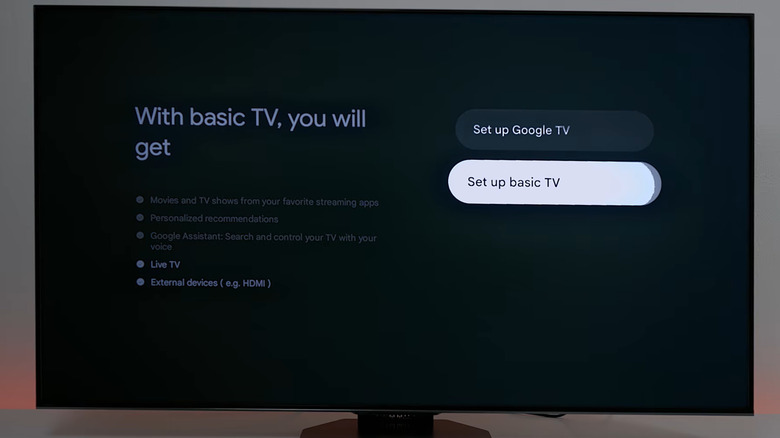
The easiest way to completely disconnect your Google TV from the internet is to factory reset it and opt out of the Google TV experience on the subsequent setup. This will turn it into a regular TV. To do that:
- Open the "Settings" on Google TV, go to "System," then to "About," and select "Reset."
- Choose "Factory reset" and then confirm the change.
- During setup, pick a language and region, and when it asks you to choose between "Set up Google TV" and "Set up basic TV," pick the latter.
- When you are asked to select a Wi-Fi network, scroll down to the bottom and choose "Skip."
- Finally, complete the remaining setup. You can skip most of it if you want.
Since you are setting up your Google TV as a non-smart, regular TV without internet connectivity, it makes little sense to leave streaming apps like Netflix and Prime Video installed on it. They will only consume part of the TV's storage and system resources. For system apps (ones that come pre-installed), go to Settings > Apps > See all apps > Show system apps. Now you can choose apps like Netflix, Prime Video, and Disney+ individually, and select "Disable." As for the apps you added manually on Google TV, uninstall them too. Uninstalling apps will make your Google TV faster.
Of course, if you are only looking to disable internet access, just disconnect your smart TV from Wi-Fi and forget the network so that the TV doesn't connect to it later on. Or if your TV uses an Ethernet cable, unplug that.
Reasons to use a smart TV as a regular TV
Now that you know how to disconnect the internet and use your Google TV as a regular TV, it's worth understanding why it makes sense to many. The primary reason is that smart TVs can get slow over time, even if you don't add a lot of new apps. That's because the apps already installed generate cache, which may quickly take up a large part of the already limited storage. Apart from that, many budget models don't feature powerful hardware and usually come with 1-4GB RAM. Most of that memory is consumed by background processes, leaving little for your favorite apps. So, unlinking your TV and treating it simply as a display makes sense, especially if that's all you need.
Let's not forget the privacy concerns surrounding smart TVs. From ACR to constant DNS requests, your smart TV is trying to collect more data than most people realize. And we can't ignore the fact that Automatic Content Recognition doesn't just kick in when you are streaming content from an installed app. It will also try to identify what's being played from a console, PC, or streaming stick — basically anything displayed on your TV's screen. So, for privacy-conscious users, turning the smart TV into a dumb one feels like a safer option. However, without Google TV, you do miss out on features like voice control and personalized recommendations.