

5 Android Features That Can Have An Unexpected Effect On Your Daily Routine

Your phone is one of the most vital aspects of your daily routine. From taking notes and sending important messages to setting alarms to wake up on time, a simple handset provides many things that aid your daily life. Regardless of what brand of smartphone you own, each company is trying its best to offer its users more features than anyone else, mostly targeting daily convenience and the ability to make straightforward things much simpler.
You can always get a magnetic accessory that you'll use daily to make your phone more useful, but there are many features already built into your phone that you're likely not making full use of. Some of these features are activated by default, but you're just never told you can use them, such as the ability to quickly switch between apps or edit text by holding down your spacebar. Others need to be turned on manually but offer even more ways of making your Android experience that much better, such as storing copied data and automating tasks that you perform every single day.
1. Clipboard history

The ability to copy and paste strings of text is something we don't often think about, but it's one of the most-used features for many. Whether it's a link to a website, an excerpt from an article, or a complex password, typing certain things manually just isn't feasible for most people. This works well enough if you're copying a single piece of data, but if you're filling in multiple fields, you'll have to constantly switch between apps to copy and then paste each individual item. On a computer, you can easily switch between tabs or even use your second monitor as a clipboard, but a phone's limited screen space makes things more difficult.
Fortunately, most Android keyboards come with a built-in clipboard history feature that lets you store multiple items. You can copy them all at once, move them to wherever you need them pasted, and do so without going back and forth between apps. The option is typically found as a clipboard icon above your keyboard. If you can't see it, there's likely a button that shows more options, such as three dots or a set of squares. You have to enable this feature in Gboard, while it's enabled by default on Samsung Keyboard.
The items you copy here are automatically deleted after a few hours, but you can also pin important things like certain emails or phone numbers you use often to have them stay indefinitely. Additionally, this storage space isn't only for text — recently taken screenshots can even show up here, and you can pin them the same way you would any text you've copied.
2. An easier way to edit text when typing

Being able to take your phone everywhere with you means that you're always connected to others, usually via text. You send emails, talk on messaging apps, and interact with others on social media platforms, and all of this requires actively typing on your phone. A situation you'll often run into is that you realize you've made a mistake and need to go back and fix it. This is quite easy on a computer where you can place your cursor on the mistake or use your arrow keys to navigate the cursor marker, but your Android keyboard doesn't allow this.
Instead of tapping blindly and hoping you land on the exact spot where you want to insert a word — or even worse, erasing a good chunk of your paragraph just to fix a typo — most Android keyboards let you hold the spacebar to enter cursor mode. When you move your thumb around while holding it on the screen, you can freely navigate between letters and symbols in your text and get your cursor marker exactly where you want it to be.
This feature is enabled by default on most Android keyboards, but there are certain times when you might not have access to it. This is mainly if you've set up multiple languages on your keyboard, as the spacebar is then used as a quick way to swap between languages. You can change this fairly easily by opening the keyboard app from your app drawer or by going to Settings > System > Keyboard > Keyboard apps, then selecting the keyboard from the list to access its settings.
3. Quickly switch between apps

Switching between apps is something most of us do without thinking. The process is relatively straightforward and extremely quick regardless of what mode you're using. If you're using three-button navigation, you can either tap the Home button and open an app from your home screen, or tap the Recents button and scroll to another app. For those using gestures, you can swipe up from the bottom and pause briefly to get the same effect.
However, this can be much quicker and more convenient. For those using gesture navigation, swiping across the bottom of your screen lets you switch between apps without opening the Recents view. Swiping to the right lets you switch to the previous app or move back in the queue, whereas swiping to the left does the opposite. If you have three-button navigation turned on instead, you can double tap the Recents button to immediately switch to your most recent app, similar to how you can use Alt + Tab on Windows.
For those with Pixel phones, you can take this a step further by enabling Quick Tap. Doing so lets you double tap the back of your phone to perform an action. This includes things like taking a screenshot or turning on the flashlight, but it can also be used to see your recent apps or launch a specific one. You can enable the feature in Settings > Gestures, where you'll find the "Quick tap to start actions" options.
4. Routine automation

There are plenty of repetitive and boring tasks that seem like a chore to do manually each time — things like putting your phone into DND mode when you get to work, rotating certain apps to landscape, enabling power saving features when your phone is low on battery. You can certainly do all of these by yourself, but it's inconvenient, and forgetting them even more so.
Fortunately, many Android phones have ways of automating these tasks so you don't have to think about them in your daily routine. For Galaxy users, you can make use of Samsung's Modes and Routines for this, while Pixel users have access to the Pixel Rules feature. Both of them are relatively easy to use as well. On your Samsung phone, open Settings > Modes and Routines, then set up a trigger (the "If") and the effect (the "Then"). On a Pixel phone, head over to Settings > System > Rules.
If you want more customizability or own an Android phone that doesn't have a similar feature natively, you can still use third-party apps that allow this. Some common ones include Tasker and MacroDroid, and both allow you to automate any process you can think of on your Android phone.
5. Automatically turn on battery saver
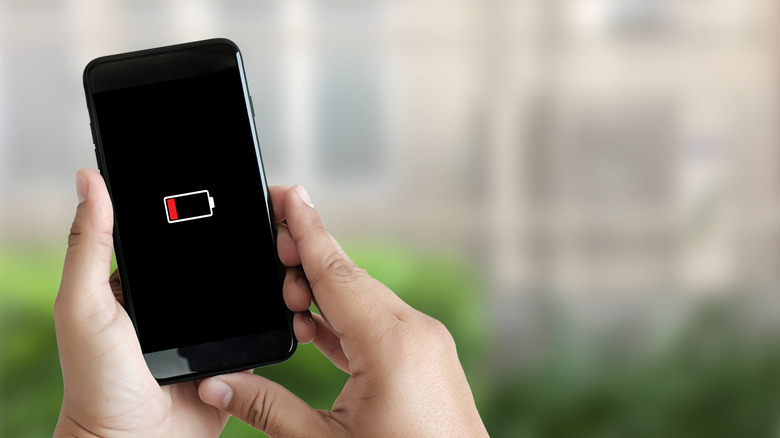
There are few things more frustrating than your phone dying when you're out and about without a place to charge it. A power bank can somewhat alleviate the issue, but you won't always have one on you. In times like these, you can use Android's built-in Power Saving or Battery Saver feature to ensure your battery lasts long enough until you can get a charger. However, you don't need to manually keep an eye on your battery and turn it on. Instead, you can set it to turn on automatically when you need to save battery.
You can set battery saver to turn on by default by going to Settings > Battery > Battery Saver. You'll get the option to turn it on manually from here. If you want to set a schedule to automatically turn it on and off based on your battery percentage, you can specify the battery threshold at which it triggers. The process is slightly different based on the specific phone you're using, and you might have to tap on the three dots toward the top right on some phones or look for an option labeled "Adaptive Battery Saving."
If you want to do the same thing on a Samsung phone, you can do it by going to Settings > Modes and Routines and tapping the plus icon to add a new Routine. Here, select Battery Level in the "If" section and Power Saving in the "Then" section.