

5 Essential Apps Every Samsung Phone Owner Should Have
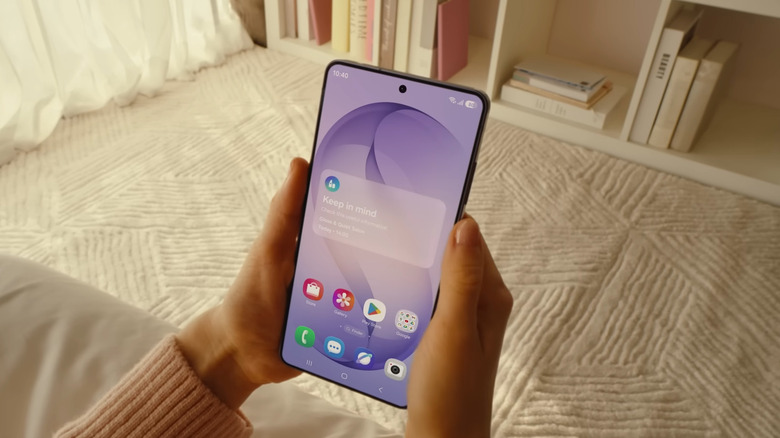
Like most other major Android phones out there, Samsung Galaxy devices rely on Google Play Store for apps. And it doesn't disappoint. There are millions of Android apps, both for essential and non-essential use. But while the Play Store is most people's go-to app platform, you might not realize that your Galaxy phone actually has another app store built in: the Galaxy Store.
The Galaxy Store works just like the Play Store and is just as easy to use. It even offers the same mainstream apps like Roblox, Adobe Acrobat Reader, and Trip.com. But what makes the Galaxy Store stand out is its range of exclusive apps developed just for Samsung Galaxy. And yes, your phone hides a bunch of nifty Galaxy apps available in the Galaxy Store, all of which help you get more out of your device. To get you started, here are five apps available only on your Samsung Galaxy.
Good Lock
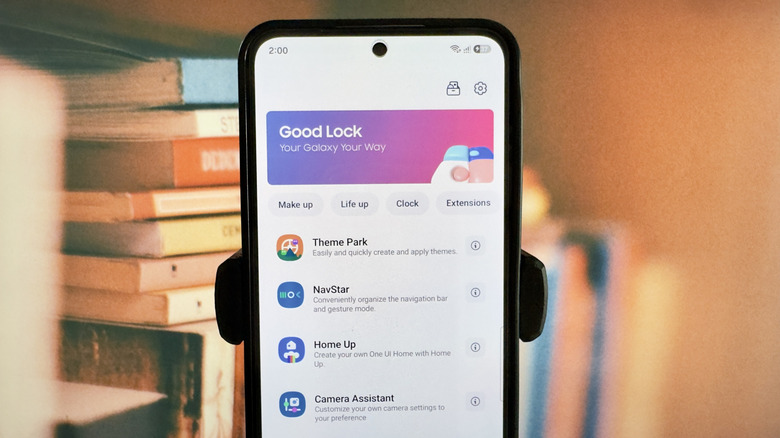
Good Lock is one of the features you'll only see on Galaxy devices, and it's among the more popular apps for your Samsung phone too. If you're looking for advanced settings to personalize the look and add more functionality to your device, this is the app to download. As of this writing, Good Lock comes with 20 plugins, all with different purposes. Here are six of our favorites:
- Camera Assistant: Offers some camera customization settings, including turning on a shortcut for 2x zoom, changing what swiping the shutter button does, and adding extra modes like Single Take (does a 10-second countdown before taking a single picture) and Dual rec (records both your front and back camera).
- Home Up: Adds new designs and functionalities to your home screen, such as stickers, looping pages, and custom sizes for the app folders.
- One Hand Operation+: Makes using your phone with one hand more seamless with custom gestures, a virtual touchpad, an app switcher that pops up in a mini panel, and a quick tools panel.
- Routines+: Improves the built-in Modes and Routines on your Galaxy phone by adding custom conditions, Good Lock integration, and touch macros (touch actions triggered by routines).
- MultiStar: Helps you use the multi-window feature more effectively, and on flip phones with a cover screen, adds a launcher and game widget on the cover screen.
- QuickStar: Optimizes the Quick Settings panel. You can change the theme of the panel, hide icons from the status bar, and edit the button layout.
Other than these plugins, you also get one for editing your navigation bar, customizing the S Pen, and even troubleshooting glitches on your Galaxy phone.
Good Guardians
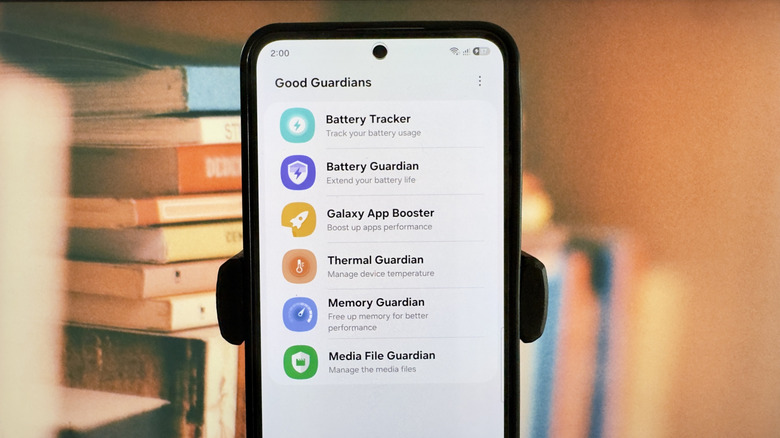
Good Guardians is similar to Good Lock, which is also composed of several downloadable plugins. But instead of focusing on design and functionality, the Good Guardians modules are more about optimizing your phone's battery and overall performance. It features only six modules:
- Battery Tracker: Tracks and lists the apps that used your battery in the last 24 hours or seven days. You can display two key data points for the apps: the battery percentage they used and the minutes/hours you were actively using them.
- Battery Guardian: Gives you different options for extending your battery life, such as turning on power saving during bedtime, optimizing your display settings, and applying network power saving mode on certain apps.
- Galaxy App Booster: Enhances the performance of your installed apps with a single tap. Samsung recommends running this module every week and whenever you upgrade the software.
- Thermal Guardian: Shows when your device had a rise in temperature, why this happened, and what you could do to prevent it. This module also monitors your CPU usage for the day and the apps that use the most CPU resources.
- Memory Guardian: A one-tap RAM booster that instantly frees up your phone's memory.
- Media File Guardian: Allows you to manage all the media files on your Galaxy phone, including files generated or downloaded from third-party apps like your bank apps, shopping apps, and social media apps.
Keep in mind that Good Guardian is geo-locked, which means you can only download it in certain locations, including the United States, Europe, and a few Asian countries. It won't appear in the Galaxy Store if it isn't available in your region.
Expert RAW
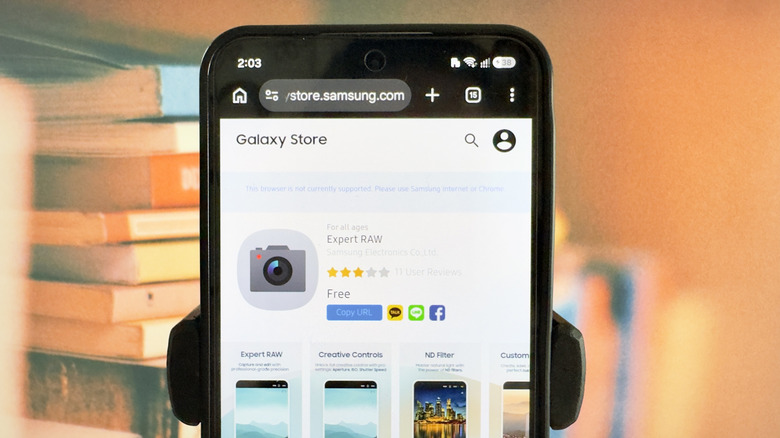
By default, Samsung's camera app features several camera modes you can shoot in. The three basic ones are Video, Photo, and Portrait, but if you're looking for a mode for a specific purpose, there are other options like Expert RAW. This mode, however, is a bit different from the rest of the camera modes. Instead of being built into the camera app out of the box, you'd need to first download it to use it.
To get Expert RAW on your Galaxy device, head over to the Galaxy Store and search for Expert RAW. If you already have the Camera app open, you can go directly to the More tab and select Expert RAW from the mode options. You should then see a download panel pop up.
Just as the name suggests, Expert RAW is primarily designed for expert photographers. It gives you access to advanced camera settings like the depth of field, shutter speed, ISO, and exposure. On select devices, you also get special features like astrophotography and multiple exposure photography. Another thing that makes Expert RAW stand out is that it saves photos as JPEG and RAW files. RAW files preserve the data from the camera sensor, letting you edit the photos in more detail.
It's important to note, though, that Expert RAW is exclusive to the flagship Galaxy S, Z, and Note models, starting with Galaxy S20. If it doesn't show up in your camera's More tab, it might not be supported on your device.
Galaxy Enhance-X
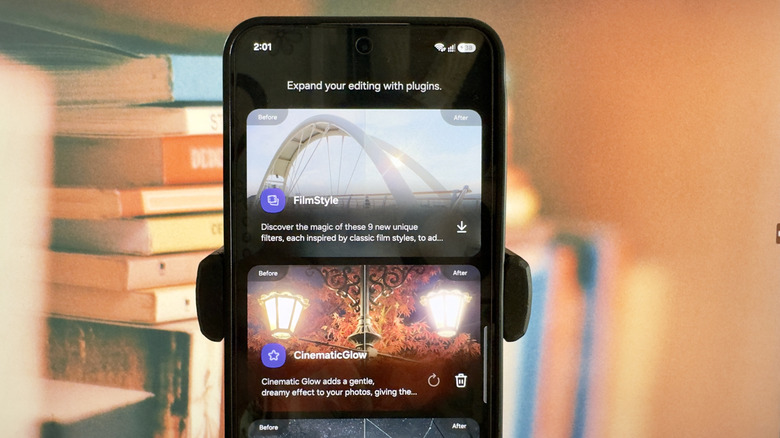
Galaxy Enhance-X is Samsung's very own photo and video editor app. Unlike popular editor apps for Android that are packed with editing options, Enhance-X makes the process more straightforward with a minimal interface.
You can use the app for basic photo editing like brightening the image, removing shadows and reflections, making faces smoother, and cropping and rotating the picture. It also includes a few features you won't find on the Samsung Gallery's editing interface, such as old photo restoration and GIF maker. If you're more into quick than detailed editing, there's a convenient one-tap tool that applies a "magic" AI-powered enhancement effect on your photos. Meanwhile, for videos, the tools are limited to muting the sound, trimming the clip, and applying some effects like long exposure and slow motion.
If the built-in tools are too simple for your liking, Galaxy Enhance-X offers a few optional plugins too. You have FilmStyle, which adds classic film-like filters to your images, Cinematic Glow, which makes your photos look dreamy, SkyGuide, which identifies stars and constellations in your night sky pictures, and SpeedShuffle, which creates quirky video edits. Galaxy Enhance-X is supported on a host of modern Galaxy phones, but the available editing tools can vary per model.
Edge panel apps
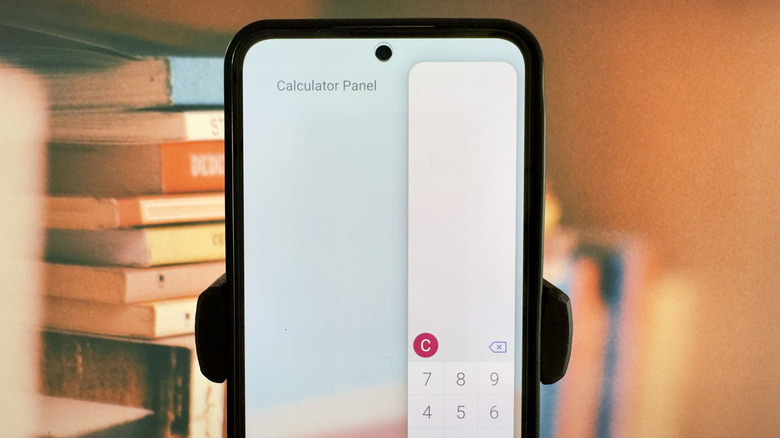
Samsung's Edge panel is particularly useful for people who want quick access to apps and utilities. It's already customizable out of the box, but the things you can display here are pretty limited. You only have seven panel options to choose from: apps, clipboard, reminder, weather, contacts, tools (like compass), and tasks (i.e., start a stopwatch, take a screenshot). Samsung lets you further edit what exactly appears on some of the panels, but that's all there is to it.
Thankfully, the Edge panel supports other panel options downloadable from the Galaxy Store. Samsung itself developed some of them, including Calculator Panel, Calendar Panel, Edge QuickNotes, and Direct Call Panel.
The Calculator Panel puts a functional basic calculator right on the Edge panel. It even saves a history, which can be quickly copied to your clipboard. Edge QuickNotes, on the other hand, lets you view, delete, and mark notes as complete from the panel. There's also an option to create new quick notes, but it's more of a shortcut as it opens the QuickNote app instead. Meanwhile, the Calendar Panel is an actual scrollable calendar, so you can check dates without jumping to the Calendar app. Finally, the Direct Call Panel is like the built-in Contacts panel, but tapping on a contact here calls them right away instead of just giving you the option to call or message them.
Other than the official extra panels developed by Samsung, you can also find a bunch of other third-party Edge panels on the Galaxy Store. This includes one for displaying your saved recipes, rolling dice, and checking the weather.