

Google Maps Labels Can Save You The Headache Of Lists - Here's How
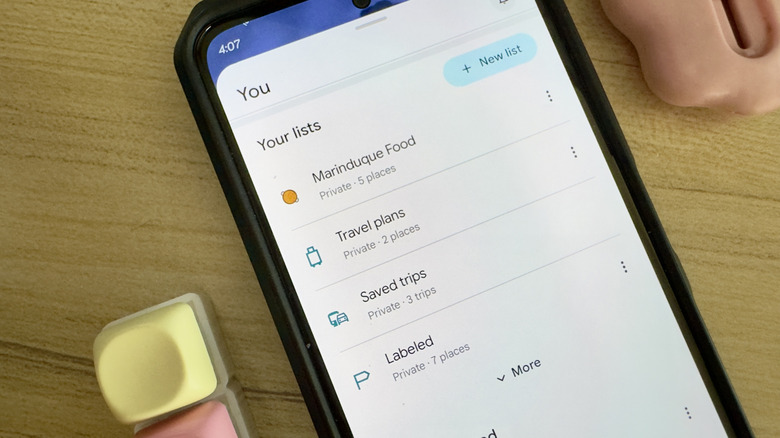
Beyond navigation, Google Maps now includes features that make your trips better. One of those is lists. Google Maps lists come in handy whenever you're looking for ideas on where to eat or what to see. Instead of wasting time scanning the map itself or hopping on TikTok to get recommendations, you can just browse through the places in your lists.
But using Google Maps' lists feature isn't as seamless as it seems, especially when you're constantly returning to the same locations, like your kid's daycare, the doctor's office, or the airport. Every trip means going through the same process again: Open your lists, scroll through all the saved places, and select the one you need. What makes it even harder is that the list page is cluttered with photos and details (e.g., closing hours, star reviews). They take up so much space that a short list with just five places would still take a couple of scrolls before you can see everything.
Sure, Google Maps does offer some filter and sorting options for the lists, but these settings aren't consistent across platforms. For instance, you can filter the places by their tags on iOS but not on Android, and you can sort the list by Editor's order on Android but not on iOS.
If you're looking for an easier way to save places on Google Maps without burying them in an endless list, a great alternative is private labels. Google Maps labels eliminate the need for scrolling, as you can pull up a place by simply typing a short, memorable name. If you look at your map, labels also appear as a different icon, making them easy to spot at a glance.
Why Google Maps labels are better than lists
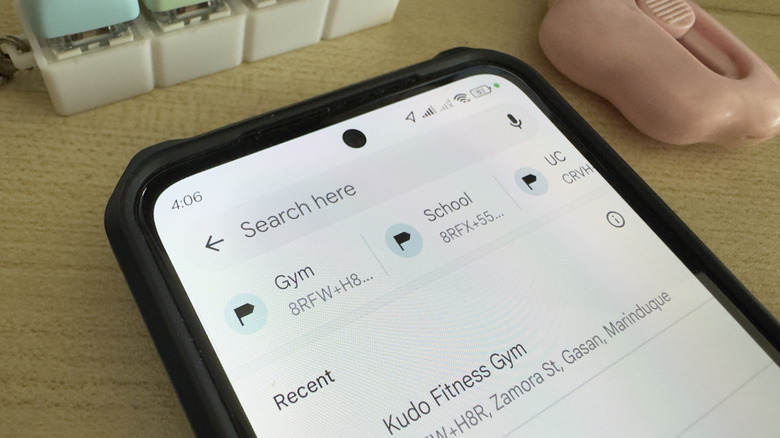
Google Maps labels are technically a type of list — you can find your labeled places in the You tab under "Your lists." But unlike regular lists, labels offer more features that help you find locations faster. For one, you can rename a location to something shorter and easier to remember. Say, you can have "Cafe" as a label for your favorite coffee shop or "UC" for the nearest urgent care facility in your area. These labels aren't displayed publicly, so feel free to get creative. Once set, the label can be used when searching for the place. Just type it in the search bar, and the corresponding location should pop up at the very top of the search results.
If you want an even quicker way to open a navigation route to your Google Maps labels (at least for the Home and Work labels), you can use home screen widgets. There's a Maps widget called "Search" on iOS and "Quickly find" on Android, which includes the Home and Work labels. Tapping on either button will automatically launch Google Maps with a navigation route to your home or workplace. In comparison, saved places in lists can't be accessed from a widget.
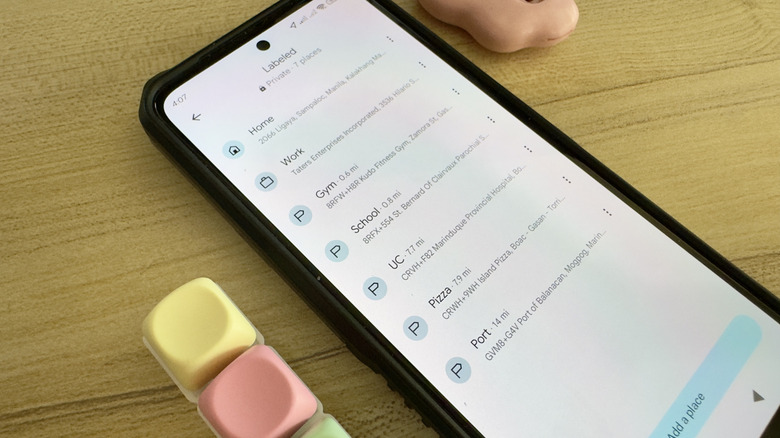
Another advantage of Google Maps labels over lists is the simplified interface. In the Labeled list under the You tab, each location shows just its address — no photos, reviews, or other things. This minimal look lets you see at least five places at the same time without scrolling. In terms of map icons, your labeled places stand out with a blue icon: a blue house for Home, briefcase for Work, and flag for your custom labels. These icons remain visible even when the map is zoomed out.
How to set up Google Maps labels
Google Maps makes it quick and easy to label your favorite places. Here's how:
- In the Google Maps search bar, type the address or establishment name.
- Select a result from the list to open the place's details panel.
- From the panel, tap on "More."
- Go to "Add label."
- Enter a name for your label. You're free to type your own, or choose one of the Google Maps label suggestions.
Rinse and repeat for all the other places you want to label on Google Maps. Once you're done creating labels, you can manage all of them from the You tab. Under "Your lists," choose "Labeled," and open the label you want to edit or delete. To change the name of the label, select the "Edit label" button and type a new name. To remove the label, go to "Edit label" and hit "Remove" (on Android) or simply delete the name (on iOS).
If you want to make your home screen useful, add the "Search"/"Quickly find" Maps widget to your home screen. This is especially convenient when you're commuting to and from work or traveling to unfamiliar locations all the time.