

How To Get The Best Fuel Savings With Waze
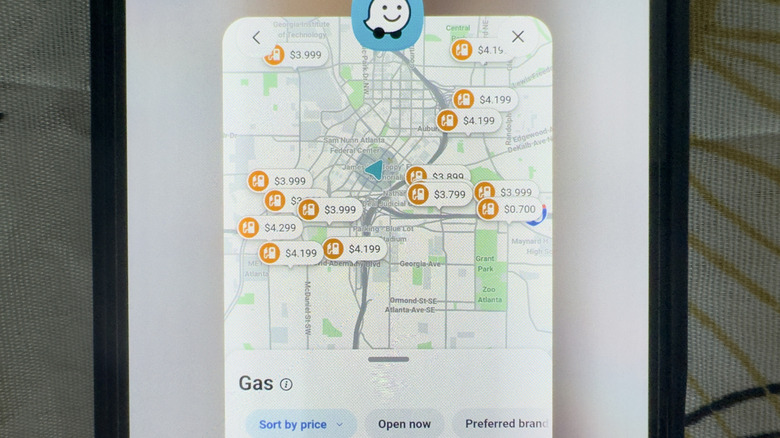
Gas prices are still crazy high. Sometimes you just accept it and head over to the nearest gas station. Other times, you try to save as much as you can and find the cheapest one to go to. And it's really quick and easy to compare gas prices with apps like Waze.
Yes, on top of giving you directions to gas stations in your area, Waze also tells you the fuel prices at those stations. These prices come from Wazer (Waze user) contributions and are updated whenever a Wazer confirms or edits the current rates at that gas station. While these figures might not reflect the latest prices at all times, they still give you an idea on where to fill up to save on fuel.
If you're a Google Maps user, you know it also displays gas station prices. But what makes Waze better than Google Maps is that you can actually sort the places from cheapest to most expensive, saving you both money and time. We'll walk you through how to get the best fuel savings with this nifty Waze feature.
How to search for the cheapest gas stations in Waze
To make finding cheap gas stations easier, you first have to set Waze up with your gas preferences. Here's how:
- Launch Waze.
- Select the three-line "hamburger" menu in the upper left-hand corner.
- Open Settings.
- Under Driving preferences, choose Gas stations.
- Change Preferred gas type to what your vehicle uses.
- (Optional) Set Preferred brand to your brand of choice. Only stations from that brand will appear in your search.
- Under Search, make sure Sort stations by is set to Price.
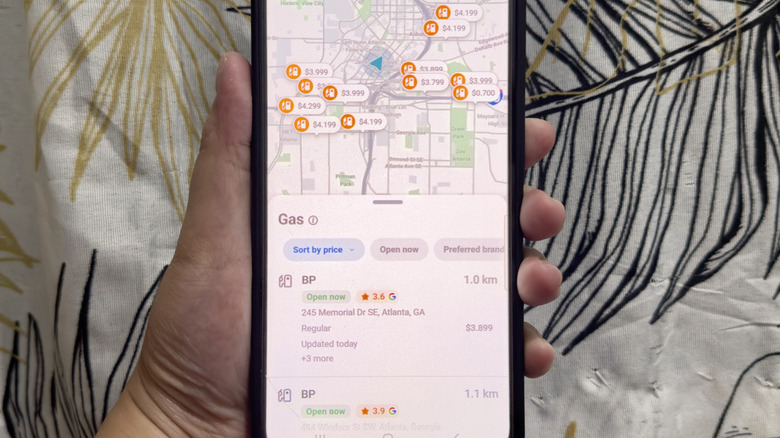
You can now find the cheapest gas station near you. Simply go to the "Where to" search bar and tap on Gas from the icons at the top. The search results will show you nearby gas stations automatically sorted from lowest to highest price for your gas type.
Each search result comes complete with relevant details like the gas price, distance from your location, the last time the price was updated, and whether the station is currently open — all visible at a glance. If you want to know more, tap on the gas station. You'll then see additional details, including the prices for other fuel types and the username of the Wazer who last updated the prices. Once you've chosen a gas station, click on View routes to drive to it.
Conveniently, Waze lets you update gas prices to help other Wazers. Once you're within 0.3 miles of a gas station while navigating in Waze, just press the yellow report icon on the bottom right and select Gas prices. Next, choose the nearby stations you want to update. If the prices on Waze match the current prices, hit Confirm. If they're different, go to Edit and change the prices accordingly. Updating gas prices earns you prestigious Waze points.
What about EV charging stations?
Obviously, electric vehicles don't run on gas. But Waze can still help you save time by pointing you to the nearest charging station for your car. Follow these steps to configure this on Waze:
- In the Waze app, tap the three-line menu icon in the top-left corner.
- Go to Settings.
- Select Vehicle details.
- Open Electric vehicles.
- Toggle on "Turn on EV features."
- Head over to Plugs.
- Choose the specific plug your car supports. You can pick two or more.
- Tap on Networks.
- Select one or more charging networks.
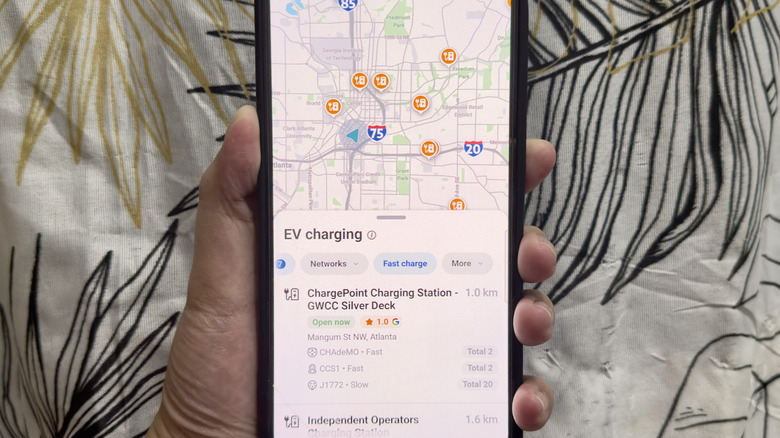
Now when you go to the search bar on Waze's home screen, there's an EV charging icon that pops up at the top. Tap on it to display all the charging stations available in your area. If you want to save time and go to the station closest to you, change "Best match" to "Sort by distance." This way, you can immediately extend the range of your electric vehicle.
Unlike for gas stations, though, Waze doesn't have price information for EV charging stations. What you do get are the number and type of plugs in that station, their power output and charging speed tier, the station's operating hours, and the payment methods accepted.