

Nvidia Instant Replay Not Working? Here Are 5 Easy Solutions To Try
There's nothing worse than smashing a clutch victory in competitive games like "Apex Legends" and "Fortnite" only to find that Instant Replay wasn't running, or that the keyboard shortcut didn't work. Perhaps you find out that the Nvidia overlay reveals that Instant Replay has turned itself off without sending a notification. This is supposed to be a feature that continuously records in the background so you can save recent moments, while being a great tool for sharing top gameplay moments or studying previous matches.
Although Nvidia has transitioned away from the legacy GeForce Experience software in favor of the Nvidia app (which comes with plenty of features players should be using), background capture glitches remain an issue for some users. Video capture usually stops for several predictable reasons — which is a good thing, as it makes the problem easier to fix. These issues can come from digital rights management (DRM) protection being triggered by background internet browser settings and streaming apps, or they could be the result of corrupted temporary cache directories on a primary storage drive.
Fortunately, resolving these recording interruptions doesn't require swapping out a graphics card or resetting Windows. Here are five of the most common issues when running Instant Replay and how to fix them.
Disabling desktop capture prevents Nvidia Instant Replay from shutting off automatically
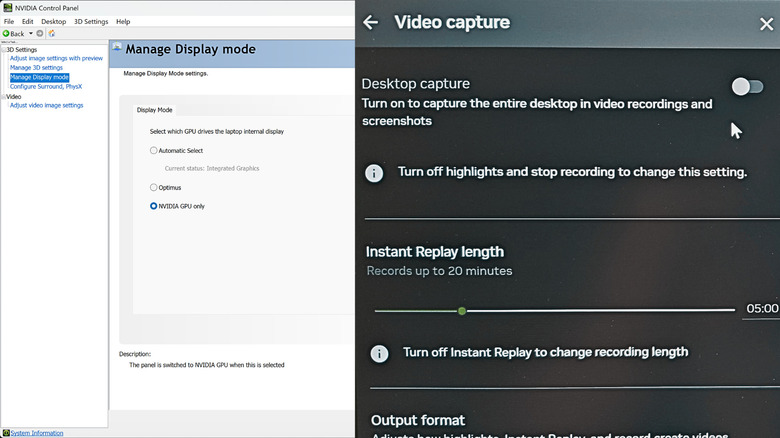
Privacy controls inside the Nvidia overlay are designed to manage continuous desktop video recording, but desktop capture frequently conflicts with background applications. When desktop capture is turned on, it continuously scans a user's desktop environment. If gamers launch media tools like Apple Music or stream audio inside Discord, the overlay senses protected content and forces background recording to turn off immediately.
To prevent Instant Replay from deactivating when media apps run, open the Nvidia App, click on the three-dot triangle near your profile icon, select Instant Replay, and toggle it off. Next, select Configure video capture, toggle Desktop capture off, and toggle Instant Replay back on so it can record game windows directly.
For those playing on a laptop with a dedicated Nvidia GPU, the option to configure desktop capture might be missing, which means display routing is likely the issue. Laptop displays often route through integrated processor graphics rather than dedicated graphics chips. To solve this, right-click on the Windows desktop and open the Nvidia Control Panel. Access the 3D settings, click on Manage Display Mode, and select the Nvidia GPU only option. By doing this, you will force the laptop display to run from dedicated graphics hardware, allowing you to enable and change desktop capture settings.
Closing DRM-protected streaming apps keeps video recording active during gameplay

Digital rights management (DRM) is commonly used across the industry to prevent unauthorized copying of copyrighted media. When streaming services like Netflix, Spotify, Disney+, or Apple TV+ run in the background while you're playing games, the GPU driver detects the protected content. That causes it to automatically deactivate video capture features to prevent unauthorized duplication. Even active web browser tabs running hardware acceleration for video streams can trigger an automatic shutdown.
Before starting a gaming session you'd like to use Instant Replay with, make sure to completely close all video streaming applications and music players. For those who prefer listening to audio while playing, turning off hardware acceleration inside your web browser settings prevents background tabs from triggering DRM restrictions. Many Nvidia users have been able to fix Instant Replay deactivating during gameplay by following these steps.
There are also plenty of performance optimizations to be made within the Nvidia app settings, which we found out while optimizing a Windows PC to boot into Xbox mode. These can come in handy for higher frame rates in games, resulting in higher quality and smoother game captures overall.
Rebinding conflicting keyboard shortcuts resolves unresponsive clip-save commands
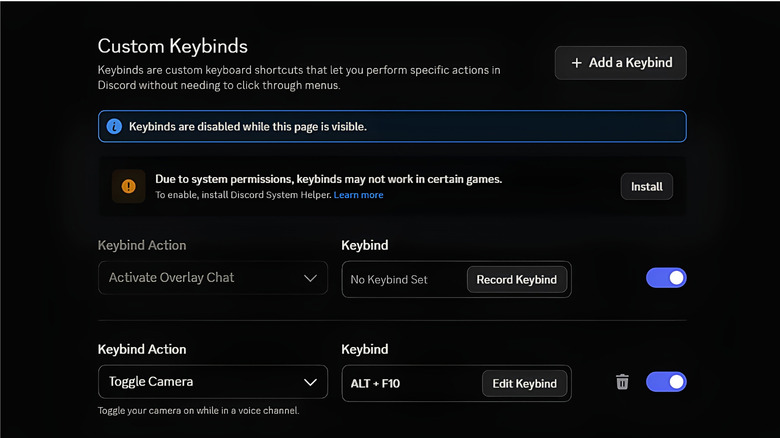
By default, pressing Alt+F10 commands the Nvidia overlay software to write buffered gameplay footage directly to a PC's hard drive. However, if pressing this hotkey combination produces no visible notification or saved video file, keyboard shortcut conflicts might be responsible. Popular communication and streaming programs like Discord frequently use overlapping key bindings, intercepting these shortcut commands before the Nvidia overlay can register the input. You can fix this by changing key bindings in other applications installed that might get in the way. But an easier way is to just change the binding in Nvidia's software itself.
To get rid of key binding interference, open up the Nvidia overlay, click the Settings cog icon at the top, and navigate to the Keyboard Shortcuts menu. Reassign Instant Replay clip saving to an unused combination, such as Alt+Shift+F10 or a dedicated function key that isn't assigned inside other applications. Users could take the time to hunt down the duplicate key binding in the other app that conflicts with Instant Replay and the Nvidia overlay, but it's far easier and quicker just to change the Nvidia one.
Clearing temporary storage directories resolves sudden recording buffer crashes
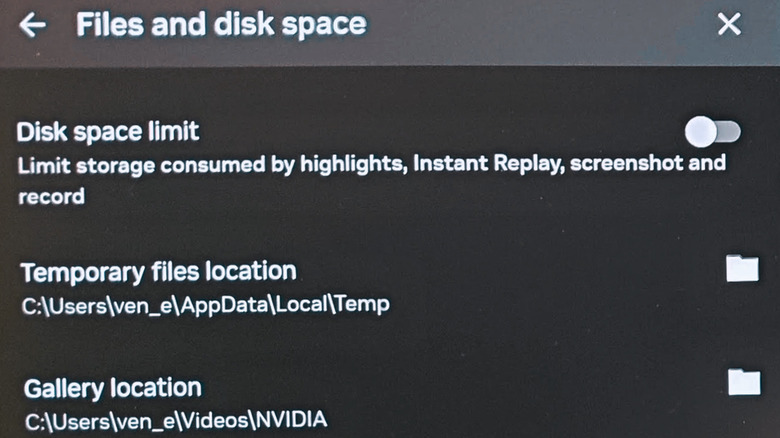
Background video capture functions by constantly streaming live gameplay footage into a temporary buffer directory on a storage drive before compressing and saving the final file. If the primary storage drive runs out of free space, video buffering halts immediately. This storage bottleneck impacts both legacy Nvidia software such as GeForce Experience and the latest Nvidia app in the same way, but we'd highly recommend using the Nvidia app for the latest features for those currently using GeForce Experience and ShadowPlay (which includes Instant Replay).
To restore proper buffer performance, open the Nvidia overlay settings and check the Files and disk space menu to identify where temporary cache files are stored. Make sure the designated storage drive has at least 20 GB of storage space, or redirect the Temporary Files and Gallery Location paths to a secondary solid-state or M.2 drive by clicking on the relative folder icons and changing them. Finally, make sure to clear any temporary files, too.
To clear Windows 11 and Nvidia app temporary files in one go, click the Windows icon in the taskbar and search for CMD, then right-click Command Prompt and open it up as an administrator. Copy and paste the following commands to clear your temporary files:
del /q /f /s C:WindowsTemp*
del /q /f /s %TEMP%*
A clean driver installation restores broken Nvidia Instant Replay features
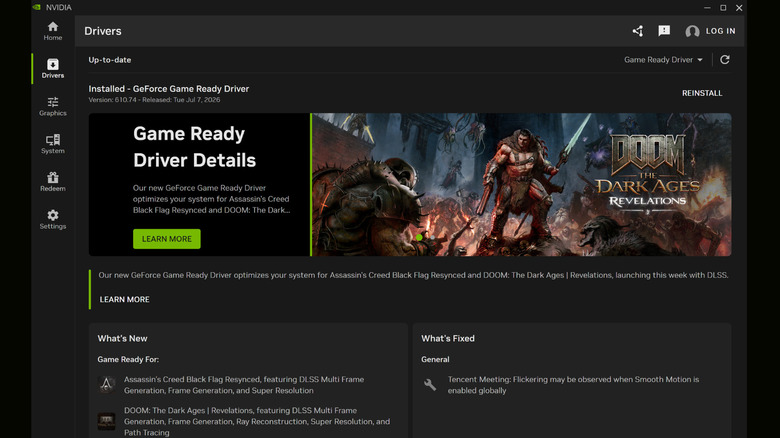
When standard configuration changes like the ones above fail to resolve Instant Replay and Nvidia app crashes and issues, corrupted display drivers or broken background service files are usually to blame. Over time, successive GPU driver updates can accumulate conflicting registry entries or damaged overlay service files that cause background capture tools to stall completely. Carrying out a fresh graphics driver install removes legacy software and files, establishing a clean baseline for desktop and gaming video capture. Yes, this is another way of telling users to "turn it off and on again," but it can be a solid solution to dump temporary files clogging up memory.
To carry out a completely fresh driver installation, open the Nvidia app and click on the Driver tab on the left-hand side. From there, install an updated driver or re-install an existing driver. During setup, select the Custom Installation option and choose the option to Perform a Clean Installation, which uninstalls previous driver versions before writing fresh files and allowing players to enjoy the best features Nvidia graphics cards have to offer.