

You've Been Using Android Circle To Search Wrong, Here's Why

What is easily one of the most underrated features on an Android device, Circle to Search has transformed from what used to be a simple, quick way to search anything on your screen into an all-powerful, multipurpose tool that can accomplish far more than you'd expect. All you need to do is initiate a long press on the horizontal bar at the bottom of your screen, and the Circle to Search function will open. Unfortunately, not a lot of people are aware of how much this feature has grown, either ignoring this function outright or using it for its most basic, eponymous task.
Google's Circle to Search received massive AI upgrades and a host of other new features, and it's become far, far more advanced than most people give it credit for. The swiftness with which this function can be triggered is its biggest perk, and users who want to make the most of their Android device should know when exactly they could use it to save time. This feature can do a whole lot more than just act as a search tool on your home screen, and here are some of the ways you've been using Circle to Search wrong and how to get the most from your experience.
You only need a single tap to call phone numbers
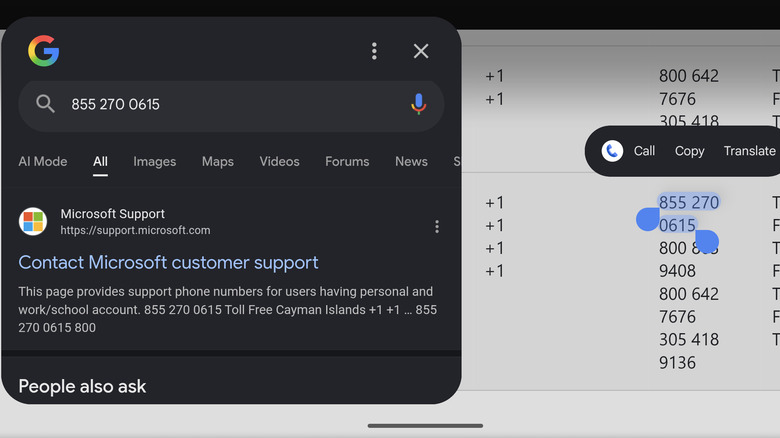
Without using the keypad, the process of calling a number on your phone screen goes something like this: you long press the text to highlight it, hoping that the entire number is selected without any breaks. If not, you'll have to manually adjust the text selection to cover the entire phone number. From here, you can choose to either copy the number and paste it in your dialer or directly call it.
However, not all phone numbers are selectable this way. Sometimes, certain sites and apps don't let you initiate this text selection in the first place, forcing you to deal with the irritation of memorizing this number and frantically switching between the keypad and the app where you found the phone number.
Instead of this, a far more convenient solution is to just initiate Circle to Search, which turns the entire screen into a selectable element regardless of whether the app or website in question allows it. Just tap on the number that you want to dial, and it will instantly get selected. From here, you can initiate a phone call with ease and now have to worry about any memorizing shenanigans.
Struggling to figure out the location shown in an Instagram reel? Circle it!
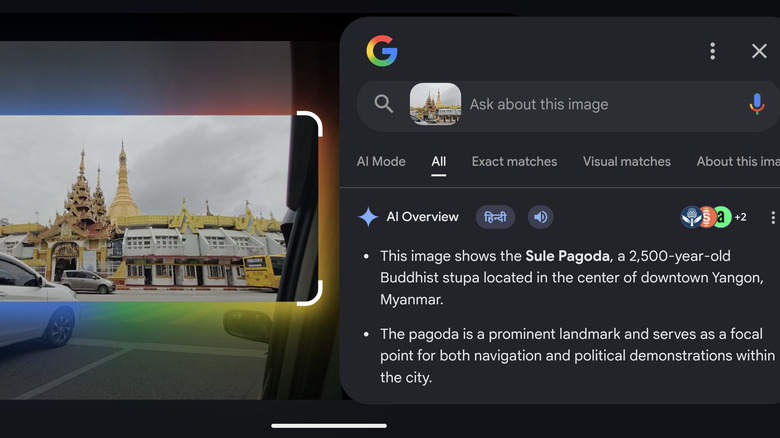
You might have found yourself in a situation where you're watching a reel on Instagram, a YouTube video, or any other form of video content, only to see landmarks in the background that you'd like to identify. With Circle to Search, these problems should've been a thing of the past a long time ago. Maximize this feature and trigger it whenever you see a familiar location, circling the shops and landmarks around it to figure out which street is being shown on video.
This reverse-search function is great for discovery purposes, and the best part is that it's not just limited to landmarks. Any famous person, unique dish, or beautiful flora and fauna you see on your screen that piques your curiosity can be identified via Circle to Search. People who don't want to be left in the dark or just like to know everything about an image or video that they're pursuing will be cursing themselves for not using this feature sooner.
Translate foreign text on a picture or video by pressing a button
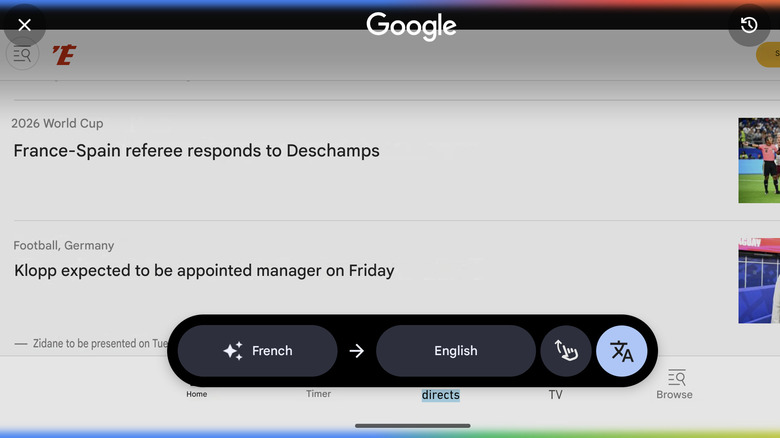
Usually, to translate any foreign text on your screen, you'll have to manually select the text in question before choosing the "Translate" option from the quick menu. It's not exactly a lengthy process, but this time can still be minimized with the Circle to Search function. Instead of manually selecting the foreign text, just circle the section of text that you want a translation for, and you should be able to get it in no time. The advantage of this feature is that it also works for images where text can't be selected, making Circle to Search's AI-powered translations very useful in a myriad of situations.
Speaking of convenience, there's a simpler way you can translate text on your screen. After triggering Circle to Search, you should see a Translate icon on the bottom right that instantly converts everything on the screen into the language of your choice. The best part is how smartly this feature has been integrated, letting you scroll your Instagram feed or an online article as usual to get instant translations. To enable this, just press the finger-swiping icon to the left of the Translate one. This game-changing Circle to Search translation feature was added in September 2025 and is criminally underused.
There's a pinch and zoom function for fine details
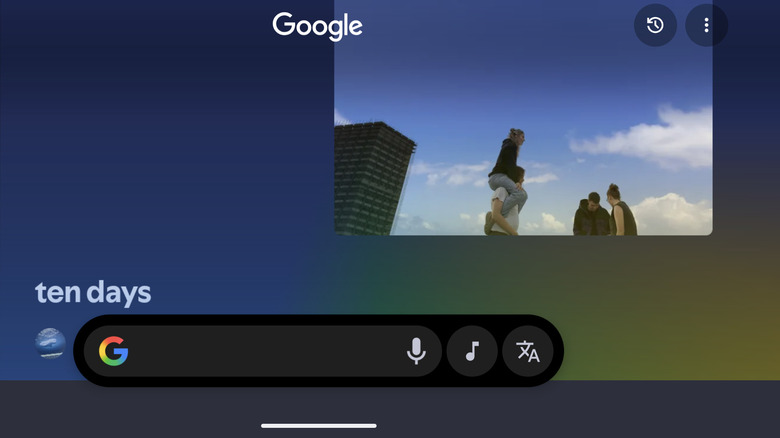
Who said Circle to Search is only useful for searching? There are some hidden perks of this feature that can be pretty nifty, as long as you're aware of how they work. The simple act of triggering this function alone makes your entire screen zoomable, which is great if you're trying to spot some minute details or the text on the screen is unreasonably small.
Once you've activated Circle to Search, all you have to do is pinch any part of your screen to zoom in. As minor as this feature may seem, it's a smart solution to uncover any elements on your phone that aren't too legible. You can also use two fingers to pan the screen around while it's zoomed in, making it easier for you to circle and select the exact part of the screen you want to conduct a search on.
You can identify songs playing either in the background or on your device
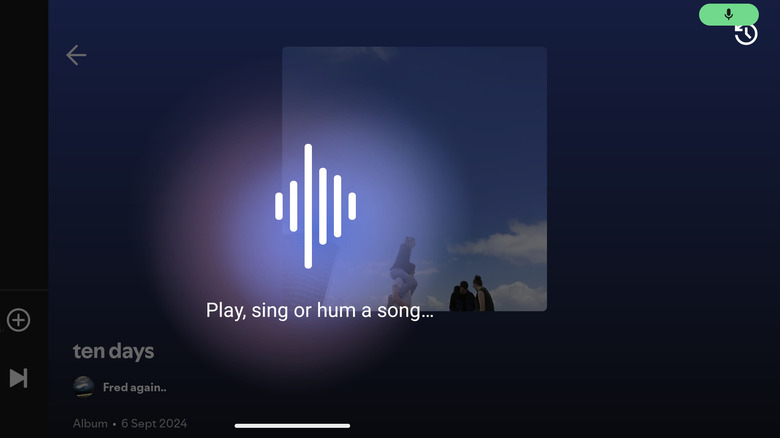
The Shazam app and the Now Playing feature on Pixel phones are two notable ways for Android users to identify any tracks playing around them. However, some people aren't huge fans of shoving more third-party apps on their phones when its storage is bloated enough as is. Meanwhile, Now Playing's reliability is all over the place, with buggy updates ruining the experience for many Pixel users.
Instead of relying on these features, Circle to Search is here to save the day once again! Long-press the bottom of your screen, and you'll see a music icon next to the Google search bar. Tap it, and your phone will start listening to any tracks that may be playing in the background. You can also hum the tune of a song stuck in your head to initiate this identification process.
Don't assume that this music identification is limited to just songs playing around you, either. If you hear a background track or a portion of a song on social media that you can't name despite it being on the tip of your tongue, stop frustrating yourself — just tap on the music icon that appears after initiating Circle to Search. It also recognizes any music playing on your device directly!
Identify scams, fact-check any dubious statements, and ask follow-up questions
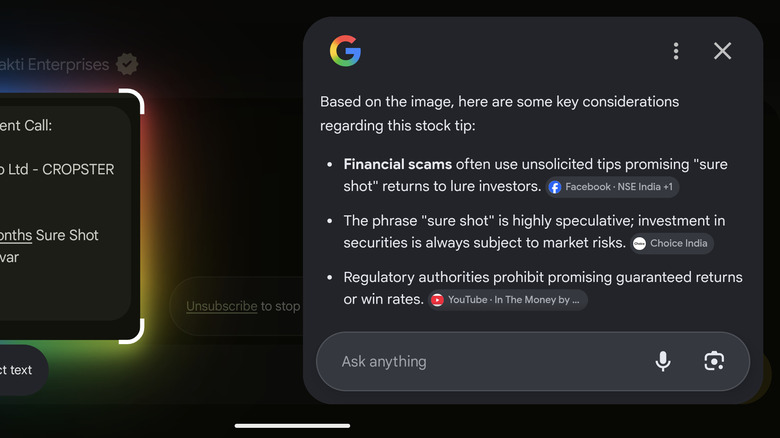
Circle to Search should be used on your Android phone to protect yourself from scams and misinformation, both of which are very prevalent in the digital age. If you're not sure about the validity of a text you've received, just circle it to find out whether it's trying to exploit you or not. It's easily one of Android's best features to help you spot spams quicker than ever before.
Meanwhile, in an age where fake news and misinformation run rampant, it's up to you as a responsible citizen to educate yourself with proper facts instead of just blindly believing any out-there statement that comes on your screen. Again, Circle to Search is your friend here — just highlight any dubious statement, and you should get an AI summary of this claim and find out if it's true or false. Even if its validity isn't outright mentioned, you can ask follow-up questions to verify the accuracy of said statement.
In fact, this multisearch functionality goes well beyond just factchecking. Anything that piques your interest on the screen can be circled, following which you can ask a bunch of contextual questions to get more information about the subject you've highlighted. It's a very simple and convenient way to broaden your horizons with the magic of Circle to Search.
You can easily buy or wishlist anything interesting you see online
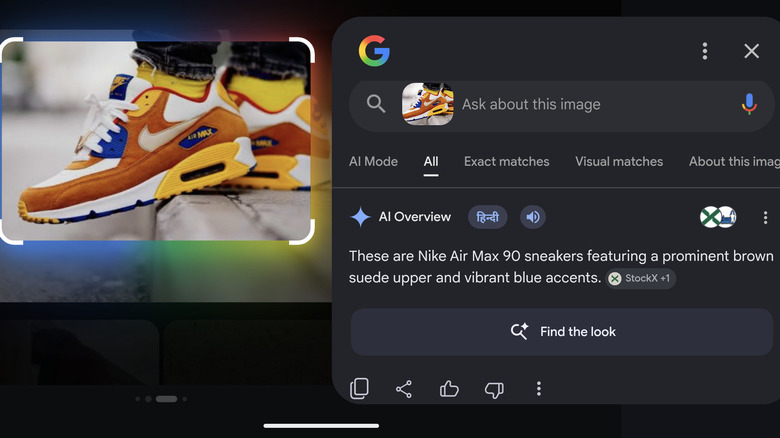
If you're into fashion, then it's only natural for your Instagram or TikTok feed to be loaded with influencers dressed to the nines. In some posts, they'll credit the outfits they're wearing to make them easier to search, but in the majority of instances, you're forced to search for the item on your own.
Circle to Search eliminates this headache for you. All you need to do is circle the product in question that has caught your fancy, and you should get your answer in the form of its name, brand, and other such details. Even if that doesn't happen, you can just scroll down to find clothing articles that look similar to your searched product, along with links to e-commerce sites where you can either buy the product you desire there and then or wishlist it for later.
Of course, this doesn't just apply to fashion. If you see a nifty gadget or unique decorative item in the background of a social media post, Circle to Search it and you'll find out exactly what it is and where you can get it from. For people who love quick shopping, this feature is extremely useful!
You can move the search bar to focus on hidden elements
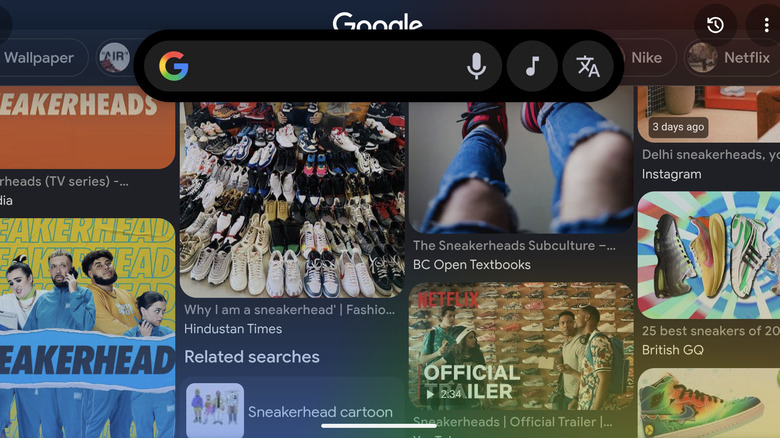
As useful as Circle to Search may be, there may be one annoyance that you're dealing with whenever you trigger this feature. Being able to highlight any section of the screen and quickly search it is fine, but what if the very thing you want to search is hidden behind the search bar that appears at the bottom of your screen? Instead of canceling your current Circle to Search initiative, scrolling down a bit, and long pressing the bottom of your screen all over again, there's a very simple solution to this.
All you have to do is place two fingers on the search bar, and you can move it around wherever you see fit. With this trick, all you need to do is move the search bar to the very top of the screen, and you can easily circle the part of your screen that was hidden.
Made a mistake? Circle, tap, or scribble the correct area of your screen instantly
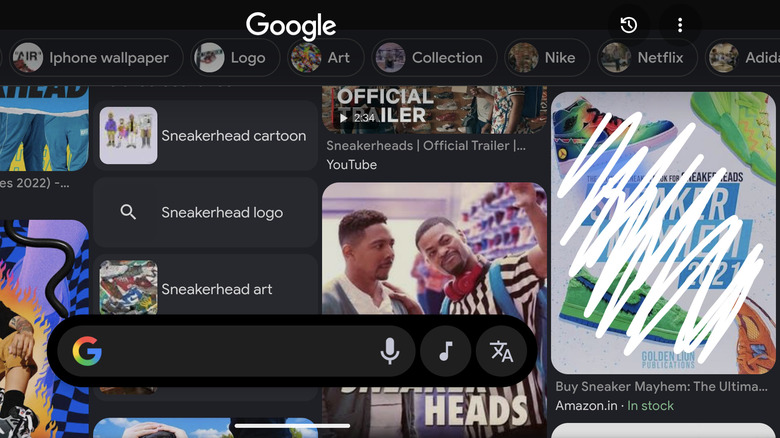
Another reason why you'd feel the need to trigger the Circle to Search action again is if you highlight the wrong section of your screen. While you can move the selected area around by shifting its four corners, it's a bit finicky. In fact, why bother with both these steps when Circle to Search lets you carry out consecutive searches by highlighting other areas of the screen instead?
Even better, you don't even need to trace a circle to do this! If you're trying to select an image or a small portion of text, then you can simply tap on it to trigger this search. Alternatively, if you're very clumsy when it comes to drawing circles and keep selecting additional elements on top of what you want to search, you can be more precise and just scribble the area that you want to know more about.
You can quickly scan any QR code or barcode on your screen
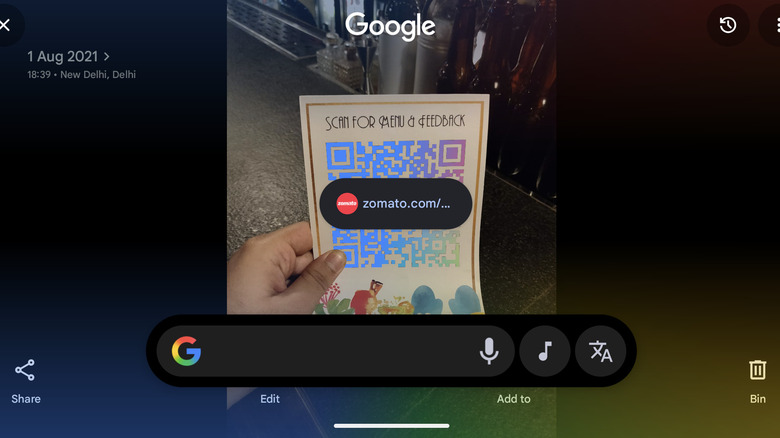
Barcodes and QR codes have become an easy way for companies to provide digital media as opposed to physical documents, and they can be used to let customers browse digital menus, check out any relevant price charts, and even carry out digital payments. In fact, QR codes have become so ubiquitous that people use them for everything from connecting to Wi-Fi to even downloading an app.
There are many ways to scan a barcode or QR code via your app. Usually, pointing your camera at said code or using third-party tech like Google Lens makes this pretty easy. However, if you have such a code on your screen, then there's a very swift way to access the data it redirects to. Just enable Circle to Search while these QR codes or barcodes are on your screen, and a pop-up will appear in front of them that redirects you to the relevant link once it's tapped.
Automatically summarize large paragraphs
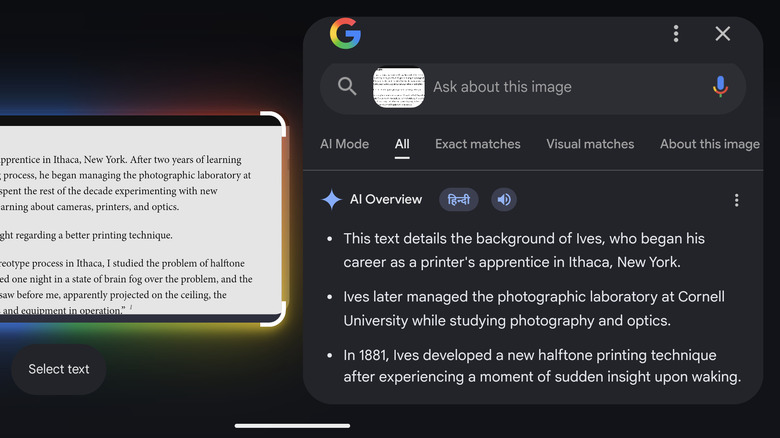
In an age where attention spans are dwindling at a frenetic pace, even people who enjoy reading may get tired of reading swaths of text on their phone over and over again. Instead of carefully checking a huge paragraph only to find out that it held nothing of substance and just wasted your time, let Circle to Search and AI do the work for you!
Just highlight the chunk of text you're struggling to get through, and it will provide a summary of the talking points mentioned in this piece. It doesn't matter if you're trying to trudge through a block of low-effort, text-heavy content — such as a poorly written article or the deluge of AI-generated captions that have flooded social media – or attempting to fully comprehend well-written content pieces, Circle to Search will help give you a better grasp of what the information is trying to convey.