

How To Disable YouTube Shorts From Your Feed
For years, YouTube has been mainly known as a hub for landscape and minutes-long videos. Then came 2020, when Shorts — the complete opposite of regular YouTube content — began to take over the platform. While the shorter clips are generally a refreshing change, not everyone is a fan. Some don't like how unnatural the vertical Shorts look on a desktop. Others find them unnecessary, especially those who hop on YouTube specifically for long-form videos. There's also the fact that Shorts can get quite addicting, and you'll find yourself scrolling through the videos for hours on end when all you really wanted was to check out one music video.
The good news is, you can customize your YouTube feed and disable Shorts, so they won't pop up on your account anymore. Technically, YouTube has yet to offer a setting to toggle it off. But there are some nifty workarounds available that do exactly that. We'll walk you through the tips and tricks on how to turn off YouTube Shorts on your mobile app and desktop browser.
How to turn off YouTube Shorts on the YouTube mobile app
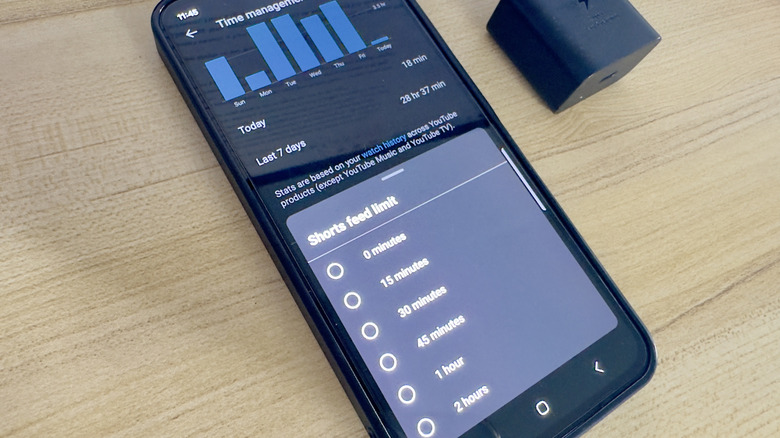
The YouTube app doesn't include a "turn off Shorts" feature, but you can still do so using one of YouTube's powerful features: time management. It works on Android and iOS devices for both free and premium accounts. Here's how to set it up:
- Launch YouTube.
- Go to the You tab at the bottom.
- Open Settings by tapping on the gear icon in the top-right corner.
- Under Account, select Time management.
- Tap on Shorts feed limit.
- Set it to 0 minutes.
Now, when you scroll through your home feed, you'll no longer see the section for Shorts. If they still appear, try refreshing the feed or relaunching the YouTube app. The Shorts tab won't be removed from the bottom menu, but it won't let you open the Shorts feed unless you click on Ignore limit for today.
How to remove YouTube Shorts from your feed on your desktop
Unfortunately, youtube.com on your desktop doesn't include a Time Management feature like the YouTube app. To disable Shorts from your feed, you can try clicking the three-dot menu in the Shorts section and selecting Show Fewer Shorts. But this doesn't guarantee that they'll permanently disappear.
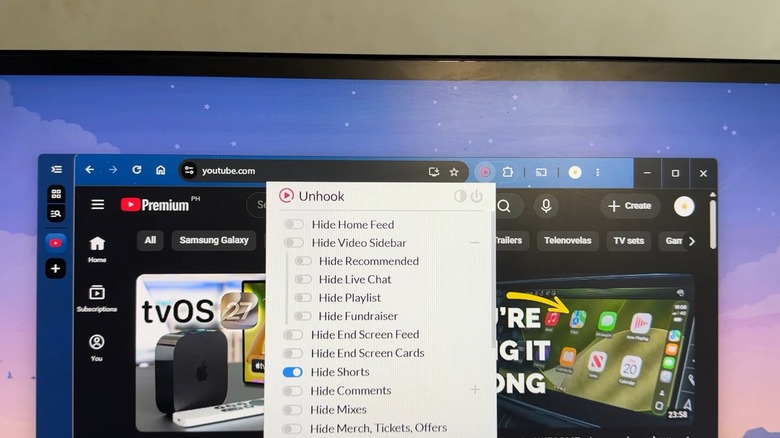
A more reliable way to remove Shorts is with a browser extension specifically for YouTube. Among the user-favorite ones is Unhook. It lets you hide Shorts from YouTube on Chrome, Firefox, and Edge with just a simple toggle. Follow these steps to turn on this feature:
- Install Unhook on your browser of choice (Chrome Web Store | Firefox | Edge).
- Click on your browser's extension icon in the top-right.
- Select Unhook to open its menu panel.
- Scroll through the options until you find Hide Shorts.
- Turn on Hide Shorts.
- Switch off Hide Home Feed as it removes all the videos on your home tab by default.
If you already have a YouTube tab open, refresh it. Otherwise, open YouTube. When you scroll through your feed, you should no longer see the Shorts section interrupting the flow. Conveniently, Unhook helps you declutter YouTube further by letting you hide other elements you find irrelevant. Options include recommended videos, mixes, comments, Trending, and other sections.