

How To Get The Best Display Settings On Motorola Phones
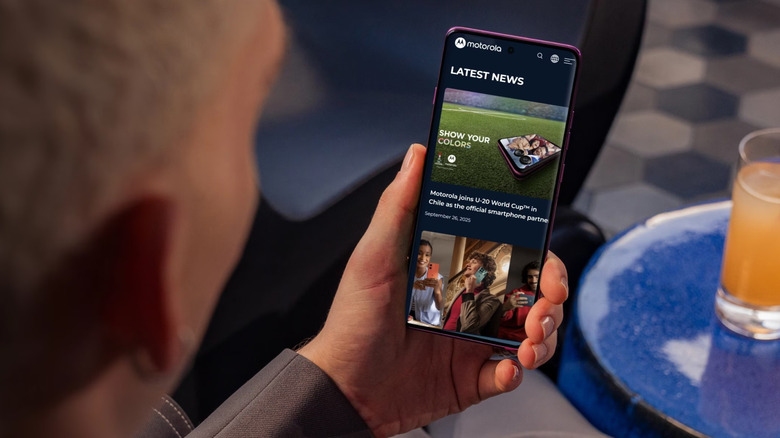
Motorola phones come with decent displays out of the box, but if you're not a fan of that default, there are some settings you can adjust to get an even better viewing experience. Let's start with the basics: brightness, dark mode, and Night Light.
Brightness is largely dependent on preference. You can tweak it to your liking anytime via the slider in the quick settings panel. Like many other Android phone brands, Motorola also includes an adaptive brightness setting for automatic adjustment. Dark mode is great if you find the white background too blinding and want to save on battery. You're free to use it all day long, or you can set a schedule to activate it only at certain times. Night Light is similar to dark mode in terms of creating a more eye-friendly phone viewing experience. But instead of turning the background dark, it switches the screen glow from a bright white to a soft amber.
Beyond these basic display settings, though, there are two additional adjustments you can make to get the best display on your Motorola phone: color mode and refresh rate. Here's where to find them.
Set a color mode
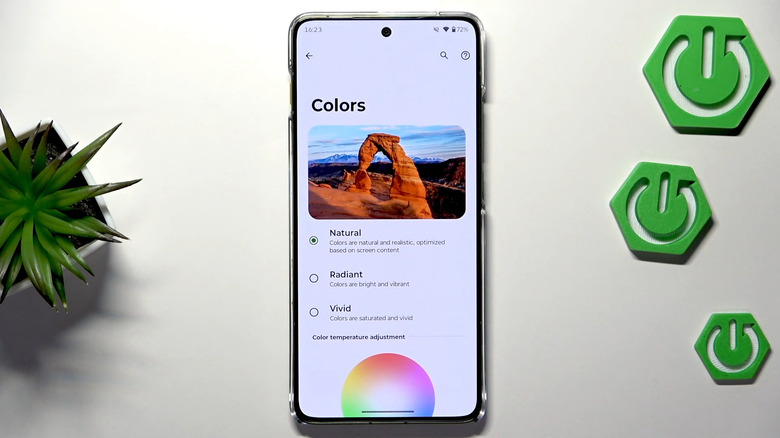
Color modes on a Motorola phone change the overall appearance of colors on the display, allowing you to set the look that fits your preference. There are three color mode options to choose from: Natural, Radiant, and Vivid. Natural, as its name suggests, displays the most accurate colors. Radiant, on the other hand, makes the colors brighter and more vibrant. Finally, Vivid gives the colors on your Motorola display a more saturated look.
While Natural seems like the safest option for many, it doesn't have to be the default choice. Getting the best display on your Motorola phone depends a lot on your perception. You can go with any of the three color modes, then adjust the color temperature from default to warm, cool, or a custom color of your liking to better match your taste.
Here's how to set a color mode on your Motorola phone:
- Launch the Settings app.
- Open Display.
- Go to Colors.
- Select your preferred option.
- Under Color temperature adjustment, tap on Warm, Cool, or any color in the color wheel.
The reference photo at the top of the page adjusts according to your changes. Once you're happy with the result, you're free to exit the app. It's important to note, though, that Night Light temporarily replaces your color temperature adjustment setting. To get it back, you'd have to turn off Night Light.
Change the display refresh rate
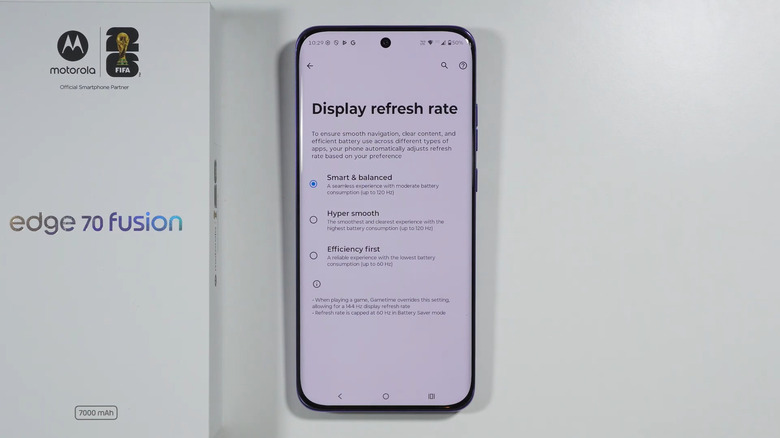
Your phone's refresh rate dictates how often the display updates the image on the screen. It's measured in hertz (Hz), and the higher it is, the more responsive the interface generally becomes. Some phones are fixed at just one display refresh rate. But several modern Motorola models, including Edge 70 Fusion, G Power 2025, and Razr Fold 2026, offer three different refresh rate modes for their display.
The first is Hyper smooth, which sets the refresh rate up to the highest one your phone can go, giving you the most seamless scrolling. However, this phone screen setting affects your battery life, draining it more quickly. The opposite mode — Efficiency first — lowers the refresh rate down to 60 Hz. Your Motorola phone display won't feel as smooth, but on the upside, you get to extend your phone's battery life. The last mode, Smart and balanced, is the best of both worlds. The display still feels responsive enough while making sure your battery doesn't run down as fast as when using Hyper smooth.
To change the refresh rate and get the best display on your Motorola phone, follow these steps:
- Open Settings.
- Go to Display.
- Under Appearance, choose Display refresh rate.
- Tap on the refresh rate you'd like to use.
From here, try scrolling and browsing on your phone to check the difference. The refresh rate you set will be active unless you enable Battery Saver. During this mode, you automatically get a maximum of only 60 Hz to help you preserve your battery.