

Seeing Ads On Your LG TV? Here's How To Disable Them
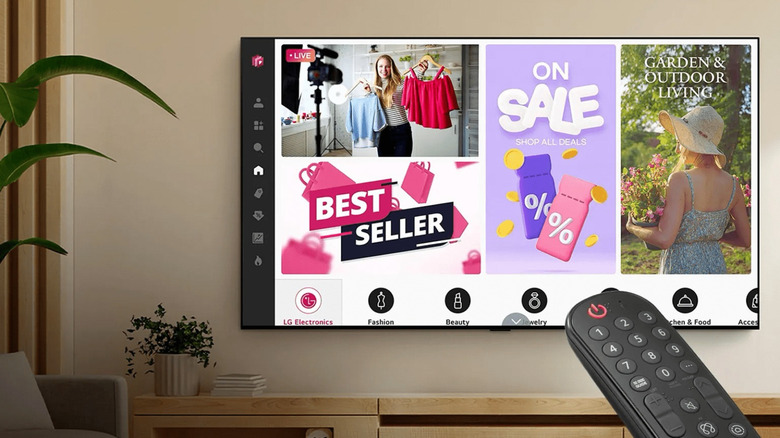
One of the most common problems with LG TVs is their annoying ads. All you want is a clean and distraction-free home screen with just your favorite apps, but what you get is an unnecessarily big ad banner covering almost half of the screen. While seeing ads on your smart TV is actually a universal experience across brands these days, that doesn't mean you should just live with it. They can easily ruin your experience even if they only appear in one place.
The good news is that LG lets you get rid of the ads popping up on your TV. There are generally two ways to do so: via an LG TV setting and using a third-party streaming device. The LG TV setting is conveniently built into the operating system, so you won't have to resort to risky hacks. We'll walk you through how to access it on your LG TV.
Method 1: Use your LG TV's built-in settings
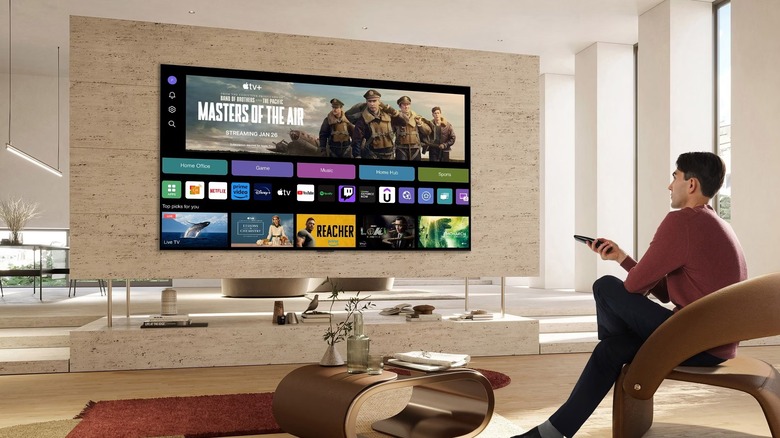
To hide ads from the home screen of your LG TV, one quick way is to go into the TV settings and toggle off Home Promotions. Here's how:
- Hit the Settings button on your remote.
- Click on All Settings.
- Select the General tab.
- Go to System > Additional Settings > Home Settings.
- Switch off Home Promotions.
- If you want to stop your LG TV from suggesting content like trending shows too, disable Content Recommendation.
Your LG TV home screen should now be ad-free. Instead of the large ad banner at the top, you get a simple Go to Apps button with the webOS main image. If you opted to turn off content recommendation, that section gets replaced with tiles for TV functions and guides.
You're free to stop here if you're satisfied with how your home screen looks. But you can also try the second method — setting up an external streaming device – if you want to remove the ads on your LG TV and overhaul your smart TV experience in the process.
Method 2: Use an external streaming device
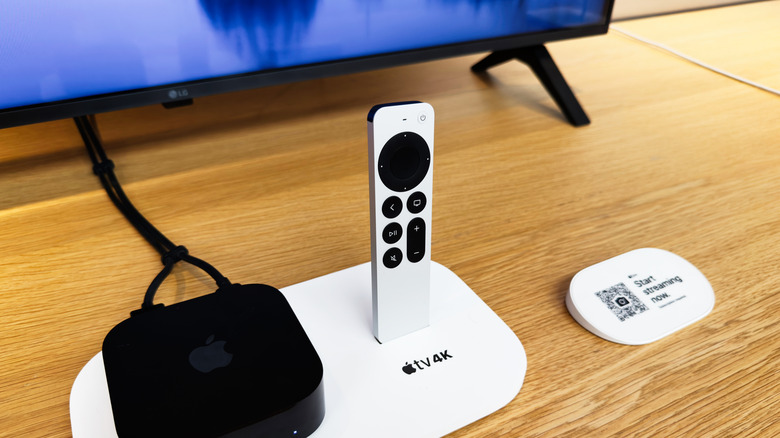
While it might seem pointless to get a streaming device when you already have a smart TV, it's actually beneficial in more ways than one. A streaming device runs a completely different operating system, so you're essentially getting rid of your LG TV's built-in OS and all the ads that come with it. Thanks to its upgraded hardware, it's also generally more powerful than your smart TV. It can load faster and allow you to install more apps, giving you a more seamless watching experience.
Among the available streaming devices on the market, one of the best options for your LG TV is Apple TV 4K. It doesn't display large ad banners on the home screen, unlike most other streaming devices. Plus, it's quick and easy to set up. Simply plug the two devices together using an HDMI cable and go through the instructions displayed on the screen. Unfortunately, the apps you already installed on your LG TV don't carry over to the Apple TV 4K. You'd have to redownload them from the App Store and sign into them again when needed.