

How To Create Calling Cards On Your Google Pixel Phone
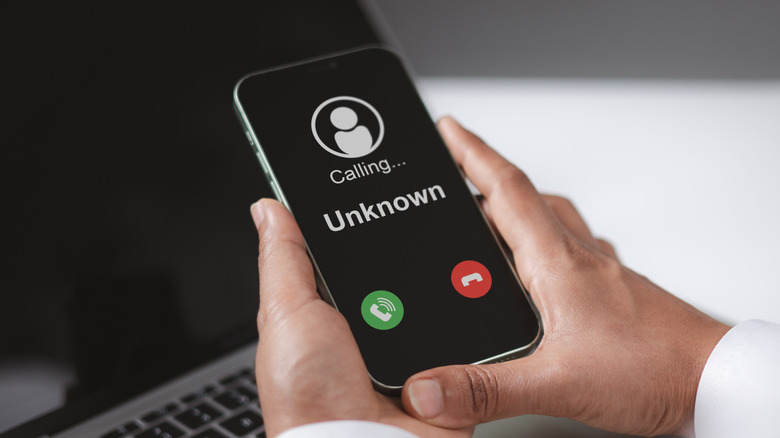
Your phone's incoming call screen provides all the information you need to know who's calling and if you want to pick the call up. If you have their contact saved, you'll see their name and any picture you've attached. This is enough for most people, but one of Google Pixel's features allows users to add a custom calling card that shows a full-screen image with personalized text for each contact.
You can add a calling card to your contacts through either the Phone or the Contacts app on your Google Pixel smartphone. In the Contacts app, tap on the specific contact you want to add a calling card to. Then, press either the pencil icon in the top right or the "Try adding a calling card" area. In the Phone app, tap on the three lines in the top-left corner to open the sidebar, select Contacts, and follow the same steps as above from there. Alternatively, you can tap Settings in the sidebar and scroll all the way down to find Calling Card.
With the edit page open, you'll see three options at the bottom. Tap Camera to take a picture to add to the card, Gallery to select a photo from your local gallery, or Photos to use one from those you've backed up on your Google Account. With a picture chosen, you can change its size by pinching and shift its position by dragging it around. You'll also find two rows on the bottom of your screen that you can use to select the font and color of the contact name.
How to create a custom calling card for yourself

Calling cards have existed for a while, but the feature initially only let you customize the appearance of the contacts on your phone. Android phones got a lot of new features this year, and one of these was an update to calling cards on Pixel phones. With the update, each Pixel user can add a customized calling card to represent them. If someone tries calling you, they see the calling card you've set for yourself instead of the default screen, even if they haven't set up a custom card for your contact.
Before you do this, you need to ensure that you've added your phone number to your Google Account when setting up your Google Pixel phone. To create a custom calling card on your Google Pixel phone, open the Phone app, tap on the three lines in the top-left corner to access the sidebar menu, and then go to Settings. You'll find Calling Card when you scroll to the bottom. Tap on this, and you'll find an option to create a new calling card, or edit it if you already have one.
Once you tap create, the same three image options come up as when you're creating a calling card for a contact. Tap either Camera, Gallery, or Photos to choose the picture you want others to see on your calling card, adjust it the way you like, and then edit how the contact name appears. When you're satisfied with the results, tap Save. This will save the calling card to your Google Account and show it to anyone who calls you.