

How To Get The Best HDR Performance On TCL TVs
Whether you have recently bought a top-rated TCL TV or are trying to change the HDR performance on an existing one, there are several settings that can help improve its performance. Keep in mind that there's no right or wrong configuration. It all comes down to your preferences, the kind of content you are viewing, and the lighting conditions. But since most shows and even games now support HDR, it's smart to optimize your TCL TV's settings for the best picture quality.
One of the most important settings you must look at is picture mode. Getting this right does all the heavy lifting; the rest comes down to fine-tuning brightness levels, dynamic contrast, black levels, or peak luminance, among other settings. When adjusting your TV's settings for the best HDR performance, you may want to turn off "Adaptive Brightness." The feature is designed to auto-adjust the brightness levels depending on the lighting conditions. Although it's convenient, that can negatively impact the viewing experience and disable or override other critical settings you may want to adjust.
Remember, the available settings and the menus may be named differently depending on the smart TV platform your TCL TV runs on. Most high-end TCL TVs feature Google TV as the operating system, but on some models, you still have Fire TV or Roku TV as the smart TV platform.
Choosing the right mode
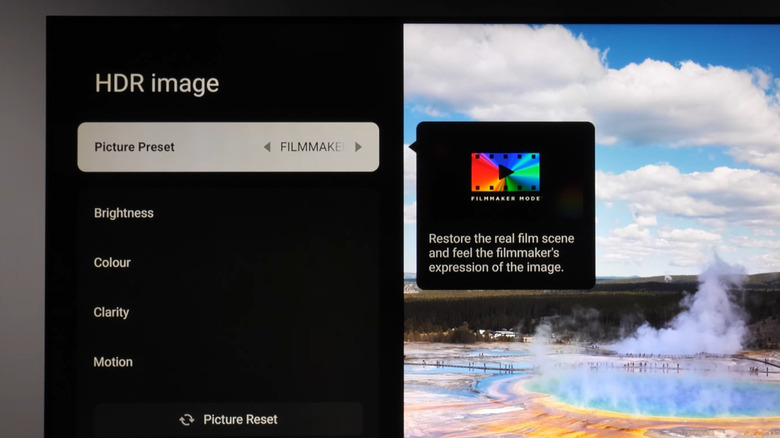
Every smart TV, whether it's from TCL or another brand, usually comes with a bunch of picture modes, including Standard, Vivid, Sports, Gaming, Movie, and Filmmaker. These are basically presets you can choose from to adjust several picture-related settings at once. It simplifies the job for you, which is why picking the right picture mode is the first thing you should do.
For HDR content on TCL TVs, it's important to pick "Movie" or "Filmmaker" mode. This will deliver the picture quality closest to what the creator intended, whether it's the colors or the brightness. Between the two, you should prioritize Filmmaker Mode, since the colors are more accurate and Motion Smoothing is turned off. To switch picture modes, open your TV's settings, go into "Display & Sound," then to "Picture," and switch to "Filmmaker Mode" or "Movie Mode." When you make the change, the colors may initially look warm, but it's perfectly normal. Eventually, you'll get used to the change.
At the same time, there are situations where the Filmmaker Mode is not the best choice, at least for a few viewers. That's because the brightness levels are comparatively lower in this mode. If you are watching a movie or a show in a room with too much light, consider switching to Movie mode. That might deliver the best HDR performance in this case.
Adjust brightness, Peak Luminance, and other settings
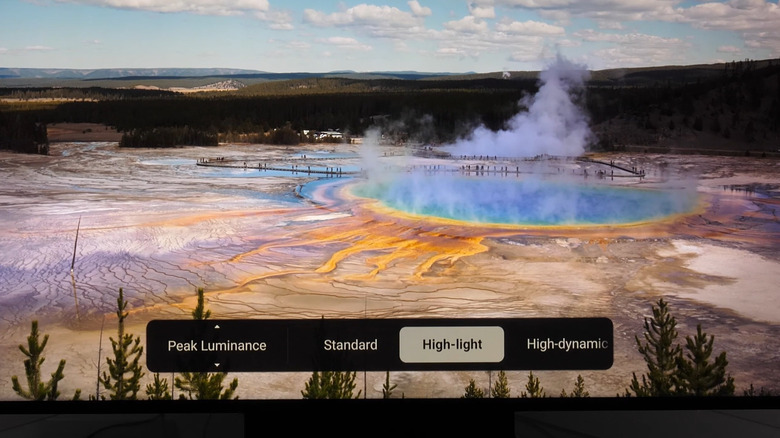
You may need to fine-tune a few more settings beyond adjusting the picture mode. Some of these are enabled by default, but you can quickly reconfigure them within the settings. Start with the brightness levels. There's no right or wrong here; you'll just have to adjust it depending on the content you're watching and the lighting conditions around you. While keeping the brightness at 100% should work for most people, some may benefit from reducing it. Keep the "Contrast" and "Black Level" at their default values. As for Gamma, owners recommend aiming for 2.2 to 2.4. You can also enable "Dynamic Tone Mapping" if available, but that's more of a personal choice.
Next, you have "Dynamic Contrast," which should be turned off. The feature is designed to auto-adjust brightness and contrast levels from scene to scene, but more often than not, it leads to an inconsistent viewing experience. When it comes to "Peak Luminance," you can explore the available options instead of sticking with "Standard" or "Off." Switch between "High-light" and "High-dynamic" and find out what works best for the movie or show you are watching.
While all TVs are built differently, some of these common changes do make a noticeable impact on the HDR performance. And the picture mode is perhaps the most important change you need to make for the best picture quality on your TCL TV.