

These Keyboard Shortcuts Let You Control YouTube Videos Like A Pro
Arguably the most annoying part of watching YouTube is the controls. You always seem to end up clicking on buttons every few seconds — maybe to adjust the volume, skip to the last chapter, or change the resolution. It's especially frustrating when you have to go digging through menus, which almost always cover the video in one way or another. Thankfully, there's a better way to watch YouTube more efficiently: with keyboard shortcuts.
You might already use your keyboard's built-in media keys to play, pause, stop, or go to the next video with a single button press. But beyond these keys, the plaform hides other convenient shortcuts that aren't as obvious.
These powerful YouTube features make it easier to do actions like seeking the video quicker, switching to a different viewing mode, and even panning a spherical video. Once you learn these keyboard shortcuts, you'll be using YouTube like a pro.
What convenient keyboard shortcuts does YouTube support?
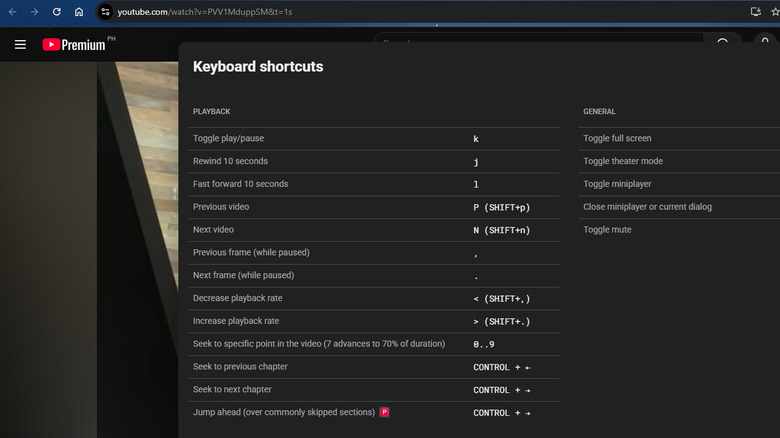
Most of YouTube's keyboard shortcuts are geared towards controlling video playback. Here are some you might find useful:
Seeking:
- Right/left arrow – Skips forward/backward five seconds.
- l/j or double press the right/left arrow – Jumps ten seconds forward/backward.
- 0 (up to 9) – Jumps to certain points of the video (i.e., 0 is beginning, 1 is 10% of the video, 2 is 20%, etc.).
- Ctrl + right/left arrow – Goes to the next/previous chapter on the video.
- Ctrl + right arrow – Seeks past the most commonly skipped sections. This is one of YouTube Premium's hidden features, though, so you can't perform it on a free account.
- Home – Restarts the video.
- End – Jumps to the end of the video.
Playback speed:
- Shift + comma/period – Slows down/speeds up the playback speed by 0.25x.
Audio:
- m – Mutes/unmutes the audio.
- up/down arrow – Turns up/down the volume by 5%.
Viewing modes:
- f – Displays/exits full screen mode.
- t – Turns on theater mode.
- i/ESC – Switches to/exits the miniplayer.
YouTube lets you manipulate captions via keyboard shortcuts too. Press c to enable/disable closed captions and use + or – to increase or decrease the caption's font size. When watching playlists, Shift + n/p allows you to quickly play the next/previous video. You can also navigate the video frame by frame whenever you need to take a good screenshot. Just pause the video and hit comma or period on the keyboard to move to the previous/next frame. For spherical videos, YouTube offers nifty shortcuts as well — w to pan up, s to pan down, a to pan left, and d to pan right. To zoom in, press ].
Can you customize YouTube's keyboard shortcuts?
Unfortunately, you can't find a built-in setting for customizing YouTube's shortcuts. But the good news is, there's an available workaround in the form of browser extensions for YouTube. Some allow keyboard shortcut assignments, giving you the power to control YouTube exactly how you want. One of the popular extensions for this task is ImprovedTube. It offers several YouTube keyboard shortcuts for actions even YouTube doesn't provide. You can set custom keys to quickly change the video's quality, play it at a preset speed, and speed past lesser-watched sections. If you need to screenshot a frame, ImprovedTube lets you set a keyboard shortcut for that too. There's even an option to perform basic YouTube actions, such as like, dislike, and subscribe, with your shortcut of choice.
Enhancer for YouTube comes with the same feature, but for a different set of supported actions. With this browser extension, you can modify how you want to stop the video, increase or decrease the playback speed, and enable cinema mode. Other than these familiar shortcuts, you can also find some interesting ones like flipping the video horizontally and vertically, hiding the comments, and reversing the playlist order.
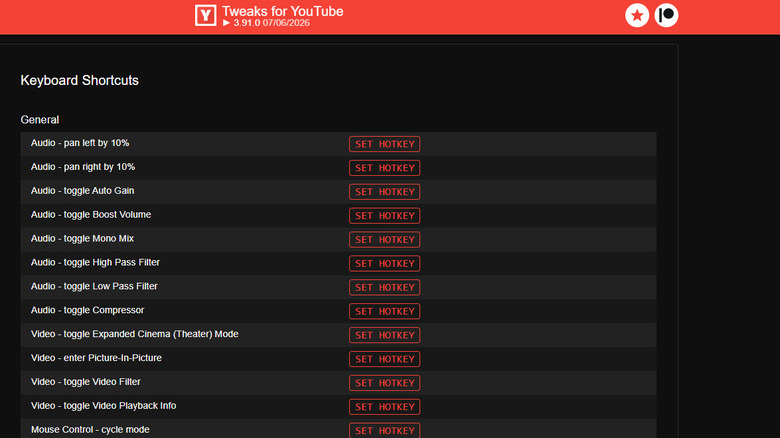
Finally, you have Tweaks for YouTube. Unlike the other two with limited actions, this browser extension features 60+ YouTube keyboard shortcuts for you to customize. These cover almost every usable menu the platform offers. For instance, you can go to embed mode, turn on video filter, and cycle through subtitle positions. You can also opt to change the existing shortcuts for actions like playing/pausing the video. What makes Tweaks for YouTube stand out is that it even lets you assign some YouTube actions to your mouse.