

How To Multitask On A Foldable Phone
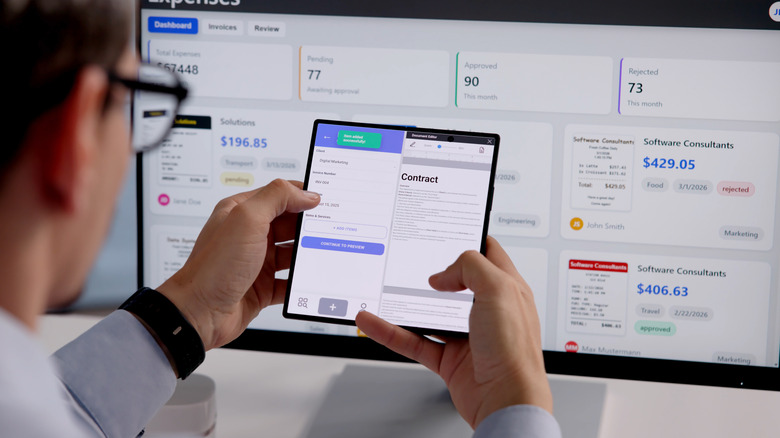
Your Android phone might not have a screen as big as your computer monitor, but it's still fairly functional when it comes to multitasking. This is largely thanks to Android's split screen and freeform window support, allowing you to work on two apps at the same time. Foldable phones also come with the same multitasking features. But because their display is significantly roomier than a regular phone, the experience is far more seamless.
For one, you get to view the split-screen apps side-by-side in portrait mode rather than one above the other. That means you can see more content and access more of the app's menus. Some foldable phones even feature split screen for more than two apps, convenient for the times you need to take notes while watching a YouTube video and researching on Chrome simultaneously. Yes, multitasking is easily one of the must-know tips and tricks for foldable phone users. If you're new to the foldable scene, we'll walk you through a general guide on how to multitask while using one.
How to open two (or more) apps on a foldable phone
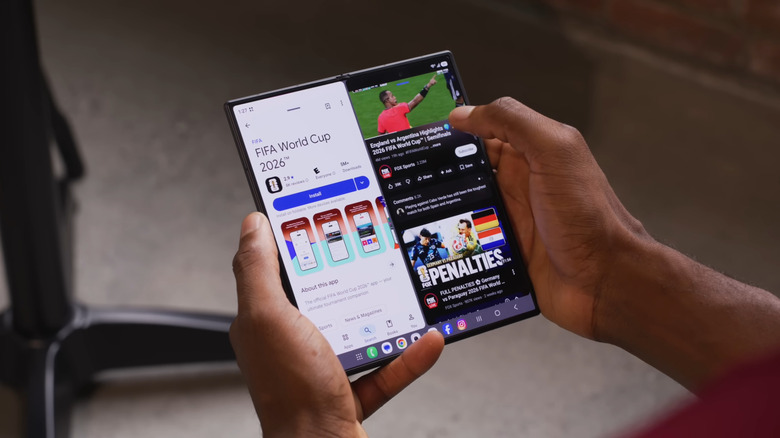
There are multiple ways to open apps in split screen view on a foldable phone, but the quickest method is to use the taskbar, one of the features exclusive to foldable phones (specifically the book-style variant). Here's what you need to do:
- Launch your first app.
- Go to the taskbar. If it's hidden, slowly swipe up from the bottom of the screen.
- Pick your second app from the pinned options or from the app drawer.
- Drag and drop it onto one of the available highlighted drop zones.
If your phone supports it (as on the Galaxy Z Fold 8 and Motorola Razr Fold), you can add a third app using the same steps. Some foldable models also allow a freeform window over the split screen view to maximize your productivity.
If you have a clamshell foldable instead, going into split screen mode is quite different. To activate split view, launch one app and open the recent apps screen (by swiping up from the bottom). Then, click on the app icon and choose Open in split screen view (or simply Split screen). From here, you can now pick your second app.
Supported models like the Galaxy Z Flip can open two apps via Flex Mode too. All you have to do is open your first app, fold the phone halfway, and press the Flex Mode icon in the bottom-left corner. A touchpad then appears on the bottom half of the screen. From the menu, tap the split screen icon (square with a line in the middle) to choose a second app. You can leave it folded or unfold it, and the split screen apps should remain in place.
How to get the most out of your foldable phone's multitasking view
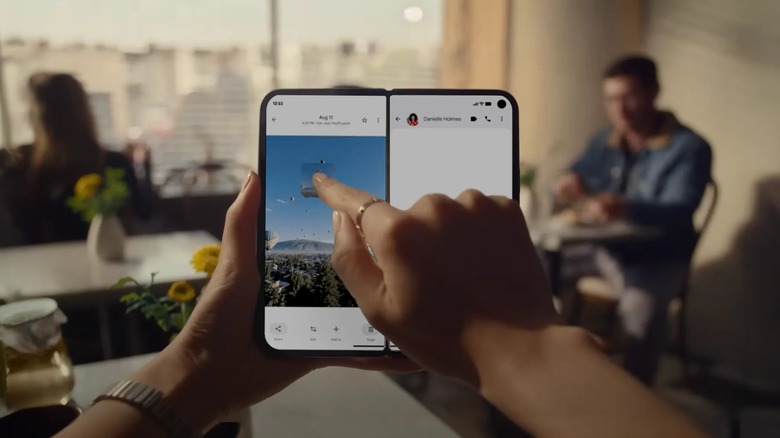
You can also set up the split screen view to fit your needs better. The apps in the three-way split screen can be rearranged side-by-side or with one app on half of the screen and the remaining two stacked on the opposite half. If you have them side by side, you're free to resize them to your liking, just grab the divider in the middle and drag it to the left or right to adjust the window sizes.
Most of the time, you'll probably use the split screen apps individually, but there's also an option to use them together. Supported apps let you copy items over to the other app with a simple drag and drop. This can come in handy for quickly attaching files to an email draft or copying text to a note. Keep in mind, though, that this feature might not be available on all foldable phones, but it works on Pixel 10 Pro Fold and Motorola Razr Fold 2026.
Another multitasking feature you should take advantage of on your foldable is app pair saving. To find this option, select the apps from the recent apps screen (on Pixel 10 Pro Fold) or tap the divider (on the Galaxy Z Fold 8 and Motorola Razr Fold). The app pair usually gets saved to your home screen, but you can opt to pin it to your taskbar for quicker access. Once you're done multitasking on your foldable phone, exit the split screen by dragging the divider up or down.