

9 Features Exclusive To Foldable Phones
We may receive a commission on purchases made from links.
Many people are glad to see foldable phones make a comeback. It seemed that the era of flip phones was gone after the advent of the smartphone, but manufacturers have worked hard to design amazing, state-of-the-art foldable phones with bendable screens and multi-purpose functionality that help them stand out from the rest. While this revolutionary design comes with a price tag that can be a bit too much for most people, it's the cost of innovation that will eventually become more reasonable as more and more people adopt the idea of purchasing a foldable phone.
If you're one of the many people interested in the idea of owning such a device, then you should check out some of the many essential tips and tricks that most foldable phone users love to mess around with. From camera tricks to design-specific features that you simply won't find in most run-of-the-mill smartphones, some of the best foldable phones on the market are well worth the cost and will please any smartphone enthusiast who's in the mood for something different. The very fact that Apple is reportedly working on a foldable phone design of its own speaks volumes when it comes to this latest smartphone innovation.
Tablet Mode
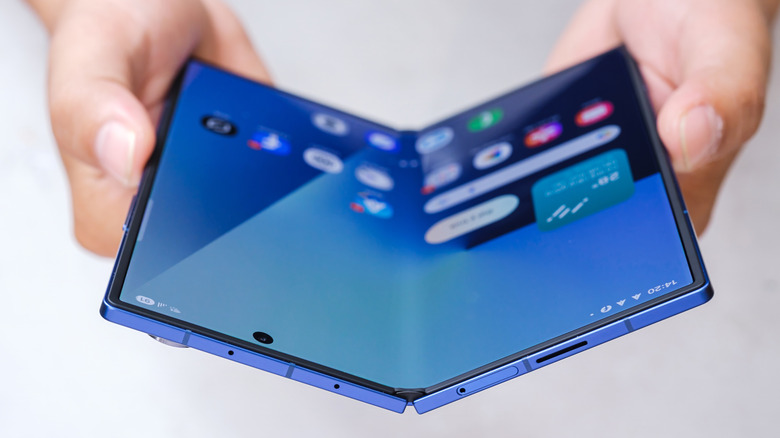
Most foldable phones come in two types. The first variant takes the shape of a regular phone when folded, letting you enjoy a standard level of functionality ... as long as you don't mind a phone that's noticeably thicker than a standard smartphone. The true magic happens when you unfold these phones, which increases their screen size considerably and turns them into pseudo-tablets of sorts. For a power user, this phablet design is a blast to mess around with and makes these foldable phones an excellent proposition.
Samsung and Google are two popular phone manufacturers who have released these book-style devices, with both the Samsung Galaxy Z Fold7 and the Google Pixel 10 Pro Fold being two of the best folding smartphones on the market, according to real users. Turning these phones into tablets makes them perfect for reading eBooks and playing games ... and this barely scratches the surface of the enhanced functionality these phones offer. Just keep in mind that these heavy-duty portable phones cost a pretty penny — The Galaxy Z Fold7 costs $1,469.99, while you'll have to shell out $1,749.99 for the Pixel 10 Pro Fold. Of course, you can take a step back and get the regular Pixel Fold instead, which is far more reasonably priced at $599.
Clamshell Mode
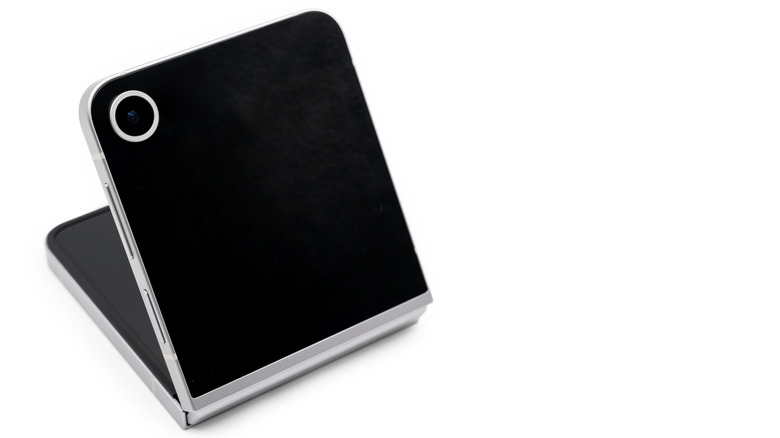
If the true allure of a foldable phone is to channel the nostalgia of flip phones, then look no further than the other variant of foldable phones that use clamshell designs to make these devices portable and convenient in equal measure. In their folded state, these phones boast a robust cover screen, usually equipped with a fair share of apps that can be used directly without even unfolding the device! Crucial apps like Calendar, Spotify, Google Maps, and various messaging programs can be operated with an added level of convenience, letting you make quick changes, access media player controls, or send swift replies without having to unfold the device.
Once you unfold these clamshell foldable phones, they take on the form of a regular smartphone and unlock the full capabilities of the device. This multi-purpose design is why phones like the Samsung Galaxy Z Flip7 and the Motorola Razr Ultra are such coveted pieces of tech, to the point where people are willing to shell out $934.56 and $1,499.99, respectively, for these devices. If you want to get your hands on cheaper variants of these flagship clamshell phones, then the Samsung Galaxy Z Flip7 FE — which costs $599.69 — and the 2026 Motorola Razr — priced at $799.99 — are perfectly viable.
Split-screen multitasking
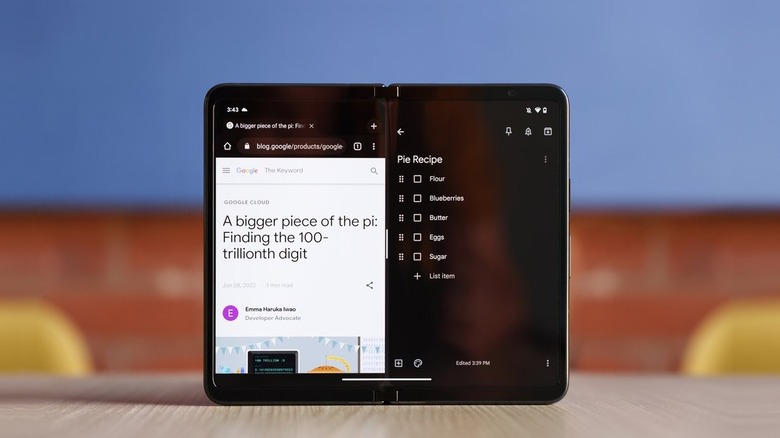
Technically speaking, most Android devices let you split the screen to check out two apps at once. However, the limited screen space means this feature is realistically usable only on phones at the larger end of the size spectrum, and even then, that's a bit of a reach. Many people will just treat this split-screen mode as a gimmick and never use it ever again. However, if you own a book-style foldable smartphone, split-screen multitasking becomes easier than ever.
The sheer number of multitasking possibilities is endless. Want to jot down notes while studying a video or document? Split the screen in two halves to do this seamlessly on a single device. Need to refer to these notes during a meeting? Replace this research material with the video call app your company is using, and you're all set. Even writing replies to an email while looking at the text body is significantly easier — just split Gmail so that it covers both halves of the screen, and you won't have to scroll up and down constantly just to remember the gist of the message you're replying to!
Split keyboard
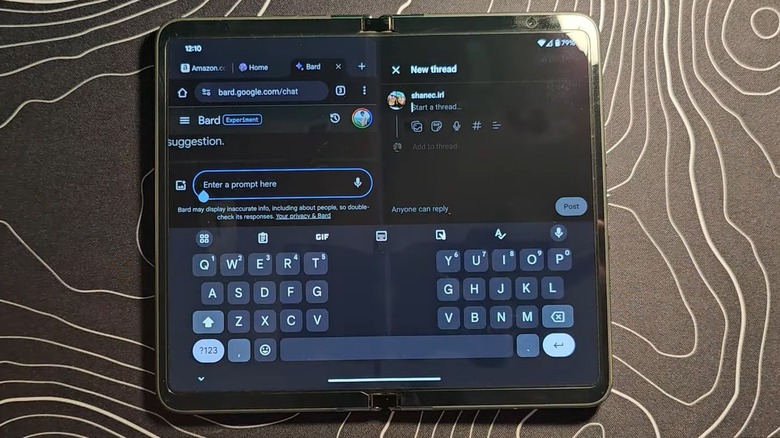
Most phone manufacturers have made it a point to make foldable phones as intuitive as possible. This is especially true for book-style foldables, which go the extra mile to ensure that both small- and large-screen experiences are viable for most consumers. Even something as simple as typing on a touchscreen keyboard is optimized just enough to be useful on both the regular cover screen and the larger tablet-like screen.
This can be seen the moment you open the keyboard to type when the phone is unfolded. On this larger screen — and most tablets, in general — the keyboard splits into two halves to make typing easier. This is enabled by default, and you can always go into the keyboard's settings and enable the default layout. However, you're better off avoiding this common mistake that most foldable Android phone users make. Don't try to treat this unique device like a regular smartphone.
There's a reason why this split keyboard is considered to be the optimal way to type on larger screens — a regular keyboard on a larger screen will force users to extend their fingers uncomfortably to reach any letters placed at the center of the keyboard, which makes typing far more annoying than it needs to be. Do yourself a favor and just stick to the split keyboard. After all, if you're used to typing on a smartphone as is, then this unique keyboard design is meant to cater to your muscle memory.
App continuity
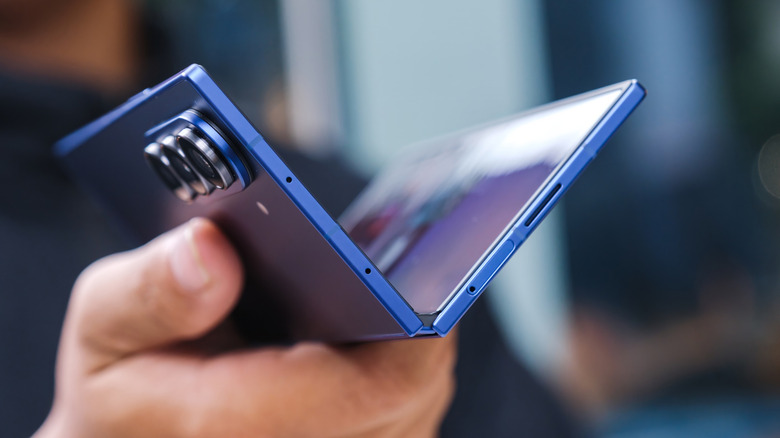
As simple as this may sound, many people will appreciate how most foldable phones let you switch between smaller and larger displays without a hitch. On both clamshell and book-style foldables, using an app on the smaller screen and unfolding the phone means the app transitions to a full-screen display on the main screen ... well, assuming glitches don't cause the app to crash.
When it comes to the inverse — that is, folding your device — there's a bit of trickery involved here. Usually, your device will register this action as you locking the phone. To circumvent this on the Samsung Galaxy Z Fold, head over to the "Display" section in your device's settings and select "Continue apps on cover screen." From here, select the apps you want to keep on screen even after you fold the screen. The Pixel Fold has an elegant solution to this — if you fold the device while using the app, you can swipe up on the cover screen to avoid the locking action and continue using the app.
This inverse app continuity is more limited on clamshell phones. On the Motorola Razr foldables, you can still enjoy this feature by tapping on "External display" in your phone's settings. From here, the steps are similar to those of the Galaxy Z Fold — select the app you want to run on the external display and choose between "Manual transition" or "Auto transition." The former lets you slide the app's icon on the cover screen to bring it up, while the latter turns this into an automatic function. Unfortunately, in the case of the Samsung Galaxy Z Flip, it seems that this feature is completely absent, which is a bit of a bummer.
Photo preview
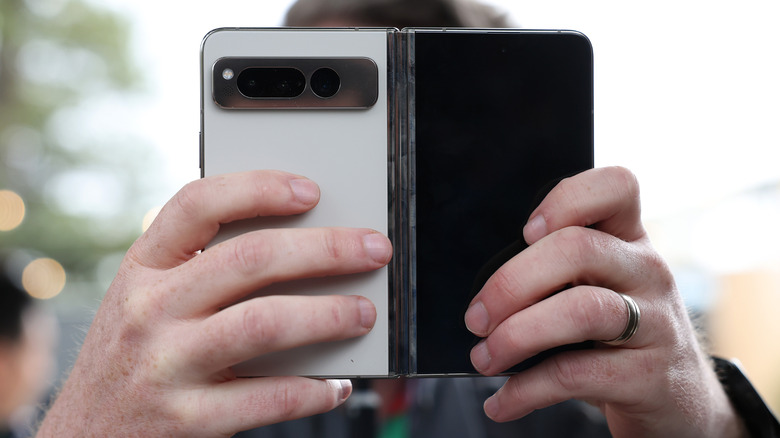
If you love taking photos on your phone, then foldable phones come with a suite of features — present across both book-style and clamshell designs — that make your photos better than ever. The first feature that is a godsend for any photo subject who wants their clicks to be perfect is a dual-screen photo preview. Depending on the phone you're using, you can select quick settings from the camera itself and enable the viewfinder on the other screen. This way, both you and the subject have a clear idea of the shot composition before you click a picture.
While the name of this feature usually differs across devices — it's called Cover Screen Preview on Samsung, Pixel refers to it as Dual Screen Preview, and Motorola calls it External Display Preview — enabling it via the viewfinder is common across all devices. It's just one of the many ways that the camera on a dual-screen system is personalized to make it more convenient to use than on a regular smartphone.
Dual Screen on Google Meet
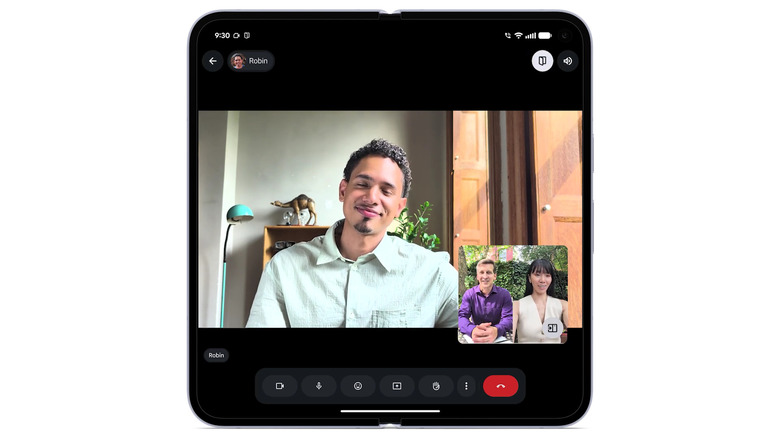
Google has done a great job of adding exclusive features to the Pixel Fold in a bid to make it the best foldable smartphone one can get their hands on. While this claim is definitely up for debate, there's no denying that Pixel's software tricks are nifty across both its regular and foldable variants, and one need only look at the unique Dual Screen mode in Google Meet to see this firsthand.
During a video call, most people understand the struggles of trying to squeeze together so that multiple people can fit in a frame from one location. Instead of dealing with this discomfort, a far more elegant solution can be unlocked if you're using the Pixel Fold for a Google Meet call. On your selfie video, you'll see a dual-screen icon. Click on it, and both the front and rear display cameras will be enabled to capture two or more subjects on a single phone. It's a nifty trick exclusive to the Pixel Fold that will make your video calls easier to manage.
Dual-Screen Translation
Google Translate is one of the most useful apps you can use when traveling, letting you interact with locals without constantly repeating phrases in English or trying in vain to use broken phrases to communicate. Usually, typing out phrases and showing your phone to people is good enough, but you can go the extra mile with a dual-screen phone. A bunch of unique features have been unlocked in Google Translate for both the Pixel and Samsung foldable models, making these translations that much easier to understand for both parties.
For starters, using Google Translate in tablet mode lets you flip one side of the screen, so you can place your phone face down and both you and a local can instantly read whatever is being translated. This may not be the most riveting feature, but what is far more intuitive is Google Translate's ability to be projected on both your main and cover screen. This way, you can instantly type out whatever you want to convey to a person while holding the phone in a natural, upright position, and anyone in front of you can instantly read the translated text.
This feature also works on Samsung phones, although you can also use the built-in Translator tool for a similar effect. Just like Google Translate, you can flip one half of the screen for instant translations by placing the phone down. Alternatively, you can use the cover screen to display any translated text.
Made You Look and Camera Cartoon
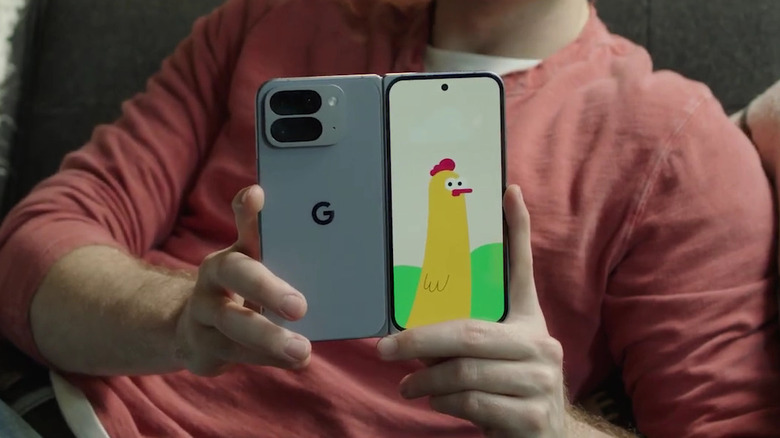
Foldable phone designs have enabled manufacturers to be more creative in how these two screens can augment their cameras' functionality. This is something that Google and Motorola have utilized in spades, with one of their most unique features being the ability to generate a cartoon on the other side of the screen to capture a subject's attention; the idea being to make them smile naturally with the charming nature of these illustrations, while directing their attention to the camera.
To use Made You Look on the Google Pixel Fold, tap on the Switch Screen button on your Camera app. From here, choose the animation of your choice to project the same on the cover screen. It also emanates a sound, though this can be muted based on your preference. Meanwhile, for Motorola Razr users, tap on the Gear icon after opening the camera and turn Camera Cartoon on. It's easily one of the quirkiest additions to a foldable phone's camera, which is why Samsung users will rue the fact that they can't enjoy a comparable feature on their camera.