

4 Useful TCL TV Features You Need To Start Using
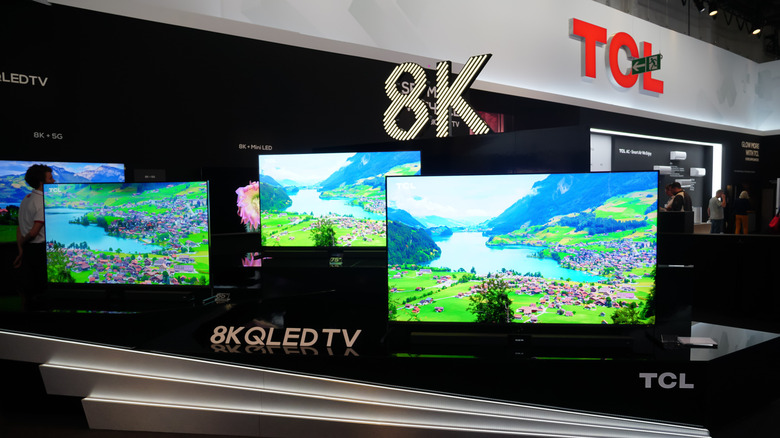
If you've purchased a new smart TV in the past few years, then chances are you've at least come across TCL as a name in the market. The company offers some of the best budget smart TV options out there for many people, especially if you're looking for flagship features at affordable prices. If you do have a TCL TV, then there are a number of settings and features you can mess around with to not only personalize the TV, but also improve the picture quality.
While we've already covered some of the TV settings worth changing as soon as you unbox a new TCL device, this time around, we want to focus on the features you might not know about yet. The hidden functionality that can help you achieve smoother gameplay, less stutter during your favorite movies, and even features that can let you get your phone's screen up on the TV so you can show off those cute new photos you took of the family over the holidays.
Before you dive too deep, though, it's worth noting that TCL does sell TVs with different operating systems. Some entries in the company's lineup use Google TV, while others rely on FireTV OS or even Android TV or Roku OS. It's important to verify what kind of OS your TV is running so that you can figure out where to find these settings within the menus. It's also entirely possible that the names of features could change over the years with new firmware releases, so you may need to do some digging of your own to find out what it's called on your device.
Variable Refresh Rate
If you play games on your TV, then you've likely already dealt with screen tearing before. This usually happens when the console's frame rate is constantly rising and falling, but your TV's frame rate stays locked. When these two frame rates fall out of step with each other, you end up with some torn or split frames running across the middle of your game. However, you can help mitigate this to some degree by turning on a feature called Variable Refresh Rate, or VRR.
VRR works by basically syncing the frame rate of the TV with the input that it is receiving. This lets the two devices (your TV and your console) work more in tandem, to provide a smoother picture overall because the TV isn't struggling to compensate for the mismatched frame rate that your console is putting out. Now, depending on what OS version you have on your TCL TV, the location and even the name of this setting can vary. For example, TCL TVs running the Google TV operating system hide it under the Game Master settings, next to Auto Low Latency Mode, or ALLM.
Unfortunately, some TVs ship with the HDMI ports in a lower-bandwidth default mode. Because of this, you might not see VRR in the settings, or it might be greyed out. If you notice this, then you'll need to manually enable your HDMI port's enhanced 2.1 option in the settings to get the most out of features like VRR and ALLM. Using VRR is also a great way to improve PlayStation 5 performance, so make sure your console has it turned on, too.
Match Content Frame Rate
Most TVs these days output at 60 to 120 Hz. However, many of the best movies are filmed at just 24 frames per second, which means the frame rate of your favorite movies isn't going to line up neatly with the frame rate that your TV typically offers. This isn't always an issue, but when it is, it can be really noticeable — like when you notice a stutter or juddering during a slow camera pan in a movie or TV show.
Some TVs now come with a feature that can help fix this, called Match Content Frame Rate. This functionally can usually be found under the Display & Sound settings of your TCL device, though depending on the model, the wording might be a bit different. When turned on, this matches the frame rate of your TV to the frame rate of the content you're watching. This means much smoother playback on those slower scenes.
Unfortunately, the usefulness of this one also depends on your other hardware and the streaming service that you're using. Both Netflix and Disney+ support frame matching, but it also relies on you having a streaming device that supports it, too. Even if you aren't sure the service you use supports it, turning on Match Content Frame Rate can help the feature run when it is supported, offering smoother playback across a variety of content you watch.
Chromecast or AirPlay
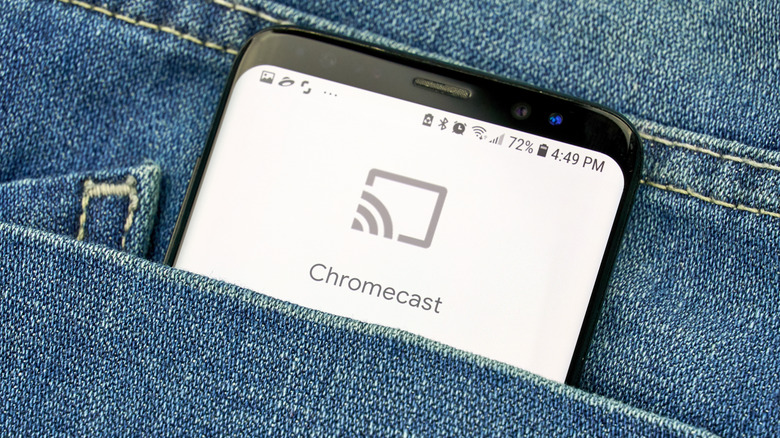
Sharing your phone screen to your TV isn't a new phenomenon at all, and Apple's AirPlay has long been a great contender in this area. However, what you might not realize is that your TCL TV makes it exceptionally easy to connect your phone to your TV and share the small screen on the big one.
Despite many of its TVs using Google TV or Android TV, TCL still offers full support from Apple AirPlay alongside Chromecast, and you can find both in the main Settings menu. If you want to use Apple AirPlay, then look for the Apple AirPlay and HomeKit section. For Chromecast, you can usually find the options under Apps > See all Apps > Show System Apps within the settings menu. TCL has a full breakdown of how to pull off the connection on its website, and while the wording might vary with newer OS releases, it should still work mostly the same.
Of course, if you have one of TCL's Roku sets, then you'll need to follow some different instructions. Roku TVs bury phone connections in the Roku OS itself, and you can take a look at our guide to Roku's hidden features for more information on how to connect your iOS or Android phone to your Roku TV.
Filmmaker Mode
One feature that has become more popular on TVs in recent years is motion smoothing. It's intended to give movies and shows a smoother look, but it often causes things to look too smooth. The effect it gives has often been referred to as the soap opera effect, and it can make an expensive show or movie look like something you'd expect to see playing during daytime TV back in the early 2000s. One way to mitigate this effect is to turn on a setting called Filmmaker Mode, which delivers the content the way the director originally intended it to be seen.
Now, this one has a bit of history with TCL, as the company originally said in 2024 that it had no plans to add Filmmaker Mode to its TVs. However, the company reversed that decision in 2025, as the mode has become available on its newer TV sets. This setting is usually found under Display & Sound in your Settings menu, where you can look for the Picture Mode options to turn it on.
Some even recommend that you should always use Filmmaker Mode on your TV. If you do want to do that, then one handy trick you can do is turn on your TV's automatic content recognition settings. This can help your TV automatically determine which picture mode to rely on depending on the content that is playing. This is great for getting Filmmaker Mode or Game Mode to turn on automatically when you change between different types of content.