

These Secret Menus On Your TCL TV Can Be Useful - Here's How To Find Them
We may receive a commission on purchases made from links.
TCL is one of the most popular TV manufacturers on the market, partly because many of its LED sets are priced for budget-conscious shoppers. Many TCL TVs are renowned for picture quality, too. But what's the user interface like? On the surface, most UIs are fairly intuitive and give you access to all the features and settings you could want. That's great, but what if you wanted to mess around with deeper optimizations that aren't so surface-level?
TCL doesn't implement its own smart TV software; instead, the manufacturer licenses platforms like Google TV, Roku OS, and Fire OS. These systems give you access to internet-powered TV content, but they also serve as gateways to several hidden TCL menus. Developers like hiding these dashboards because many of the advanced options don't apply to the average TV user. If you don't know what these secret settings do, using them incorrectly may result in a bricked TV.
If you're feeling confident in your technical know-how, we've rounded up instructions on how to access the TCL menus that developers tucked away. We'll be starting with Google TV: Grab your remote and launch the Settings menu. Then, navigate to Picture Settings, highlight the Contrast field, and use the onscreen keyboard to type in '1950', as confirmed by the r/tcltvs community. This should bring you to the TV's Factory Service Menu.
More on TCL's hidden Google TV settings, and instructions on how to unlock your TCL Roku TV
Depending on your TCL TV model, you may need to use a different code to pull up the secret screen. Additional options include 9735, 6428, 9705, 6405, and 6425. The Factory Service Menu will display info on various TV parameters, including logged panel hours, HDMI status, diagnostic info, etc. You'll also be able to access hidden developer options by going to Settings > System > About and tapping on 'Android TV OS build' a total of seven times. Hit the back button, and now you should see a Developer options tab consisting of options like 'Disable animations' or 'Bluetooth audio codec view'.
We mentioned earlier that TCL TVs also use Roku TV OS and Fire OS. The former actually has several hidden screens that are unlocked by a series of remote-control inputs. All secret codes begin with five presses of the Home button, followed by a series of directional inputs.
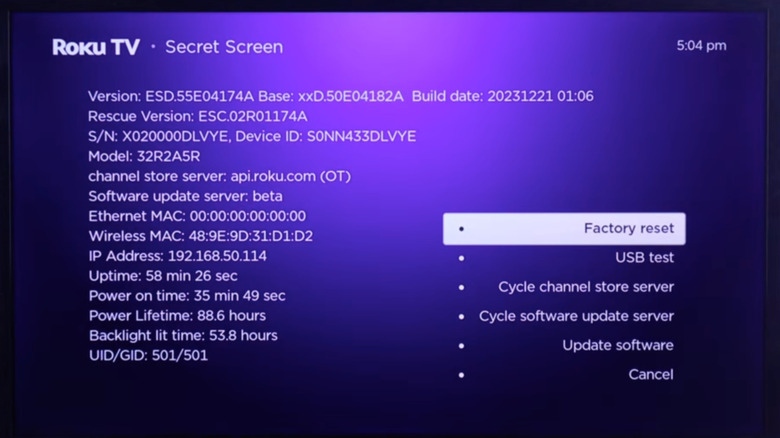
One of these dashboards is literally called 'Secret Screen', and it's accessed by tapping Home five times, followed by three presses of the Fast Forward button, then two presses of the Rewind button. From here, you'll be able to factory reset your TV, test via USB, and more. Here are three more input patterns to unlock more Roku OS hidden menus:
- View a list of all downloaded apps (Home 3x, Up 2x, Left, Right, Left, Right, Left)
- Access hidden wireless settings (Home 5x, Up, Down, Up, Down, Up)
- Additional HDMI settings (Home 5x, Down, Left, Up 3x)
If your TCL TV uses Fire OS, it has a hidden developer options menu
To access a hidden developers-only screen on TCL TVs running Fire OS, navigate to Settings > Device & Software > About. Then, highlight your TV's name and press the Enter button seven times. You should receive a 'You're a developer' message, and there should be a Developer options tab in the Settings menu. Access to this menu is required if you're planning to sideload apps and other software to your TCL TV, as you'll need to enable 'Apps from Unknown Sources'.
As you can see, most tucked-away TCL screens are really just a few button pushes away from being accessible. There may be slight variations in terminology and setting locations — based on factors like release year and software version — but most of this guide should be applicable. TCL also makes projectors running on Google TV, so these steps are applicable to those devices, too.