

5 OnePlus Features Hidden Inside OxygenOS
For many users, OxygenOS is one of the highest-rated Android-based operating systems out there. It works smoothly, has a clean interface, and feels lighter and snappier overall. Sure, it doesn't have every feature you'll find on Samsung's One UI and Google's Pixel UI, especially in terms of customization, but it offers a solid set of tools and settings that casual users can work with.
A popular OnePlus feature users love is multitasking. It supports 90:10 proportions, so you can have one app nearly full-screen while still keeping the other app just a tap away. Shelf is also a pretty useful tool. With Shelf, you won't have to fill your home screen with your favorite widgets. You can simply add them to Shelf, access them by swiping down from the top of the screen, and then hide them again.
Beyond these well-known OnePlus features, there are a few more underrated tools hidden inside OxygenOS that you might not know about yet. Here are five of them.
Home screen app and folder resizing
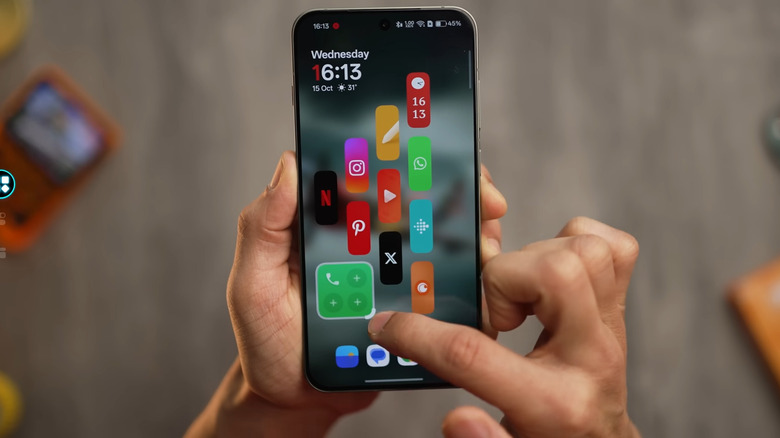
Apps and folders on the Android home screen have always been pretty static. They usually only come in one shape and size, so no matter how you arrange them, everything just ends up looking the same. If you're after a more dynamic design, OxygenOS (at least the OxygenOS 16 version) offers an underrated solution: app and folder resizing.
On your OnePlus phone home screen, simply add the apps you want quick access to and create your folders. To resize a folder, hold down on it and press the grab handle that appears in the corner. Drag it up, down, left, or right to turn it into a small circle/square the size of a regular app icon, a vertical or horizontal pill, or the standard large square. If you do go with the large square, you can change how the apps inside the folder look. Long-press the folder again to open the folders menu and select one of the little box icons at the top. The first option sets all the apps to the same size, the second enlarges the first three apps and shrinks the rest, and the third keeps one app significantly bigger.
To resize apps, long-press the app and drag the grab handle. You can reshape it to a vertical or horizontal pill or a large square. When resizing individual app icons, OxygenOS also lets you convert the single app into a folder that includes its app shortcuts. For instance, you can have a folder with Instagram and shortcuts to the Instagram camera, notifications page, and New post screen. To set this up, press and hold the resized app and tap the plus sign next to the app icon. Then, pick the shortcut you want to add.
AI Search in the Settings
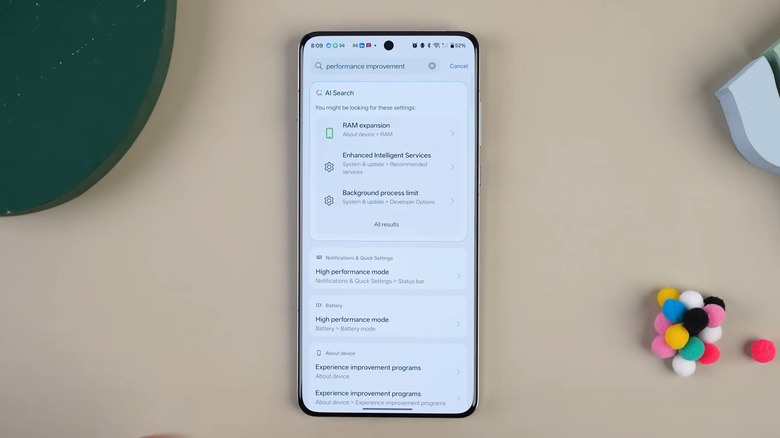
Searching for specific settings on your OnePlus phone isn't exactly the easiest task. Most of the time, you need to type in the exact name for the setting to show up in the search results. If you don't, you'll usually end up wasting precious time digging through menus. Fortunately, OxygenOS, specifically the new OxygenOS 16, addresses this inconvenience by integrating AI into the Settings search bar. It's one of the most practical ways your smartphone uses AI, making it quicker to find the settings you need, when you need them.
To use this hidden OnePlus feature, all you have to do is go into the Settings app and describe what the setting you're looking for does. For instance, if you want to turn on Motion Cues, try typing in "vehicle motion sickness" and tap on Find more with AI Search. The phone then pulls up all the settings relevant to your search query. The top three results are displayed first, but you can also go to All results to check all the relevant settings. Then, simply tap on the setting you want, and you'll be redirected to that page.
If AI Search isn't already on, just go to Settings, tap AI, and select AI Search under More AI features. Open AI Search again and toggle it on. You can also choose where you want to use AI Search beyond the Settings app, such as in Files, Notes, and Google Calendar.
Screen-off gestures
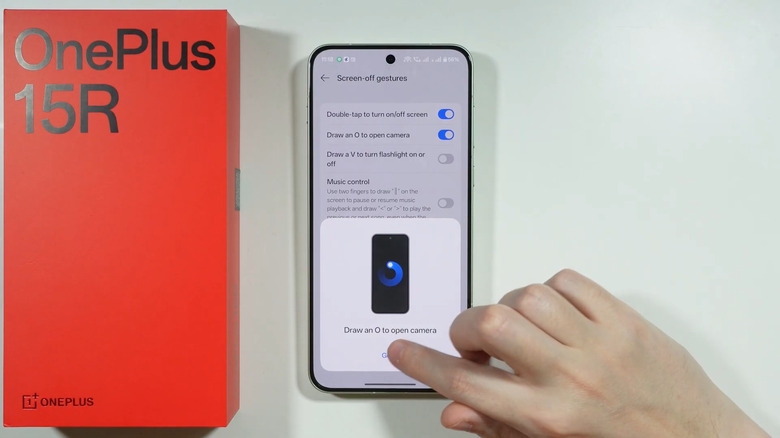
The buttons on your OnePlus phone work fine for controlling the device with your screen locked. But there's actually an even quicker way to perform actions on your phone, and all you have to do is draw on the screen. Called Screen-off Gestures, this under-the-radar OxygenOS feature lets you use gestures to do things like unlock the phone, open apps, and control music.
One of these screen-off gestures is double tap to turn on/off the screen, which you might already be familiar with. The rest of the supported gestures are designed for opening apps and controlling music. For example, you can draw an O to launch the camera and a V to switch on/off the flashlight. Gestures like an inverted V, M, and W also work. By default, the inverted V opens Calculator, M opens Gemini, and W opens Recorder. But you're free to change which apps these three gestures open, or set them as the gesture to unlock the phone or call someone.
For music control, the screen-off gestures include swiping down with two fingers to pause or play the current song. Then, you can draw a less than symbol to go back to the previous song or a greater than symbol to skip to the next song. Here's how you can turn on your OnePlus' Screen-off Gestures:
- In the Settings app, navigate to Accessibility & convenience.
- Tap on Gestures & motions.
- Under Gestures, select Screen-off gestures.
- Turn on Screen-off gestures.
- Toggle on the options you'd like to use.
Now, try locking your phone and doing one of the gestures you enabled. Most of the apps will launch right away, but some like Gemini might require you to unlock the device first.
Dark Mode adjustment options
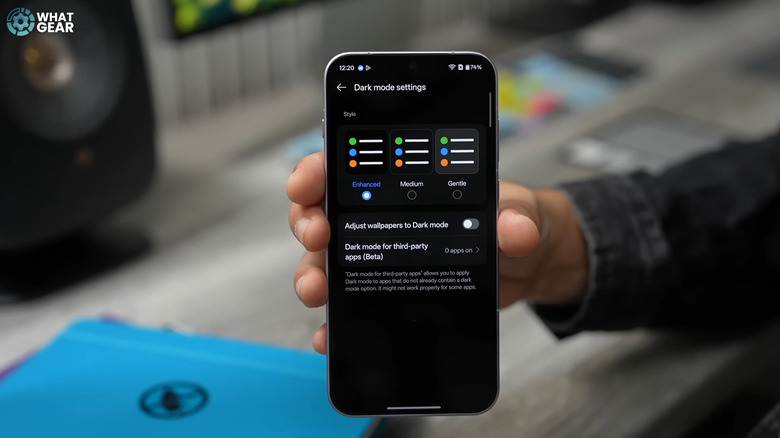
The first thing many do after getting an Android phone is to turn on Dark Mode. It is, after all, one of the best phone settings to use to keep your eyes healthy. The problem is, Dark Mode on the OnePlus can come across as too dark for some people, ruining the entire user experience. In that case, you can adjust the darkness of the screen using a OnePlus feature hidden in the Settings.
Yes, OnePlus lets you tone down Dark Mode to your liking. You have three darkness levels to choose from: Enhanced, Medium, and Gentle. Enhanced is the default option, which looks pitch black. Medium lightens some elements, while Gentle makes the screen look more like a soft gray than a pitch black. Follow these steps to find this lesser-known OnePlus setting:
- Launch the Settings app.
- Open Display & brightness.
- Tap on Dark mode to turn it on.
- Select Dark mode settings.
- Under Style, choose your preferred darkness level.
From the Dark Mode settings, you can also find an option to dim the wallpaper with Dark Mode. If you have some apps with no built-in Dark Mode toggle, there's a setting for that as well. In the Dark Mode settings page, tap "Dark mode for third-party apps" and choose the apps you want to use Dark Mode on. This feature is currently in beta mode, though, so it might not work on every app.
Speaker cleaner
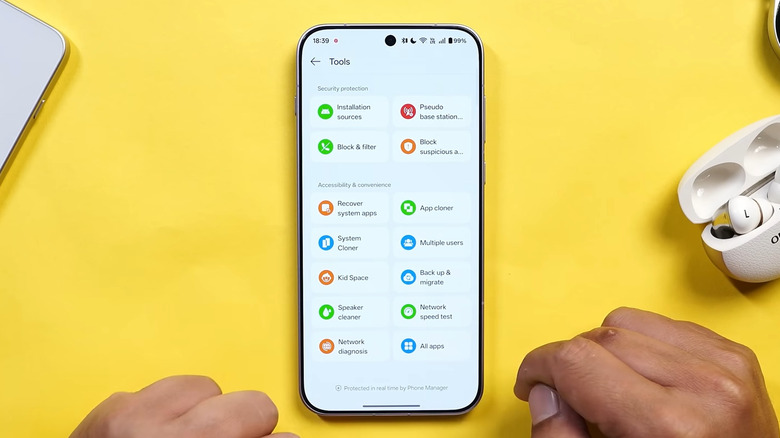
You probably won't use your OnePlus phone near a water source that often, but when you do, there's a good chance some droplets can end up inside, particularly through the speakers. The good news is, you won't have to run to a service center to have that fixed. OxygenOS comes with its own Speaker Cleaner tool for this very purpose. What it does is produce a sound loud enough to make your phone vibrate and eventually expel liquid and dust out of the speaker holes. It's quite handy, not only for accidents, but also for when you're using your device for underwater photography or just for regular maintenance.
To access the Speaker Cleaner on your OnePlus phone, open the Phone Manager app. In the Tools section, click on More and scroll down to Accessibility & convenience. You can then select Speaker cleaner. For even quicker access, you can add the speaker cleaner tool to your Quick Settings panel. Go to the Quick Settings panel and press the pen icon at the top to edit the panel. Hit plus and look for the Speaker Cleaner tile.
Once the tool is open, just hit Start and hold your device upright. You can opt to set the volume to the highest level to get optimal results. Some users also reported that the Speaker Cleaner function works best when done multiple times. One noted that they had to turn on the feature about ten times to get liquid out of the speakers.