

5 Hidden YouTube Music Features You Should Be Using
YouTube Music makes playing your favorite songs so quick and easy that after launching the app, you just have to find your song of choice, hit play, and leave it to do its thing. Most of the time, that's all you really need to do to enjoy hours-long playback on this popular music streaming service. But outside of this straightforward listening experience, there's a whole lot of YouTube Music functionality that goes unnoticed.
These are usually the features that are tucked away in menus, or are in spots that are often ignored. So if you don't normally go digging through these menus or browse the interface in general, you could easily miss these underrated tools and options. If you'd like to maximize your YouTube Music experience, here are five of these little-known gems you should start using today. These come in handy for searching songs and sharing them with your friends.
Share songs with timestamps
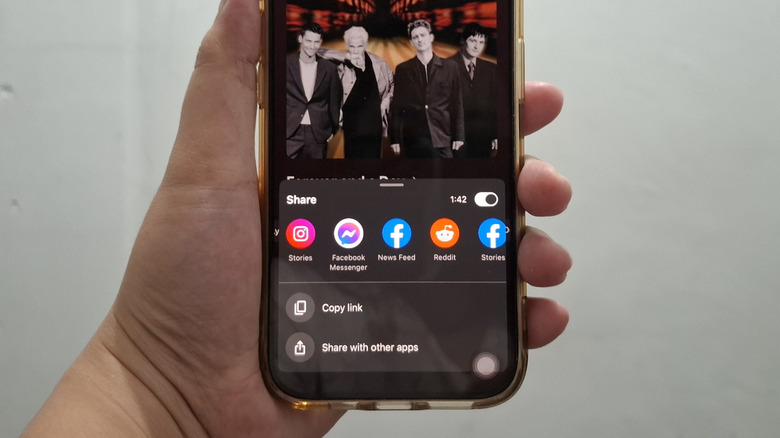
Sometimes, you'd like to share a song with a friend but don't want to make them listen to the whole thing, only to a specific bit. In that case, you can use YouTube Music's hidden feature: timestamps. It works similarly to YouTube, where you can share a video that starts at a particular point. When you share a timestamped song from YouTube Music, the person who receives the shared link is automatically redirected to the portion you first selected.
Here's what you need to do to share songs with timestamps on YouTube Music:
- Play the song you want to share on YouTube Music.
- Skip to the part you want to share.
- Hit Pause.
- Tap the share icon on the menu above the seek bar.
- Toggle on the timestamp in the top-right corner of the share panel.
- Send the link via the available apps. Or select Copy link to copy it to your clipboard and share it via your preferred method.
If your receiver has YouTube Music installed, the app will automatically open when they tap on the link and playback will jump straight to the timestamped section. If they don't have the app, the link will open in their browser instead.
Share lyrics online
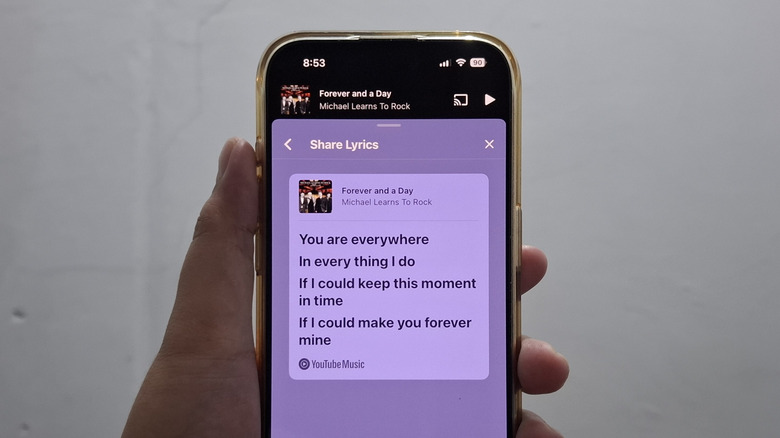
Other than timestamps, YouTube Music includes another lesser-known feature for sharing your favorite songs directly to your favorite social media apps. This time, instead of a link to the song itself, you can share some lyrics. Here's how:
- Play the song on YouTube Music.
- Tap on Lyrics.
- Hit Share.
- Choose the lines you want to share. You can pick as many as five lines, but they need to be consecutive.
- Press Next to proceed.
- Select a background color from the available options, like mint green and purple.
- Tap Share.
You can then pick which social media app you'd like to share the lyric image with. Alternatively, choose Share with other apps to send the lyric image via a different app, or select Save image to download the photo to your local storage instead.
Keep in mind, though, that the song lyrics page is a feature YouTube Music recently put behind a paywall. If you're on a free account, you can only view the lyrics of a limited number of songs. Not every song in the app also have lyrics available in the first place, in which case the lyrics option will appear grayed out.
Hum to search for a song
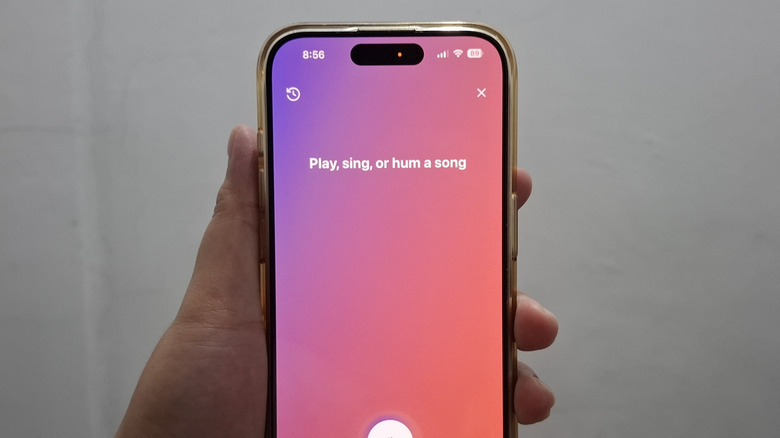
So, you heard an unfamiliar song somewhere and wanted to find it in YouTube Music. Well, you're in luck. The app comes with a hidden feature called Sound Search that lets you hum or sing the song to search for it. It pretty much works just like Shazam, but integrated right into YouTube Music. To use Sound Search, follow these steps:
- In the YouTube Music app, go to the Search tab.
- Tap the sound wave icon to the right of the microphone.
- When prompted, allow YouTube Music to access your microphone.
- Start humming the song you want to look up. If you know some lyrics, you can sing it too.
- Continue humming or singing until the search pulls up some relevant results.
YouTube Music will list three songs that best matched the tune and tell you the match percentage for each one. You can then play the songs and see if it's what you're looking for. If it isn't, feel free to search again.
If the song you're looking for is currently playing, though, you can open Sound Search and have YouTube Music listen to the song. This is usually faster than humming or singing, and YouTube Music can pull up the exact song within just a second or two. From the search result, you're given the option to add the song to your Liked Music folder or save it to a new or existing playlist. You can also tap on the cover art to play the song right away.
Transfer your Spotify playlists to YouTube Music
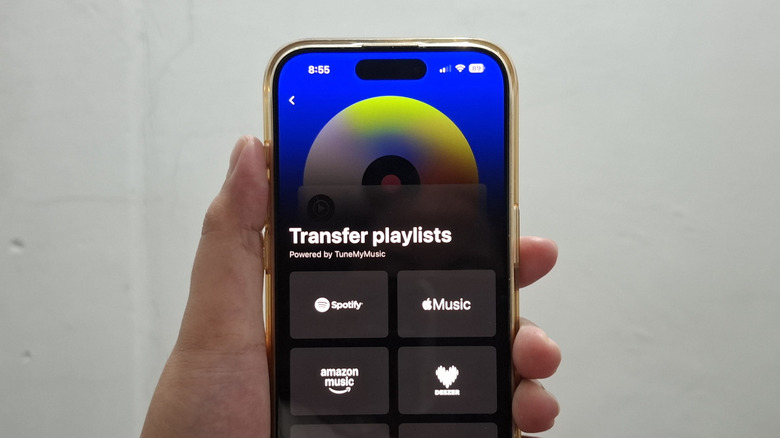
If you ditched Spotify for YouTube Music, one of the problems you're probably facing now is rebuilding your playlists. It can easily take several days, especially if you've already curated the perfect playlists for all sorts of occasions — house party, road trip, daily commute, work mode. The good news is, YouTube Music (at least for the Premium subscribers) allows you to easily transfer over your playlists from Spotify with the help of TuneMyMusic. This option is buried deep in the settings, though, so it can be easy to miss.
To find this underrated YouTube Music feature, just go to your profile icon in the app. Then, select Settings and open Privacy & data. The Transfer playlists from other apps option should be available at the very bottom of the page. Select it, then follow these next steps:
- Choose Spotify.
- In your browser tab that opens, hit Let's start.
- If you're already signed into Spotify, tap Agree to connect TuneMyMusic to Spotify. Otherwise, log into your account first.
- Select the playlists you want to move over.
- Optional: Change the playlist name by tapping on the pencil icon and typing in your preferred name.
- Once ready, press Transfer to YouTube Music.
- Select your YouTube Music account.
- Allow the necessary permissions.
- Wait for TuneMyMusic to finish moving your playlists.
This might take a couple of seconds to several minutes, depending on how many songs you have in your Spotify library. Once the transfer is done, you can now check your YouTube Music library to see all your Spotify playlists. You can freely edit them like how you would any regular YouTube Music playlist. Other than Spotify, this service also supports platforms like Apple Music, Amazon Music, Deezer, and Soundcloud.
Use emojis to search for songs
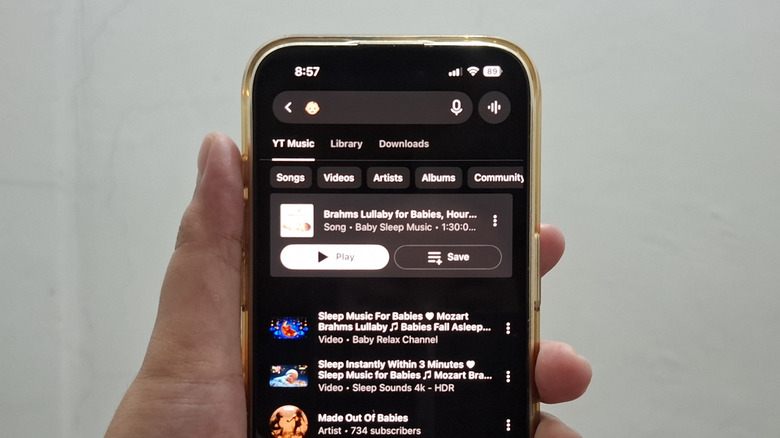
When finding songs on YouTube Music, you probably use the song or artist name as the search query. But there are actually more ways to look up songs on YouTube Music, and you won't even have to input a single letter — you can just type in emojis. Yes, YouTube Music recognizes emojis in the search bar, either on their own or in combination with multiple different emojis.
The app interprets the emojis at face value. For instance, a birthday cake is associated with birthdays, so YouTube Music will pull up all the birthday-related songs and artists in its library. This can include the "Happy Birthday Song" and "Birthday Cake" by Rihanna. If you type a baby emoji instead, you'll get a long list of baby lullabies. And if you use the jack-o'-lantern with a candy emoji, YouTube Music will show you Halloween-themed songs. Feel free to play around with the available emojis on your keyboard to see what songs they would bring up.