

How To Free Up Memory On Your LG TV
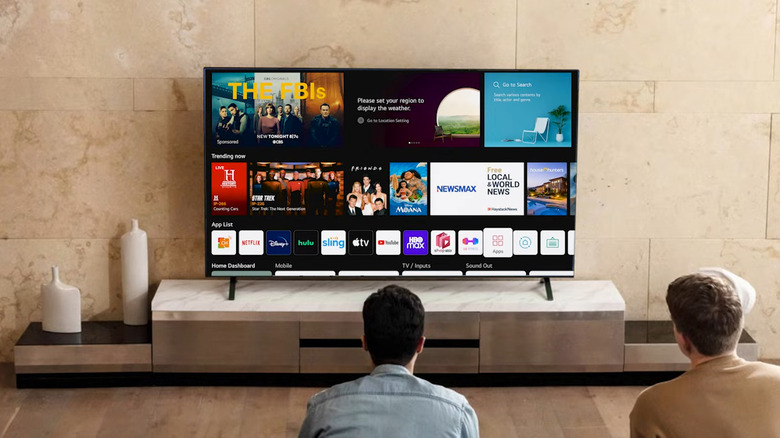
You know your LG TV is running out of space when it starts lagging, apps keep restarting, and an "Out of Memory" error pops up out of nowhere. This, unfortunately, is a common problem with LG TVs. When this happens, it's time to free up some space on your TV.
There are several ways to do so, but you can always start with basic troubleshooting, including a firmware update. You'll usually find the Software Update button under Support in the All Settings menu. Just check for updates and install it if it's available. If your LG TV has an option to turn on auto-update, it's best to do so to keep it in tip-top shape.
Restarting your TV usually does the trick too. This clears the memory and frees up space on your LG TV to make it run more smoothly again. To restart it, press the power button on your remote to shut down the TV, remove it from the wall outlet, and plug it back in after 30 seconds or so.
If an update and restart don't resolve the issue, here are three other ways you can fix your sluggish LG TV.
Use the built-in Memory Optimizer
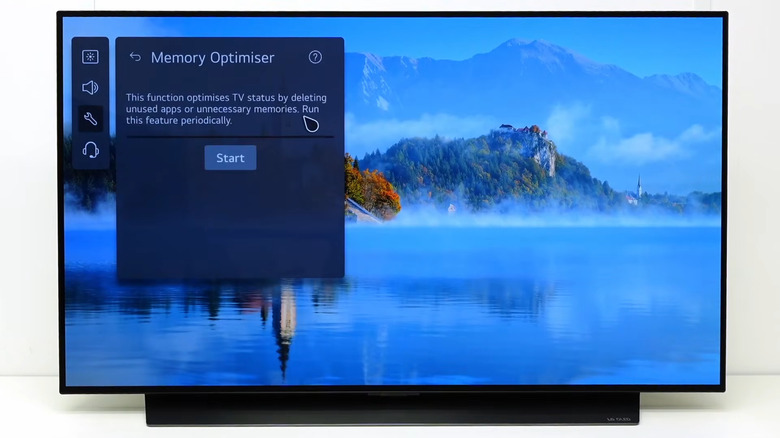
The Memory Optimizer is among the underrated smart TV features on your LG TV and the one thing you should look for when you want to free up space. What it does is clear unnecessary data from memory and remove apps you no longer use to clean up storage.
To find this Memory Optimizer tool, press and hold the gear button on your LG TV remote to open All Settings. Then, go to the General section. Depending on your webOS version, you might see options like OLED Care or Usage Care. Click on it. If you have the OLED Care setting, select Device Self Care. If your option is Usage Care, scroll down to the bottom of the My Usage tab. If, however, you didn't see the Memory Optimizer tool in the General tab, try heading over to the Support section instead.
Once you find Memory Optimizer, just hit Start to run it. It will only take a couple of seconds to clear the memory on your LG TV. When you see the "Memory optimization has been completed" message at the bottom of the screen, feel free to exit the Settings page.
Manage your LG TV apps
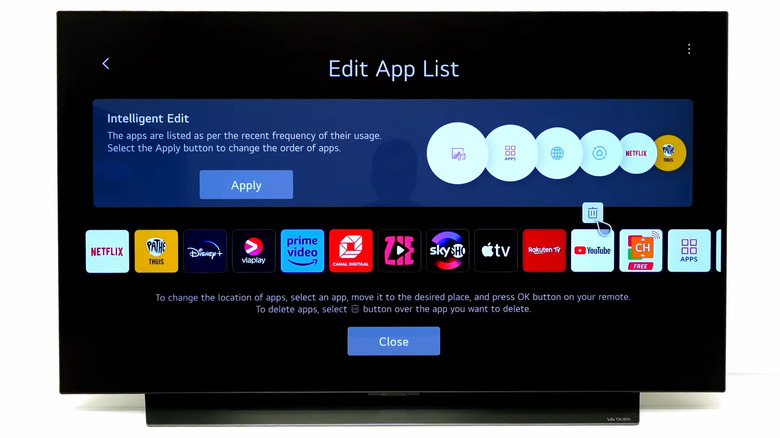
The more smart TV apps you have, the more space they take up. So, it's a good idea to regularly uninstall apps you no longer use to free up space on your LG TV. To delete apps on an LG TV, follow these steps:
- Go to the home screen.
- Highlight the app you'd like to remove.
- Long-press the wheel on your remote. This opens the Edit App List page.
- Hover over the app.
- Click the trash icon that appears.
- To proceed, hit Yes.
If you only encounter the memory error when a specific app is open, try deleting the app, then reinstalling it. In the same Edit Apps List screen, uninstall the app by pressing the trash icon above it. Then, launch Apps from the home screen, search for the app you deleted, and hit Install. You might need to sign in to your app account again and set the app up before you can use it.
In addition to deleting and reinstalling apps, you can update your LG TV apps to keep them compatible with the system and optimize their performance. All you have to do is open Apps from the home screen, select the three-dot menu in the upper right corner, and go to App Update. Select Update All for both the System App Update and Downloaded App Update sections. Or you can click the Update button next to each app.
Plug in an external storage to your LG TV
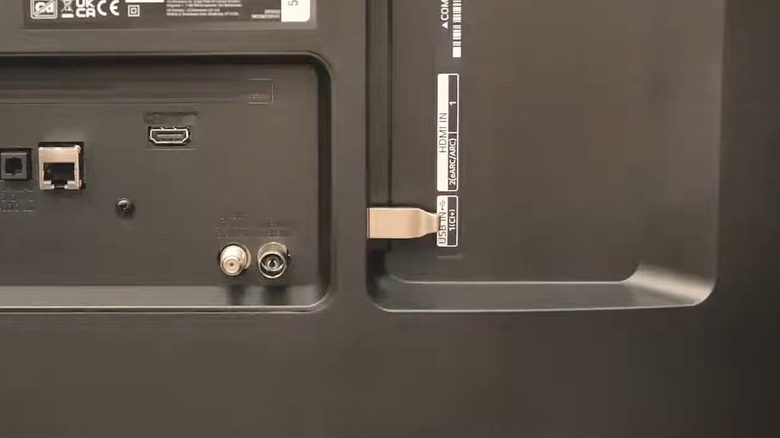
When you can no longer delete any of your apps and the Memory Optimizer still can't fix your storage issue, the best way to free up space on your LG TV is to add storage via an external drive. You can use either a USB flash drive with up to 32GB capacity or a hard drive with up to 2TB (drives with bigger capacities aren't supported). Just make sure to keep the storage blank and formatted to either NTFS or FAT32. If you're unsure what format your drive is using, here's what you need to do:
- Connect the external storage to your Windows computer.
- Open File Explorer.
- Go to This PC.
- Right-click on your drive.
- Select Properties.
In the General tab, you should see the File system the drive is formatted to. If it isn't NTFS or FAT32, exit the Properties panel, then right-click the drive again. This time, choose Format and set the File system to the correct format. You can also format the drive on your Mac via the Disk Utility app. Select the drive in Disk Utility and check the format under the drive name. If it needs reformatting, go to Erase. Keep in mind, though, that formatting/erasing the drive means deleting everything stored on it.
Once your external drive is properly formatted, simply plug it into your LG TV. When the onboard capacity runs out, the TV will automatically use external storage.