

5 Common Problems Owners Have With Apple AirPods
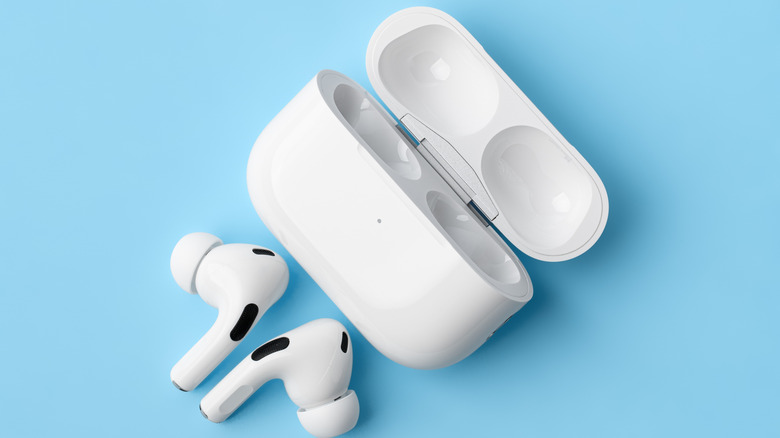
AirPods have made their mark in the wireless personal audio market over the years. In fact, the AirPods Pro 3 is one of the best wireless earbuds for audiophiles, per Consumer Reports, and the AirPods Max 2 also earned CR's top rating among over-ear noise-canceling headphones. With solid audio performance and impressive features out of the box, it no longer comes as a surprise that there are millions of AirPods users across the globe. You might have even heard a friend or two recommend at least one model to try.
But not all users offer praise for the AirPods, especially when there are some noted issues with these Apple products. Some of these quirks can easily be fixed with changes in the settings, but for others, you'd have to resort to taking them to a service center. Before you do so, though, check out these troubleshooting methods for five of the most common problems with AirPods.
The AirPods aren't charging
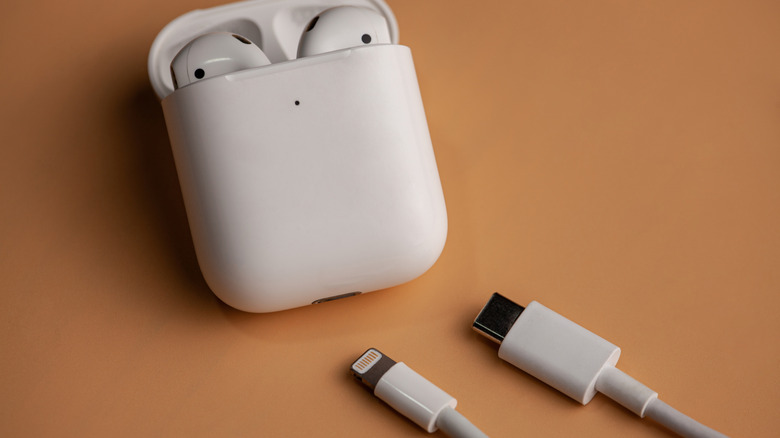
Charging issues with the AirPods are usually a case of dirty charging contacts and ports. If your AirPods themselves aren't charging, the pins inside the case might be the cause. Sweat and grime from the earbuds can leave unwanted residue on the pins and prevent them from making proper contact with your earbuds. If it's your AirPods case that isn't charging, check the port for dust and debris buildup. It's common for USB/Lightning ports to get dirty from daily use too.
But even if your AirPods seem clean, it's still a good idea to do a thorough cleanup to keep them in good condition. To clean the inside of the charging case, try a cotton swab first. If the dirt is still there, dampen the swab with some isopropyl alcohol. For the charging case port, use only a soft-bristled brush. Then, do a wipedown of the exterior of the case with a soft cloth lightly dampened with isopropyl alcohol. Make sure to wipe the earbuds too, but this time, the cloth should be dampened with fresh water instead. Wipe them dry, then leave them to air dry for a few hours. Never put them back inside the case while they're damp.
Another common reason why your AirPods aren't charging is a faulty cable or power adapter. Try replacing it, or use a wireless charger if you have one. If nothing works, one trick several Reddit users said was effective was simply putting both earbuds inside the case and shaking it. There's no scientific explanation, but it's worth a shot.
The AirPods won't connect to your phone
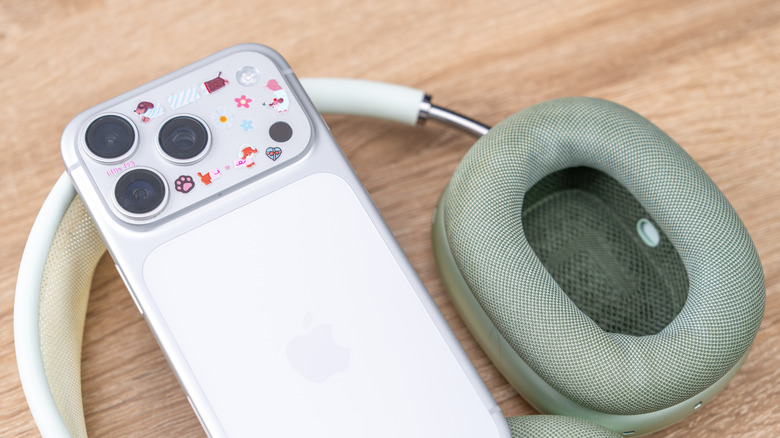
One common problem users encounter with AirPods is connection failure. Sometimes, they simply refuse to connect to your iPhone, even if they're charged and close enough for pairing. To fix this, update your iPhone first, then restart both your mobile and AirPods. Yes, you can restart your AirPods by putting the earbuds in the charging case, closing the lid, and waiting for ten seconds or so. If you have AirPods Max, all you have to do is long-press the Digital Crown and listening mode button long enough to make the LED indicator blink amber.
If you previously paired your AirPods to other devices in your home — like your PC, smart TV, or even Nintendo Switch, go into Settings and disconnect the AirPods. It might be interfering with your iPhone connection. From here, try reconnecting the AirPods to your iPhone again with this guide:
- Check whether your iPhone has Bluetooth on.
- With both AirPods inside the charging case, open the lid.
- Put the AirPods in pairing mode:
- (For AirPods 4 and AirPods Pro 3) Tap two times on the front of the case.
- (For other models) Hold down the setup button.
- When the LED indicator starts blinking white, see if the Connect prompt on your iPhone pops up.
Some users on Reddit also found success disabling Bluetooth on the iPhone first before setting the AirPods to pairing mode, then activating Bluetooth again.
The AirPods keep disconnecting from your iPhone
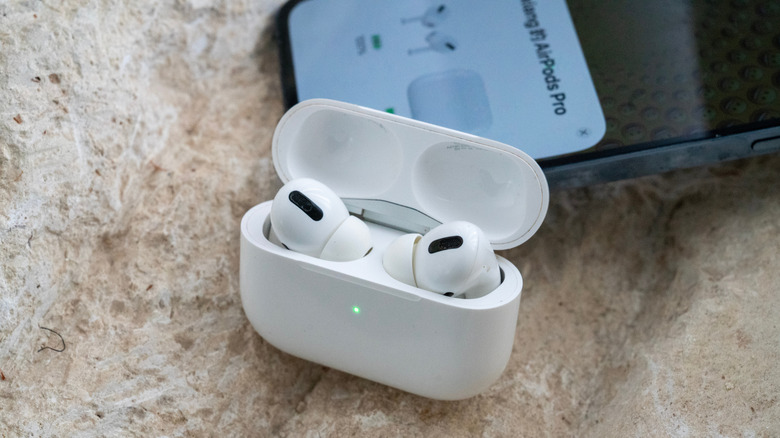
When your AirPods randomly disconnect from your iPhone, the first thing you can try is deactivating Automatic Ear Detection. Many users reported that doing so resolved the disconnection issue. This AirPods feature is enabled by default, so try turning it off to see whether it resolves the problem. Here's how to do so:
- While connected to the AirPods, open the Settings app.
- Go to [your AirPods' name] at the top.
- Under Audio, toggle off Automatic Ear Detection.
The downside of this fix, though, is that you have to manually pause and play your audio and video when you want to take off and put on your earbuds. Other settings you can try changing are Personalized Spatial Audio, Personalized Volume, and microphone. All of these are found in the AirPods settings. Set both Personalized Volume and Personalized Spatial Audio to off, then assign the microphone to either left or right instead of auto.
If all else fails, you can always reset the AirPods to factory settings. Here's how:
- Leave your AirPods inside the closed case for 30 seconds.
- Open the Settings app on your iPhone.
- Go to Bluetooth.
- Tap the i icon next to your faulty AirPods.
- Select Forget This Device.
- Press Forget Device to proceed.
- Open your charging case.
- (For the AirPods 1 to 3 and AirPods Pro 1 and 2) Hold down the back button for 15 seconds.
- (For AirPods 4 and AirPods Pro 3) Tap twice on the front of the case, wait for the LED to glow white, then tap two times again. When you see faster blinks, do a final double-tap.
The Connect prompt should now appear on your iPhone. Just follow the on-screen instructions to pair your AirPods to your mobile again.
Only one AirPod is working
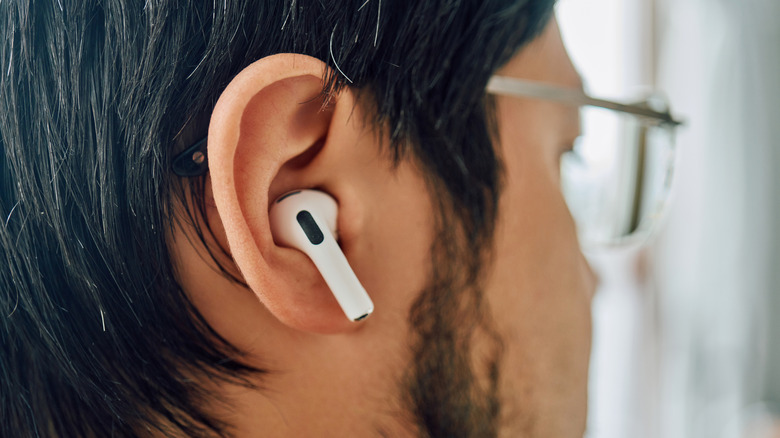
It's particularly annoying when one of your AirPods stops working out of nowhere, but there are several fixes you can try. First off, clean your earbuds and charging case. They might not be charging properly due to accumulated gunk blocking connectors. Once cleaned, proceed with these steps:
- Connect your AirPods case to a charger and let them fully charge.
- Put both earbuds inside the case.
- Leave the earbuds in for 30 or so seconds.
- Check whether both AirPods are charging by opening the case close to your iPhone. Both earbuds should show the bolt icon in the AirPods panel that appears.
- Wear the malfunctioning earbud.
- Start playing a video or song.
If you still can't hear anything from the AirPod, try performing a factory reset, then pairing your AirPods to your phone again. If this doesn't fix your AirPod problem, though, have it checked at a service center for repair or replacement. Service for one damaged AirPod is estimated to be $89 for Pro models and $69 for the base models.
The AirPods' microphone sounds muffled
If you've ever had someone mention on a call that your voice sounds muffled, it's probably your AirPods' microphone. You can usually fix this common AirPods problem by switching the microphone to either your left or right AirPod. Follow these steps:
- Connect to your AirPods.
- In the Settings app, tap your AirPods to view the settings page.
- Scroll down to Microphone.
- Set it to Always Left AirPod.
- Record a short voice memo.
- If the playback sounds good, keep the microphone on the left AirPod.
- If the playback sounds muffled, go back into the AirPods settings.
- Change the Microphone to Always Right AirPod.
- Record a voice memo again.
Another potential solution to the muffled microphone problem on your AirPods is changing the mic mode while on a call on your iPhone. Follow this guide:
- During a call, swipe down to open the Control Center.
- Go to the orange microphone controls at the very top.
- Set the mic mode to Standard, Wide Spectrum, or Voice Isolation, whichever one works in your case.
Cleaning the AirPods can also work wonders. The microphone, while small, can still be blocked by unwanted dust buildup. You can try adhesive putty, soft-bristled brush, and compressed air. Just make sure to be gentle enough not to push more dirt into the mic slot. If you tried everything and the AirPods microphone still sounds muffled, do a factory reset and repair the AirPods.