

Do All USB-C Ports Support Video?
We may receive a commission on purchases made from links.
Let's say you forgot your HDMI cable at home and needed to plug your device into a display. Suddenly, you remembered that USB-C supports video output. You can use any USB-C cable to mirror your laptop screen to a TV — right? Not necessarily. Not every USB-C port or cable supports video output. But let's back up a little bit: Why is that the case? Shouldn't they all be the same?
Because the word "universal" is thrown around a lot when talking about USB — which, after all, stands for "Universal Serial Bus" — some people mistakenly believe that all USB ports are identical. That's a common myth about USB-C ports in particular, but the "universal" in the name largely refers to the breadth of devices that work with it. The internal hardware inside USB ports determines power output, data transfer rates, and additional functionality, such as video support. Moreover, there are different types of USB-C ports, including standard USB Type-C, Thunderbolt, and USB4, all of which have separate specifications and capabilities. In fact, the 'C' in USB-C doesn't even mean anything — it's simply the next letter in the series following USB-A and USB-B.
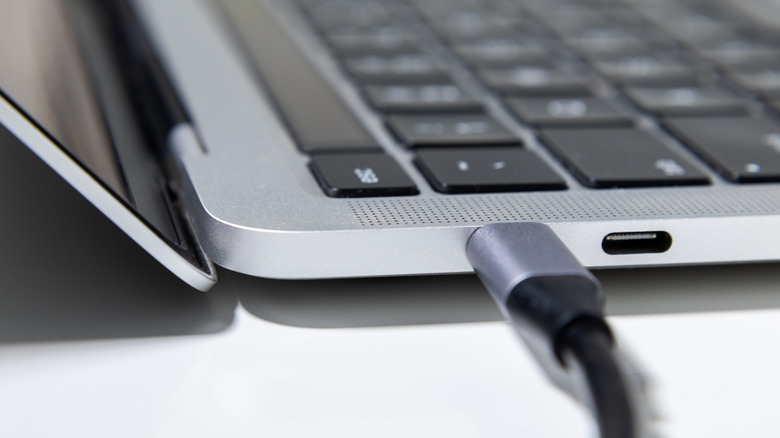
If you see a "D" symbol next to a USB port, that means it supports DisplayPort (DP) Alt Mode, which means you can use the port to pass video signals to external screens. For this purpose, you can also use a Thunderbolt 3, 4, or 5 port, all of which are represented by a lightning bolt icon. Keep in mind, however, that not all USB-C cables support video output. To make use of a USB-C DP or Thunderbolt port, you'll need a full-featured USB-C cable that supports the respective protocol, as well as an external display that can receive the signal via USB.
Are there other ways to connect USB-C to video?
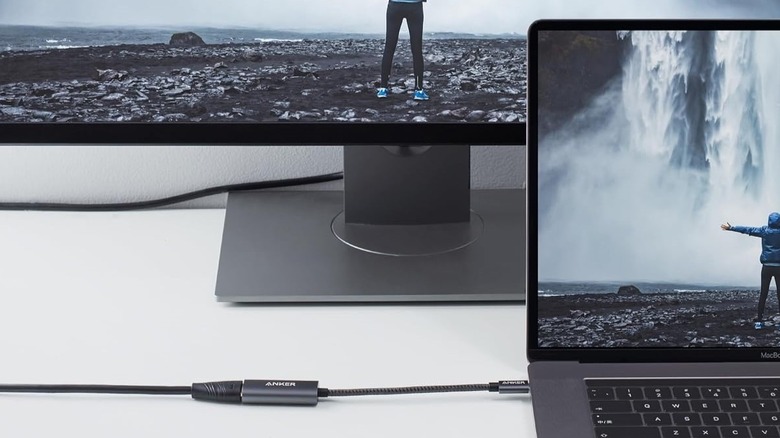
If you wanted to send a video stream from a mobile device or laptop to an external display, but you didn't have an HDMI port on your machine, you could potentially get around that using USB-C video output. However, your source device would have to support transmitting video over USB-C, and your chosen USB-C port would have to support DP Alt Mode. Your external display(s) would also need a compatible video input to receive the signal, whether it's USB-C, HDMI, or DisplayPort.
Provided those criteria are all met, you have a couple connectivity options. One is to use a USB-C to HDMI adapter, although you'd also need an HDMI cable for this method to work. With over 37,000 reviews and a 4.6-star average rating, the Anker 310 USB-C Adapter is a reliable pick for this purpose. One end plugs into a video-enabled USB-C port, and on the other end is an HDMI cable port. If you'd rather opt for a more versatile accessory, another option is using a multi-port hub, such as the Ugreen Revodok USB-C Hub, which has a 4.1-star rating following over 250 reviews.
You could also use a USB docking station, which is slightly different from a USB hub. Docks act as base units that pass signals between your devices, including video outs to external displays. USB-C docks can take an incoming USB-C video signal and route it to the devices plugged into its dedicated video ports, such as DisplayPort, VGA, HDMI, and also USB-C. You could even connect your hub to multiple external monitors for a productivity boost. The Plugable USB-C Triple Display Docking Station, for instance, does exactly as described — it can route your video signal to three separate displays. It also contains a myriad of port types to accommodate multi-display setups. If you're in the market for a dock, this list of docking stations that just work would be a good place to start.