

You Can Report Hazards On Apple Maps Without Touching Your Phone, Here's How

Apple Maps is helpful not just for navigation, but also for staying updated about current traffic conditions. Even if you're aware of which roads to avoid during rush hour, taking a quick look at the Maps app before you set off is always a smart idea. And as long as you own a solid road-trip charger and suitable phone holder, there's really no reason you can't keep the app open while you're driving. As a matter of fact, you can use hands-free Siri commands to report hazards and other types of road incidents in real time.
First, you'll need to make sure your iPhone is running iOS 14.5 or later. Once it is, there's really nothing special you have to do. With Apple Maps open, simply say something like, "Siri, I just saw an accident" or "Siri, there's a moose in the middle of the road." Let's say you're approaching a previously reported Maps incident, but the hazard has been cleared. You can also say, "Siri, the accident is gone," and the Apple assistant will log your findings.
That's all there is to it, at least in terms of hands-free prompts. Should your front passenger want to report the incident via iPhone while you're driving, there are a couple of methods to do so. We'll start with the simplest, which is reporting an incident when a Maps route is already in progress.
You can use Siri voice commands to report on-the-road incidents, but there are other reporting options, too
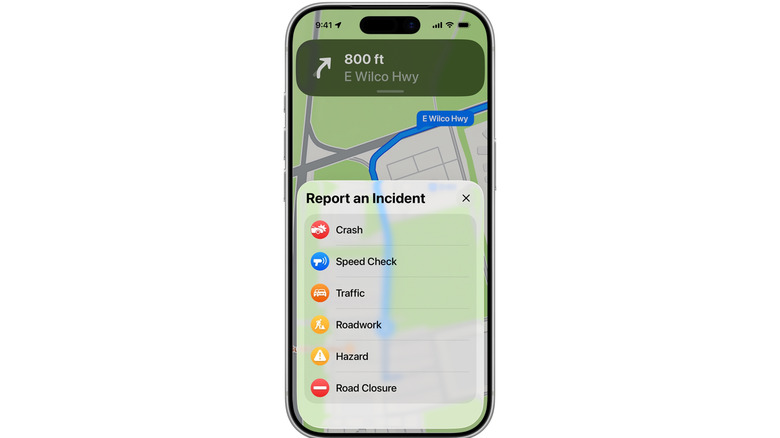
When Apple Maps is displaying turn-by-turn directions, you can report incidents by tapping the incidents icon (a message bubble with an exclamation mark in the middle). You can also pull up the incidents panel by tapping the route card, followed by Report an Incident. The only thing left to do is to choose the type of incident. If you're not actively following a Maps route, you can access the incidents panel by tapping your name or initials in the Maps app, which is next to the search field. Next, tap Reports > Report a New Issue > Report an Incident, and pick the hazard you'd like to report on. The options include crashes, traffic, roadworks, road closures, hazards, and more.
You can also update existing incidents using your screen; just tap an upcoming incident marker, then tap Cleared or Still Here. Alternatively, many of these touchscreen instructions will also work when you're using Apple CarPlay. The first-party infotainment platform is built into hundreds of vehicles, and it's primarily designed to prevent drivers from fiddling with iPhones while driving. If your vehicle doesn't have CarPlay, you may be able to add it by investing in an aftermarket device, of which there are many to pick from.
Apple Maps is always being optimized and enhanced in each iOS update. The best way to make sure your iPhone is running the most up-to-date software available. To do this, you can set up automatic updates for iOS by heading to Settings > General > Software Updates > Automatic Updates.